Clients can configure Nonprofit Hub access as Optional or Required within their program settings—Optional allows nonprofits to choose whether to engage with Nonprofit Hub features, while Required mandates that nonprofits use Nonprofit Hub (via SSO from the Bonterra Nonprofit Hub) to complete key tasks.
Note: All nonprofit registration and login now occur through the Bonterra Nonprofit Hub, along with organization profile and user management.
Image of Nonprofit Hub SSO link to FrontDoor:
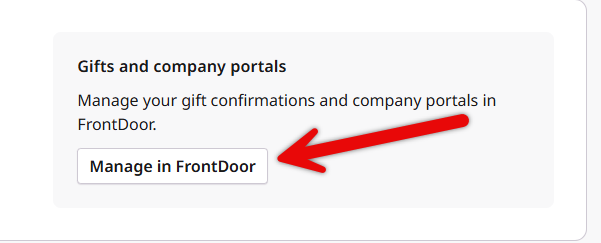
You can elect to make Nonprofit Hub access Optional or Required within your program settings. In an Optional setup, nonprofits may choose whether or not to use the Nonprofit Hub to access FrontDoor for confirmations and payment reporting. In a Required setup, nonprofits must access FrontDoor via the Nonprofit Hub to complete tasks like confirming gifts or viewing payments.
- Disabled - Nonprofit Hub logins are not allowed
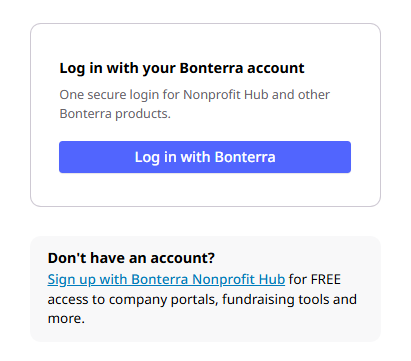
- Optional - both Nonprofit Hub and "standard" (non-Nonprofit Hub) logins are allowed
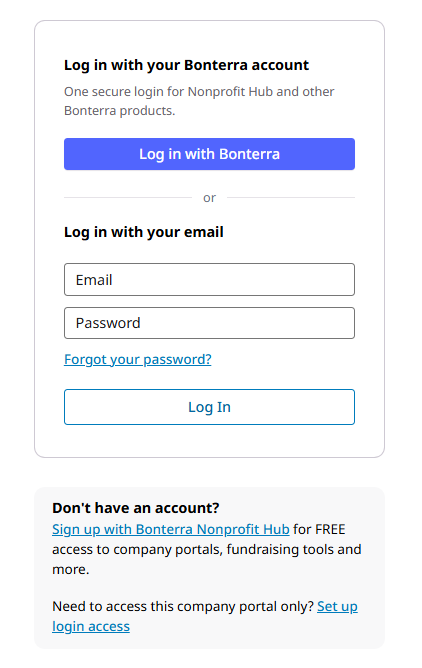
- Required - Nonprofit Hub access is mandated; non-Nonprofit Hub access is not allowed
Nonprofit Hub-enabled proposal types have a configurable login field that exists for both Nonprofit Hub-required and Nonprofit Hub-optional user access. Specific eligibility information or information on the grant cycles can be displayed – regardless of what style of login page the Nonprofit Hub-enabled program has. This field is configurable internally - for Nonprofit Hub-enabled proposal types - in the Login Instructions section of the admin tab.
- For an EE PT, config under Organization Setup/Display Settings/Login Instructions
- For a Grants PT, config under External Settings, Application Appearance, Login Instructions
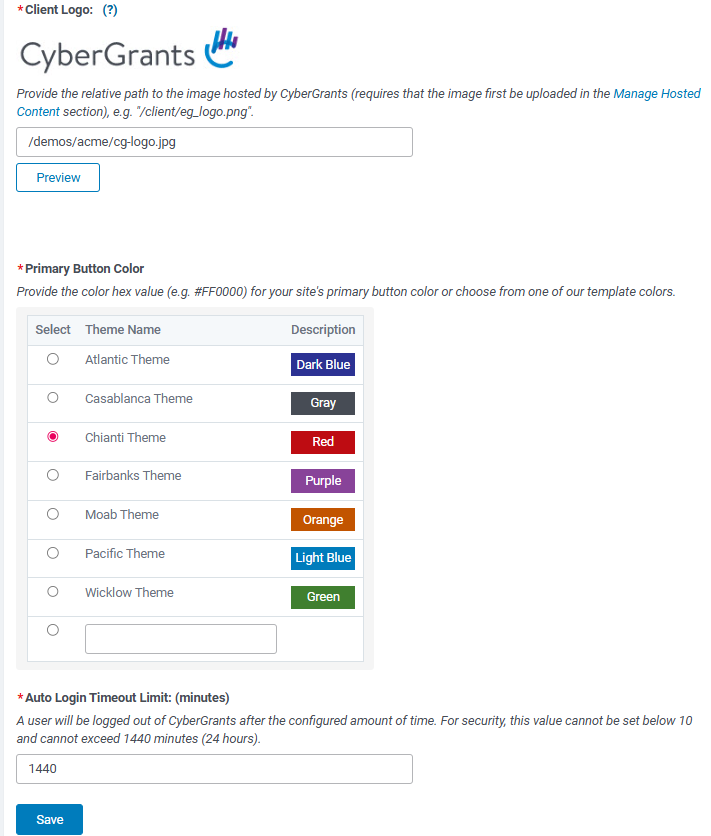
Activating the Nonprofit Hub in your eligible programs is a simple two-step process. First, specify your logo and primary button color in the “Default Website Setup” section of the Admin tab, and then visit the correct location for your program type.
- Employee Engagement Programs (CyberGrants-21362): Go to the “Program Configuration > Program Options > Nonprofit Hub Status” section of any employee engagement proposal type to make your selection.
- Grants Programs (CyberGrants-19510): Go to the “External Settings > Application Security > Nonprofit Hub Status” section of any grant proposal type to make your selection.
Modify Your Login Page
Introduce additional security and efficiency to your programs by activating Nonprofit Hub access in your eligible grants and employee engagement programs. The Default Website Section allows authorized administrators to configure the appearance of the login pages for programs offering access to the Nonprofit Hub so that it can then be activated in individual programs.
 Configuration Note
Use the Manage Hosted Content tool on your Admin tab to post a logo and grab the path to the file - e.g., "/client/eg_logo.png". Then visit the “Default Website Setup” to save the location of your logo and the primary button color for your login button. We have included some accessible color options, or you can specify your own.
Visit the Bonterra Nonprofit Hub help center to learn more.


