Table of Contents
The Funding Invoice Console offers authorized administrators real-time access to the funding and disbursement status of CGDS invoices created since May 2021. Supporting information and documentation are available on the console to streamline the timely and accurate funding of invoices before their disbursement.
Accessing the Funding Invoice Console
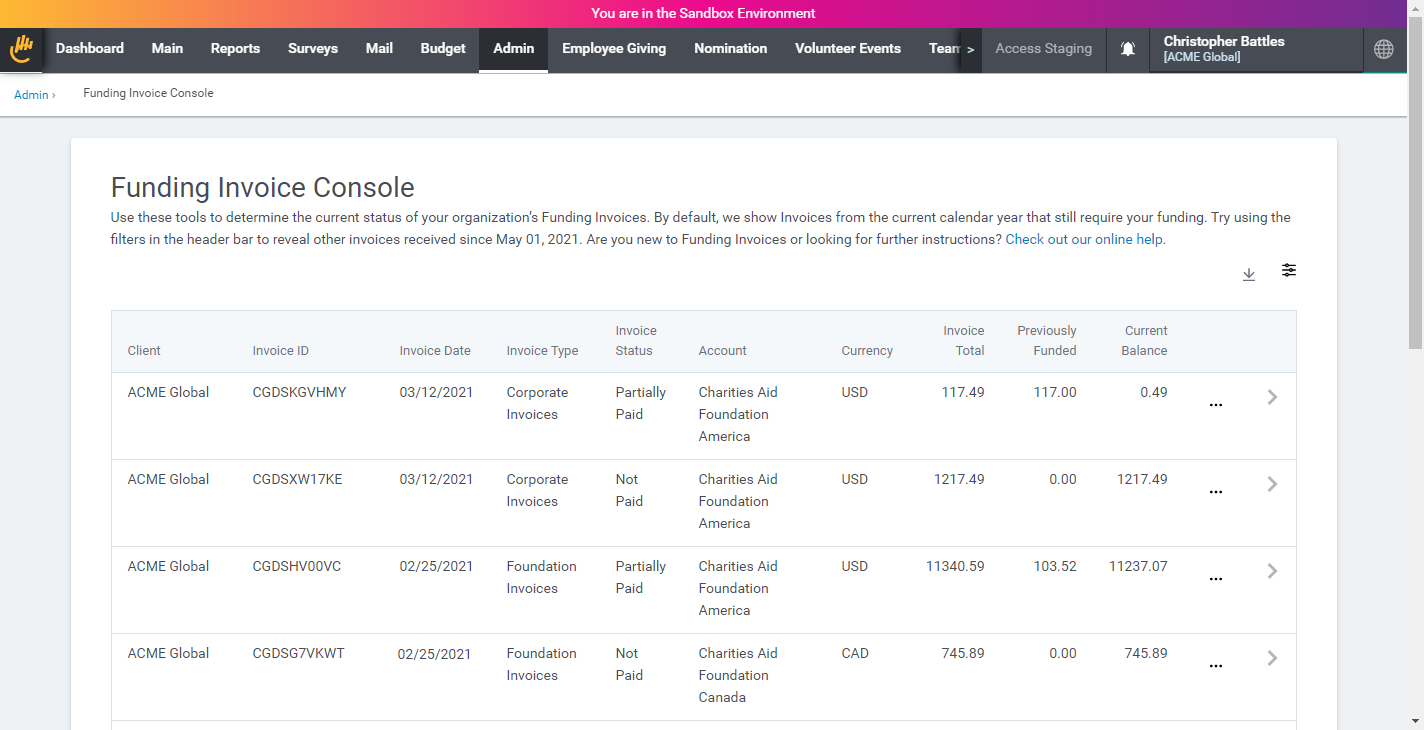
The Funding Invoice Console can be accessed by authorized administrators by clicking the Funding Invoice Console hyperlink on the CyberGrants Admin tab.
Additional users can be granted access to the console with the Ability to view Funding Invoices & Credit Memos setting that can be added to a User Role. Those with security permission to access the console can do so from the Admin tab or using a link located on the PDF version of a funding invoice.
Note: The link URL will appear as: www.cybergrants.com/payments/credits.
Learn more about user roles and privileges.
Console Invoice Topline Columns
The following is a table describing each of the columns in the topline view of the console.
|
Column Name
|
Description
|
|
Client
|
Displays your company’s name. Can be used to discern between companies if you have access to multiple grantmakers in CyberGrants.
|
|
Invoice ID
|
The unique alphanumeric identifier for a particular invoice. Make sure to include this in your funding deposit to ensure prompt crediting of your account.
|
|
Invoice Date
|
The date an invoice is available to the client.
|
|
Invoice Type
|
Displays the client configured Funding Invoice Type. Can be used to discern between different types of invoices in the account
|
|
Funding Status
|
Displays the real-time status for a particular invoice.
- Not Paid - the client has not funded any portion of the invoice
- Partially Paid - the client has funded some portion of the invoice but still has a balance owed.
- Credit card funds for eligible programs are applied by CyberGrants/Bonterra. Once applied, the invoice status will update from Not Paid to Partially Paid, indicating that credit card funding has been successfully processed. The balance in the Funding Console will only reflect funds required by the client.
- Pending Disbursement - the client has funded the entire invoice and CyberGrants has yet to disburse
- Partially Disbursed - CyberGrants has started to disburse the invoice
- Fully Disbursed - CyberGrants has completed the disbursement of the invoice
|
|
Account
|
Displays the name of the bank account where the deposit is to be made. Options include "Charities Aid Foundation America", "Charities Aid Foundation Canada", "CyberGrants SPV, LLC"
|
|
Currency
|
Displays the currency of the bank account where the deposit is to be made.
|
|
Invoice Total
|
Displays the full amount owed by the client for the disbursement. This includes employee payroll gifts, company matches, fee coverage (processing & merchant), applicable credit memos, and grant payments.
|
|
Previously Funded
|
Displays the amount deposited by the client and recognized by CyberGrants for this particular invoice.
|
|
Current Balance
|
Displays the Invoice Total minus Previous Funding. This amount must be zero for disbursement to begin.
|
Console Filtering
The Funding Invoice Console defaults its display to show invoices that currently require some degree of funding - full or partial. Click the filter button ( ) in the top right corner to include different statuses or restrict them to particular Invoice Types or timeframes.
Export Funding Invoices to CSV
Take summaries of your invoices offline by exporting them to CSV files. Once you have your filters set, click the CSV download button ( ) in the top right corner to create an export of the topline columns and current results.
Exploring the Invoice Submenu
Each invoice has a submenu that reveals additional information and documentation. Click the menu button ( ) to explore the options. Note that options may vary depending upon the type of activity (employee giving vs grants) and funding status (unfunded vs fully funded.)
Funding Instructions
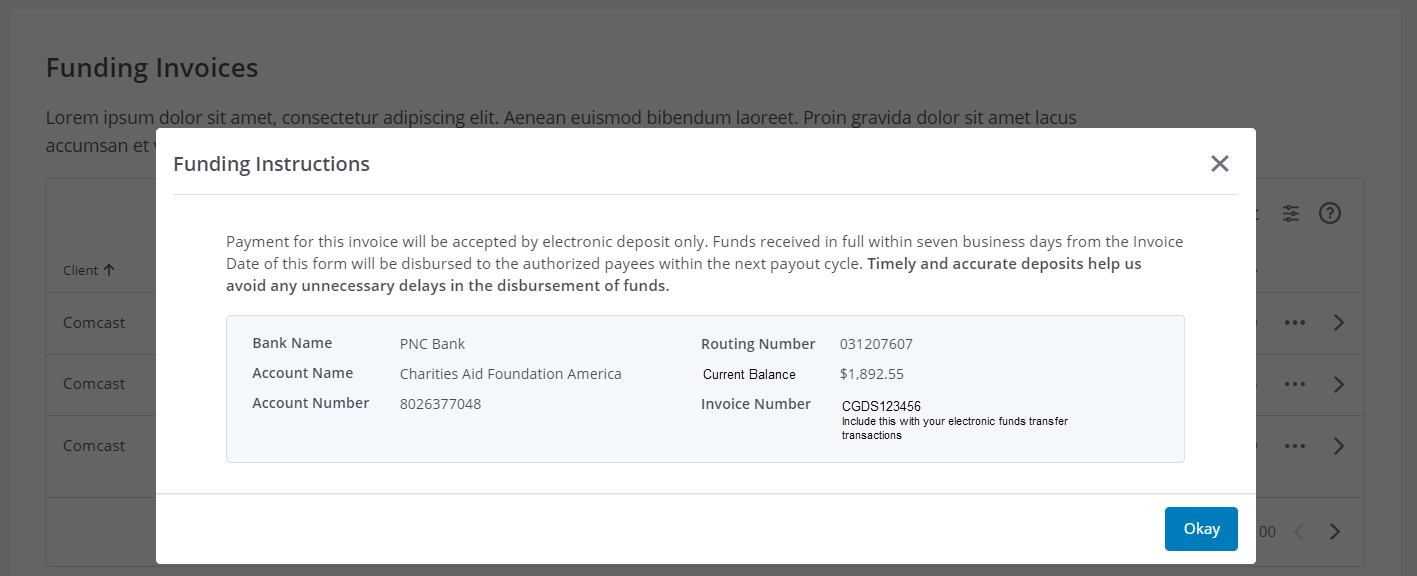
Clear Funding Instructions are available for each invoice by clicking the “Funding Instructions” link. The link is available while the invoice has an outstanding balance and is removed once it has been fully funded.
Invoice PDFs
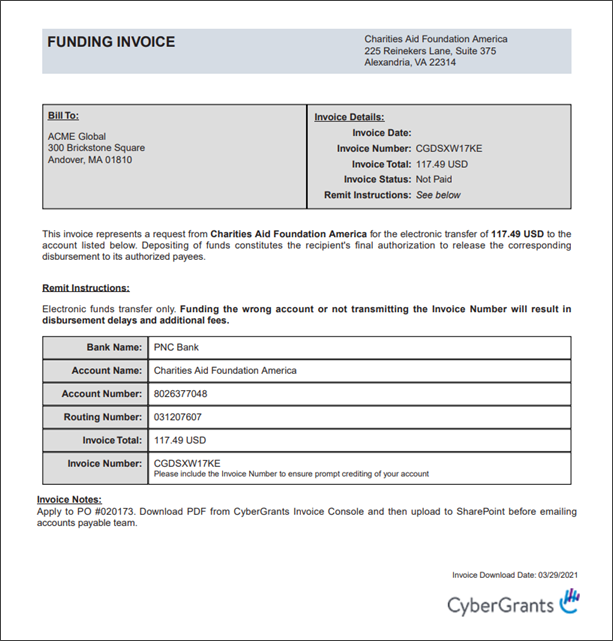
A PDF document for each invoice is available by clicking the “Download PDF Invoice” link. The document reflects the current status of the invoice and includes instructions that must be followed for its funding. An additional breakdown of the invoice’s activity by proposal type is included at the end of the document. Some content for the invoice - including the billing name and address - can be configured from the Funding Invoice Types screen.
Download Payments to CSV
A full reconciliation of the payments for a given invoice - including applicable fees and coverage, payee names, and payment methods - is available by clicking “Download Payments to CSV”. All payment and fee columns are displayed using the effective currency of the bank account.
|
Column Name
|
Description
|
|
Invoice Info
|
|
Invoice ID
|
The unique alphanumeric identifier for a particular invoice.
|
|
Invoice Total
|
Displays the full amount owed by the client for the disbursement. This includes employee payroll gifts, company matches, fee coverage (processing & merchant), credits, and grant payments. Calculated as Invoice Total = “Payment Total Gross” + “Processing Fees Covered” + ”Merchant Fees Covered” - ”Funding Credits” - “Merchant Credits”
|
|
Payment Total Gross
|
Total amount to be paid to authorized payees BEFORE applicable payment fees and coverage.
|
|
Payment Total Net
|
Total amount to be paid to authorized payees AFTER payment fees have been deducted and coverage added.
|
|
Processing Fees
|
CGDS processing fees that were deducted from the gift, match, or grant payment.
|
|
Merchant Fees
|
Credit card fees that were deducted from the gift (where appropriate)
|
|
Processing Fees Covered
|
CGDS processing fees the client has opted to cover on behalf of authorized payees.
|
|
Merchant Fees Covered
|
Credit card processing fees the client has opted to cover on behalf of authorized payees.
|
|
Funding Credits
|
Previously funded reissues, redirected gifts, etc. that are deducted from the "Payment Total Gross". This should NOT be paid by the client.
|
|
Merchant Credits
|
Funds transferred by CyberGrants to fulfill credit card gifts. This should NOT be paid by the client.
|
|
Organization Info
|
|
Organization Legal Name
|
|
|
Organization ID
|
|
|
Request Info
|
|
Request ID
|
|
|
Request Disposition
|
|
|
Request Proposal Type
|
|
|
Request Project Title
|
|
|
Request Final Disposition Date
|
|
|
Payee Info
|
|
Payee ID
|
|
|
Payee Name
|
|
|
Payee Address
|
|
|
Payee City
|
|
|
Payee State ID
|
|
|
Payee Province
|
|
|
Payee ZIP/Postal
|
|
|
Payee Country ID
|
|
|
Payment Info
|
|
Payment ID
|
|
|
Payment Status
|
|
|
Payment Type
|
|
|
Payment Date
|
|
|
Payment Number
|
|
|
Payment Currency
|
Corresponds to the CGDS bank account making the disbursement
|
Download Gifts to CSV
A full reconciliation of the employee giving gifts and matches for a given invoice - including applicable fees and coverage, organization, gift, and donor details - are available by clicking “Download Gifts to CSV”.
|
Column Name
|
Description
|
|
Invoice Info
|
|
Invoice ID
|
|
|
Invoice Total
|
Displays the full amount owed by the client for the disbursement.
This includes employee payroll gifts, company matches, fee coverage (processing and merchant), applicable credit memos, and grant payments.
|
|
Gift/Match Amount Gross
|
Total amount to be paid to authorized payees BEFORE applicable gift/match fees and coverage.
|
|
Gift/Match Amount Net
|
Total amount to be paid to authorized payees AFTER gift/match fees have been deducted and coverage added.
|
|
Gift/Match Processing Fees
|
CGDS processing fees are deducted from the gift, match, or grant payment.
|
|
Gift/Match Processing Fees Covered
|
CGDS processing fees the client has opted to cover on behalf of authorized payees.
|
|
Merchant Fees
|
Credit card fees are deducted from the gift (where appropriate)
|
|
Merchant Fees Covered
|
Credit card processing fees the client has opted to cover on behalf of authorized payees.
|
|
Funding Credits
|
Previously funded reissues, redirected gifts, etc. are deducted from the "Payment Total Gross". This should NOT be paid by the client.
|
|
Merchant Credits
|
Funds transferred by CyberGrants to fulfill credit card gifts. This should NOT be paid by the client.
|
|
Organization Info
|
|
Organization Legal Name
|
|
|
Organization ID
|
|
|
Request Info
|
|
Request ID
|
|
|
Request Disposition
|
|
|
Payment Info
|
|
Payment ID
|
|
|
Payment Status
|
|
|
Payment Status
|
|
|
Payment Date
|
|
|
Payment Number
|
|
|
Payment Currency
|
Corresponds to the CGDS bank account making the disbursement
|
|
Gift Info
|
|
Gift ID
|
|
|
Gift Disposition
|
|
|
Gift Proposal Type
|
|
|
Gift Date / Volunteer Start Date
|
|
|
Donor Info
|
|
Donor ID
|
|
|
Donor First Name
|
|
|
Donor Last Name
|
|
|
Donor Company
| |
|
Employee Type
| |
Proposal Type Console Drawers
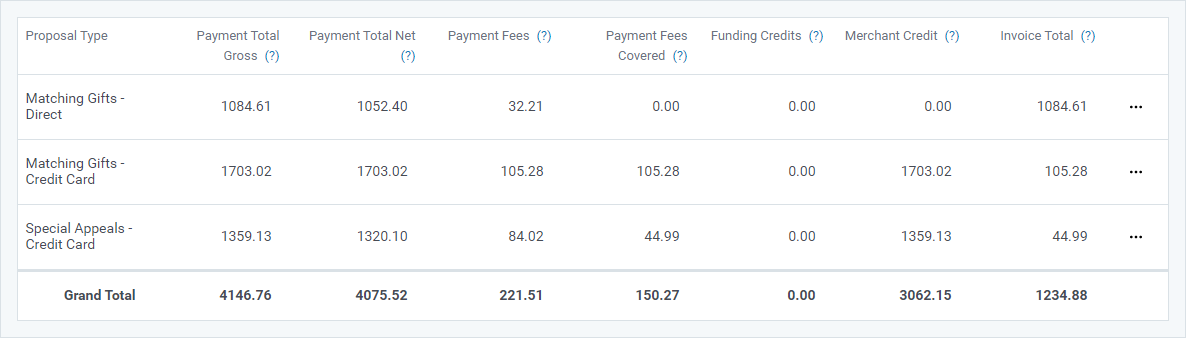
Click the arrow button ( ) on each invoice to reveal a breakdown of its activity by proposal type. The payment and gift details for a particular proposal type can be accessed by the sub-menu () for each row.
Proposal Type Console Drawer Columns
The following is a table describing each of the columns in the drawer view of the console.
|
Column Name
|
Description
|
|
Proposal Type
|
|
|
Payment Total Gross
|
Total amount to be paid to authorized payees BEFORE applicable payment fees and coverage.
|
|
Payment Total Net
|
Total amount to be paid to authorized payees AFTER payment fees have been deducted and coverage added.
|
|
Payment Fees
|
Total amount deducted for processing and merchant fees.
|
|
Payment Fees Covered
|
Processing and/or merchant fees the client has opted to cover on behalf of authorized payees.
|
|
Funding Credits
|
Previously funded reissues, redirected gifts, credit memos, etc. are deducted from the "Payment Total Gross". This should not be paid by the client.
|
|
Merchant Credits
|
Funds transferred by CyberGrants to fulfill credit card gifts. This should NOT be paid by the client.
|
|
Invoice Total
|
Calculated as "Payment Total Gross" + "Payment Fees Covered" - "Funding Credits" - "Merchant Credits". This amount SHOULD be paid by the client.
|
Back to Funding and Invoicing
Back to Homepage


