The use of shifts in events can make your events run more smoothly by organizing employees into shifts that ensure the right number of volunteers show up at the right time. This is an overview of the feature behavior.
Once an event has been set to One Time Event with dates and times, the Enable Shifts button will appear:
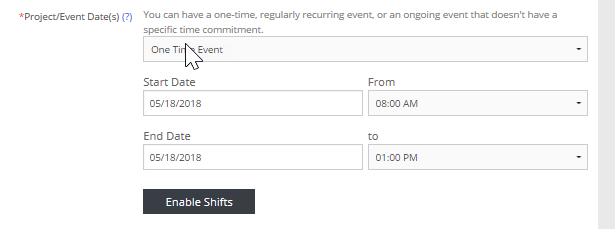
This feature allows you to create shifts for One-Time events. Typically One-Time events have a start and end date that are the same. The Shifts feature works best this way; however, you can create One-Time events that span over multiple days and have a shift created for each day. Please note that when signing up, the start/end dates will not pre-populate for the employee as they will need to enter them; however, they do have the ability upon sign up to choose which (if only one or two or all) shifts they want to enroll in. From there, they will see a sign-up record for each, but it will have the full event start/end date on the Volunteer Tracker. It does not present each shift date again, as the logic is that One-Times do not span multiple days.
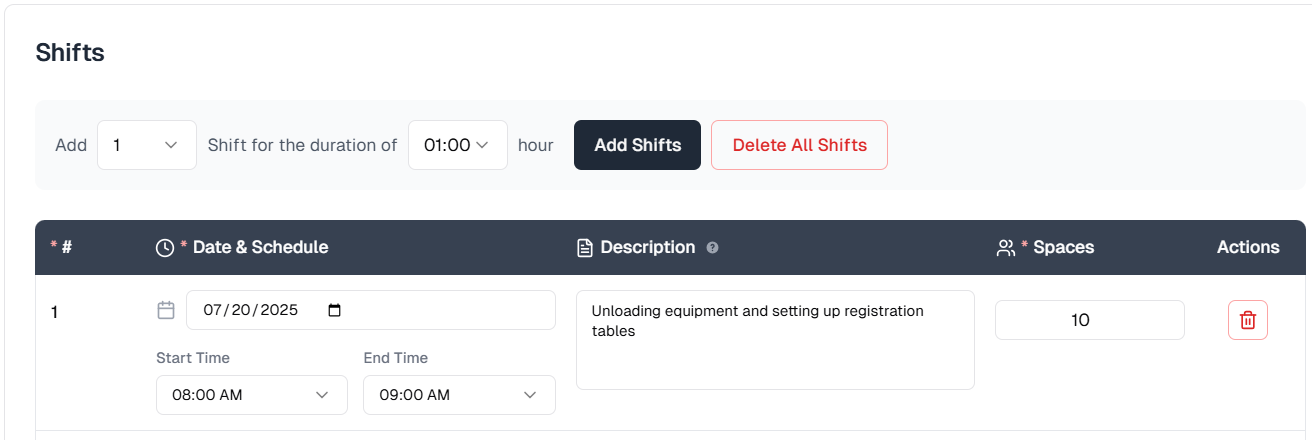
During signup, volunteers will also see any shift descriptions entered by the event creator, helping clarify the responsibilities or activities associated with each shift.
NOTE: In the case where the total number of shift capacity is less than the maximum event volunteers, people are waitlisted based on the shift capacity. So if you have two shifts with a total capacity of 15, and an event with a maximum of 30, volunteers 16-30 will be waitlisted.
Important
Enabling shifts for an event changes the way signups occur. If you would like to disable Shifts after adding them, you can do so if there have been no signups. Once there are signups for this event, you will not be allowed to change the event type (to recurring or ongoing), enable or disable shifts, or delete specific shifts for that event until the existing signup records are deleted (not just canceled) from the roster.
Once shifts have been enabled for an event, you can add up to 100 shifts for the event within the start and end times. You can choose to Add Shifts one at a time or multiple shifts of varying durations.
Shifts can be created to meet a variety of program needs. You can create shifts with:
- Distinct start/end times & durations within an event (within a calendar day)
- Varying available spaces
- Overlapping times
- Gap in times (e.g., 9-12 PM, 1-2 PM)
The individual Dates, Start and End Times, Available Spaces, and Description for each shift can be adjusted as needed. After an event has been created, just like other event details, shift information can be edited from the Edit Opportunity screen to provide additional context for volunteers.

For clients who create or edit events from the Internal Administration Portal, similar functionality is available for creating, editing, or viewing a Volunteer Event record.
Configuration Notes
Duration of Shifts:
By default, most clients have times configured with 30-minute increments (e.g., 11:00 AM, 11:30 AM, etc.). Therefore, the default duration is 30-minute shifts. If you would like to increase your start and end time granularity to 15 minutes, contact your client management team. CyberGrants will adjust your time configuration to allow for event fields to allow for 15-minute start and end times (e.g., 11:00 AM, 11:15 AM, 11:30 AM, etc.).
If your organization will be frequently creating shifts in increments of 15 minutes, and you are logging employee hours, we recommend that you also change your Hours Volunteered field type to “hour and quarter-hour”, as hours will be recorded per shift.
Available Spaces and Maximum Number of Volunteers:
Available Spaces will be required if your event requires a Maximum Number of Volunteers field to be completed. In addition, CyberGrants will auto-calculate the Maximum Number of Volunteers for the event based on the information you provide in the individual shifts.
If the Maximum Number of Volunteers event field is optional, the Available Spaces shift field will also be optional. The Maximum Number of Volunteers field will still be accessible in the event form. We recommend that if your Maximum Number of Volunteers is optional and an event contains shifts that you do not fill in this field. If used, it will restrict the number of unique enrollments for that event.
Looking for training?
Explore this feature at your own pace - access training video content or watch a recorded webinar by clicking the link below.


