If the schedule is modified for a volunteer event that is open for registration, it may be necessary to edit the event and/or shift start and end dates when employees are already registered. This article will explain how existing registrations are impacted by event schedule modifications and how to inform employees of the change.
Update event or shift start and end dates
The first step in the rescheduling workflow is to update the event or shift’s start and end dates.
- Event managers, admins, or employees with the appropriate permissions may modify event start and end dates and/or shift start and end dates for one time, recurring, or ongoing events.
- If there are existing registrations, the editing user will be notified that their modifications to the event may impact registrations.
When a prospective volunteer’s registration matches the start and end date of the event’s original start and end date, the employee’s registration will be moved to the new start and end date when the event is saved.
Example of registrations that WILL be automatically moved when the event date is updated:
- One time Event (single day event or recurring instance):
- Event Start Date - Event End Date: Aug 5 - Aug 5 → Aug 7 - Aug 7
- Registration Start Date - End Date: Aug 5 - Aug 5 → Aug 7 - Aug 7
- Multi Day Event
- Event Start Date - Event End Date: Aug 5 - Aug 7 → Aug 8 - Aug 10
- Registration Start Date - End Date: Aug 5 - Aug 7 → Aug 8 - Aug 10
- Event with shifts:
- Event Start Date - Event End Date: Aug 5-7 with daily shifts for Aug 5, 6 and 7 → Aug 8-10 with daily shifts for Aug 8, 9, 10
- Registration Start Date - End Date for each shift: Aug 5→ Aug 8, Aug 6 → Aug 9, Aug 7 → Aug 10
- Ongoing event
- Event Start Date - Event End Date: Aug 1-31 → Sept 1-30
- Registration Start Date - End Date: Aug 1-31 → Sept 1-30
If the event’s start and end dates do not match the existing registration’s start and end dates, the registration will not be moved.
Example of registrations that WILL NOT be automatically moved when the event date is updated:
- Ongoing event
- Event Start Date - Event End Date: Aug 1-31 → Sept 1-30
- Registration Start Date - End Date: Aug 10 - Aug 10
- Multi Day Event
- Event Start Date - Event End Date: Aug 5 - Aug 7 → Aug 8 - Aug 10
- Registration Start Date - End Date: Aug 5 - Aug 5 (no shifts)
In this case, event managers, admins, or employees with the appropriate permissions must manually update or cancel registrations that were not automatically moved. They can do this by editing the event roster.
Best practice considerations
Editing events vs. cancelling and creating a new event
Before rescheduling an event with existing registrations, it is best practice to first review the registrations. If the majority of the registrations for a particular event will not be automatically moved according to the logic above, or if you do not want the registrations to be moved in that way, consider cancelling the existing registrations and event. It may be more efficient to create a new event instead of editing the existing schedule.
Email Notifications to registrants
If you choose to proceed with editing the event, it is strongly recommended to send a notification email to the prospective volunteers. After the event is successfully updated, the event editor can choose to send an email notifying registrants of the change. No automatic notification emails will be sent.
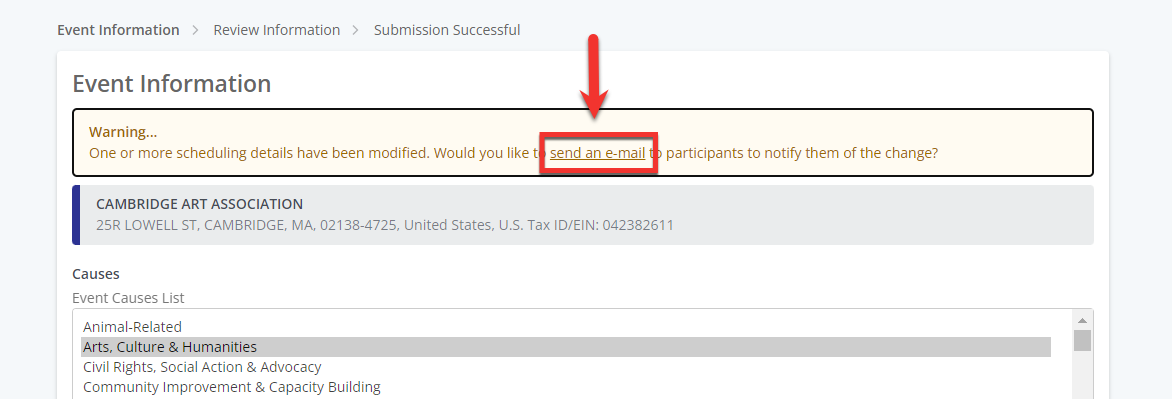
The email language will be automatically populated and allows for manual edits.
- This email will include an updated ICS file, allowing registrants to update their calendar invitation.
- For events that include shifts, the shift date and time associated with each registration will be reflected.
- Admin users can download the ICS file for the event as well as a roster to email registrants with the updated calendar invitation.
Note: The notification email, if sent, will be sent to all event registrants, not only those whose registration was automatically updated.
Looking for training?
Explore this feature at your own pace - access training video content or watch a recorded webinar by clicking the link below.


