An Impact Report is used to obtain an update from the nonprofit organization regarding the progress or results of the project that the Grantmaker funded or to gather observations by a GrantMaker user to evaluate the outcomes of a funded project.
Create an Impact Report
To create an impact report:
- Under the Admin tab, Application Configuration section, click the Impact Reports hyperlink.
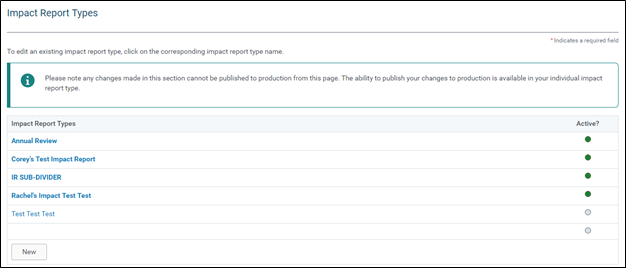
- Click on the “New” button to access a new Impact Report
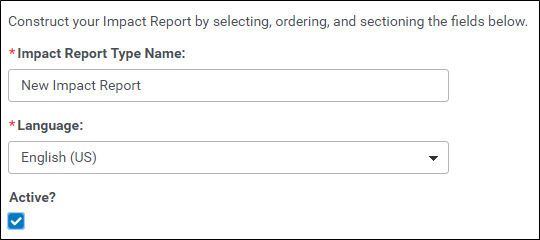
- Enter an impact report type name and select the language for the impact report.
- Check the “Active” checkbox to activate the impact report.
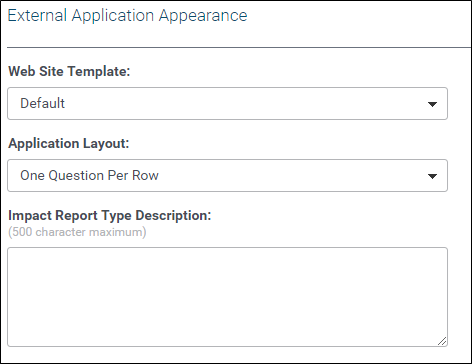
- Select the Web Site Template if the impact report type is to be completed by online applicant
- Select the Application Layout of the questions in the impact report.
- Enter an Impact Report Type Description.
- Determine the GrantSeeker Impact Report Sharing level:
- “High” allows the online applicant to edit only the impact reports associated with the grants they created.
- “Medium” allows the online applicant to edit the impact reports associated with the grants they created and to view the impact reports associated with the grants created by other online applicants with the nonprofit organization if there are any.
- “Low” allows the online applicant to edit and view all impact reports associated with the grants created by all online applicants with the nonprofit organization, regardless of the applicant.
Click on the “Save” button on the bottom of the screen to proceed. The Impact Report Sections display beneath the information saved.
Impact Report Sections
A Contact, Organization, Request, and Impact Report section are created by default. An Administrator can use any or all of the sections or add a new section to configure an online impact report.
The process to configure an Impact Report section is identical to that of creating a Proposal Type with one exception: The default Request section and any added request sections of an Impact Report are read-only to ensure the information submitted in the original application is retained.
To add questions:
- Click the “Edit” button in the “Edit Section” column of the appropriate Section Type.
- Enter the name of the section in the “Section Title” field.
- Enter “Section Introduction Text” that will appear to the Grantseeker.
- Move fields from the “Available” box to the “Selected Questions” box.
- Click on the “Save Section” button.
- Click “Done” to return to the “Impact Report Types” Screen.
NOTE: The Internal Proposal Sections are populated at the same time.
Once all sections are complete, click the “Save” button at the bottom of the screen.
Click the “Done” button to return to the 'Impact Report Types' Screen. The new Impact Report type will appear in the “Impact Reports Types” List.
Submitting an Impact Report as an Internal Administrator
When an impact report is assigned to be completed by an Internal Administrator, they can access the impact report from within the request record. The internal view provides distinct “Save” and “Submit” actions:
- “Save” stores field values without submitting the impact report. The report is not marked as completed, and no submission date is assigned.
- “Submit” finalizes the impact report and marks it as completed. The “Submit” button is only active on or after the impact report's availability date; submission before that date is not permitted.
If the availability date has not yet been reached, the “Submit” button will display the availability date (e.g., "Submit After MM/DD/YYYY") and will remain inactive until that date.
This behavior applies to the internal administrator view only. The external grantseeker submission flow is not affected.


