Tabular reports are the most basic ad hoc report format in Bonterra CyberGrants. They display data in a columnar layout, ordered by the first column in the report.
Because they are quick to generate and simple to interpret, tabular reports are the default format when creating an ad hoc report. Tabular reports can also be exported in multiple formats, including ASCII, CSV, MS Excel, HTML, and PDF.
The following steps will guide you through creating and running a tabular report.
Step 1: Go to the Reports tab
While logged into CyberGrants, navigate to the Reports tab.
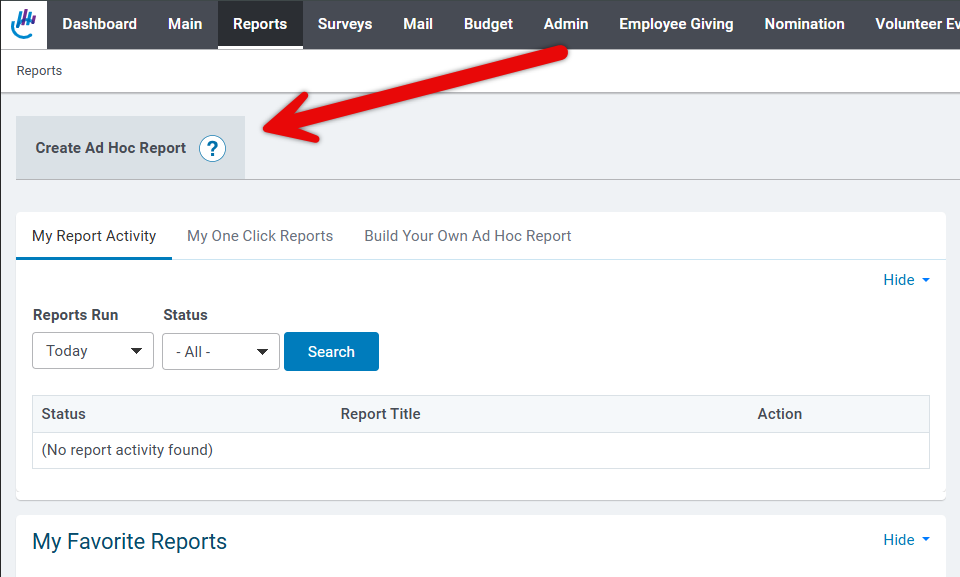
Step 2: Create an ad hoc report
From the Reports tab, click Create Ad Hoc Report. This opens the report builder.
Step 3: Select a report topic category
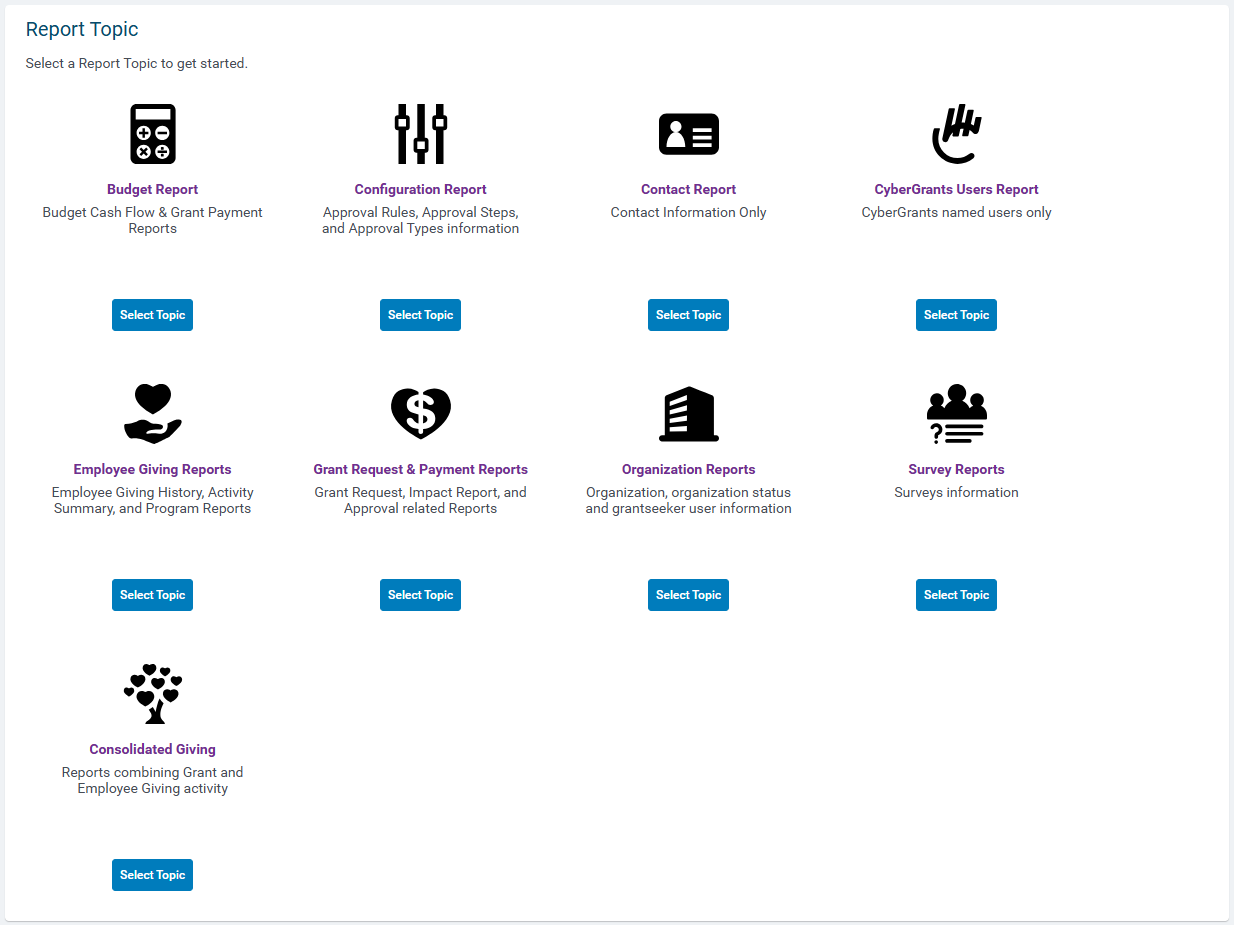
Select the Report Topic category and choose the specific report topic you want to use as the foundation for your report.
Step 4: Apply filters and field values
Click Add Filters to select the filters and field values you want to include.
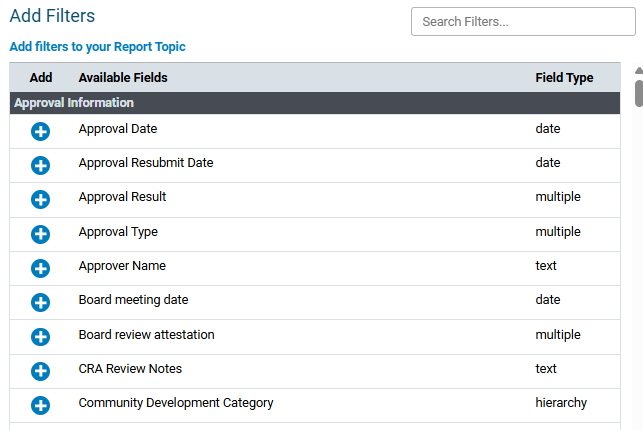
When finished, click Save and Proceed. A preview of your results will display in tabular format.
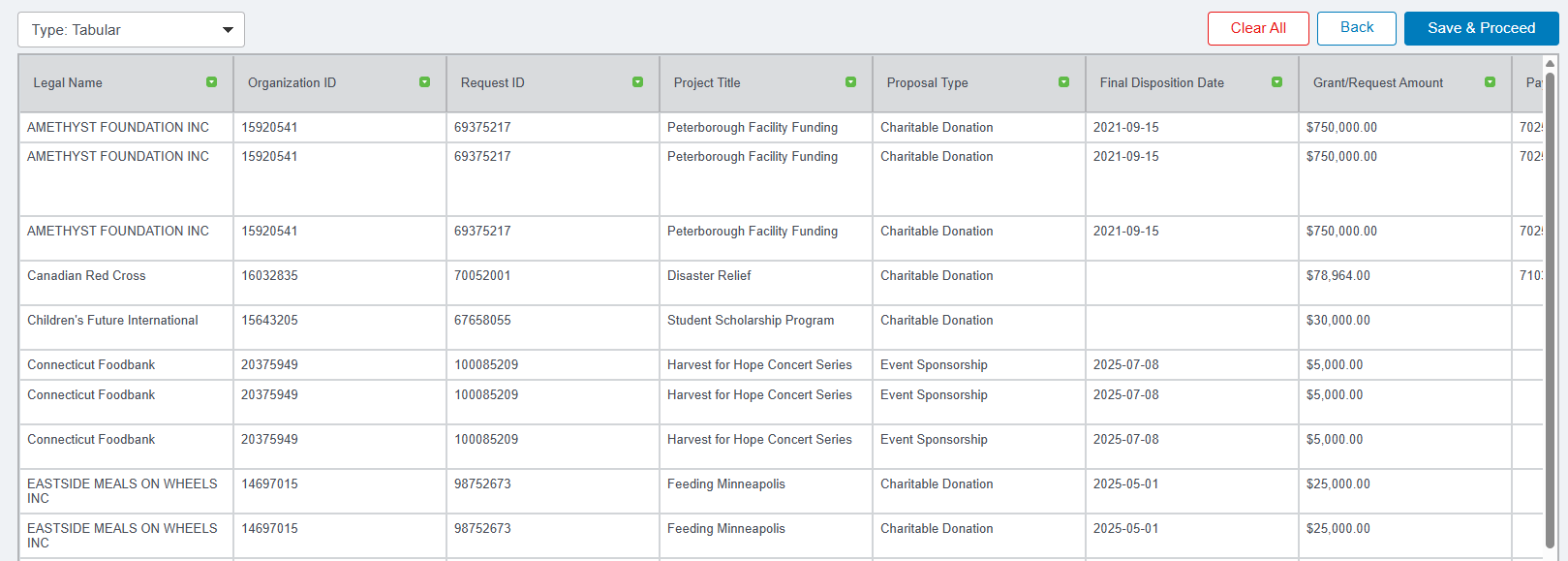
Step 5: Select report fields
Determine which fields to include in your report:
- The most commonly used standard fields for the topic will display by default.
- To add a field, enter a keyword in the Search Report Fields box.
- To narrow results to recommended fields, click Recommended. These fields are identified with a green dot.
You can also organize your report fields:
- Drag and drop fields into the desired order.
- Use the green arrow next to each field to move it left, right, or remove it from the report.
- There are various Functions available, as well, such as Count, Link to Record, and, for some multi-value fields, administrators can use the Concatenate option, which allows for all values in a specific field to display in a single column as a comma-separated list instead of appearing across multiple rows.
When your field selection is complete, click Save and Proceed.
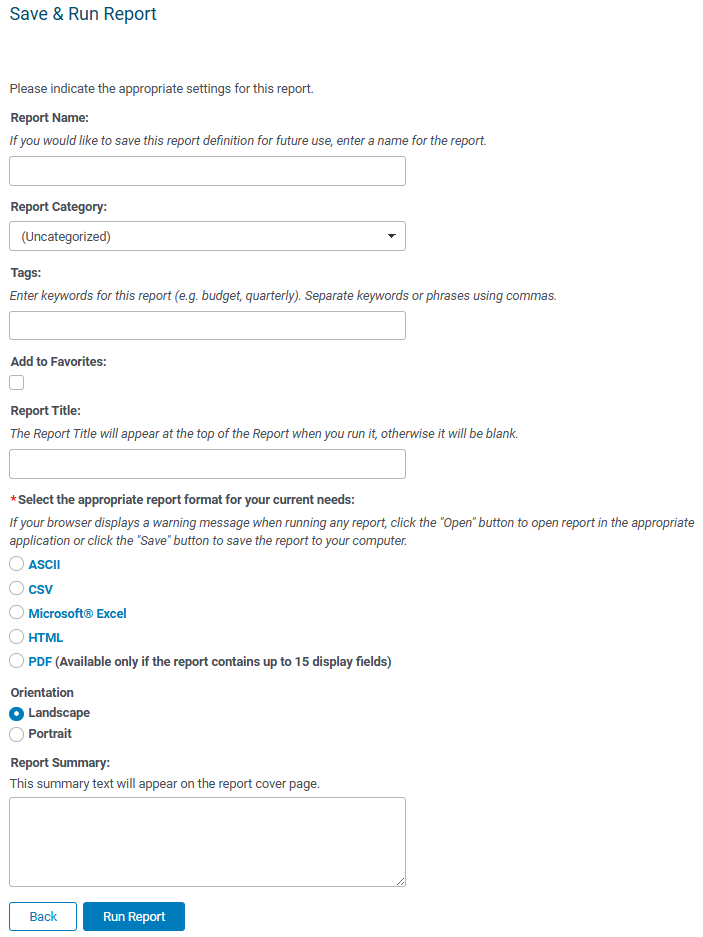
Step 6: Save and run the report
Click Save & Run Report to finalize your setup. The report will be queued for processing. Once complete, click Open the Report to view results.