Each Grantmaker can pre-qualify a nonprofit organization based on the Grantmaker’s established criteria by creating an eligibility quiz.
Quiz Questions
To build an eligibility quiz, you need to create the questions you want in your quiz.
| Field | Description |
| Question Title | Name of question. This will display externally. |
| Question | Question being asked. This will display externally |
| Question Type | Will determine what type of answer will be displayed. This will display externally. |
| Active | Determines is the question will appear. |
| Action | Will allow you to edit the answer values. |
Click the “Edit Quiz Questions” under the Application Configuration menu to create your fields.
You can use question titles, which will be similar to headers above the actual questions. Create your questions and select the question type from the drop-down menu. Mark your questions as active if you plan to use them. Save when you are finished.
Note: We suggest that you number your questions during configuration so you can easily pick them when creating your quiz. You can remove the numbering once you are finished.
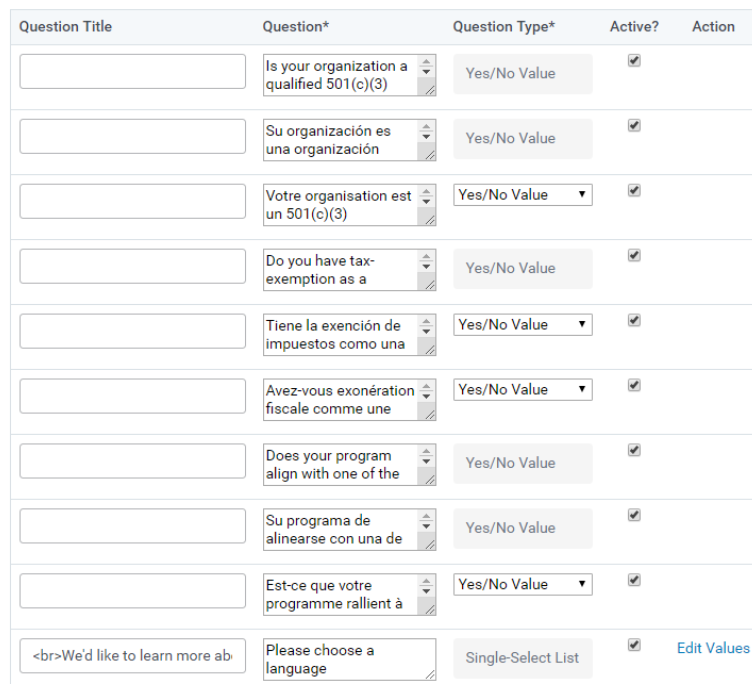
You can choose from four different question types:
- Yes/No
- Multi-Select List
- Single-Select List
- Checkbox List
NOTE: if you use Multi-select fields, the system will not be able to determine true ineligibility.
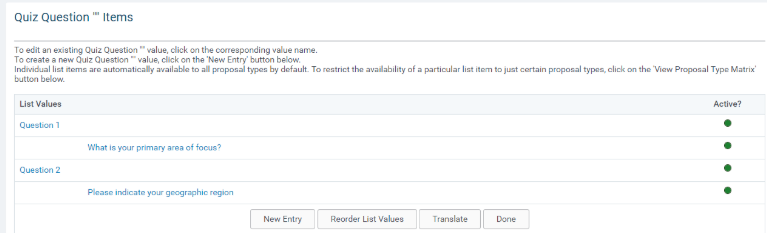
Quiz Question List Values
If you create list value questions, you must define the list values accordingly. Click the “Edit Values” link on the right to configure:
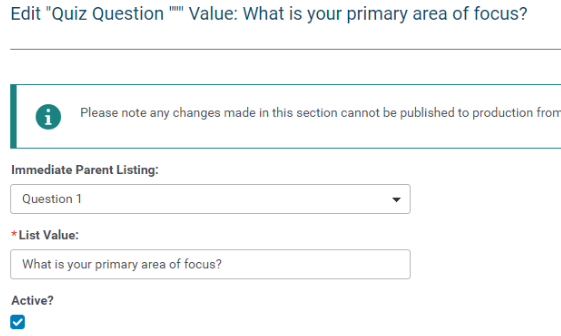
Create each list value, then save each one. Once you have created all your list values, you can reorder as needed. Click the "Reorder List Values."
To delete a quiz question that you will no longer use, click the “Delete” link next to the question. You will not be able to remove quiz questions that are associated with quizzes.
Create/Edit Eligibility Quizzes
Typically, an Implementation Consultant sets up the eligibility quiz during the implementation.
Click the “Eligibility Quiz” link beneath Application Configuration.
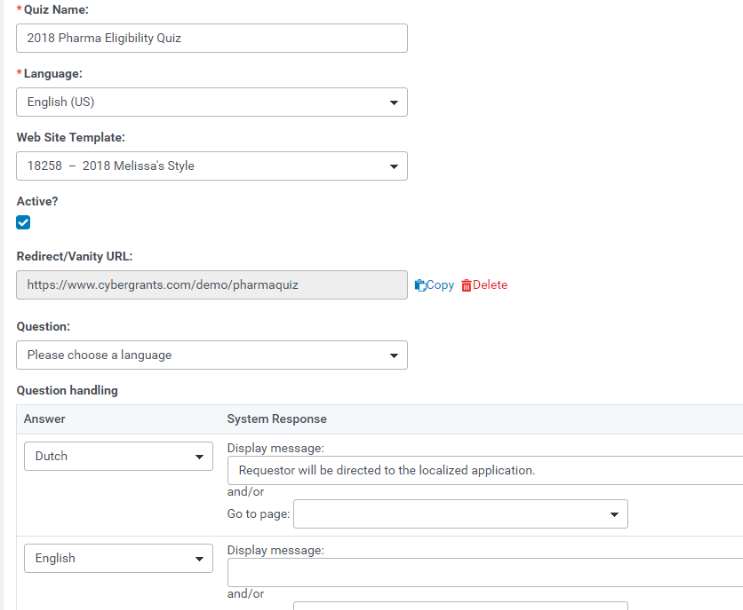
To create questions and direct the applicant to the next question or a URL based upon the applicant’s response:
- Choose a question.
- Select routing for every correct and incorrect answer. Each correct answer presents the applicant with another question or if it is the final question, a URL to the Apply Online Log In screen. An incorrect answer redirects the applicant to a web page on the website (usually the web page that defines eligibility requirements) or just text.
- Click the “Save” button.
Once the question saves, the form displays another entry to add another question.
NOTE: Questions appear in the order entered and numbered accordingly.
To delete a question:
- Erase the question, text or URLs.
- Click the “Save” button. The question will be deleted, and subsequent questions are renumbered.


