Administrators can combine two organization records from within the Admin tab. To use the Organization Combination feature, an Administrator must know both of the Organization IDs. This should be done in the Production environment unless you are only testing.
Check out the video below to learn more!
To combine two organizations:
- Under the Admin tab, Organization Management section, click the Combine Two Organizations hyperlink. The Organization Combination form appears.
- In the Organization Combination fields, populate the Organization ID to Delete and Organization ID to Keep fields with the IDs that correspond to each.
- Click the Combine Organizations button. A review page displays.
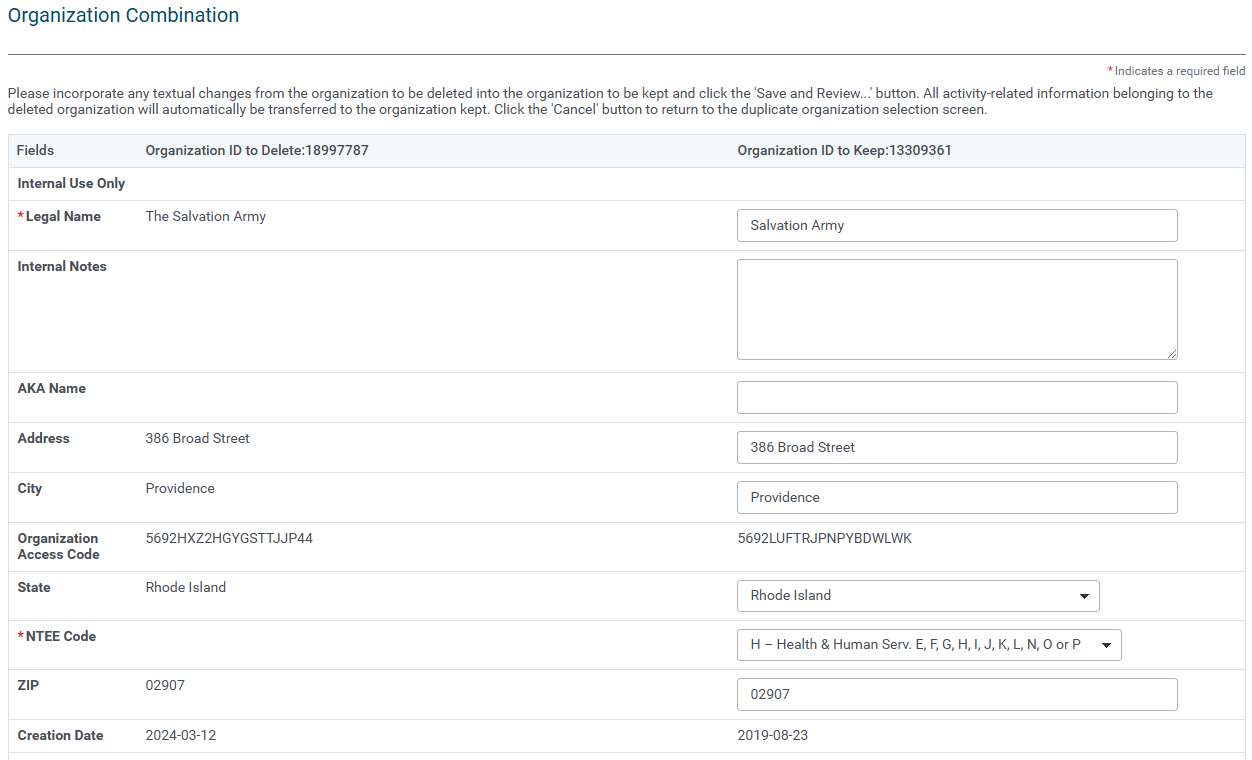
- Complete the fields as necessary.
- Click the Save and Review button.
- Click the Combine Organizations button to confirm. A confirmation message displays. The deletion and merge in the database will occur through batch processing in the evening during off-peak hours.
- Note: Once an administrator confirms the change, the duplicate organization record is permanently deleted from the database, and associated contacts, requests, grantseekers, payments, and approval information is transferred to the new organization.
Administrators who queued the merge will receive an email the following day listing all the organization record(s) queued for deletion and the organization records that were retained.
Note: Once an Administrator confirms the combination, the Administrator cannot remove the transaction from the “holding table”.
Payee Deactivation
All active payees from a prior/source organization will be deactivated and not transferred over to the new organization. Previously, all active payees were copied over as active.


