Portlets
Reports portal pages are comprised of portlets. Portlets are web components that process requests and generate and display content. Different portlets display and process different information. There are standard portlets that are available on reports portal pages.
Configuration Note: Portlet names can vary from client accounts. Portlet names can be configured.
Portlet Show/Hide Feature
To hide the portlet – click on Hide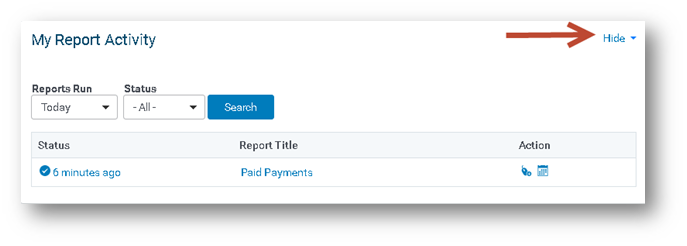
To show the portlet, click on Show
My Report Activity Portlet
Overview:
Users can search for their recent report activity within the past 30 days. This feature allows the user to review, run, and schedule reports. Users may apply a filter to the report activity by the report status.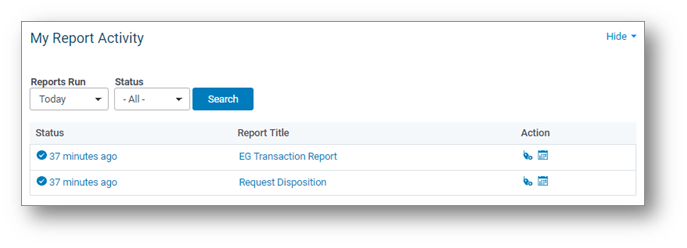
Report Run Activity:
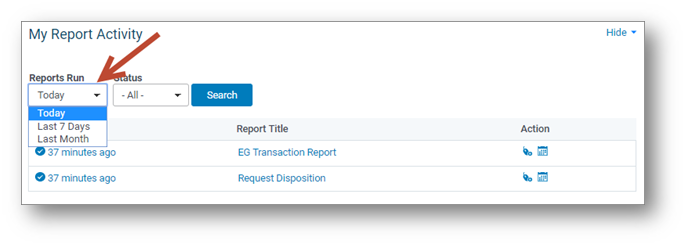
Select a time period from the Reports Run drop-down list. The available report activity time periods include:
-
Today – Display reports run today
-
Last 7 Days – Display reports run in the past 7 days
-
Last Month – Display reports run in the past 30 days
Report Status
You can filter your report activity by selecting a Report Status.
The default Status value is All. Select one of the following to limit the list of report activity:
-
All – Display all reports for the activity period selected
-
Canceled – Display all reports that were canceled for the period selected
-
Completed – Display all reports that completed for the period selected
-
Failed – Display all reports that failed to run for the period selected
-
Queued – Display all reports that are in queue, but have not run yet, for the period selected
-
Running – Display all reports that are currently running for the period selected
Search for Reports:
Once you have determined the time period and the report status, click on the search button to see reports that meet the criteria selected.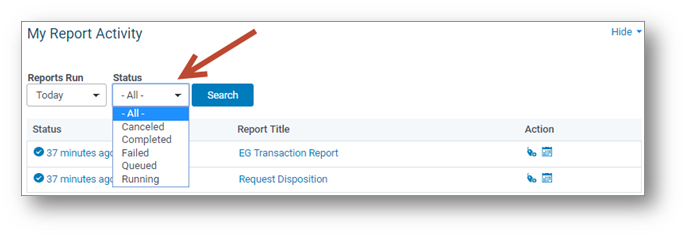
Report Listing Columns
Status - The current disposition of the report. Statuses available: Canceled, Completed, Failed, Queued, Running
- To identify a report still processing, the status will display ‘Running’, you are not able to view a report until it has completed processing.
- To view the output of a report, select the link ‘Completed’ in the status column for the report.
- To schedule a report to run, select ‘Schedule’ icon to have reports run at defined intervals and be distributed to selected users.
Report Title - click on the report name to run the report. The user will be prompted to select report filters and report layout prior to running the report.
Action Column :
- Mouse Icon – allows for one click report creation
- Calendar icon – allows for scheduling a report
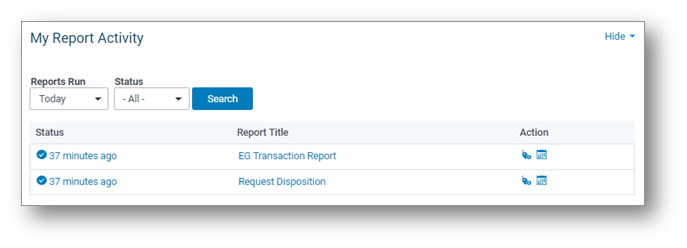
If you hover over the name of the report, the report id will display on the left corner of the browser.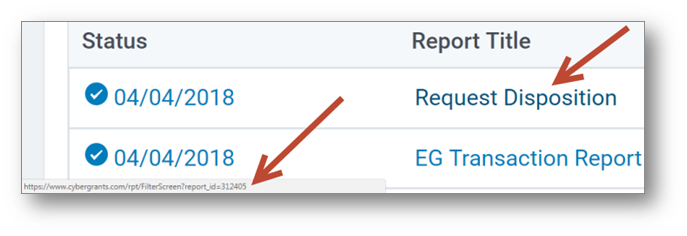
If you hover over the status column in the report, the report queue id it will display in the left corner of the browser. Important: If you are having difficulties with the report and or report results, it is helpful to provide the report id and report queue id to your Client Manager. This will will help them troubleshoot the issue more quickly.
My Ad Hoc Reports Portlet
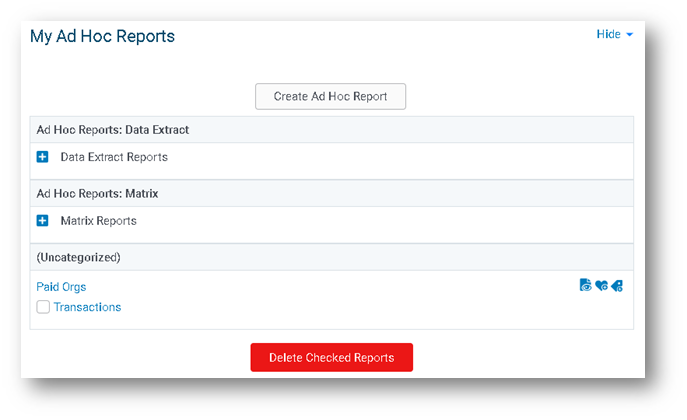
This portlet displays the users saved Ad Hoc Reports. The Create Ad Hoc Report button also displays at the top of this portlet.
Report Library Portlet
The report library portlet displays all Standard, Ad Hoc, and Custom Reports that a user has access to. All catergorized and uncategorized reports displays in this portlet.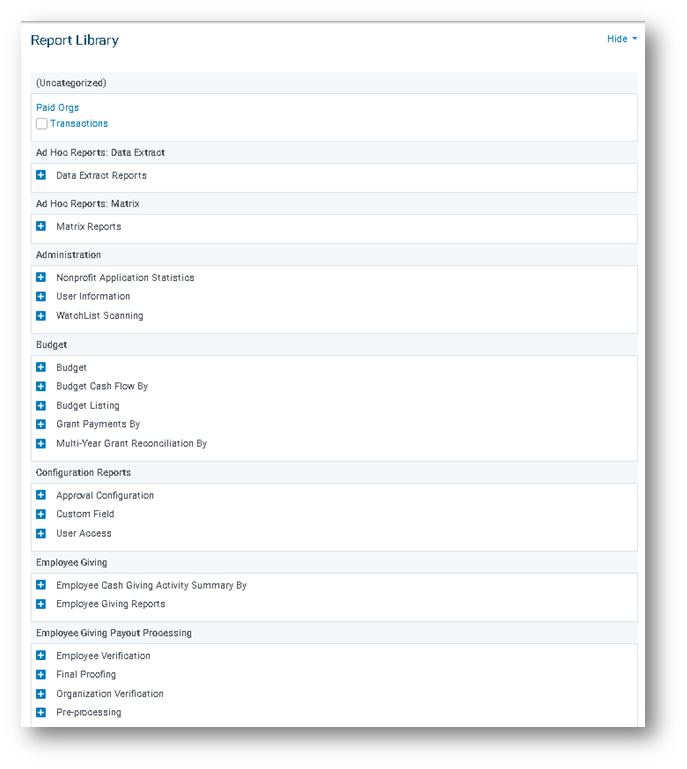
My Favorite Reports Portlet
This portlet will display the user’s reports that have been added as favorites.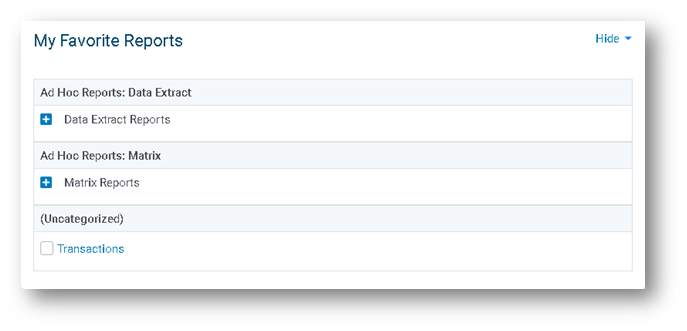
My One Click Reports
This portlet will display reports that the user has added as a one click report.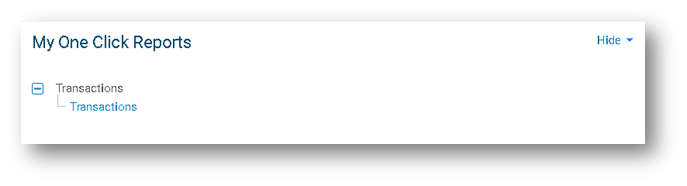
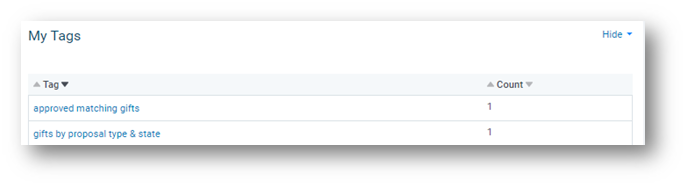
My Tags Portlet
This portlet will display allow the user to search for tagged reports. Select the name to search for reports with the tag.
My Scheduled Reports Portlet
If the user has scheduled reports, then this portlet will display the scheduled reports. If the user does not have any scheduled reports, then the portlet will not display. This portlet displays the report title, status of the report, the last run date, and the next run date. If the user owns this report, the user will be allowed to edit the report schedule and inactivate the schedule.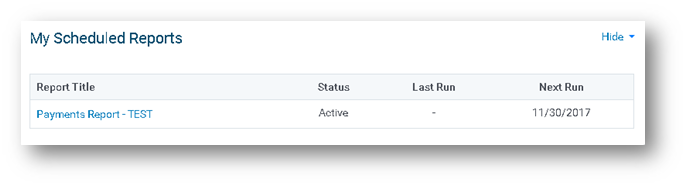
This portlet will allow the user to change the scheduled report, if the user owns the report. To change the scheduled report, click on the name of the report.
Administrative Features Portlet
Overview:
This portlet allows for administrative users to configure reports topics, report fields and report categories.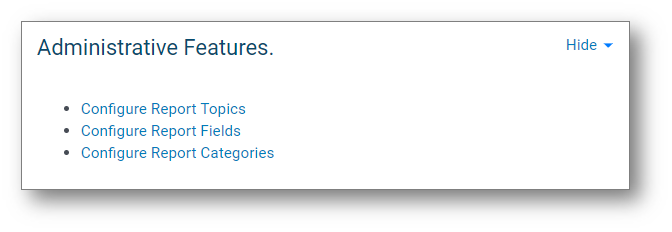
Report Topics:
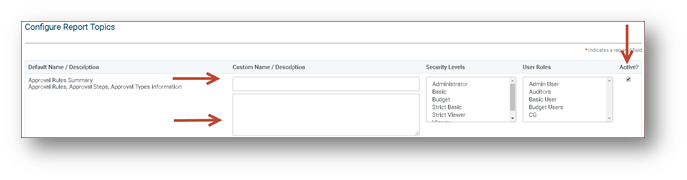
- Display custom names and description for topics
- Limit visibility of reports topics using security level and user roles – highlight the security level and/or user role. (Hold down the Ctrl key to select more than one value.)
- Make topics inactive and active
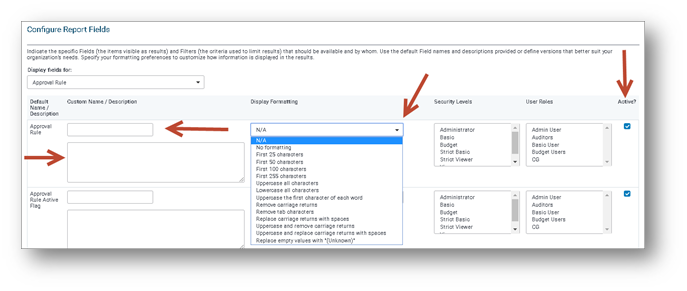
Report Fields:
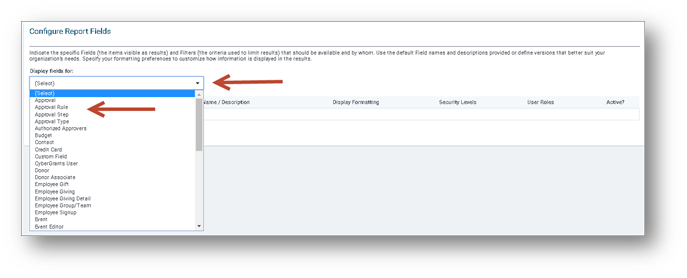
- Display custom names and description for fields
- Configure formatting for fields
- Limit visibility of reports fields using security level and user roles. Highlight the security level and/or user role. (Hold down the Ctrl key to select more than one value.)
- Make fields inactive and active
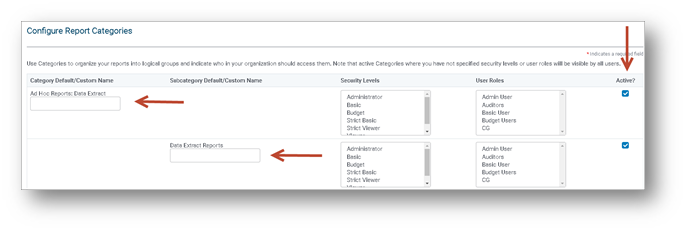
Report Categories:
- Display custom categories and subcategories names
- Limit visibility of reports fields using security level and user roles - highlight the security level and/or user role (hold down the Ctrl key to select more than one value)
- Make categories/subcategories inactive and active
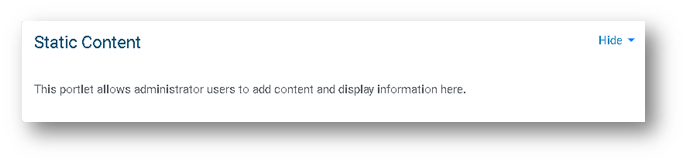
Static Content Portlet
This portlet allows administrative users to add content and display information in this portlet. This portlet is intended for informational purposes.