Scan Configuration
To assist a GrantMaker with Patriot Act (PA) compliance, CyberGrants maintains licenses with Bridger Insight, a vendor of Windows based and web-based WatchList scanning software. Each GrantMaker chooses whether or not to perform due diligence on their grant applicants using this functionality. The “Scan Configuration” link displays beneath the “Account Setup” menu.
IMPORTANT: Scan configuration does NOT bi-replicate between the Production and Sandbox environments. In order to use watchlist scanning on your Production transactions, you must configure Scan settings in Production. However, if CyberGrants owns the bank account for your account, we are obligated to scan all transactions against set scores and these settings cannot be changed.
NOTE: CyberGrants does not provide Patriot Act Compliance. The Scan function exists as a guide to assist GrantMakers in such an effort.
The following steps describe the general process that occurs when a scan is performed:
- Information is gathered from specified text and user-defined fields from the organization and/or request records
- A request is posted for scanning to the Bridger Insight website
- Results are returned from Bridger Insight
- The results from Bridger Insight are displayed within the CyberGrants organization or request record
- An icon indicating if matches were found or not found is displayed in CyberGrants organization or request record
When a match is found, the results from Bridger Insight include:
- The WatchList from which matched was obtained
- A percentage score that reflects the closeness of the match (100 being the closest)
- name of the person or organization that matched a name on the WatchList
- Details regarding the individual or organization that matched a name on the WatchList
NOTE: The algorithms that determine the closeness of a match are proprietary and belong to Bridger Insight.
Configurable Option
From within the “Scan Configuration” link, an Administrator can enable the Watchlist Scan by doing the following steps:
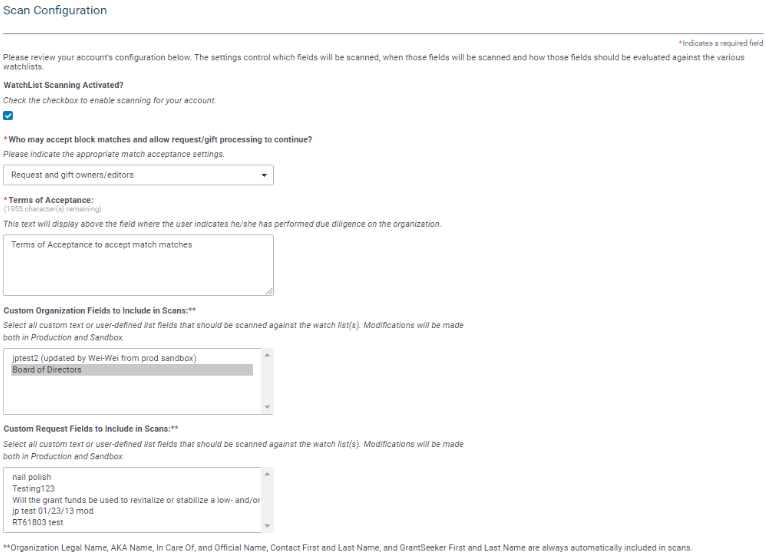
Activate the Scan Configuration.
Select who can review/accept block matches and allow request/gift processing to continue (Administrators or Request Owners only.)
Write the “Terms of Acceptance” in a textbox that displays to the reviewer or accepter.
Select the GrantMaker’s data fields within the organization and request records from which to gather information for scanning. Only text and user-defined field types are available for selection.
Select the system events that trigger a scan.
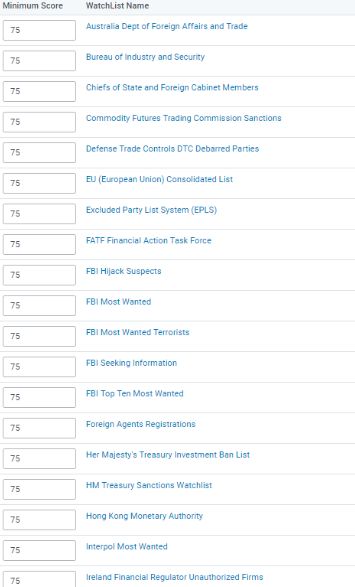
Standard SCAN Behavior
Although the SCAN function is highly configurable, some options and behaviors are standard across all GrantMakers:
The data from the following standard fields are included in a scan:
- Organization Legal Name
- Organization AKA Name
- Organization In Care Of
- Organization Official Name
- Contact (full name of all contacts associated with the organization)
- Grantseeker full name
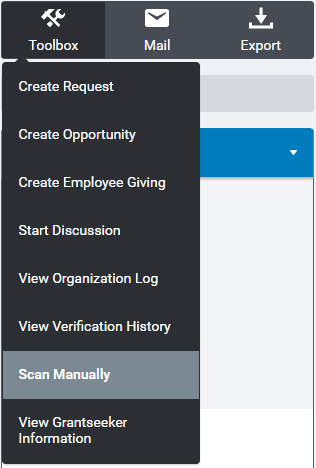
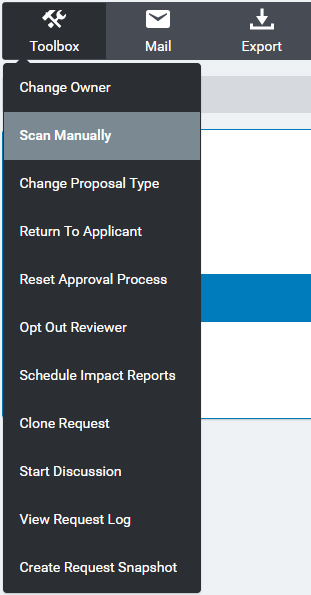
Scan Manually
There is a “Scan Manually” link to manually initiate a scan available from within the Organization Toolbox and the Request Toolbox.
A “scanning in progress” icon appears in the organization or request summary when a scan is initiated.

NOTE: A user cannot approve a request while a scan is in progress. If attempting to do this, the system displays a message that the approval can’t be recorded until the scan is completed. Also, a user cannot approve a request until the match results are reviewed/accepted.
When a scan completes, an icon appears on the screen to notify the user of the results. A “Red Flag” icon denotes a match; a “Scan Completed” denotes no match.


