Gift Batching Overview
Gift batching is a crucial step in the payout workflow that allows program administrators to group transactions into a single batch for payment execution.
Gift batching consolidates multiple transactions for processing, making it easier to track, approve, and distribute funds. The process involves selecting eligible transactions, creating a batch with specific parameters, and then processing the payments or allocations.
Check out this video to learn more!
You can create batches for two main types of transactions:
- Payout Transactions - Employee funds that are ready for batch processing.
- Matching Applications - Company match funds that have been approved and are ready for batch processing.
Creating a Gift Batch
Step 1: Access Gift Batching
Navigate to the Admin tab and scroll down to Gift Batching. Choose either Matching Application Batch (for programs that payout company match funds only) or Payout Batch (for programs that payout employee funds only).
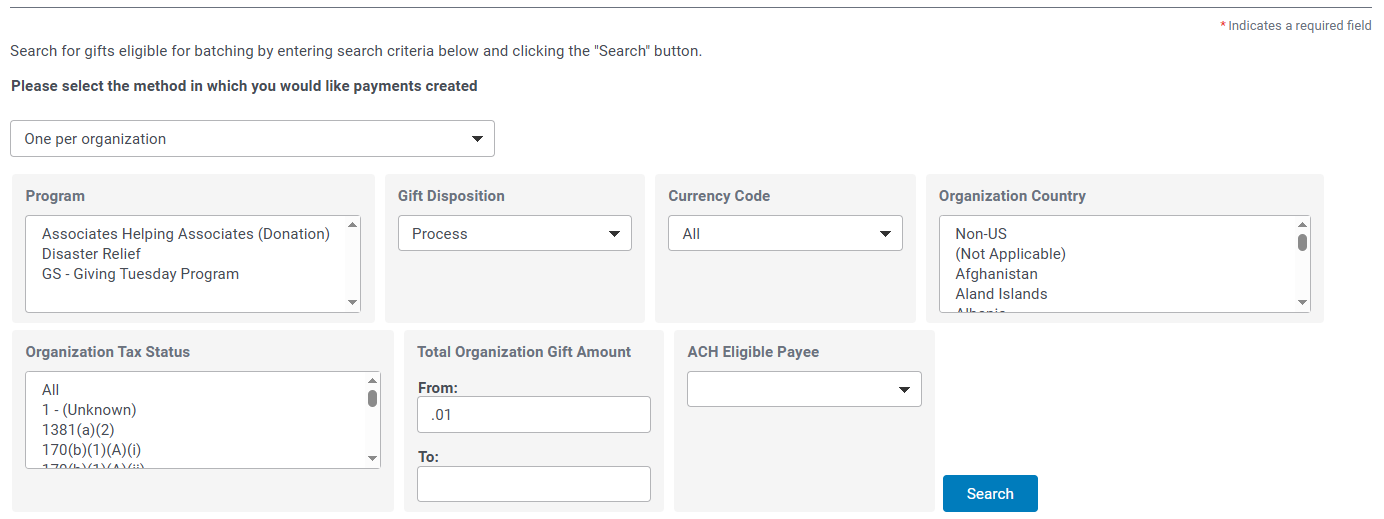
Step 2: Identify a Method for Creating Payments
Choose the appropriate method for creating payments:
- One per Organization
- One per Organization/donor combo
- One per Parent Organization
Step 3: Search for Transactions
Select the proposal types the gifts should be batched into, and either Approved or Process for the Disposition. Press the ‘Search’ button when finished.
Step 4: Schedule for Payment
Schedule the payment for a future date or leave the field as is for the payment to occur on the present date.
Step 5: Choose a Payment Type
Choose a Payment Type from the list to determine how funding should be disbursed.
Step 6: Select All Transactions
Scroll down and click the Select All button at the bottom of the page after reviewing each payment record in the list.
Step 7: Batch Gifts
Click the Batch Gifts button. Upon submission, you will receive a notification advising that either you successfully batched your gifts or that your batch is queued to run overnight.
Depending on the number of gifts you are batching, the process to batch could take overnight, so you will either get a message that says you successfully batched your gifts or that your batch is queued to run overnight. You will receive an automatic email notification once completed.
IMPORTANT: Please monitor these notifications carefully, as subsequent steps in the workflow cannot proceed until batch processing is complete.


