Searching for Log Hour Request
- Go to the Employee Giving Tab
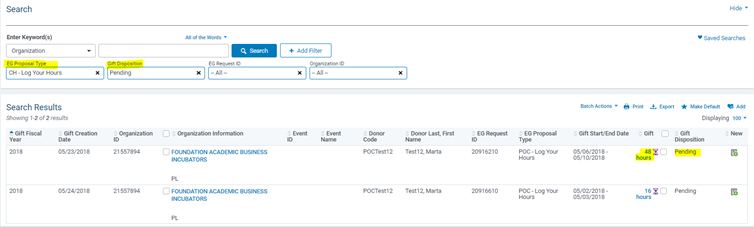
- Filter on EG Proposal Type (‘Log Hours’) along with any of the following filters: Gift Disposition, Donor ID, Eg Request ID, and/or Donor Name within the Keywords search and then press the Search
- EG Proposal Type: The options may differ based on your program names. E.g. Credit Card Match, Donate now via credit card, Request a match for a previous donation, Dollars for Doers, or Special Initiatives…
- Gift Disposition: choose ‘Pending’ for those hours that require Admin approval.
- Donor ID: is the employees unique identifier.
- EG Request ID: is the unique reference id for each request created in the system. This may not be known by the employee.
- Donor Name in Keywords: Choose Donor Name from the dropdown option and key in the employee’s name as it is on their profile.
Reviewing and Updating Hours
- Click on the Gift (hours) link to open the record summary
- Scroll down through the record to review the application details.
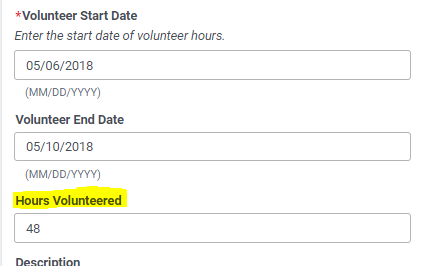
- Look for the Hours Volunteered field and update hours as needed
- Save the record.
Admins can also reassign the organization associated with logged hours when an incorrect organization was selected. Reassignment is subject to guardrails:
- Hours cannot be tied to an event or included in a payout
- The target organization must be available within the proposal type
- Reassignment is not available in Dollars for Doers (D4D)
- Hours that have already been confirmed by the organization cannot be reassigned
- Hours used in an external match record cannot be reassigned
- Reassignment does not re-check eligibility guidelines.
Approving and Rejecting Hours
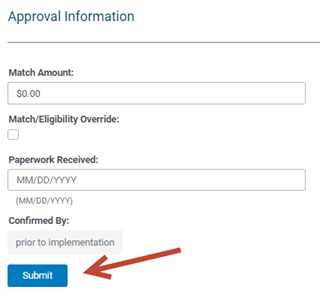
- If needing to approve or reject the hours, within the hours record, scroll down to the Approval Information
- Click the Submit button to start the approval workflow
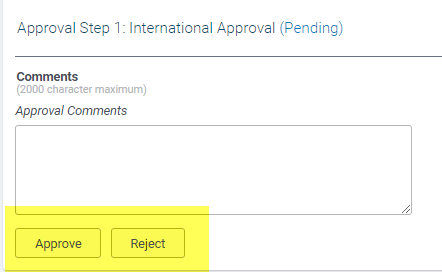
- Scroll back down to the Approval Information section (or use the navigation to the left), and click Approve or Reject button
Changing the Approve or Rejection Status
If you meant to reject the hours, you can then press the Submit button at the bottom of the page to reset the approval process.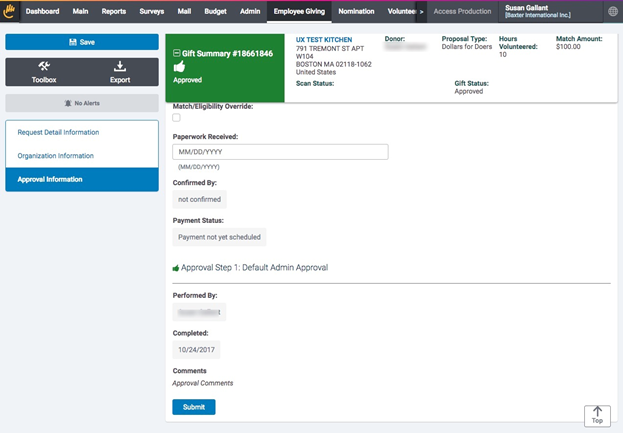
- You will see the thumbs up icon (Approved) switches back to the hour glass icon (Pending), and the Comments box and the Approve and Reject buttons reappear. You can now enter in your rejection comments and press the Reject
- The hour glass icon (Pending) switches to a thumbs down icon (Rejected).
Create Hours Internally
There are a few ways to create requests internally as an admin user.
- From the Employee Tab
- From the hours record
- From the Organization record
From the Employee Tab
- Follow instruction above on how to search for a log hours request.
- Locate an hours record in the Search Results that is tied to the organization you wish to record hours against
- Click on the icon shown under the New column
- If this is not showing you will need to add it to the columns under the Settings

- Once clicked, you will be prompted to select the Log Hours Program Type and then Continue. The application will be updated to the correct proposal.
- A new page will appear where there is no Gift Summary # This is confirmation you are creating a new request.
- Enter in the Donor Code/Donor ID – of the employee you wish to log the hours for.
- Fill out the additional application fields
- Save
From the hours record
You can choose to clone the record as long as the hours are to be created against the same organization and same employee.
- Select the hours link from the Employee Giving tab to enter the record.
- Click the Toolbox icon on the left side of the page.
- Choose Clone Gift
- Click the OK button from the pop down message
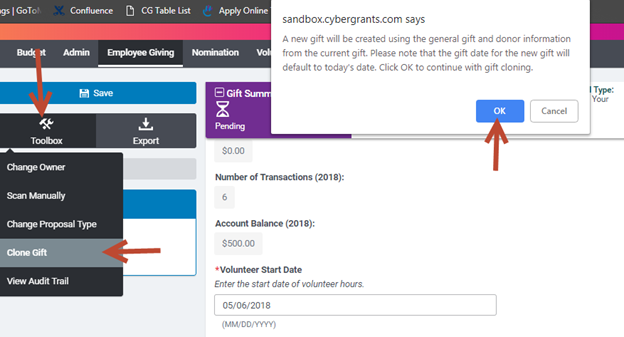
- A new record will be created against the organization and employee the request is cloned from.
- Scroll throughout the application and update any fields where needed.
- Save the new record.
From the Organization record
- From the Employee Giving Tab, click the New Organization button in the top right corner of the screen.
- Search for the organization by Name under Keyword:
- Add state or country if needing to filter down results
- Under the Existing Organizations search results, location and click the View Organization link to enter the organization profile.
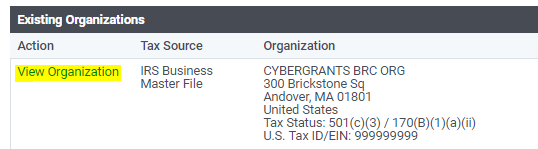
- Within the record, click the Toolbox icon from the left hand side of the page
- Choose Create Employee Giving to submit a new log hours record against this organization.
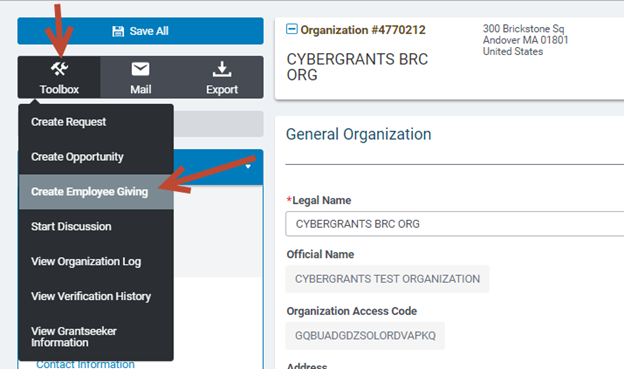
- A new page will appear where there is no Gift Summary # This is confirmation you are creating a new request.
- From the Program Type dropdown choose the program (Log Hours)
- IMPORTANT: Make sure to click the Change Program Type button
- If you do not, the application will not update to the correct proposal.
- Enter in the Donor Code/Donor ID – of the employee you wish to log the hours for.
- Fill out the additional application fields
- Save


