Instructions
Check out this video to learn about approving and rejecting a gift.
- Go to the Employee Giving Tab
- Filter on EG Proposal Type and Gift Disposition and then press the Search
- EG Proposal Type: The options may differ based on your program names. E.g. Credit Card Match, Donate now via credit card, Request a match for a previous donation, Dollars for Doers, or Special Initiatives.
- Gift Disposition:
- Internal: This means the gift has been submitted but not reviewed.
- Pending: This means the gift is being reviewed and needs to be approved or rejected.
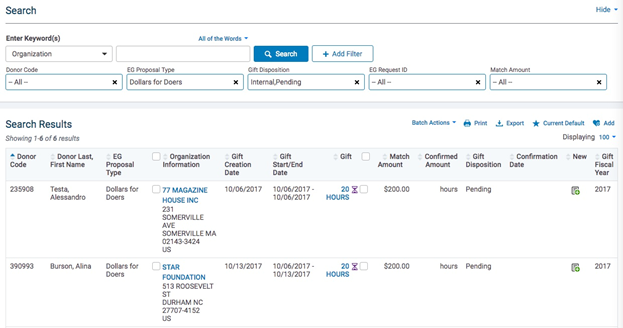
- Click on the Gift (amount or hours) to open the gift summary and scroll down to the Approval Information
- Enter/Verify the Match Amount and the date when the paperwork was received.
- Enter in any approval or rejection Comments.
These comments will be will be added to the email that is sent to the donor and/or organization.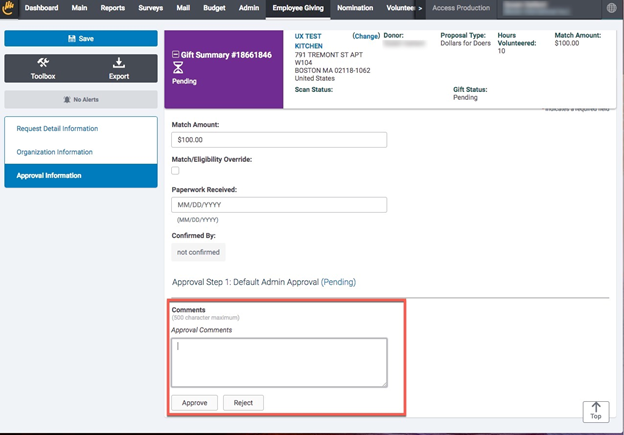
- Choose the Approve or Reject
Changing the Approve or Rejection Status
If you meant to reject the gift, you can then press the Submit button at the bottom of the page to reset the approval process.
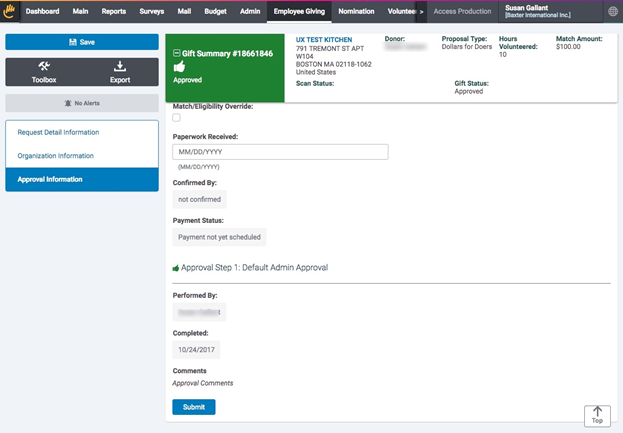
- You will see the thumbs-up icon (Approved) switches back to the hourglass icon (Pending), and the Comments box and the Approve and Reject buttons reappear. You can now enter your rejection comments and press the Reject
- The hourglass icon (Pending) switches to a thumbs-down icon (Rejected).
Step 1: Rejecting all gifts that are not eligible
You will need to use different filtering to review all requests that need to be rejected first. Here are suggested searches:
- Discrepant Requests - You can review and filter through the discrepant gifts (red question mark) by choosing the Discrepancy filter and selecting ‘Discrepant’ from the options. This will pull all gifts that were registered at one amount by the employee and confirmed at another by the organization. Standardly the system will populate the match amount at a lesser value.
- You can decide to reject the gift, manually override the match amount, or ignore the discrepancy and approve the gift match at the lesser amount.
- $0 Match Amounts - To reject gifts that are being matched at $0 due to the employee reaching the match limit or the organization confirming for $0, use the Match Amount filter and enter ‘0’ as both values (From:0 To:0)
- Typically these gifts are rejected as the organization is stating they did not receive the original donation. If the Confirmed Amount is greater than $0 but the Match Amount is $0 then there is another reason and you will want to click on the gift link to review the gift details to decide if there should be a match associated with the gift.

- Organization Eligibility – Check to see if the organization is no longer eligible by using the Organization Status filter and selecting ‘Rejected’ from the options.
- If any results appear it is because the organization was approved when the employee made their donation but is now rejected.
- Click on the organization link to review the org details and decide if the gift should be rejected or not. If rejected, click on the gift and reject.
- Organization Tax Status – Check to see if the organization tax status is verified and eligible by using the Organization Tax Status filter and selecting ‘Non Verifiable’ from the options (at the bottom of the list).
- The organization may have lost its tax status between registering the gift and review.
- Decide if the gift should be rejected or if still allowed for payment, it will be picked up in the bulk approval process (step2)
- Confirmation Date deadline – Check to see if any gifts have not been confirmed by the organization within the deadline specified by the program rules. You can use the Gift Creation Date filter to enter the dates when the gifts were registered that are now outside of the deadline timeframe.
After rejecting all that should not be processed in the payout continue to the next step for approving the rest of the gifts that have been confirmed by the organization


