IMPORTANT
Prior to creating a new request for an organization, it must have an existing record or have a record created. Only users with the appropriate user role and permission can create requests.
Grant Requests can be created from multiple areas of the system: the Main tab, an Organization Record, and a Request Record.
Create a Request From the Main Tab
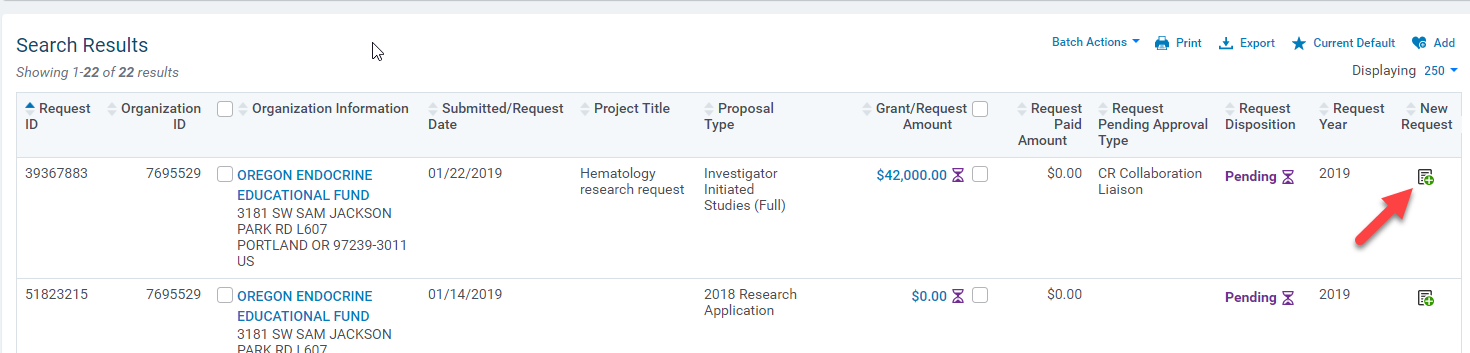
- On the Main tab, view the Search Results section.
- Under the New Request column, click the New Request
 icon. If no default proposal type is configured, you will be prompted to select a proposal type before the request form is displayed.
Create a Request in an Organization Record
- Access the Organization Record.
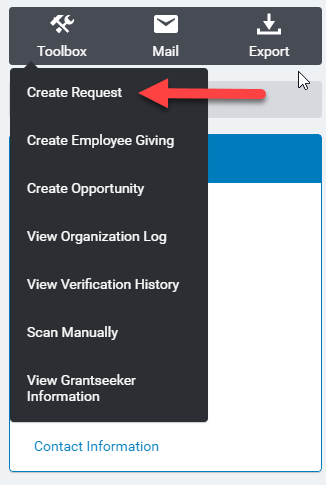
- Click the Toolbox icon on the left side of the screen.
- In the dropdown menu, click the Create Request hyperlink. If no default proposal type is configured, you will be prompted to select a proposal type before the request form is displayed.
Create a Request From an Existing Request
Internal Administrator Cloning
- Access the Request record.
- Click the Toolbox icon on the left side of the screen.
- In the dropdown menu, click the Clone Request hyperlink. If no default proposal type is configured, you will be prompted to select a proposal type before the request form is displayed.
Grantseeker Cloning (External Applicants)
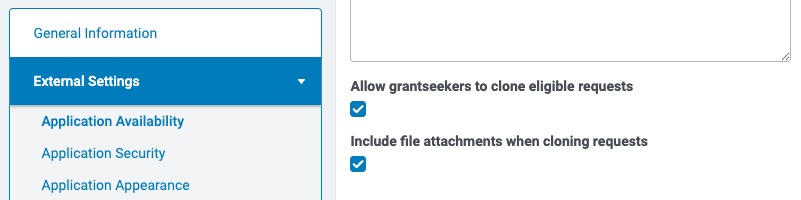
Grantseekers can clone their own previously submitted requests to accelerate the application process for eligible proposal types. This feature must be enabled by administrators per proposal type.
When can a grantseeker clone a request?
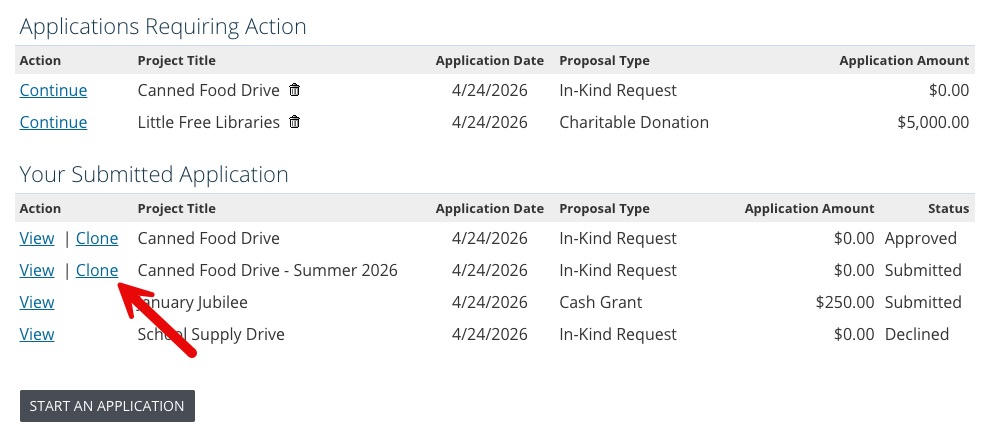
When a grantseeker logs into the Apply Online portal, they will see their submitted applications listed. For requests that are eligible to be cloned, a Clone option appears next to the View link.
A request can be cloned if ALL of the following conditions are met:
- The request has been submitted (not returned for revision, not in draft)
- The request was NOT rejected/declined
- The grantseeker is currently eligible for the proposal type (eligibility may have changed since the original submission)
- The proposal type has cloning enabled by the administrator
- The grantseeker can view or edit the request per the GrantSeeker Proposal Sharing configuration (sharing levels Low and Medium allow cloning)
- The proposal type is not gated exclusively by an invitation code. If a grantseeker’s eligibility to apply depends entirely on an invitation code, the Clone option will not appear and they must start a new application.
What happens when a grantseeker clones a request?
When a grantseeker clicks Clone, they enter the application workflow exactly as if they were starting a new application. However, all fields are pre-populated with information from the cloned request. This allows grantseekers to save time by only updating information that has changed.
Important cloning behaviors:
- External fields are cloned, but internal fields are NOT
- Files may or may not be cloned depending on administrator configuration; grantseekers should verify that file attachments are current
- The cloned request does not maintain a relationship to the original request; it is treated as a completely new application
- No indication appears in Apply Online or from the administrator’s view to show that a request was cloned from a prior submission
- Only fields and list values currently configured on the proposal type are copied. If a field or list value was present on the original request but has since been removed from the proposal type, it will not be carried over to the cloned request.
- Invitation codes from the original request are not carried over to the cloned request. The cloned request will only include an invitation code if the grantseeker is logged in with one at the time of cloning.


