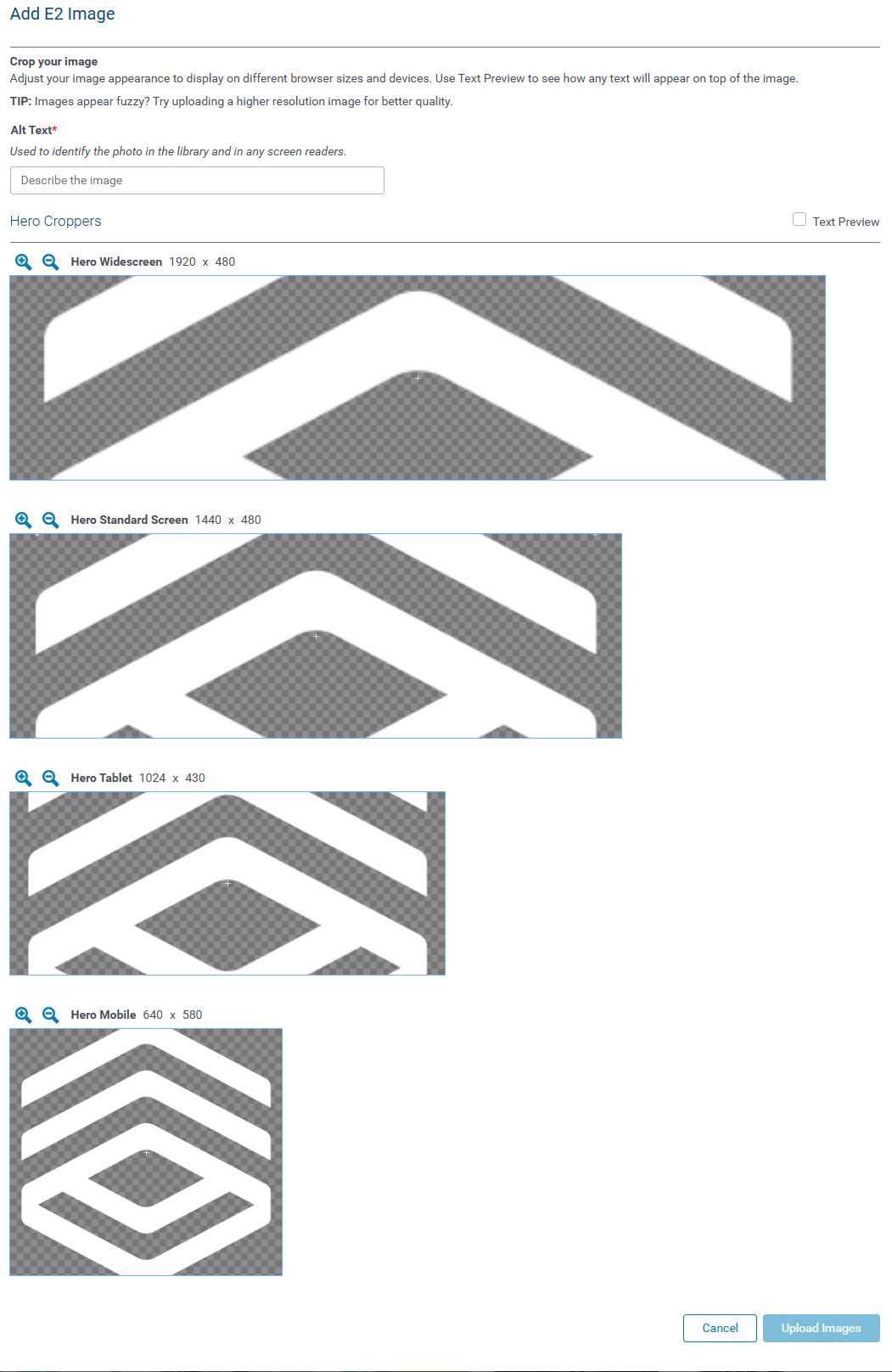
Administrators can upload and manage images for their Employee Engagement website.
 Configuration Note - Hero images and Teasers
- JPG or PNG needed at high resolution (minimum 1000px wide)
- Example http://placehold.it/1920x820
- We crop the images to give the best experience with the images received.
Dimensions are different for both Hero and Teaser images:
|
|
Widescreen
|
Standard Screen
|
Tablet
|
Mobile
|
|
Hero
|
1920x480
|
1440x480
|
1024x430
|
640x580
|
|
Teaser
|
n/a
|
276x184
|
432x288
|
610x408
|
- JPG or PNG needed at high resolution (minimum 1000px wide)
- Due to accessibility issues, images should not contain text
In Sandbox, to access this feature:
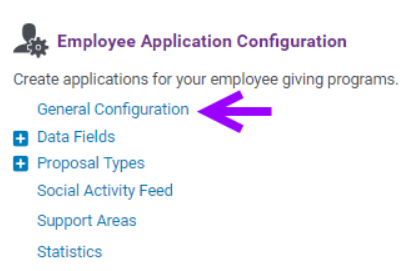
Step 1: Access General Configuration
Enter the General Configuration page under Employee Application Configuration on the Admin Tab while logged into the CyberGrants Sandbox environment.
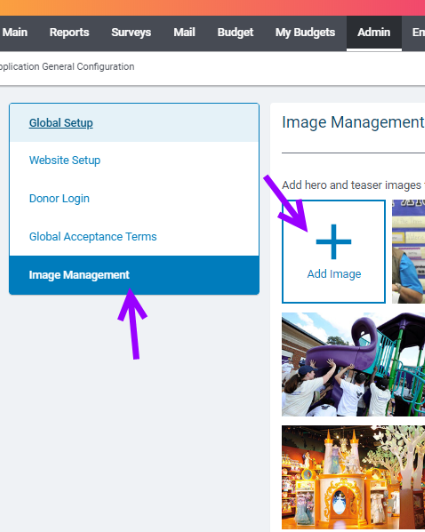
Step 2: Add Image
Enter Image Management from the left side panel and click the "+ Add Image" icon.
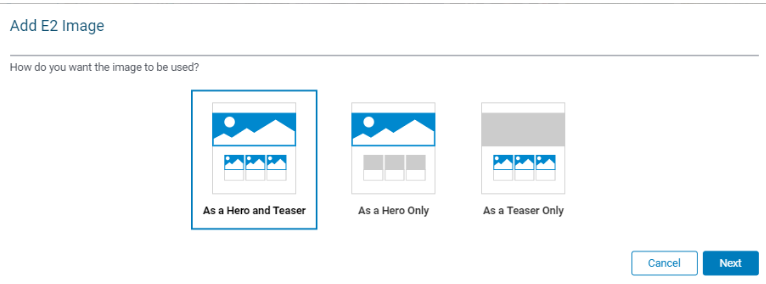
Step 3: Choose image type
Select the type of image to upload.
Step 4: Select image
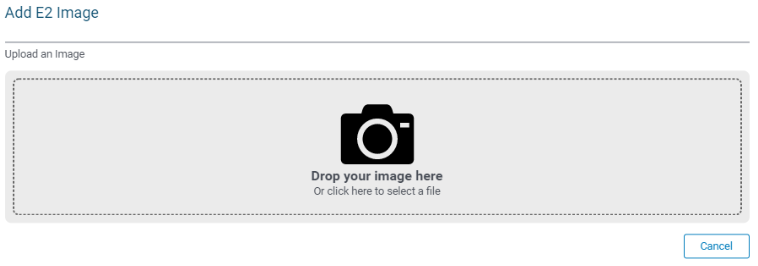
Select an image from your computer or drag and drop:
Step 5: Update the image alt text
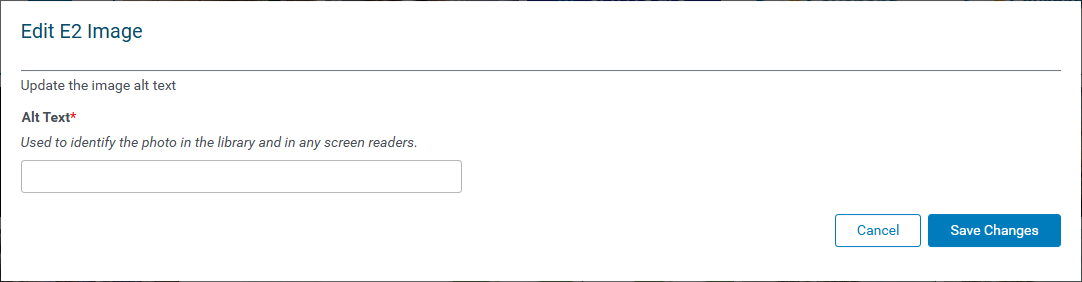
In the box that appears, you must add descriptive text by updating the Alt Text required field to identify the photo in the library, as well as for use by screen readers. Click "Save Changes" once you've identified the image.
Step 6: Preview formats and upload the image
Preview how each image will look in the following formats:
Hero Croppers
- Hero Widescreen
- Hero Standard Screen
- Hero Tablet
- Hero Mobile
Teaser Croppers
- Teaser Mobile
- Teaser Tablet
- Teaser Standard Screen
Once prepared, select "Upload Images."