The Search Section is used to define criteria to search for site visitors and online survey information.
NOTE: You may add search criteria that display on your Surveys Tab by clicking on the “+ Add Filter” button.
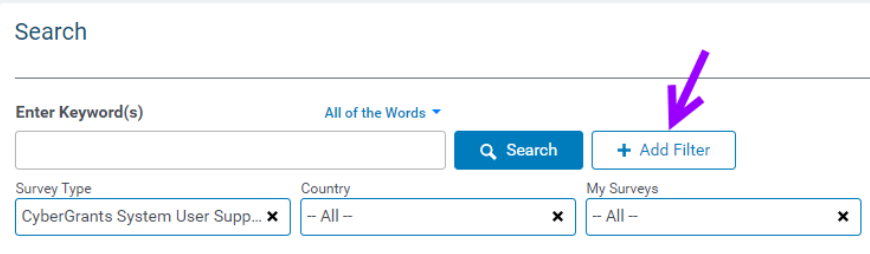
Keyword(s) Search Field
To locate a specific organization enter the words in the “Keyword(s)” field.
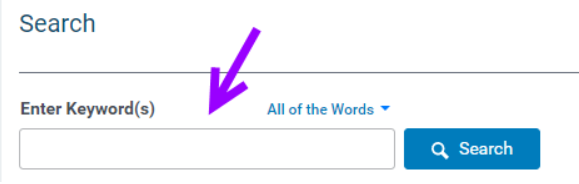
For example, enter the words “orphans”, “children”, “New York” in the Keyword(s). Use the selection field beneath to indicate if the search should include
- all of the words (e.g. “children” and “orphans” and “‘New York”)
- any of the words (e.g. “Children” or “orphans” or “New York”)
- exact phrase (e.g. “orphans children New York”)
NOTE: The search automatically considers words and letters around the keyword entry. For example, entering “child” returns matches containing “child”, “children”, “stepchild”, etc.
Search Settings
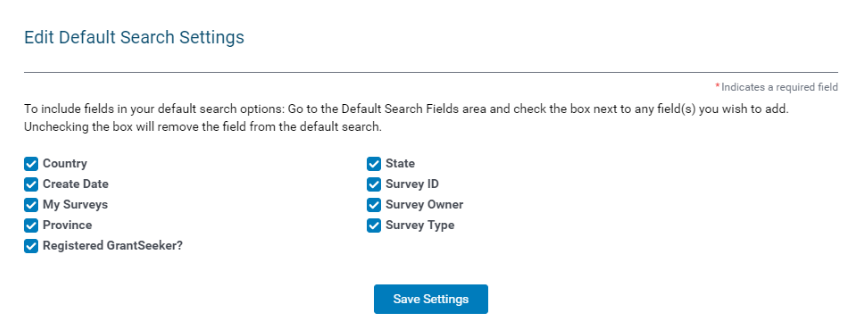
You may customize the default selection boxes that display on your Surveys Tab by clicking the “Settings” button and then "Edit/Add Search Filters."
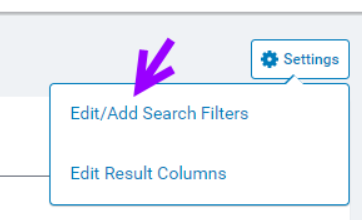
Search Preferences allow the CyberGrants user to customize the default search criteria fields and columns that display in the Search and Results Sections of the Surveys Tab.
Columns
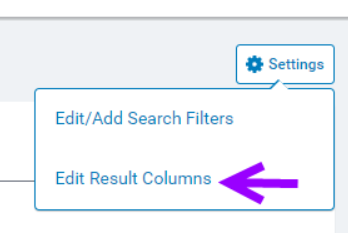
You may customize the default columns that display on your Surveys Tab by clicking the “Settings” button and then "Edit Result Columns."
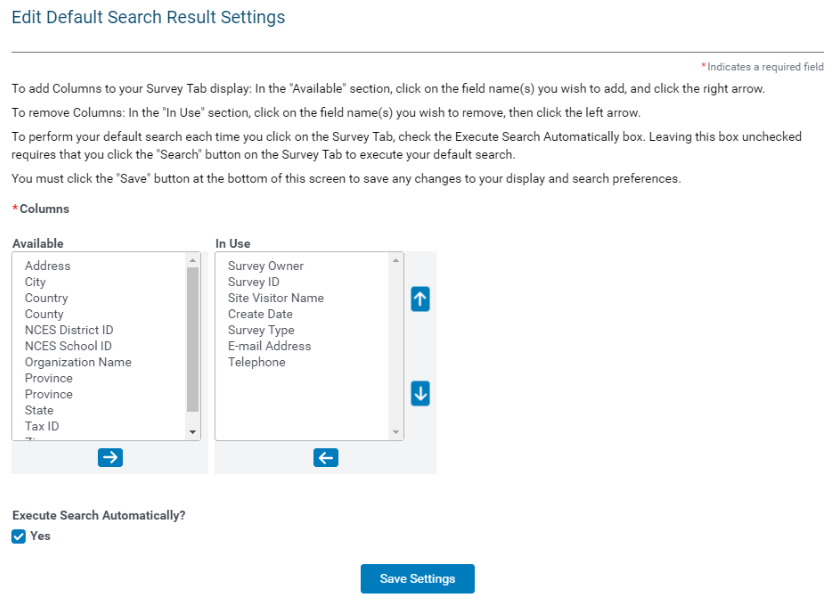
A user can add or remove columns to their Search Results table:
- Adding columns – select the columns in the “Available” list, click the “Add” button to move the selected fields from the “Available” list to the “In Use” list, and click the “Save” button.
- Removing columns – select the columns in the “In Use” list, click the “Remove” button to move the select
Execute Search Automatically?
A user can choose to execute a default search automatically by checking the “Yes” checkbox, and then clicking on the “Save” button. This will run a user’s search automatically whenever a user clicks on the Surveys Tab.


