Integration with Volunteer Match, powered by Idealist, is not a standard feature. There is a cost associated with integrating the Volunteer Match events with CyberGrants. When choosing this feature, CyberGrants clients will purchase the Volunteer Match powered by Idealist package, which allows their opportunities to be presented within the client’s account. Employees will find these events posted within the portal to see how they can participate in their communities.
Note:
- Volunteer Match events are refreshed nightly
- Cybergrants only obtain events within the US, Canada, & Virtual Events
- When searching for Volunteer Match volunteer events, events for organizations that have a tax status not allowed by the Event Creation proposal type will not be returned.
Note: The events posted are not for immediate signup. The employee will need to
- First, express interest in the event they select,
- Work with the organization on the additional details,
- Then, create the event in the CyberGrants system in order to have sign-ups.
Where to Find Volunteer Match Events
Within the Employee Engagement portal, employees will visit the Volunteer page, where they are presented with ways to search and find posted opportunities.
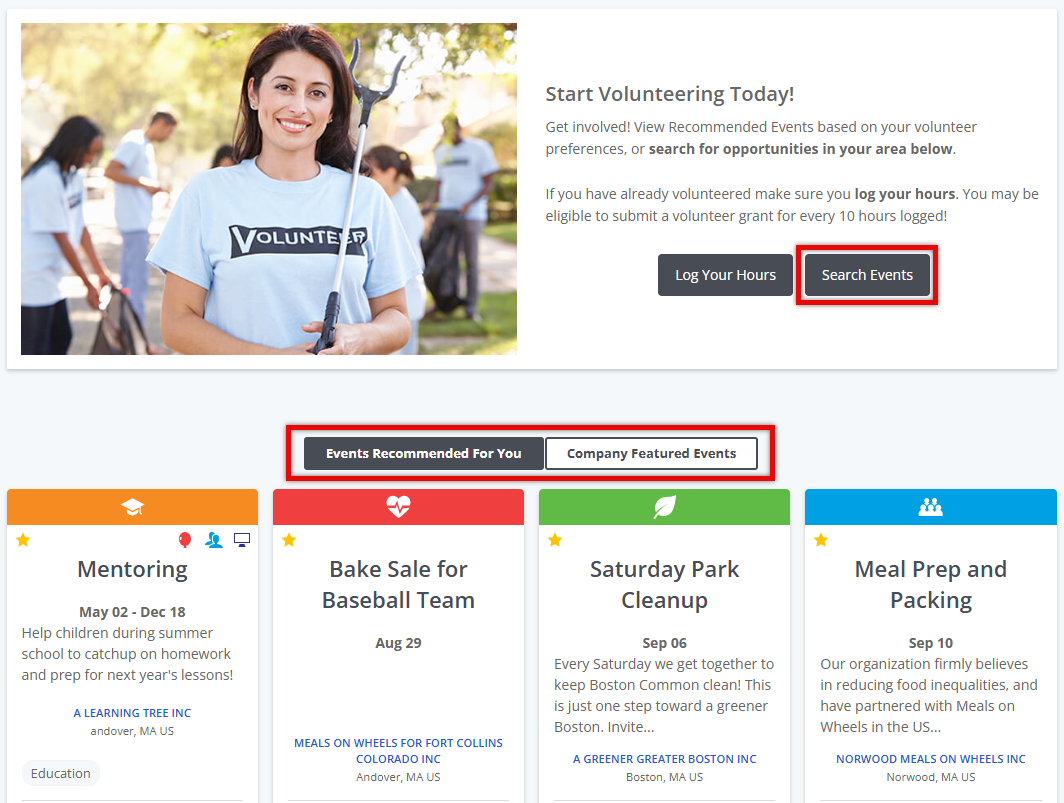
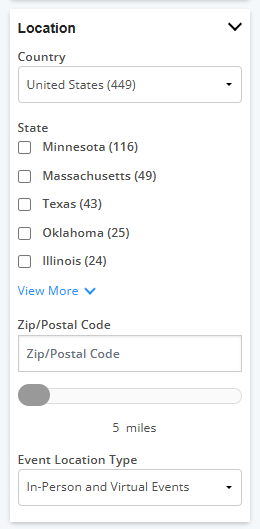
Within the search, they can enter a zip code and the distance, or choose the event type of ‘Volunteer Match’ to begin their search.
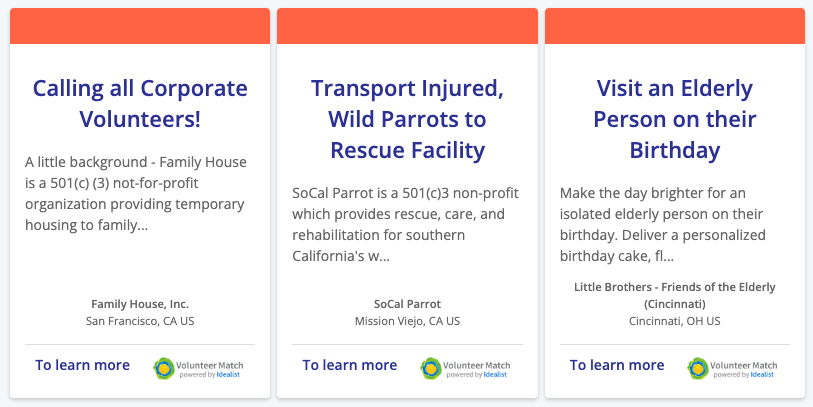
On the search results page, the employee can review the list of local opportunities entered into the Volunteer Match database. These opportunities will be clearly defined by the Volunteer Match powered by Idealist logo in the top right corner, and the card will also have the ‘To learn more’ link instead of the ‘Sign Up’ link.
Note: The Volunteer Match opportunities begin as a way to provide information about potential outside events. However, they are not available for enrollment until an employee coordinates with the organization to ensure that the event is still happening and they have room for volunteers.
If an employee would like to have one of the opportunities be available for enrollment through the site, they will need to click the ‘To learn more’ link for that card to advance to the next step.
Volunteer Match events are also presented within the “Recommended Events” portlet.
Initiating interest in the event
If an employee would like to have one of the opportunities available for enrollment through the portal, they will need to click the ‘To learn more’ link on the card to advance to the next step.
Once the employee clicks the ‘To learn more’ link, a page will appear showing the details of the opportunity. The employee will review the general event information, fill out any custom questions from the organization, agree to the Volunteer Match powered by Idealist Terms of Use, and then press ‘Done’.
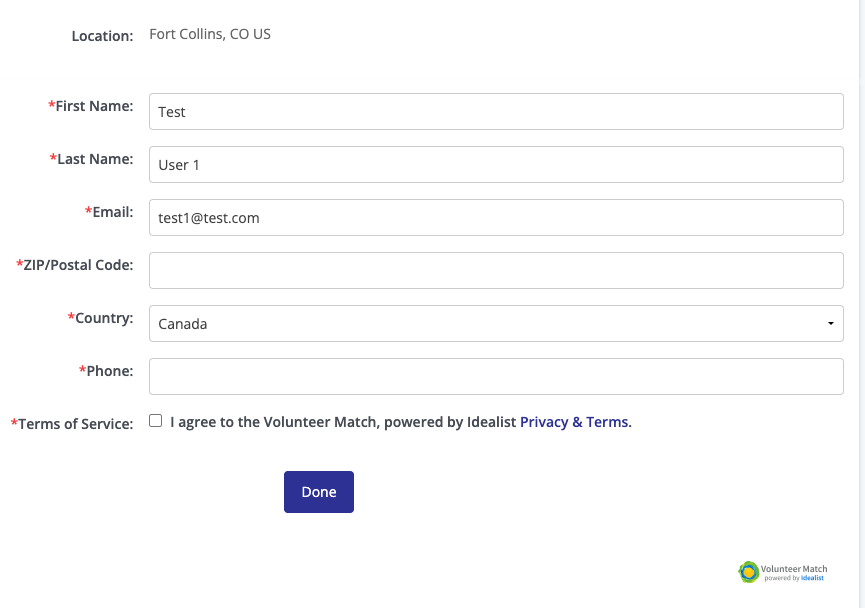
The submission will be validated for completeness, and then a success message will be displayed that notifies the employee that their interest has been shared with the organization sponsoring the event.
A corresponding notification will be sent to the organization offering the opportunity. They will reach out to the employee using the information they provided to finalize logistics, including dates, times, number of employees needed, materials to bring, etc.
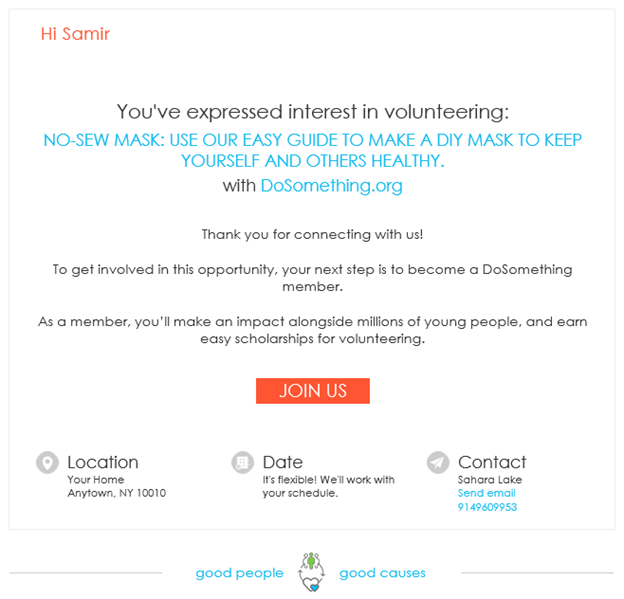
In the meantime, an unsubmitted event with the basic opportunity details will be added to the employee's profile.
Creating the event in your account
Once the employee has finalized the opportunity logistics with the organization, they will then return to the Employee Engagement portal and click the ‘Edit’ link next to the event listing in their ‘Unsubmitted Events’ tab.

Clicking the ‘Edit’ link will bring the employee to the full details for the unsubmitted event. Many of the details will be pre-populated from the original Volunteer Match opportunity, and the employee will complete the remaining company-specific items, such as date and time, sign-up deadlines, what to bring, and where to show up.
The employee will fill out all necessary fields (based on the client-specific application) and Save and Proceed when done.
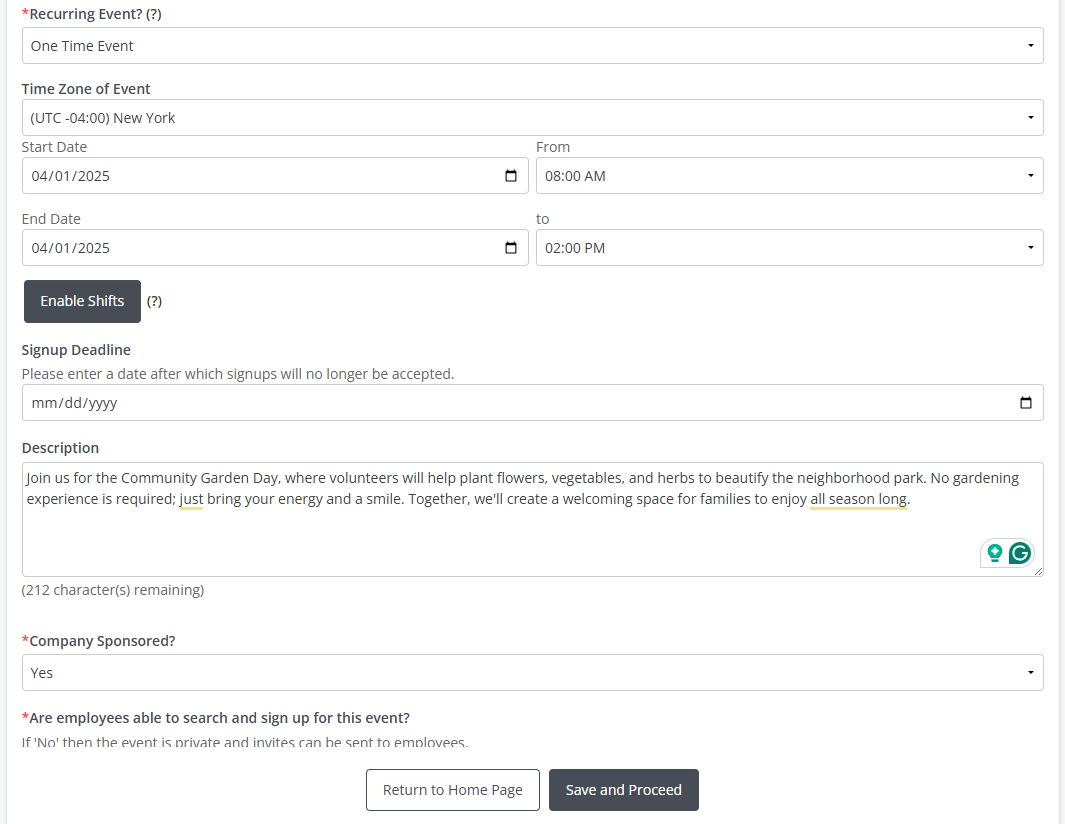
They will review their form, then be allowed to either ‘Submit, ‘Make a Change,’ or ‘Save’ the event.

After submitting the event, whether auto-approved or first needing to be reviewed internally and then opened by an administrator, the event will be populated on the signup search results page for employees to register.
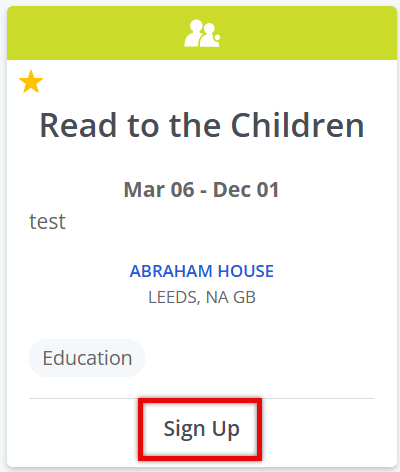
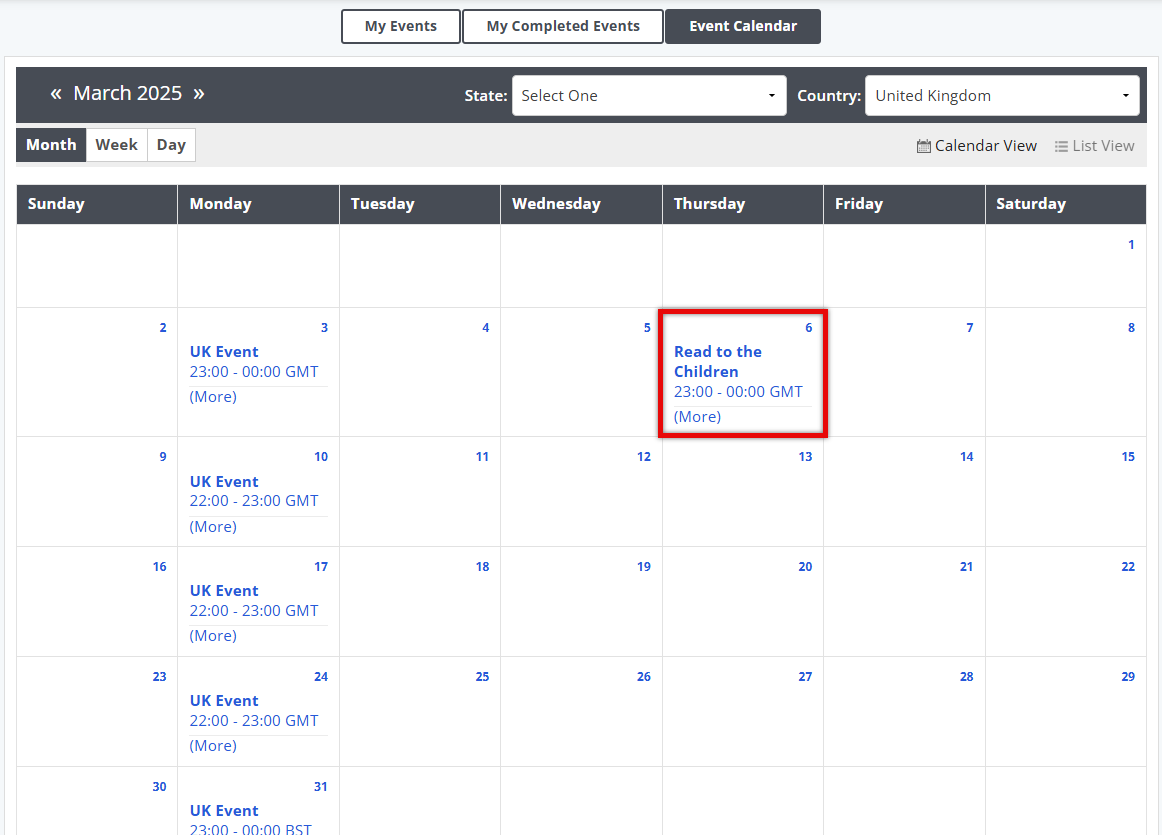
All events that are open to the public (featured or otherwise) are also available on the calendar.