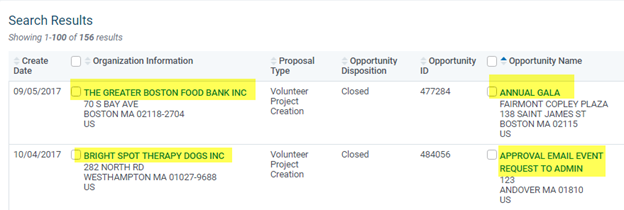
Each Event and project that is created by an employee on the donor facing side (or if created internally on the admin side) will be created as an individual submission within the system. When you start to see search results you will see each one of these records that all are assigned a unique CyberGrants Opportunity ID.
From the Search Results if you have chosen the ‘Organization Information’ and the ‘Opportunity Name’ fields for your Results Columns, then you will notice these values are links into the organization’s profile as well as the event/projects details record.
To Review the event/project details, simply click the Opportunity Name link to the event/project you want to evaluate. You will be directed into the event/project record where all of the fields completed by the employee on the donor facing site will be provided. The details at the top of the page offer a brief overview of the record.
- If every event/project submission must be reviewed first by an Admin user then this disposition will most likely be in the purple color with ‘Pending’ as its status. Once the event is reviewed and approved by the Admin, this will change the status to ‘Open’. If the events are set to auto approved where no Admin review is required this will read as Opened and there is no action needed from the Admin user.
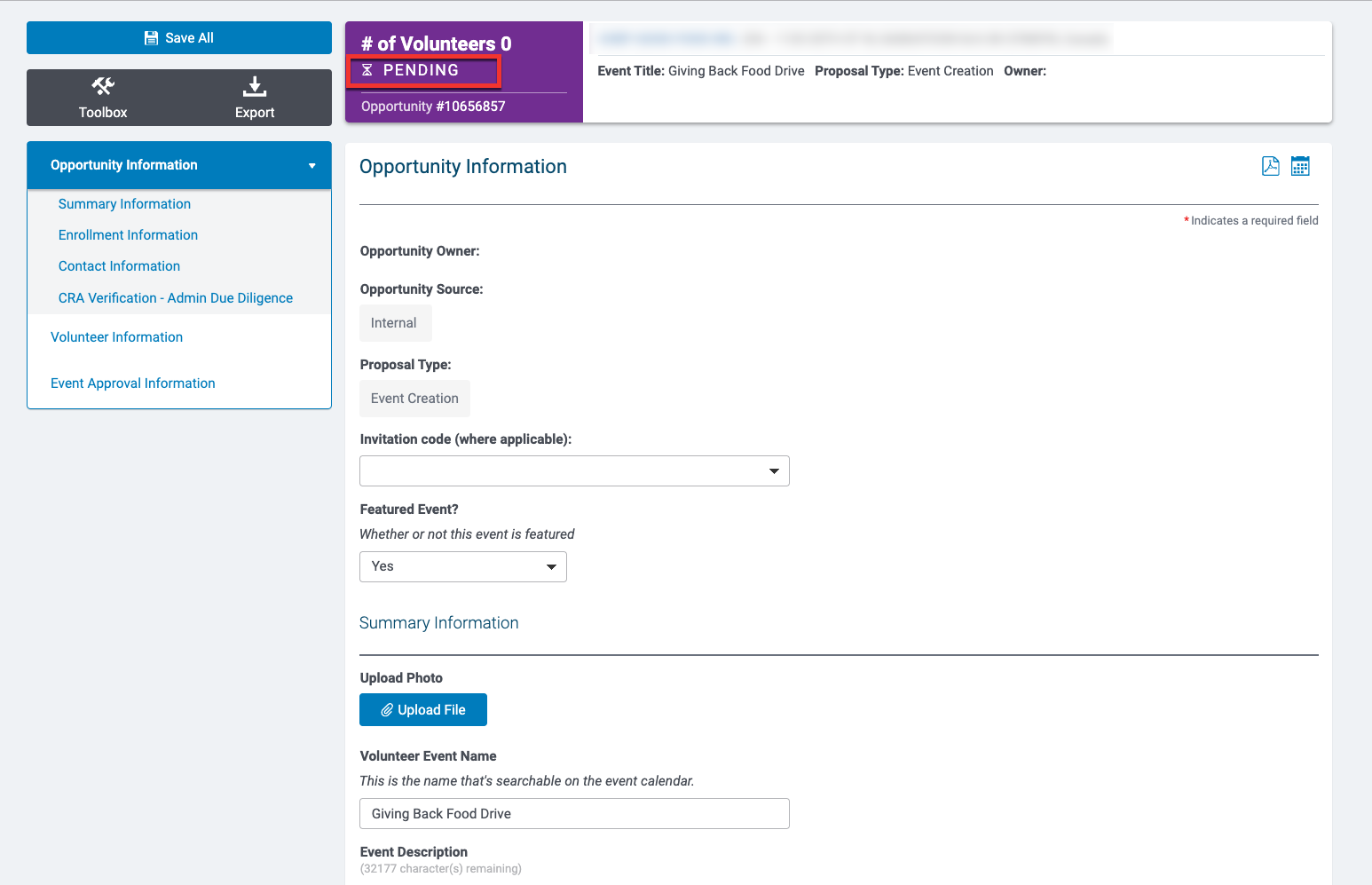
If approval is required: When the Admin user has completed their review, and the event/project needs to be ‘Opened’ for employee enrollment, the Admin must scroll down to the bottom of the page OR may use the quick links to the left of the page by clicking the ‘Event Approval Infomration’ section.
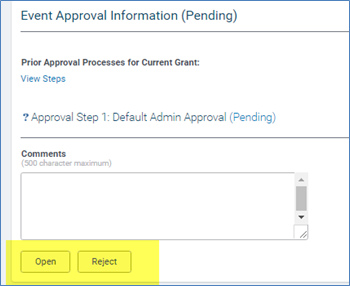
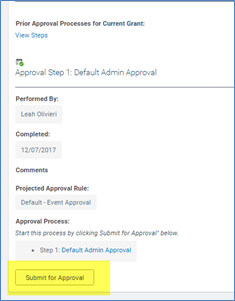
In the Event Approval Information section you may first see a Submit for Approval button or just the Open and Reject buttons, depending on the setup of the approval process.
- If you see the Submit for Approval button you will need to click that to start the approval workflow. Then click on the Event Approval Information section from the left menu to view the Open and Reject buttons.
- If you already see the Open and Reject button, choose to either approve the event by clicking the Open button or Reject the event if it does not follow your eligibility requirements.