Overview:
With Administrator permission, you may delete any type of record in the system. It is not recommended due to the permanent state, and instead, just reject the request. For those instances where a test record was generated, and it is preferred to keep the production environment clean, you have the option to completely remove it with the delete function.
The following instructions explain how to delete events in the system. There are two workflows for this process:
- If there are no sign-ups or logged hours against an event, then an event can be deleted from the Volunteer Events tab
- If there are sign-ups and/or log hours, then those tied records must first be deleted before you can delete an event.
You will know if there are sign-ups or hours tied if, when trying to delete an event, there is no check box on the deletion page for that event:
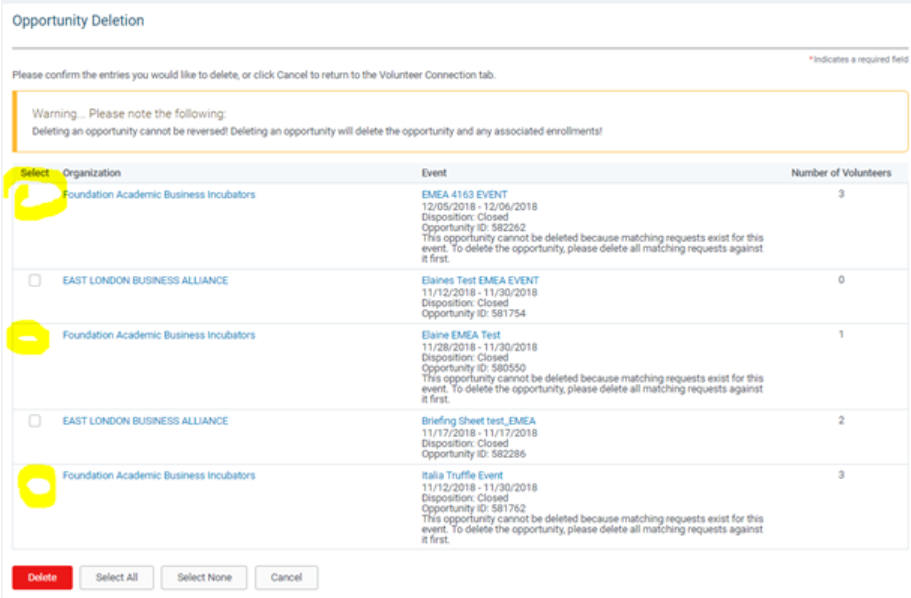
For this example, see that only the second and fourth events listed have a checkbox option. Once the sign-ups and log hours for the other three are deleted, a checkbox will then appear next to them. The reason is that we do not want to accidentally delete an event if there are records tied to it.
Deleting events without sign-ups or hours connected
- Go to the Volunteer Opportunities tab
- Search for the event(s) you wish to delete, or you can just pull up all events created in a certain time frame or by program/region type.
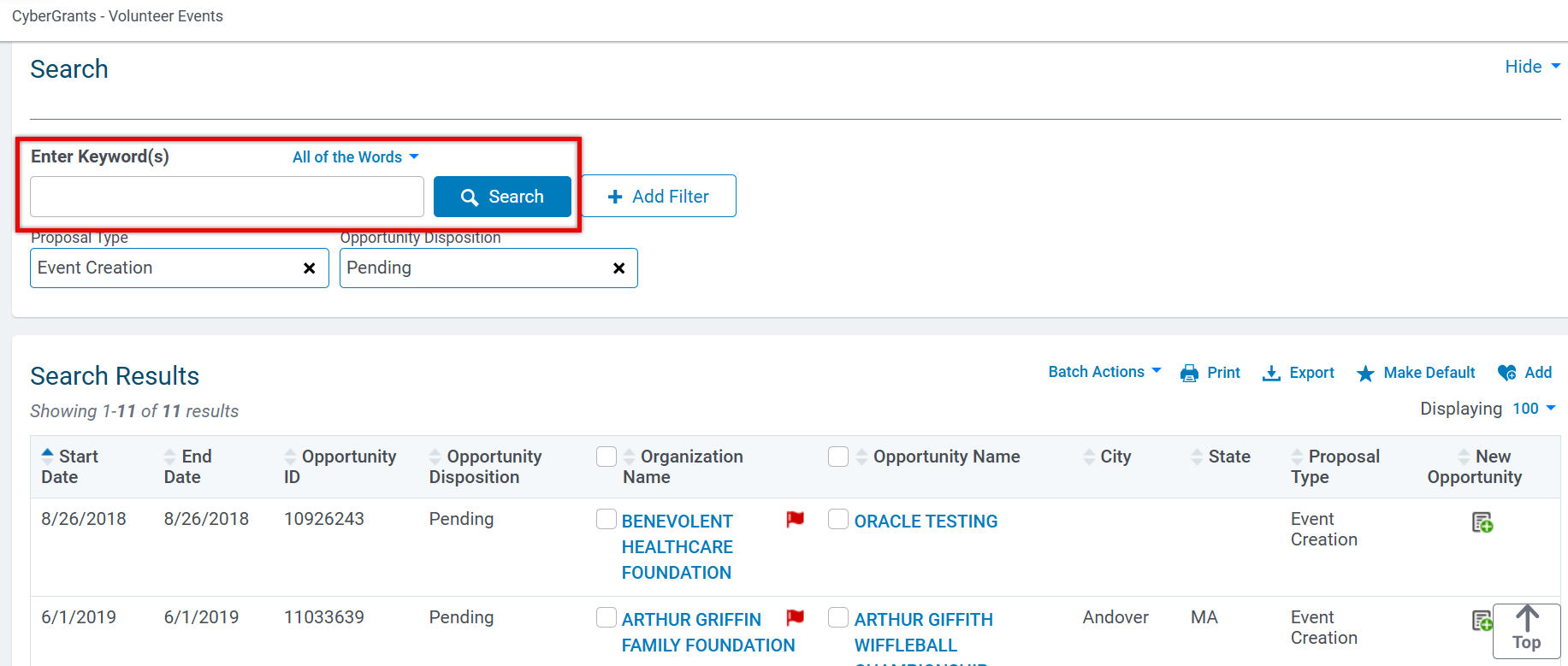
- Check the boxes under Opportunity Name for the one(s) you want to delete. DO NOT select the check boxes under the ‘Organization Information’ column, as you do not want to delete the organization record. You can also check the box next to ‘Opportunity Name’ to select all listed on the page.
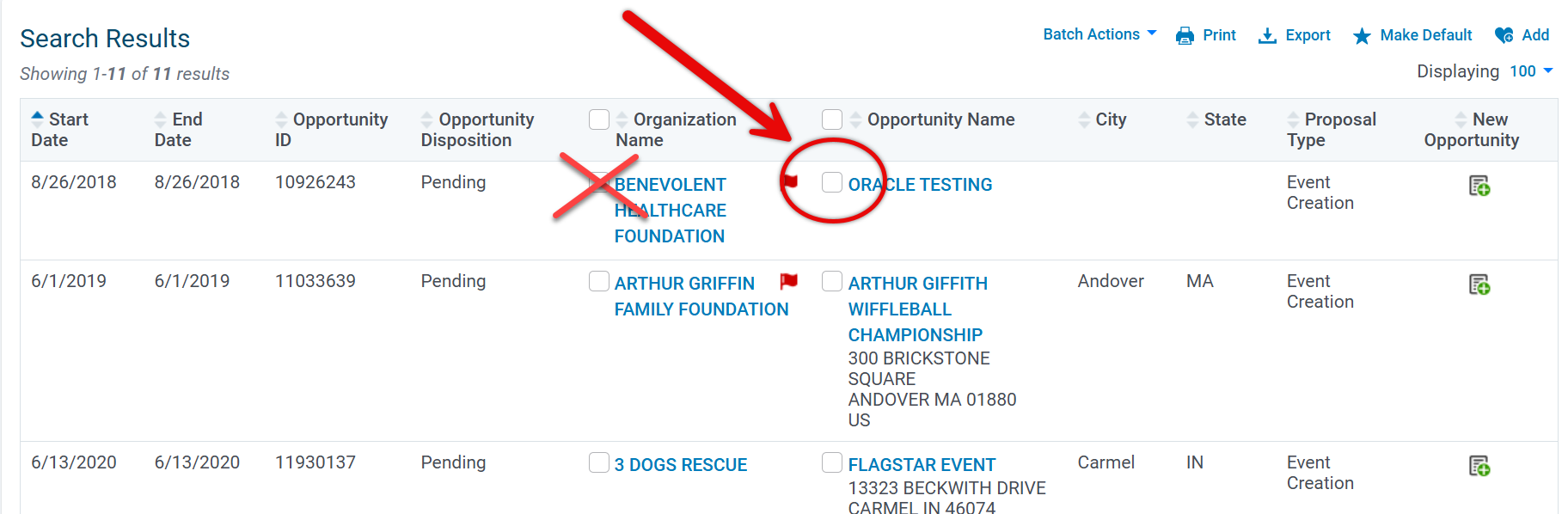
- Under the Batch Actions dropdown list, choose ‘Delete Checked’:
- On the following page, click the “Select All” button at the bottom or select the ones that you want to delete.
- Click the Delete button
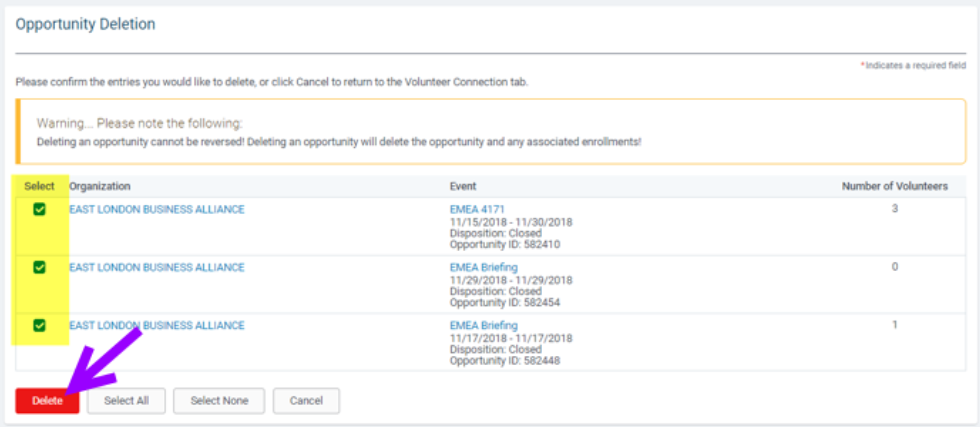
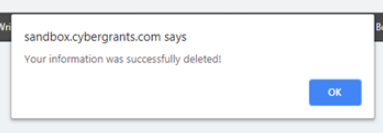
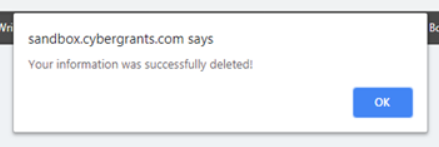
- A pop-up window will state ‘Your information was successfully deleted!’ as confirmation
Deleting events with sign-ups or hours connected
This process cannot be completed in bulk as it must be done on a per-event level. The option to bulk delete the sign-ups and hours per event will be available.
- Go to the Employee Giving tab and enter the Event ID into the filter
- If you do not know the Event ID Go to the Volunteer Opportunities tab and search to find the event you need to delete. Copy the Event/Opportunity ID and enter it into the Event ID filter on the Employee Giving tab.
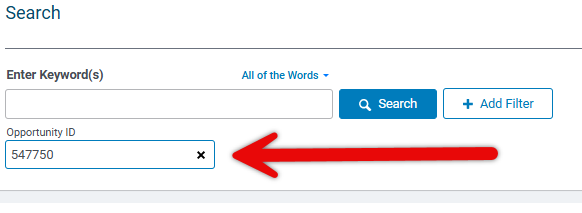
- Click Search to show results of any sign-ups or hours logged against the event record.
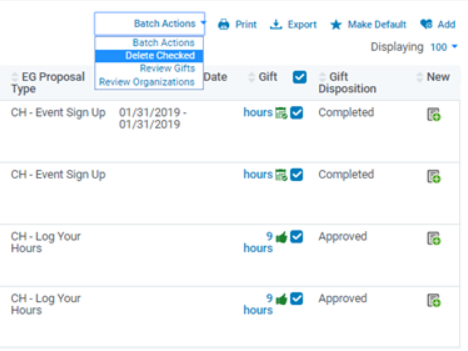
- Check the box next to the Gift column to check all records.
- Note: All records must be deleted in order to delete the event as a whole.
- Reminder: Do not check and delete the Organization Information column details
- Under the Batch Actions dropdown list, choose ‘Delete Checked’:
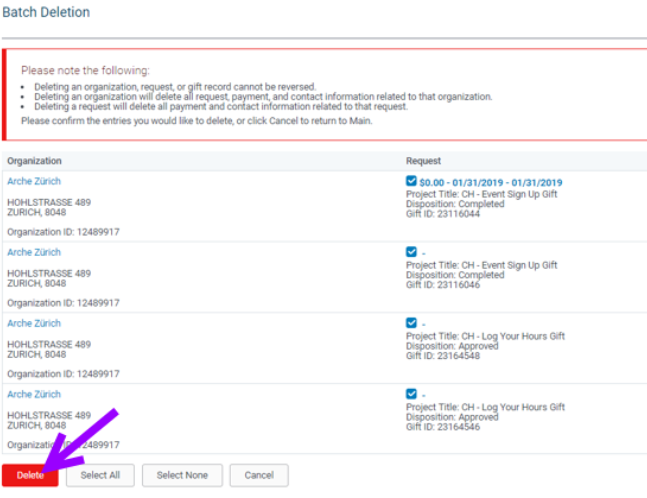
- On the following page, click the “Select All” button at the bottom or select the ones that you want to delete.
- Click the Delete button
- A pop-up window will state ‘Your information was successfully deleted!’ as confirmation
- Once sign-ups and logged hours are deleted, follow the steps from the above instructions: ‘Deleting events without sign-ups or hours connected.’


