To the left of the Summary Panel is the Organization Utility Navigation Panel:
Save All
A user must click the "Save All" button located at the top left of the General Organization Section or in the Organization Checklist after making any changes or additions to the information.
Organization Toolbox
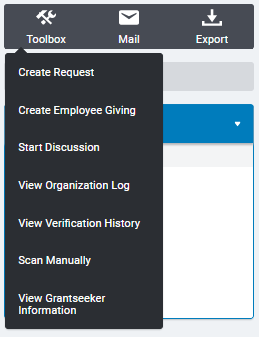
Click the “Organization Toolbox” button to display links to the following functionalities:
-
Create Request/Employee Giving opens (creates) a new request for the organization with editable fields.
-
Start Discussion opens text box allowing you post a message to begin a discussion within the organization profile.
-
View Organization Log allows a user to view the system activity (Record Created, Record Deleted, Record Updated) and correspondence (Emails and Letters) associated with this organization. A user can search by entering values for one or more filters (“TimeFrame”, “Action Type”, and “Performed By”). The “TimeFrame” criterion is required and limited to one time period. The search result screen displays the following columns: “Select”, “Type”, “Transaction Type”, “User”, and “Description”. The “Description” column displays a link if the “Type” is Email or Letter; the link allows a user to display the content.
-
View Verification History allows users to access a historical log of the organization’s verification over a period of time. The organization’s credentials are re-verified every time the tax details on the organization record change or the corresponding tax source is updated.
-
Scan Manually allows a user to perform a WatchList scan of specific Organization Record fields for assistance with Patriot Act Compliance.
NOTE: Displays only for GrantMakers who have enabled WatchList Scanning
-
View GrantSeeker Information allows a user to enter a new GrantSeeker, edit an existing GrantSeeker, or delete a GrantSeeker. Not all users have this function.
NOTE: A GrantSeeker is a person associated with the nonprofit who can be assigned to edit or revise a request from the nonprofit.)
Mail
Click on “Mail” to display links to the following functionalities:
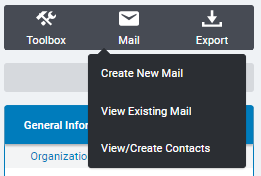
- Create New Mail allows a user to create a letter or e-mail message to send to the organization or request contacts. (See the Mail Tab in this manual for more information about creating letters and e-mail messages.)
- View Existing Mail allows a user to view the system mail correspondence associated with this organization.
- View/Create Contacts allows a user to view, create, and edit the information for all contacts associated with the organization. An organization may have an unlimited number of contacts associated with it.
Export
Click on Export to display links to the following functionalities:
- Word (RTF) Version prints the request information in Word rich text format
- PDF Version displays the request information in PDF format. Click Print on the Acrobat toolbar to print this information.


