The CyberGrants system captures all relevant information pertaining to non-profit organizations applying for funding. Each GrantMaker decides what information is needed; it may include a brief description of the organization’s history and mission, the need or problem the organization works to address, current programs or accomplishments, population served, staffing information, financial information, Tax ID/NCES ID number, tax exempt status, and contact information. Use the Search Section to search for an organization. If the organization does not exist in the database, a record needs to be added. An Organization Record must exist before a request can be created for that organization.
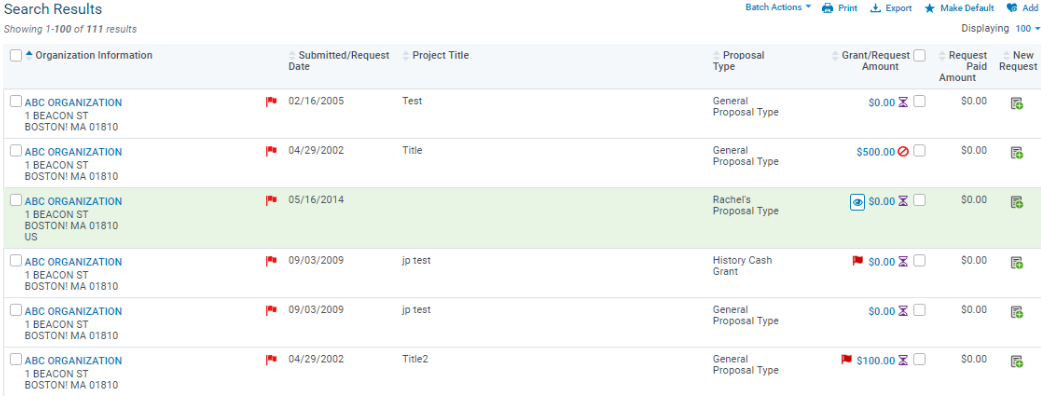
The Search Results section enables a user to locate an organization and its existing requests. (If an organization does not already exist, see the “Main Tab” section of this manual for information on creating a new organization.) If the organization is found, a user may look at any existing requests. To access the Organization Record, click the organization name link in the “Organization Information” column.
The Organization Record is comprised of:
- Organization Summary contains top-level to assist with managing the organization information.
- General Information displays detailed information pertaining to the organization. All active organization fields will be in every organization record, regardless of if the data was collected during the application process(es).
Organization Summary
The Organization Summary Pane at the top of the screen lists the Organization ID number assigned by the CyberGrants system, the Organization Name, the Tax Status, and the Scan Status.

If the Organization Record is scanned, the scan status will turn to “Completed” with a “Check” icon if there are no matches, or “Matches Found” with a “Red Flag”  warning icon displayed within the Scan Status if matches are found.
Organization Legal Name, Address, Tax Status, and Scan Status will be in the Summary Pane at all times:
- Tax Status indicates if an organization is verified and by which database
- Scan Status indicates if the organization has been scanned and if matches have been found and/or cleared
NOTE: If Scan Configuration is not enabled, then the “Scan Information” link will not display on the checklist.
To collapse/expand the panel, click the (+) or (-) in the upper left-hand corner of the header bar.
Duplicate Organization Detected
If the CyberGrants system detects two Organization Records that exist for one organization (based on a similar organization name, state, and tax id combination), a duplicate warning icon  appears on the Panel header. Click this icon to open a window of potential duplicate organizations.
NOTE: All users can see the warning icon, however only an Administrator may use the “Organization Combination” functionality, which transfers all request, contact, and payment information from one Organization Record to another. Also, it deletes the duplicate Organization Record that had its associated records transferred.


