Search for an Organization
- In CyberGrants, go to the Employee Giving tab.
- Enter the name of the Organization in the Keyword field and choose the Search button.
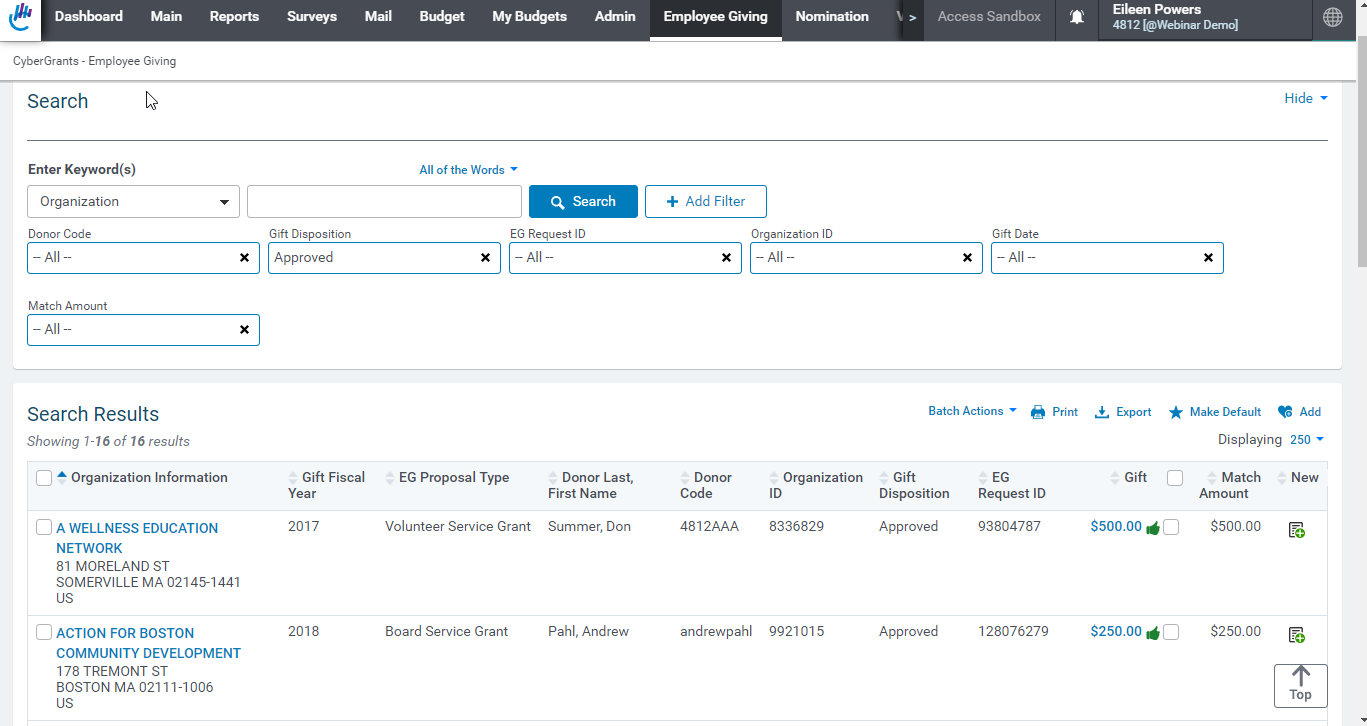
- Select the desired organization from the list to open the organization record.
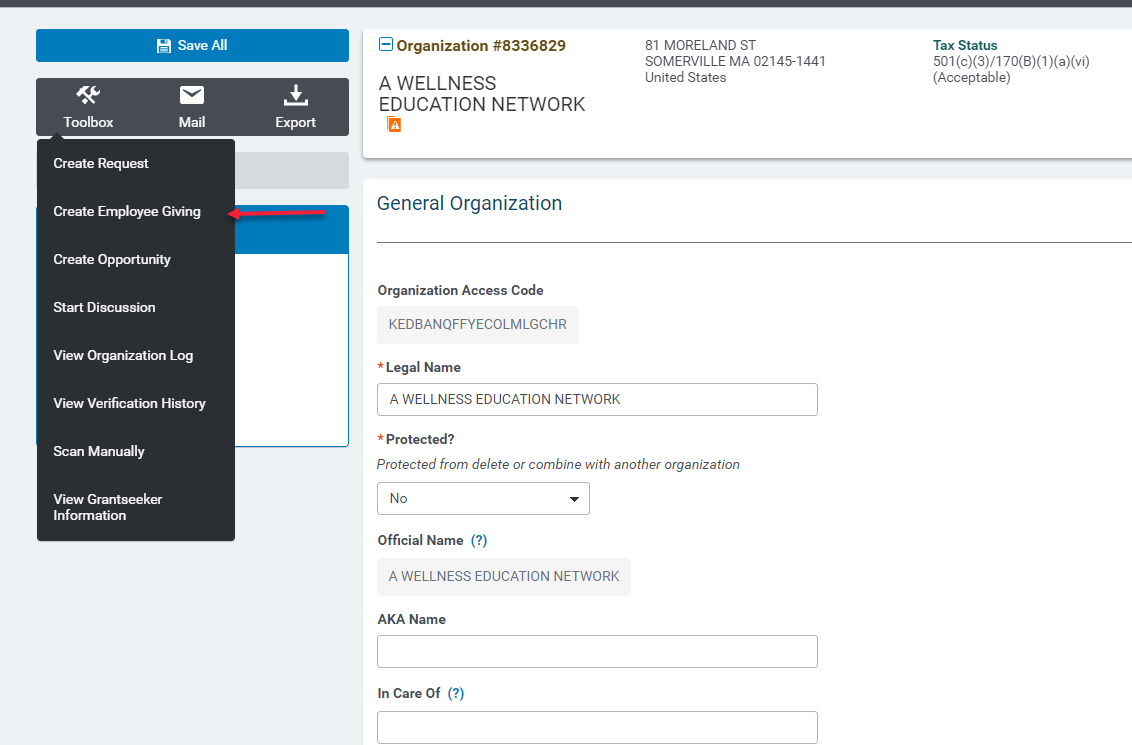
- From the Toolbox button on the right, choose the option to Create Employee Giving option.
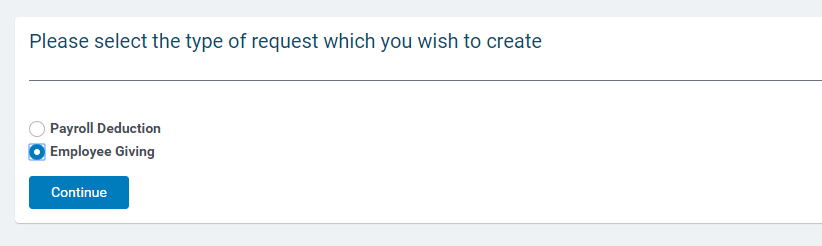
- If prompted, choose the type of request you wish to create and then Continue.
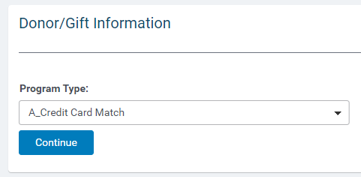
- Select the correct Program Type (e.g. Matching Gifts) and then Continue.
- In the Gift Summary Record, enter in the required fields (Donor Code, Gift Fiscal Year, Gift Date, and Total Gift Amount) and other fields as needed.
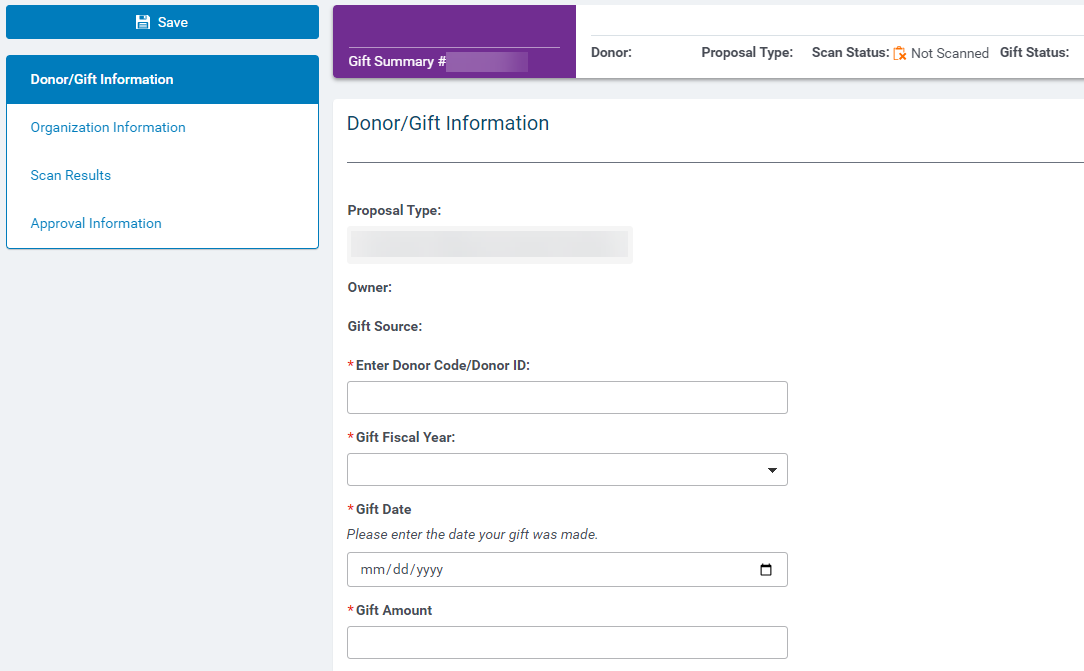
- Choose Save to have the Gift Summary Record created.
If no organization confirmation is required for this gift request
You may complete the Confirmation information fields to move the gift to pending, or just save the request to change the disposition to pending.
If confirmation is required by the organization
Make sure you have the organization email entered into the organization record before creating the request or login as the donor making the request and view the confirmation page to print or email the instructions.


