To create a virtual event, you would begin by creating an event the same way that you would for an in-person or on location event.
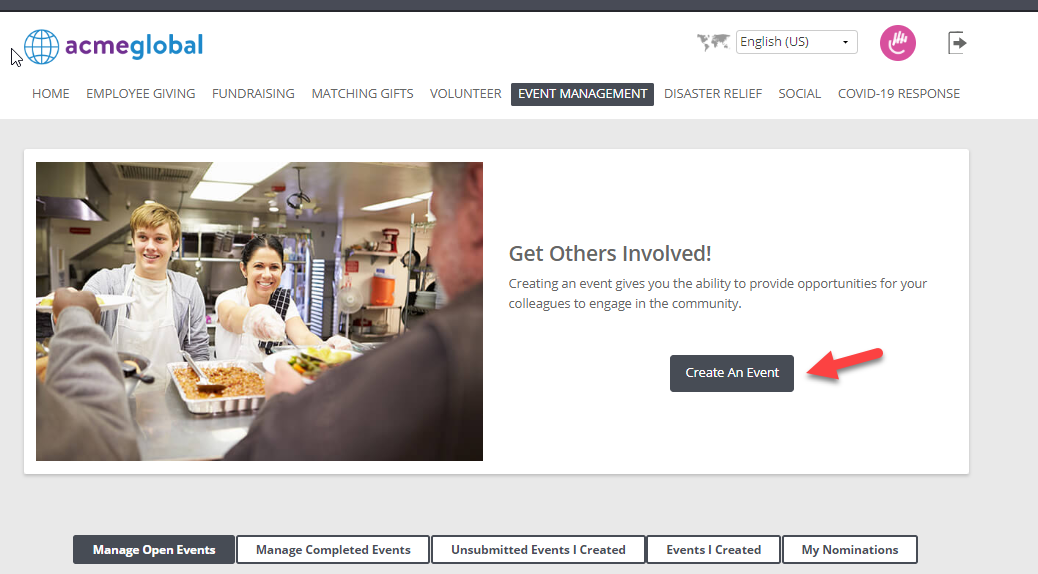
On the ‘Event Management’ tab select “Create an Event” to begin the search for the organization that you want to create an event for.
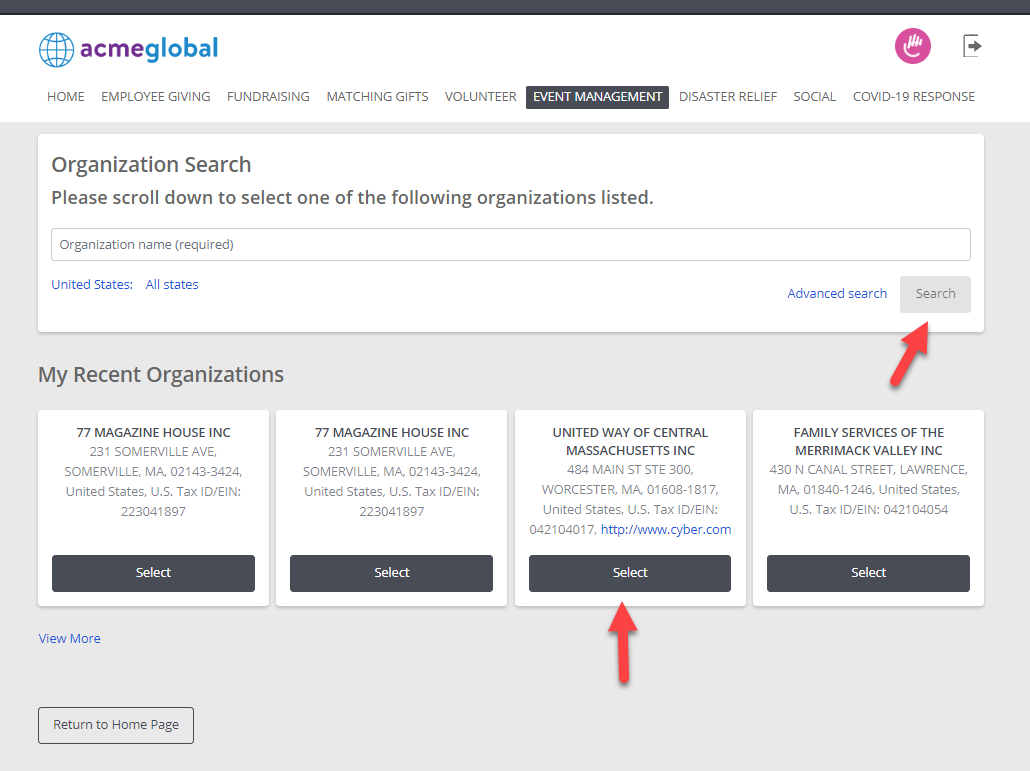
Enter the name of the organization that you are looking for or select a recent organization that an event had previously been created for
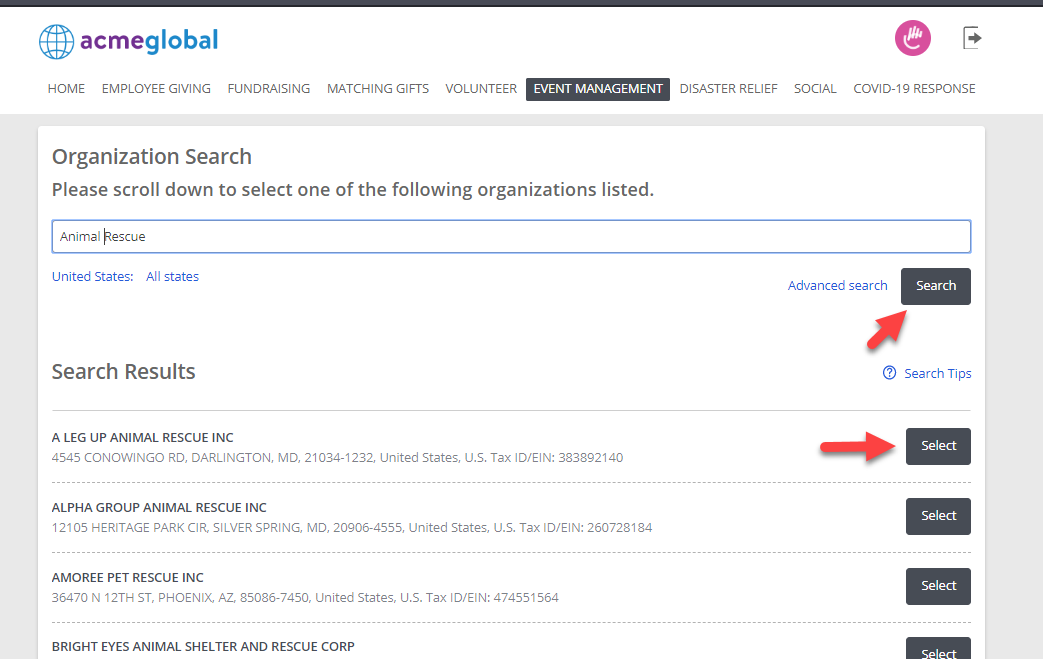
If the organization that you are looking for does not have ‘Select’ next to it and instead has the ‘Nominate’ link next to it, then press the ‘Nominate’ link.
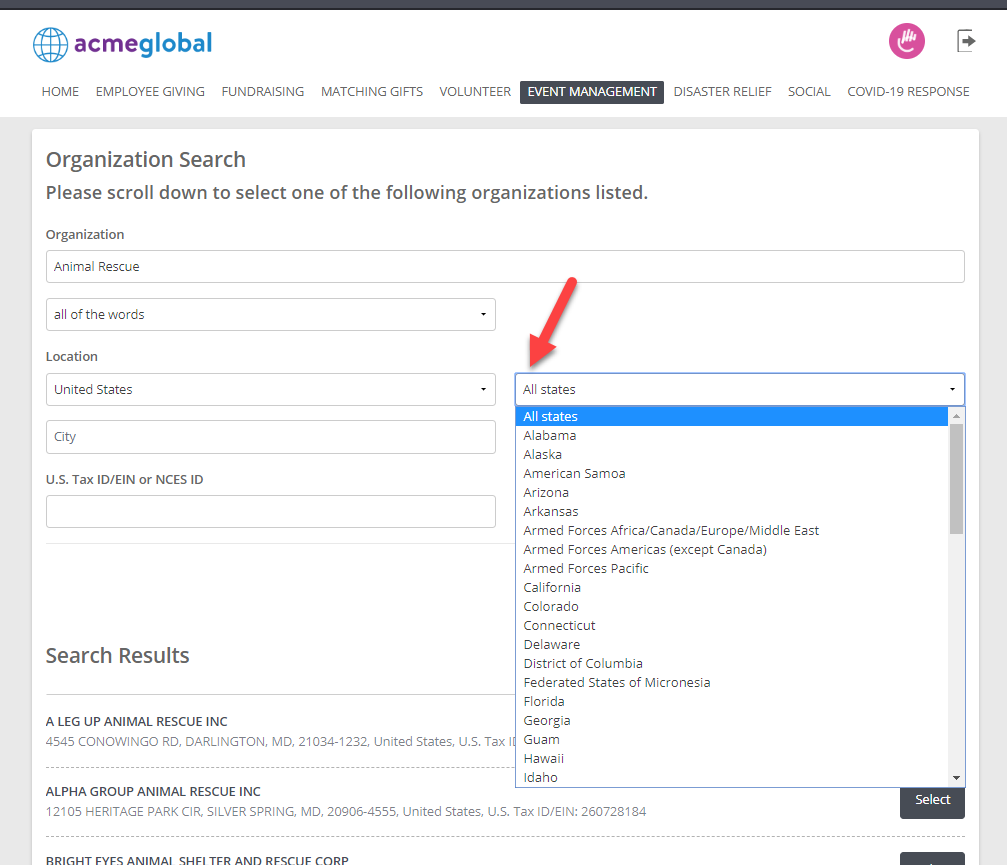
Click the “Advanced Search” to narrow your search by country, city, state or tax id.
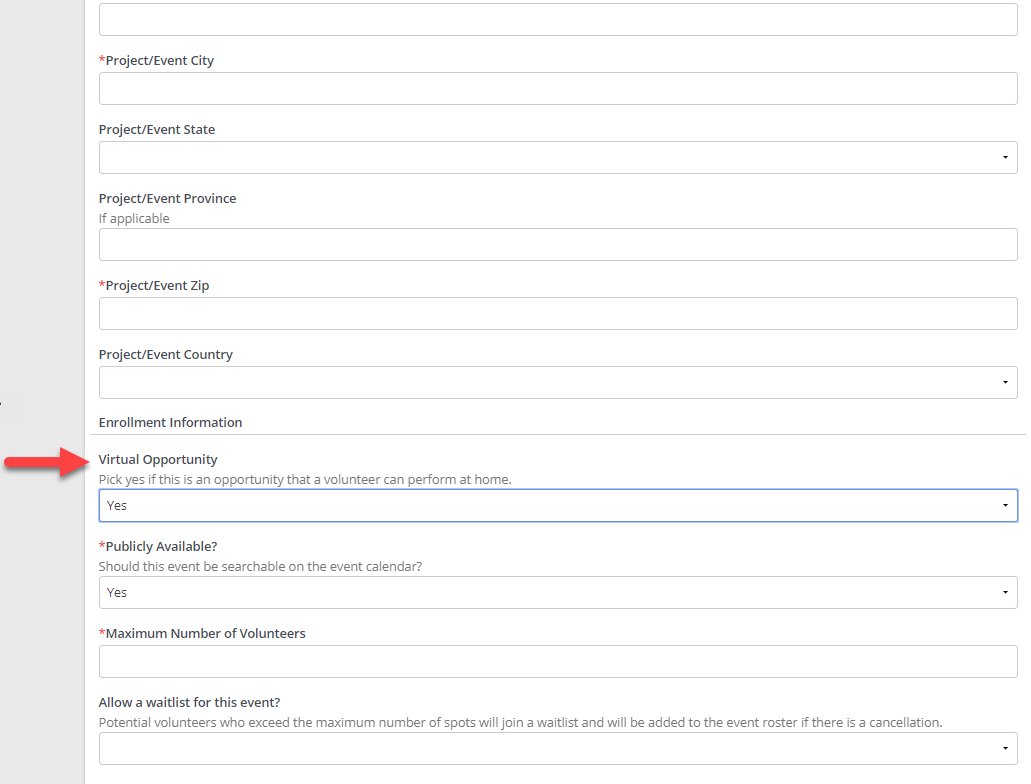
Fill in the ‘Event Information’ fields, paying special attention to select “Yes” for the “Virtual Opportunity” field.
For virtual events, additional standard fields are available to enter connection details:
- Virtual URL - Enter the meeting or event link. This field includes URL validation to ensure a valid web address format
- Virtual Event Information - Use this field to include details such as dial-in numbers or joining instructions.
The standard Project Start Date and Project End Date fields require that the start date be less than or equal to the end date when both fields are present. If the user enters a Project Start Date that occurs after the Project End Date, an error message will prompt them to fix the discrepancy. This validation occurs automatically for all programs using both fields.
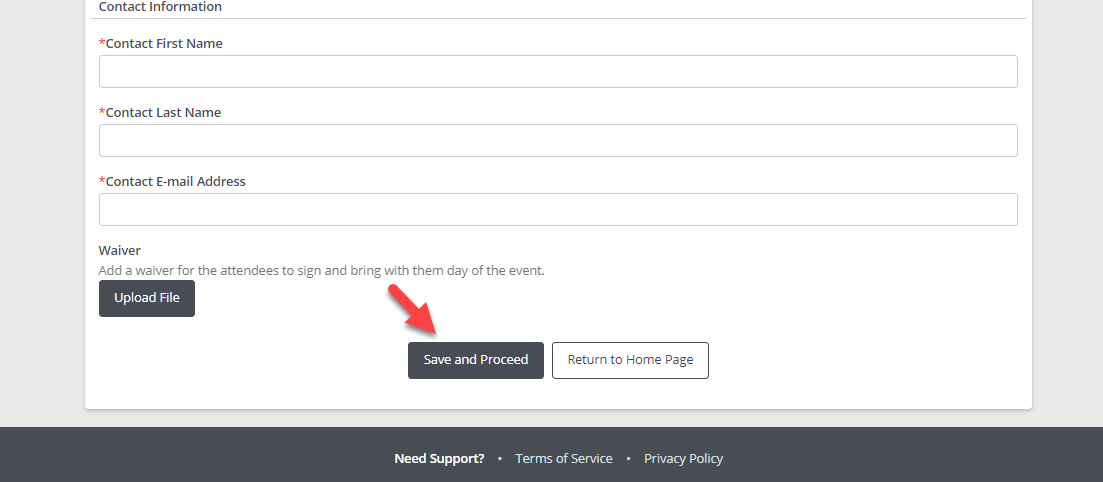
Select the ‘Save and Proceed’ button when finished.
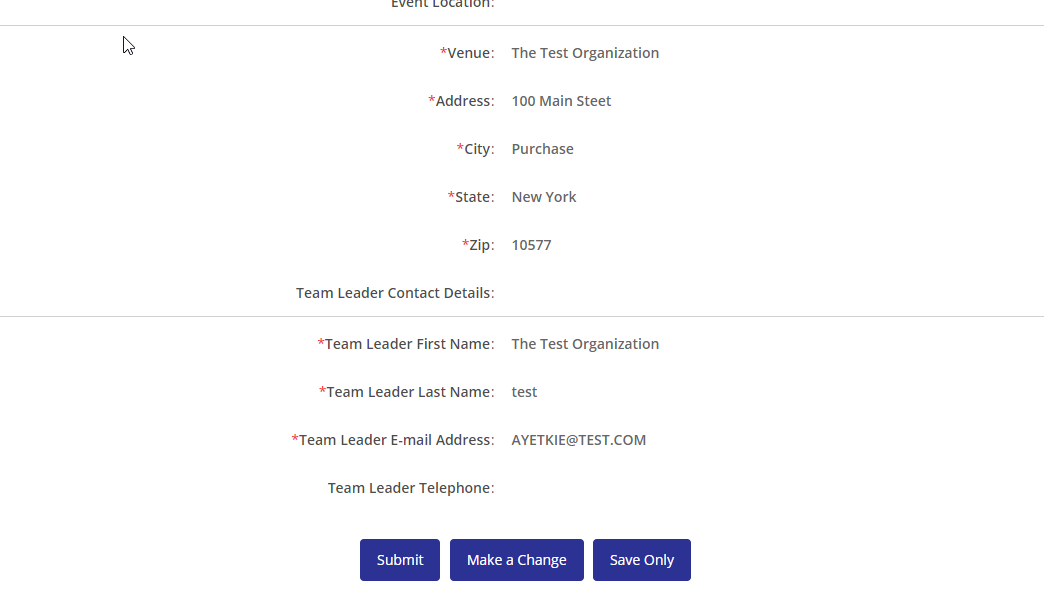
Review the event information that you entered and press the ‘Submit’ button when finished. If you need to edit the event information that you entered, press the ‘Make a Change’ button.
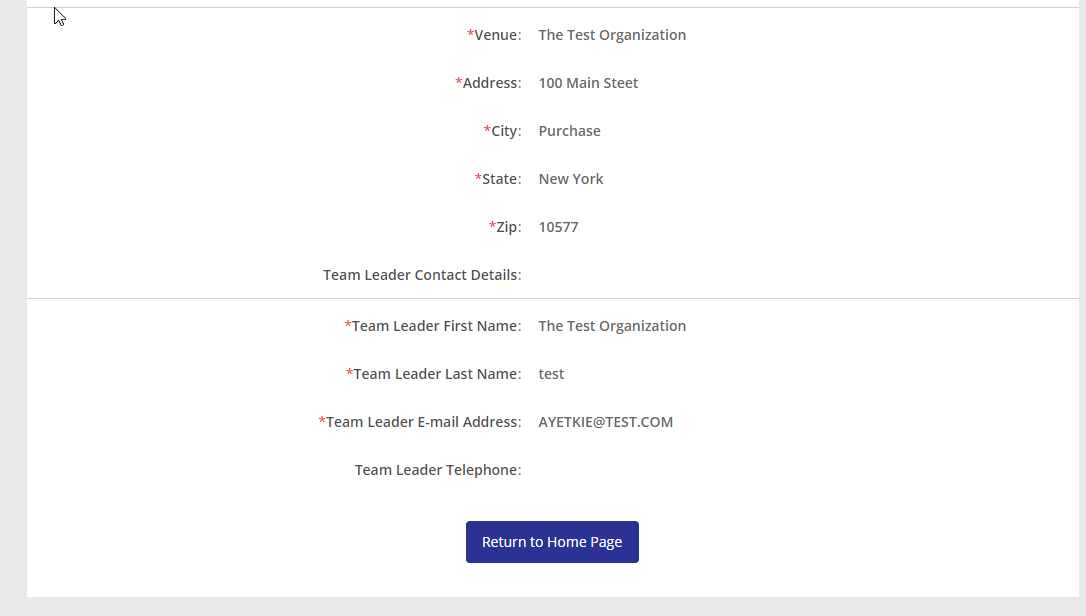
Press the ‘Return to Home Page’ button when you are done.
Once volunteers enroll, confirmation emails and calendar invites will reflect that the event is virtual and, if applicable, the specific shift date and time selected.
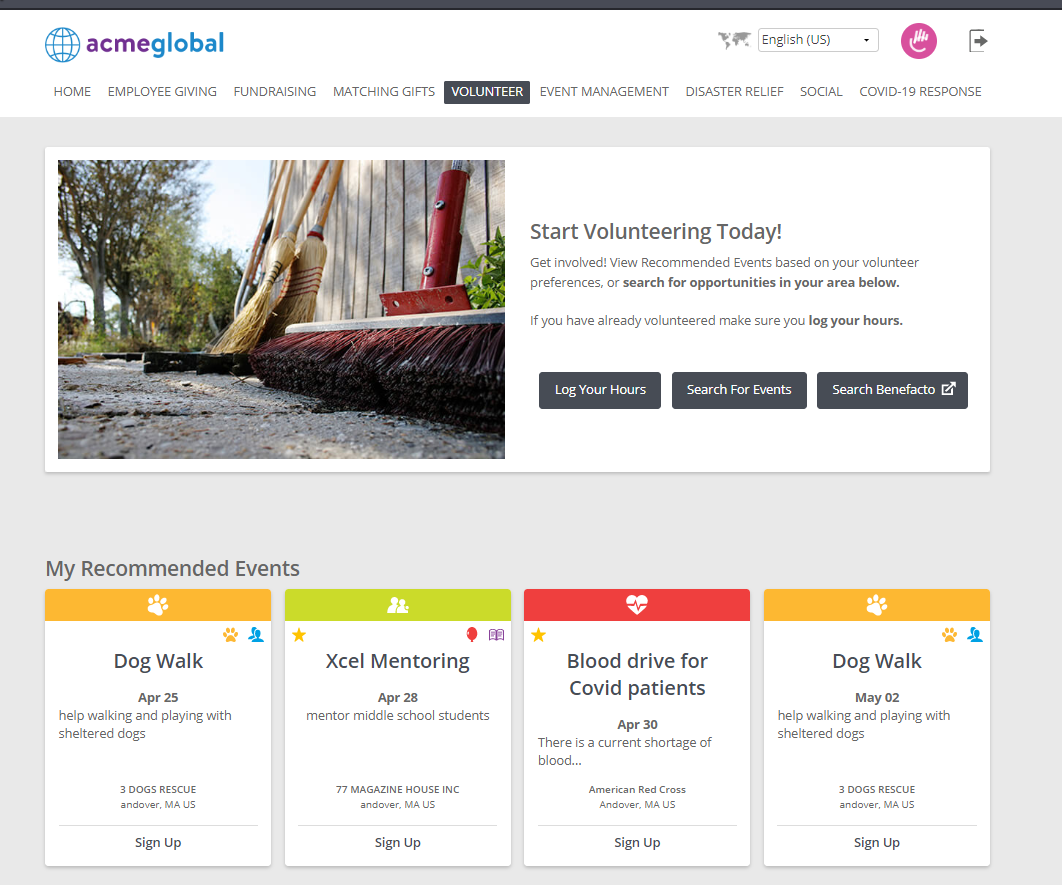
On the Volunteer page, you will see the event that you created on the ‘Event Calendar’ as long as you selected ‘Yes’ for the ‘Publicly Available?’ question in the Event Management.
Looking for training?
Explore this feature at your own pace - access training video content or watch a recorded webinar by clicking the link below.


