Getting Started
To configure a program across multiple languages, only a single proposal type will need to be configured. Once configured, language translations can be added for each supported language. In addition to the proposal type configuration, translations will also need to be configured for all elements interacting with the proposal type (i.e. email events, impact reports, portal pages, etc).
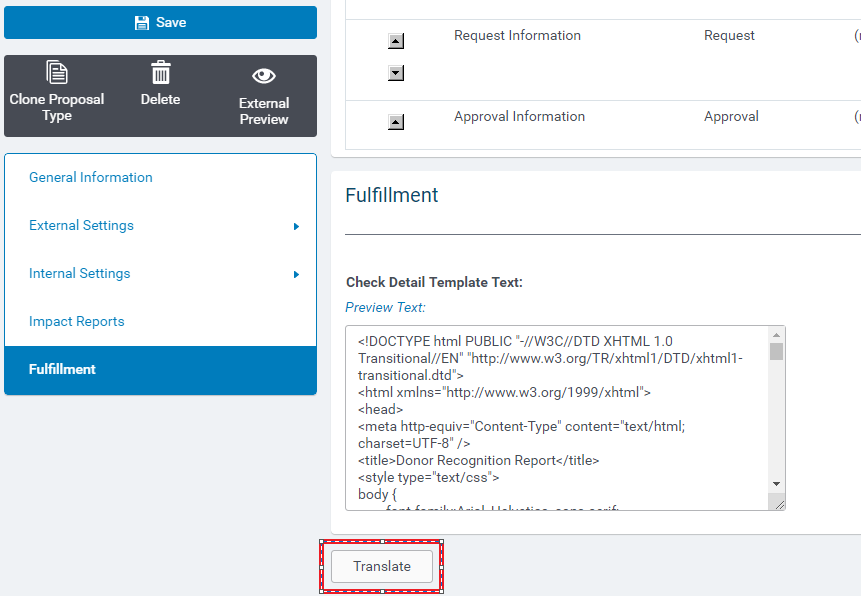
To support the multi-language capabilities, we have extended the existing Translation configuration behavior to most of the grant focused area (i.e. translations were previously supported within the Data Fields configuration). To access the translation configuration screen, a program administrator can simply navigate to each grant area in the Admin page and click on the “Translate” button found at the bottom of each configuration page.
On the Translation page, a user must first select the language you wish to add or manage translations for (note that languages must first be enabled in the Language Settings for the Grantmaker account).
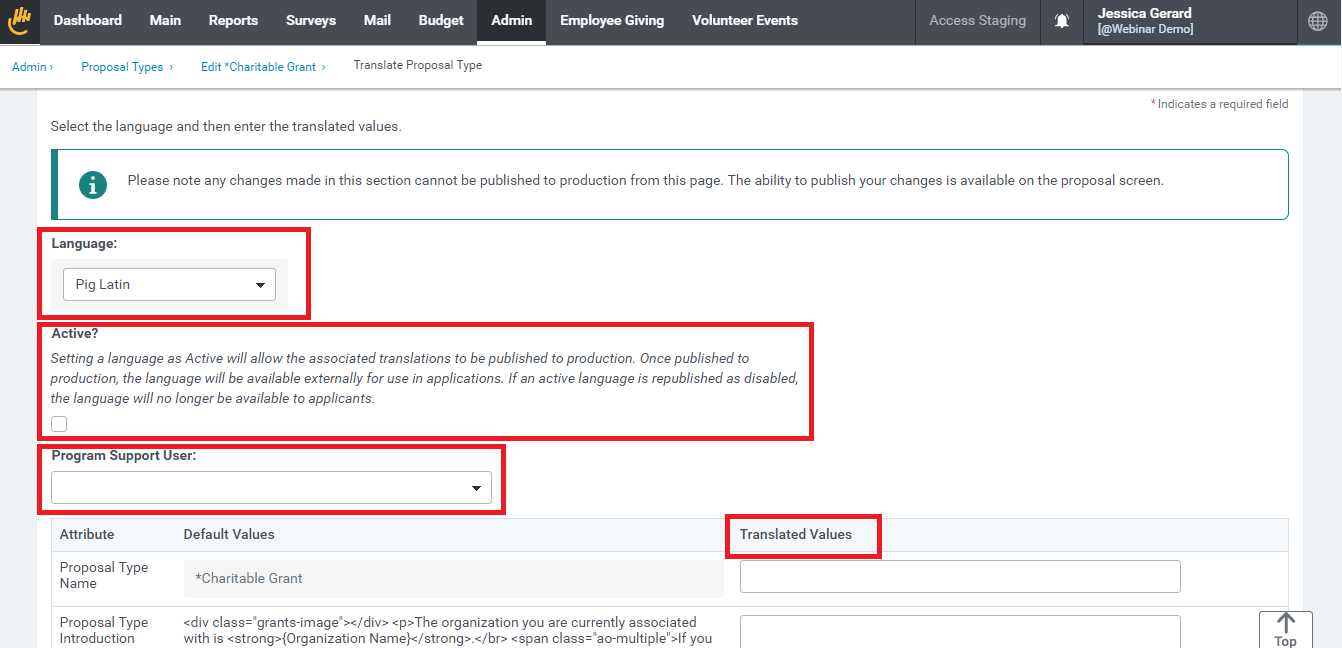
The Translation page shows the default language text (taken from the language set in the primary configuration) alongside the text fields for the translated values. Once the translations have been entered and/or updated, the user should select ‘Save’ at the bottom of the page to complete the changes.
Ready to Launch
The following checklist can be used as a guide to make sure all the necessary translations are configured:
- Data Fields
- Proposal Types
- Impact Report Types
- Support Areas
- Request Specific Email Events
- Impact Report Specific Email Events
- Impact Report Reminders
- Portal Pages
- Portlets
- After reviewing and testing, set the languages as active in both the Proposal Type and Impact Report Type translation settings.
- Publish the changes!
After confirming all translations are configured and the program has been tested in Sandbox, the changes can be published to Production using either the bulk publication tool or individually from each configuration area. When publishing, the list confirming the items being published will specifically highlight the translations for awareness.
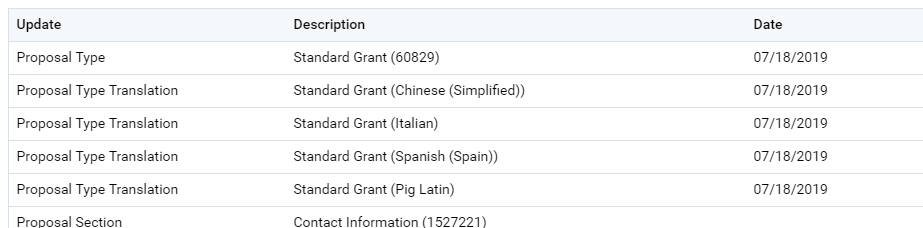
Reminder, for Proposal Types and Impact Reports – the translations will only publish if the language is set to Active within the translation details. This prevents a program from being deployed in a partially complete language.
Grantseeker Experience
Grantseekers navigating to a program page will be able to experience the entire application process in their preferred language without having to make sure they went to the correct program link. When the applicant reaches either the Login page or the Quick Registration page, CyberGrants will automatically load the page using the applicant’s preferred language which is determined from their browser settings. If the applicant’s preferred language is not available for the program, CyberGrants will attempt to default to a similar language variation or will display in the program’s default language.
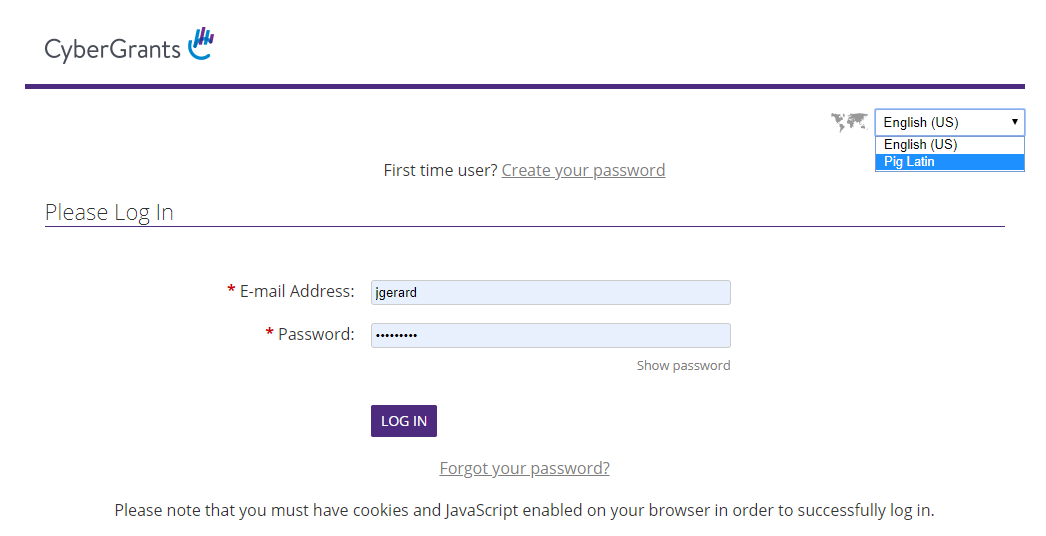
Prior to login, the applicant will have the option to change the defaulted language using a toggle. The toggle will only include the languages supported by the program and if only a single language is supported, it will not display at all.
Following login, the applicant will continue their experience in the language used at login – including email communication. Any new applications started will be associated to the language used for the current session. If the applicant returns to that application in the future, they will always view it in the language used at the time of creation (even if the applicant selected a different language at login for their following session).
Main Tab – Language Search
With proposal types now supporting multiple languages, it is important for a grant administrator to be able to find requests that were submitted in a specific language so the right people can review them. To assist with this, we have added the Request Language to the Main Tab Search as a Filter and as a Result Column.
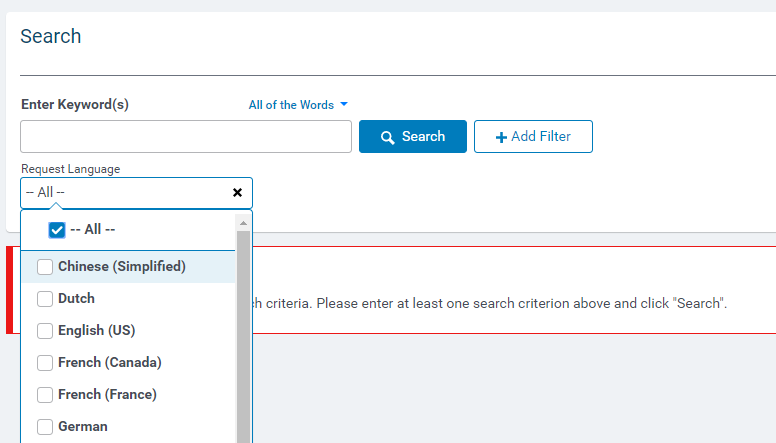

Don’t see the Request Language as an available filter? You may need to enable it first in your search settings.
Admin > General Settings > Search Configuration > Main