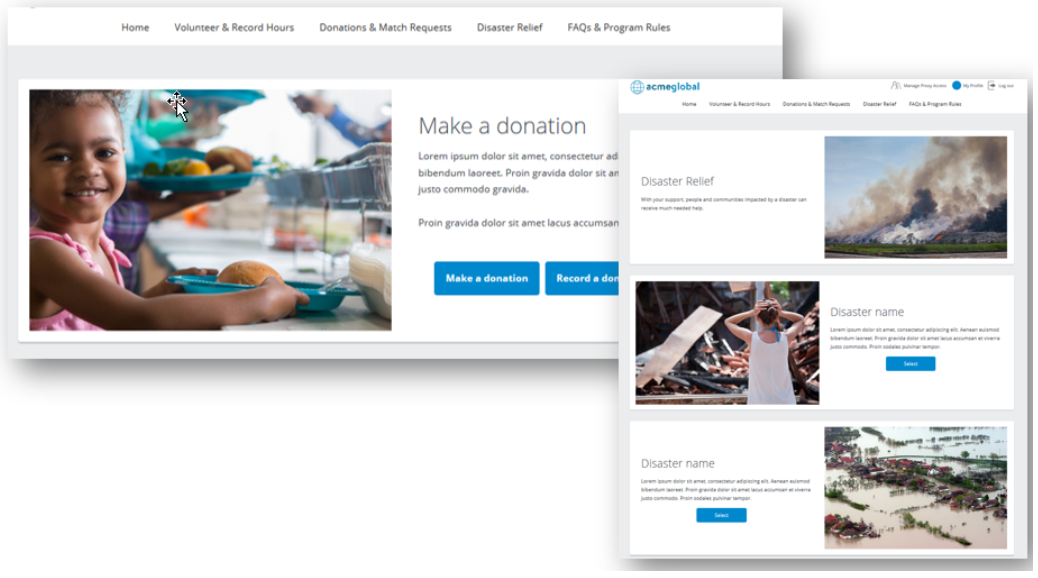
Horizontal Full Width Teaser Layout
Organization Search
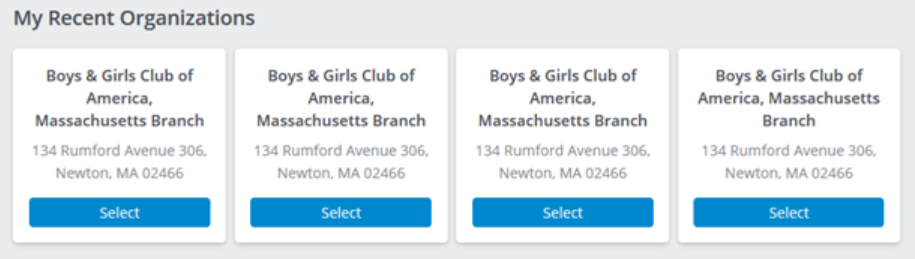
My Org Card List in Org Search
Application Selection Method (“the picker”)
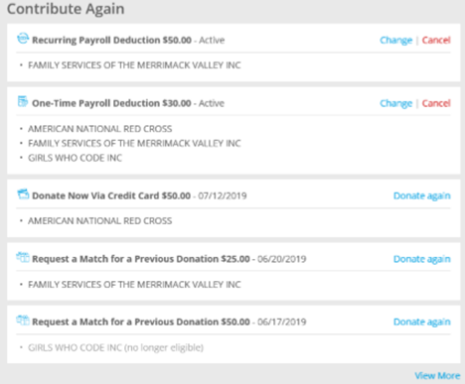
Contribute Again Portlet
Single Teaser Format
Alternating image sides
Able to put buttons to jump directly to application / page / external link
Buttons also available in current teaser format
Organization Search
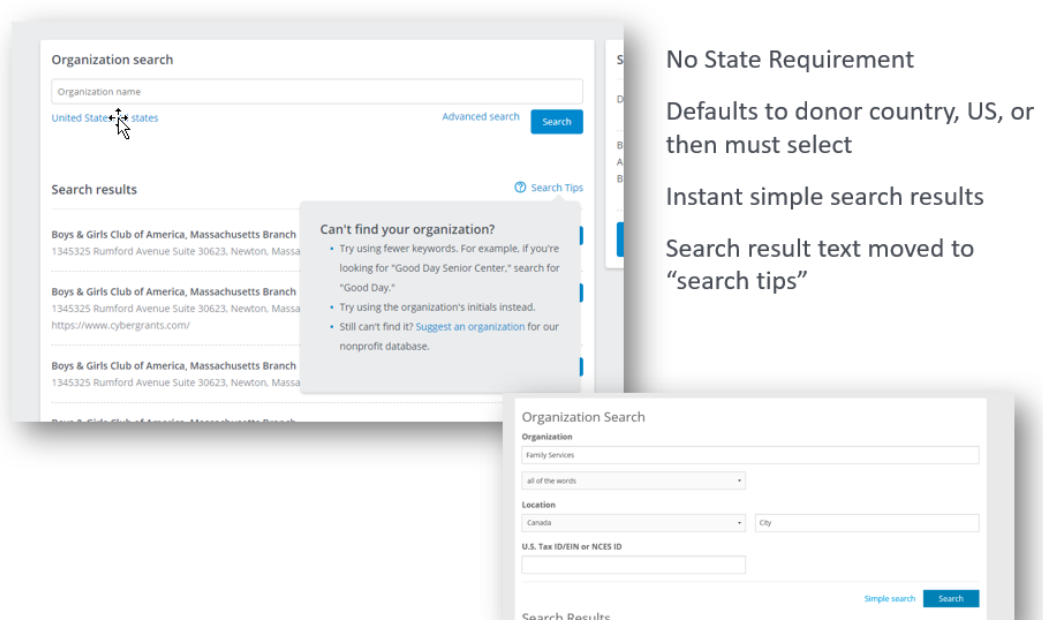

How to update the text that appears on the Organization Search page.
EG Proposal Type > Donor Setup > Organization Search
- Organization Search Section Name (new): Displays as a page header. (Default is Organization Search)
- Basic Search Instructions: Displays above search field in simple search
- Advanced Search Instructions: Displays above search field in advanced search
- Search Result Instructions: Displays when results returned in the “Search Tips” area
- Instructions Displayed when No Search Results are Returned: Displays when no results in Search Results
Organization Card List
|
Standard: My Recent Organizations
- recent organizations in any program (24 months)
- eligible to be selected for this program
Flexible to receive custom generated of organizations
- Ongoing client partnerships
- Special program highlighted orgs
- Regional lists based on donor characteristics
| 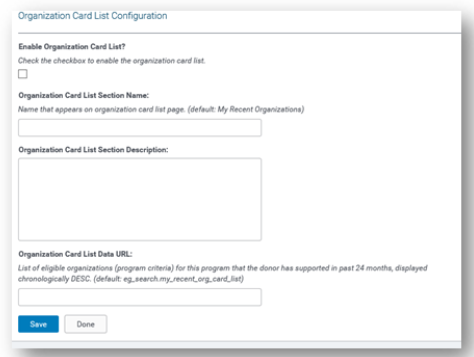 |
 How to enable the Organization Card List
Employee Giving Proposal Type > Donor Setup > Organization Search > Organization Card List Configuration
Enable Organization Card List: Check to include in any Proposal Type this should be displayed in.
Organization Card List Section Name: Change from the default of “My Recent Organizations”
Organization Card List Section Description: Optionally provide supporting text regarding this list
Organization Card List Data URL: TSD custom list can be designed and added to the program.
Application Selection Method (“the picker”)
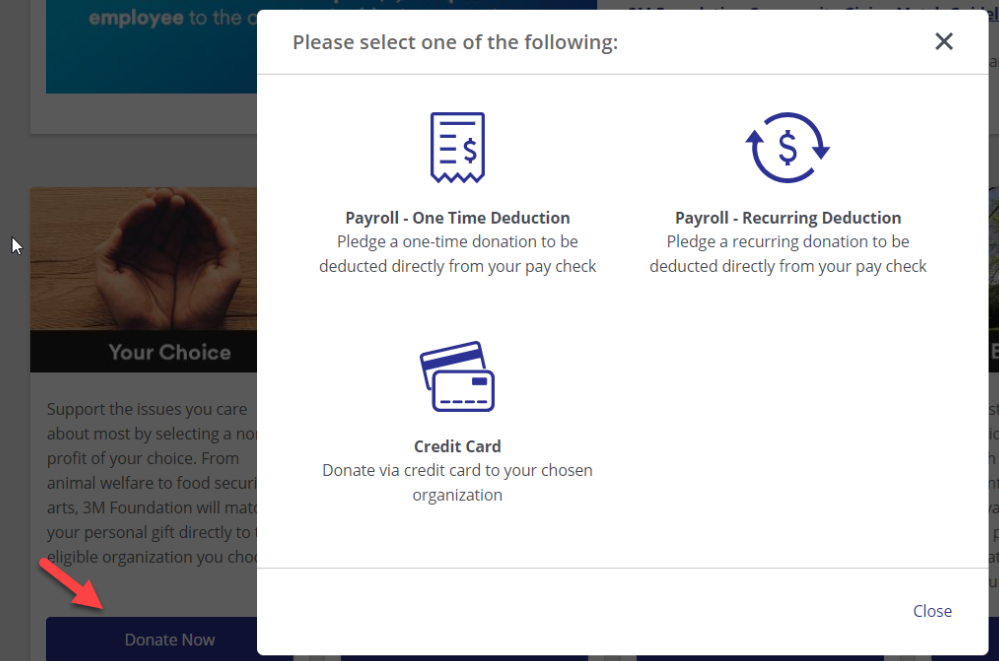

Configuration
To add a program selector to a teaser, use the Teaser Portlet configuration page. The Link URL can be constructed using the following phrase:
eg_application.program_selection?x_proposal_type_id={REPLACE ME}&x_proposal_type_id={REPLACE ME}
For example, if you wanted proposal types 12345, 67890, and 13579 to display, the URL would be:
eg_application.program_selection?x_proposal_type_id=12345&x_proposal_type_id=67890&x_proposal_type_id=1 3579
The proposal types will be displayed in the order listed within the URL.
Note that all existing eligibility rules will be taken into consideration. If a donor is not eligible, the proposal type will not be displayed in the program selector. If a donor is not eligible for any of the listed proposal types, the program selector will display a friendly error message ("You do not meet the eligibility requirements for the current program.").
The program selector can be added with or without icons and supporting text.
Admin > Employee Giving Proposal Type > Program Configuration > Program Options
To configure how the proposal types are displayed within the program selector, an Icon to display and Program Short Description can be set from each proposal type configuration page.
Contribute Again/Recent Donations
|
See most recent employee donations immediately when on page
- One Time Payroll
- Recurring Payroll?
- Credit Card Transactions
(All normal portlet controls – limit by proposal type, donor role, etc)
|  |

Configuration
To Add the Contribute Again Portlet
Admin > Portal Pages > Donor Portal > View/Edit Portlets
Activate and add the Contribute Again portlet to the desired portal pages.
IMPORTANT: Use the standard Advanced configuration options to limit the proposal types that this portlet displays, in order to only show programs relevant to the page that it is on.
To Add the Contribute Again Portlet
Admin > Portal Pages > Donor Portal > View/Edit Portlets
Activate and add the Contribute Again portlet to the desired portal pages.
IMPORTANT: Use the standard Advanced configuration options to limit the proposal types that this portlet displays, in order to only show programs relevant to the page that it is on.


