This article will walk you through different ways you can report on the data tied to a Funding Invoice.
Funding Invoice Console Reports
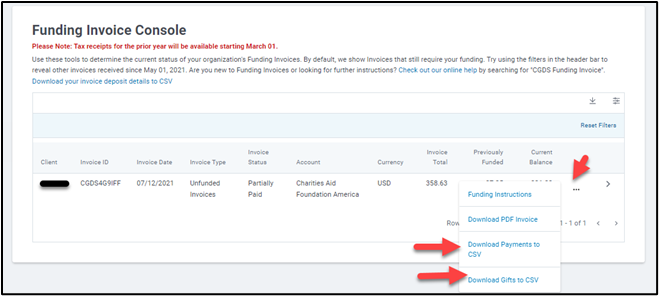
In order to review the back up data tied to an invoice, there are standard CSV reports in the Funding Invoice Console available for download. Here you can pull reports at the gift or payment detail. If you are just looking for back up data tied to a particular proposal type on the invoice, you will find that here as well.
NOTE: You must have a user role with the ability to view the Funding Invoice Console
Backups tied to entire invoice
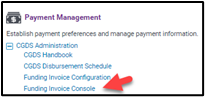
- Admin tab
- Payment Management
- Funding Invoice Console
- To the right of the invoice you need reports on, click the ellipsis
- Select either "Download Payments to CSV" or "Download Gifts to CSV"
![]()
![]()
Backups tied to specific proposal type on invoice
- Admin tab
- Payment Management
- Funding Invoice Console
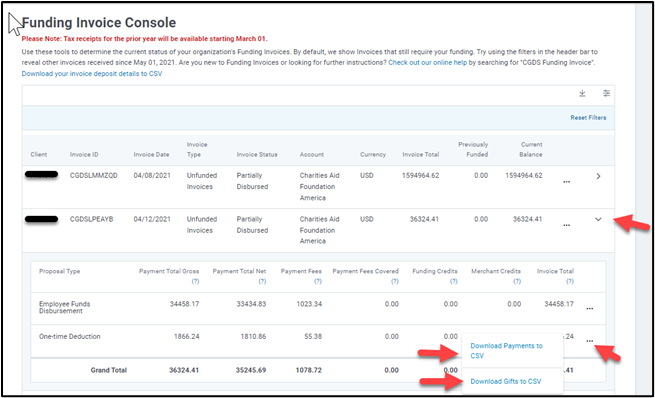
- To the right of the invoice you need reports on, click the down arrow
- To the right of the proposal type you need reports on, click the ellipsis
- Select either "Download Payments to CSV" or "Download Gifts to CSV"
Ad Hoc Reports
In the event you need to pull backup data for multiple invoices or if the standard reports in the funding invoice console are not sufficient, you have the ability to create ad hoc reports.
Gift Level Reports
- Report Tab
- Create Ad Hoc Report
- Gift Level Reports
- Employee Giving Reports
- Employee Giving Transaction Information
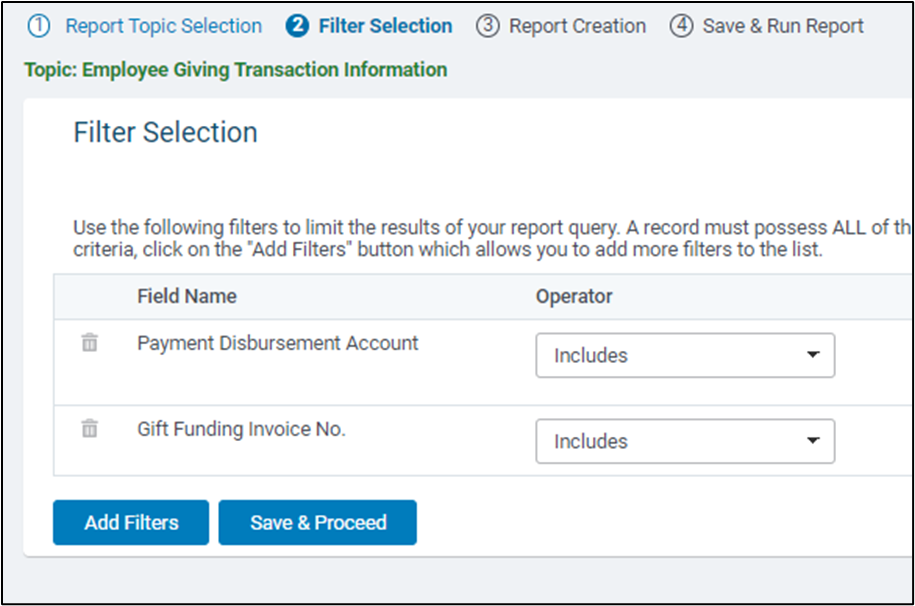
- Invoice Number Filter or Display Column Name: Gift Funding Invoice No.
- TIP: When using as a filter, comma separate multiple values and use the operator=includes
- Account Name Filter or Display Colum Name: Payment Disbursement Account
-
- ie: Charities Aid Foundation America or CyberGrants SPV, LLC
Grant or Payment Level Reports
- Report Tab
- Create Ad Hoc Report
- Grant Request & Payment Reports
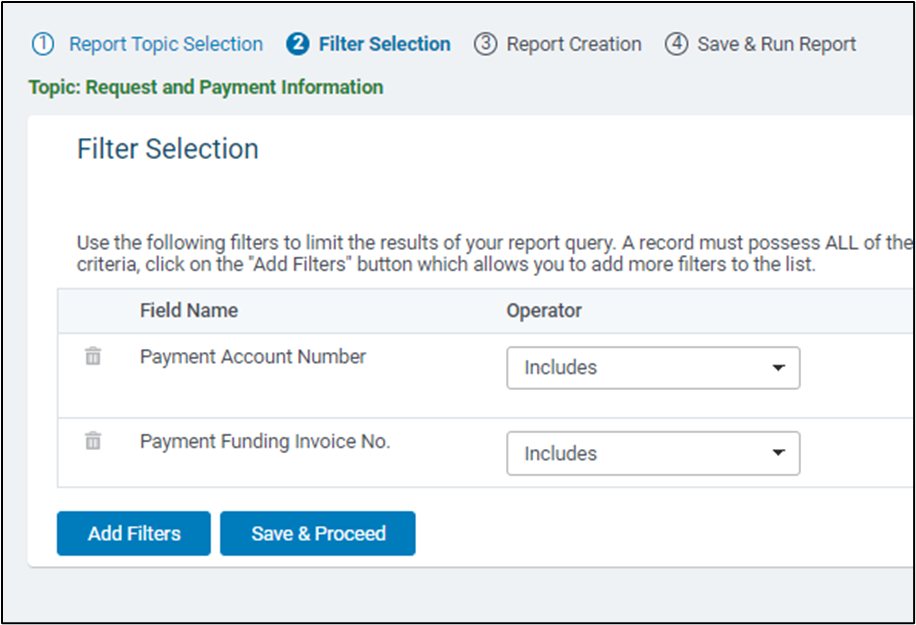
- Request and Payment Information
- Invoice Number Filter or Display Column Name: Payment Funding Invoice No.
- TIP: When using as a filter, comma separate multiple values and use the operator=includes
- Account Name Filter or Display Colum Name: Payment Disbursement Account
- ie: Charities Aid Foundation America or CyberGrants SPV, LLC
![]()
Back to Funding and Invoicing
Back to Homepage


