There are certain email events that are triggered throughout the CGDS Payout Cycle. Some of them are configurable within the CyberGrants UI, and there are some that are set standard and automatic (not configurable within the UI).
Below is a break down of what email events belong with CGDS, more specifically: Which ones are editable vs. which ones are not.
Email Events Configurable Within the UI
Redirection Email Events (For Donor Choice Preference Only)
How To Access: Admin > Email Configuration > Standard Events > Redirection > Select Program
Redirection First Notification to Donor (ID#96801)
This email is the first email for donor choice redirection.
|
Subject: Action Required New Organization Selection
Dear Donor First Name (RD)} {Donor Last Name (RD)},
Unfortunately, an organization that you selected for a donation is no longer eligible to receive payments at this time.
ACTION REQUIRED:
We are requesting that you select another organization to receive your donation. Please follow the link
below and complete the outlined steps to ensure that your donation is appropriately redirected.
{CG Host)eg portal. redesignations?x qm_id=(Grantmaker ID (RD)}
If we do not hear back from you by {Pending Email Date}, your donation will be directed to (Default Org).
If you have any questions, please contact support at {Redirection Support Email}.
Sincerely,
{Grantmaker Name (RD)}
|
Redirection Reminder to Donor (ID#96802)
This is the reminder email that is sent to the donor after 5 days if they have not selected a new organization.
|
Subject: Reminder Action Required New Organization Selection Required
Dear Donor First Name (RD)} {Donor Last Name (RD)},
This is a reminder that you need to select a new organization in order to redirect your gift.
Unfortunately, an organization that you selected for your gift is no longer eligible to receive donations at this time.
ACTION REQUIRED:
We are requesting that you select another organization to receive your gift. Please follow the link
below and complete the outlined steps to ensure that your gift is appropriately redirected.
{CG Host)eg_portal.redesignations?x_gm_id={Grantmaker ID (RD)}
If we do not hear back from you by (Pending Email Date}, your gift will be directed to (Default Org).
If you have any questions, please contact support at [Redirection Support Email}.
Sincerely,
{Grantmaker Name (RD) }
|
Donor Choice Selection Completed (ID#96804)
This email is the confirmation sent to the donor once they have selected a new organization.
|
Subject: New Organization Selection Completed
Dear Donor First Name (RD)} {Donor Last Name (RD)},
This email is to confirm that you have selected (Organization Name (RD) } in order to redirect
your original gift. Thank you for selecting a new organization.
If you have any questions, please contact support at {Redirection Support Email}.
Sincerely,
{Grantmaker Name (RD) }
|
Redirection to Default Notification to Donor (ID#96803)
This email is if the donor does not respond to the redirection prompt and does not choose a new organization.
|
Subject: Gift sent to default organization
Dear {Donor First Name (RD)} {Donor Last Name (RD)},
Unfortunately, an organization that you selected for a donation is no longer eligible to receive payments at this time. We have sent your gift to our default organization (Default Org).
If you have any questions, please contact support at {Redirection Support Email).
Sincerely,
{Grantmaker Name (RD)}
|
Employee Email Events
For any email events that are going to the employee (i.e when gifts are approved, scheduled or paid) you can access and edit those within the Email Configuration section
How to Access: Admin > Email Configuration > Standard Events > Employee Giving
Below is an example of the Paid email event sent to the donors:
Employee Giving Paid (ID#20010)
|
Subject: Employee Giving Grant Paid
Dear {Donor First Name} {Donor Last Name},
The match for the following gift has been paid to {Organization Name}.
Gift Amount: (EG Request Cash Gift Amount}
Gift Date: (EG Request Start Date}
Gift ID: (EG Request ID}
Sincerely,
{Grantmaker Name}
|
Email Events NOT Configurable Within the UI
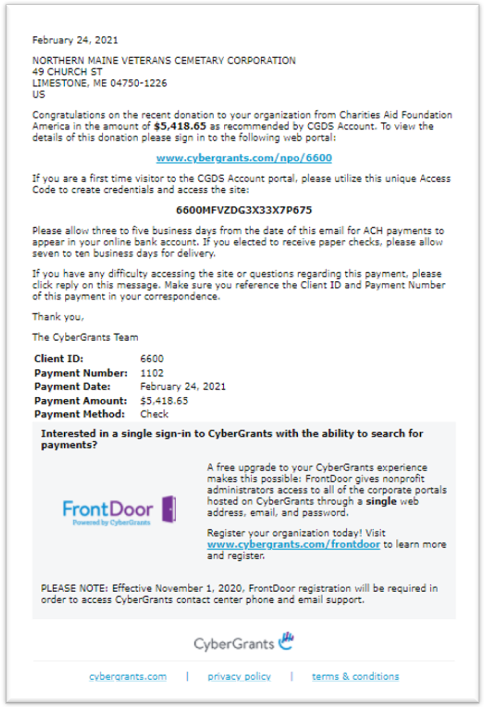
Paid Email Events To Organizations
When gifts are paid to an organization, there is an email that is generated on the back end using a standard template that is NOT configurable within the UI. This means that it is not eligible to be edited by any users.
Below is a sample of the email:
Funding Invoice Email Notifications
When the Funding Invoices are generated each month, there is an email event that is sent out to client contacts to notify them of their availability. Those email events are generated using a standard template that is NOT configurable within the UI. This means that it is not eligible to be edited.
Below is a sample of the email:
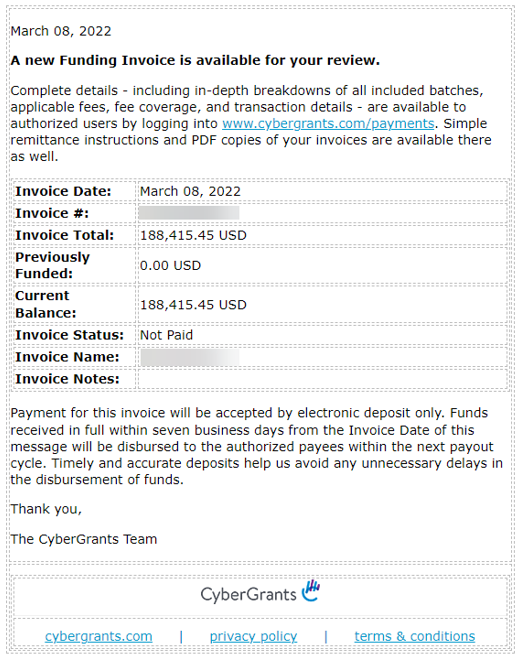
In addition to this email, there are also reminder emails that are sent out at 7 days, 14 days and then every 30 days during the time frame that a client has not funded the invoice. These email events are also generated using a standard template, and therefore cannot be edited.
Tax Receipt Email Notifications - Employee Funds
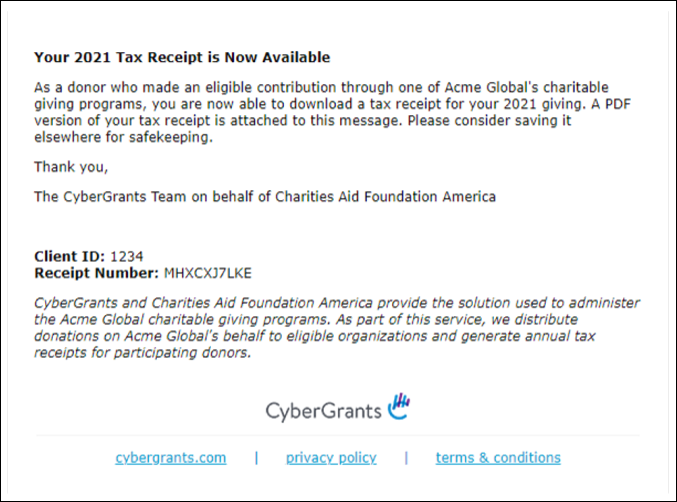
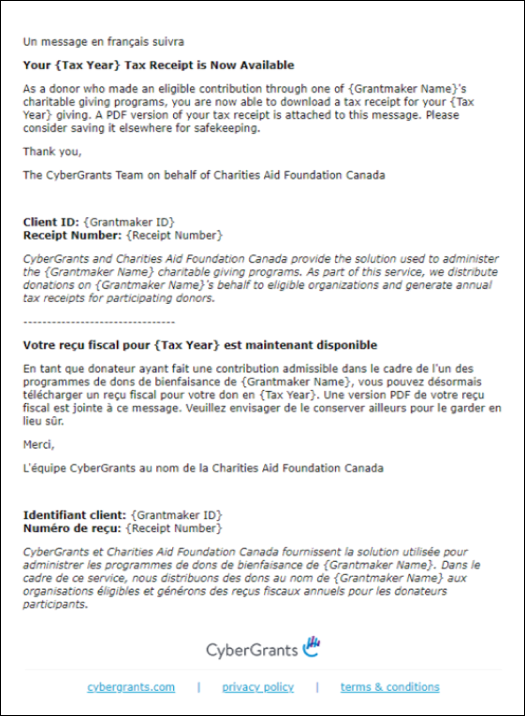
Tax Receipts for CGDS clients are available by March 1st of the year for the prior year’s gifts. Donors will receive an email notification letting them know that the receipt is available.
Those email events are generated using a standard template that is NOT configurable within the UI. This means that it is not eligible to be edited.
Below is a sample of the Email Event for US Employees:
Below is a sample of the Email Event for the Canadian Employees:
Back to Funding and Invoicing
Back to Homepage


