Grouped Ad hoc reports in Bonterra CyberGrants combine similar records under a common heading or Group, which displays at the top of each section in the final report. This format helps customers organize data into logical categories and optionally include subtotals for each group.
The following steps will guide you through the process, from initial setup to running the final report.
Step 1: Access the Reports tab
From the CyberGrants portal, navigate to the Reports tab.
Step 2: Create a new Ad Hoc Report
Click Create Ad Hoc Report to begin building a new custom report.
Step 3: Select a Report Topic Category
Choose the appropriate Report Topic Category to define the general subject area of your report.
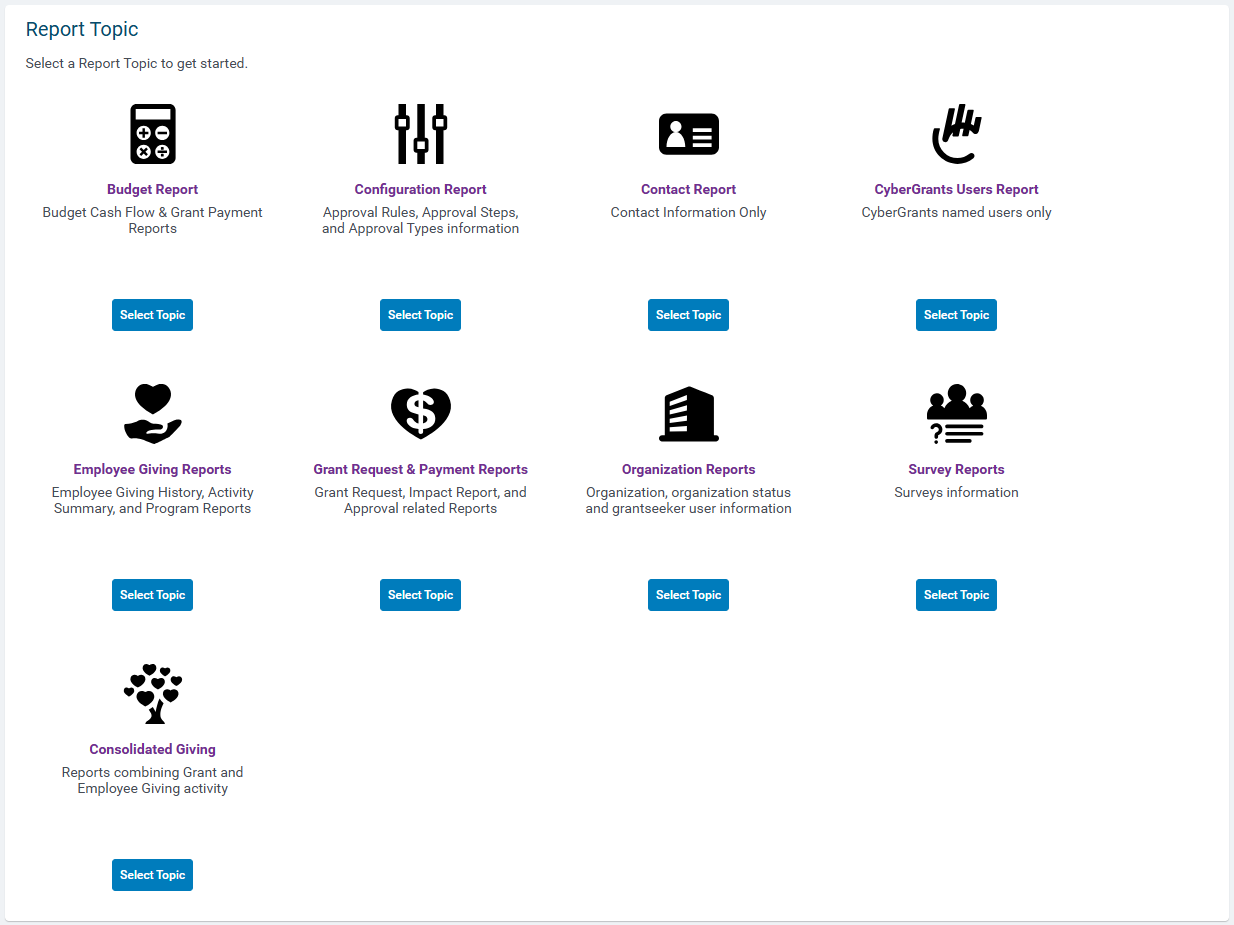
Step 4: Select a Report Topic
Next, select the specific Report Topic you want to report on. This determines the data set available for your report.
Step 5: Apply filters and values
Select your preferred filters and values to narrow the scope of the report. When ready, click Save and Proceed.
Step 6: Choose the Grouped Report type
For the Report Type, select Grouped. This enables grouping logic and subtotal capabilities in your report format.

Step 7: Select and group fields
You will now define which fields appear in your report and which ones will be grouped:
- Use the Search Report Fields tool to find relevant fields. To show only groupable fields, select the Groupable filter.
- Use the plus sign (+) to add a field or drag it into the report layout.
-
Drag groupable fields into the first column in blue to define grouping levels. For example, you might first group by Proposal Type, then State or Region, followed by Disposition to move from broad to specific categories.
Helpful tip: Fields displayed in blue are groupable.
You can rearrange fields in the following ways:
- Drag a field to move it into your preferred position.
- Use the green arrow next to a field to move, delete, or apply functions such as count, unique count, and linking to records.
- For some multi-value fields, administrators can use the Concatenate option, which allows for all values in a specific field to display in a single column as a comma-separated list instead of appearing across multiple rows.
Note: Not all fields support all functions.
Group order guidance
The order of your grouped fields determines the structure of your final report. Always place broader groupings higher in the list. For example:
- Country (broadest)
- State or Region
- Organization Type (most specific)
This ensures a logical and easy-to-read report hierarchy.
Step 8: Save and run the report
Once your field selection is complete, click Save and Proceed.
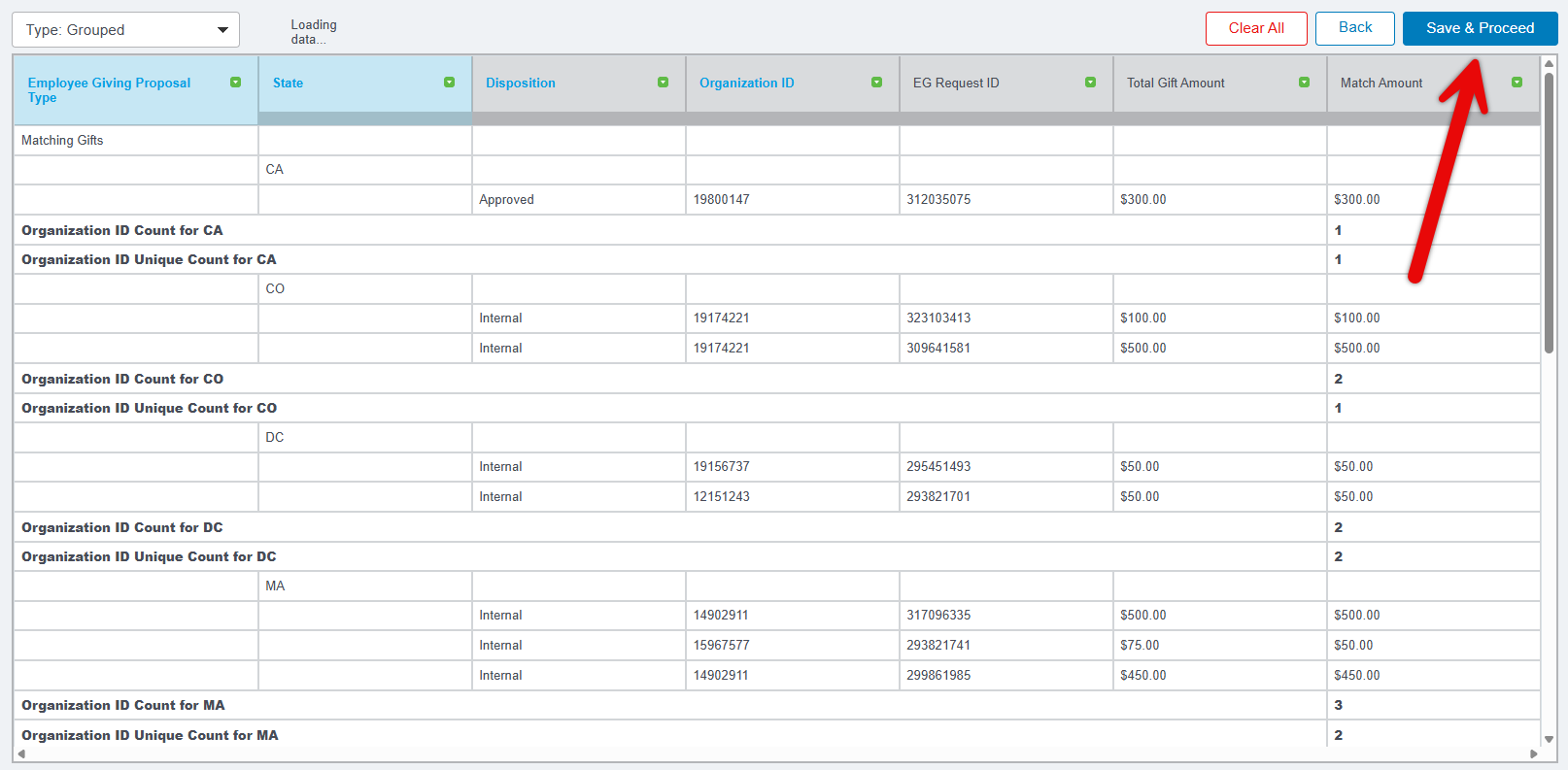
Click Save & Run Report to submit the report for processing. Once queued, a message will display, allowing you to click Open the Report when it’s ready.
Sample Grouped Report
Below is an example of a Grouped Report that demonstrates how records are nested under each group heading, with subtotaling where applicable:


