Since an event with shifts is a one-time event, it will only appear once in search results. They will also only appear once in the My Recommended Events and My Featured Events portlets.
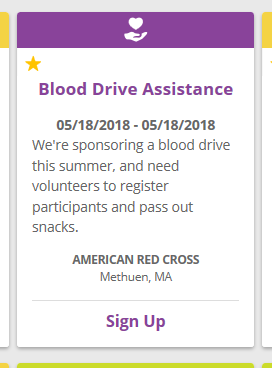
To select a particular shift, the employee begins by clicking the "Sign Up" link on the event card. They’re then brought to the event details, where they can view each shift’s start and end times, remaining spaces, and any description provided by the event creator to clarify the responsibilities for that shift. By default, they can join as many shifts as they like - as long as they have enough room. For team signup workflows, once the team leader has picked their shifts, they can then add friends and family or co-workers who will be participating in the same shifts with them. CyberGrants will make sure that nobody is accidentally signed up multiple times for the same shift.
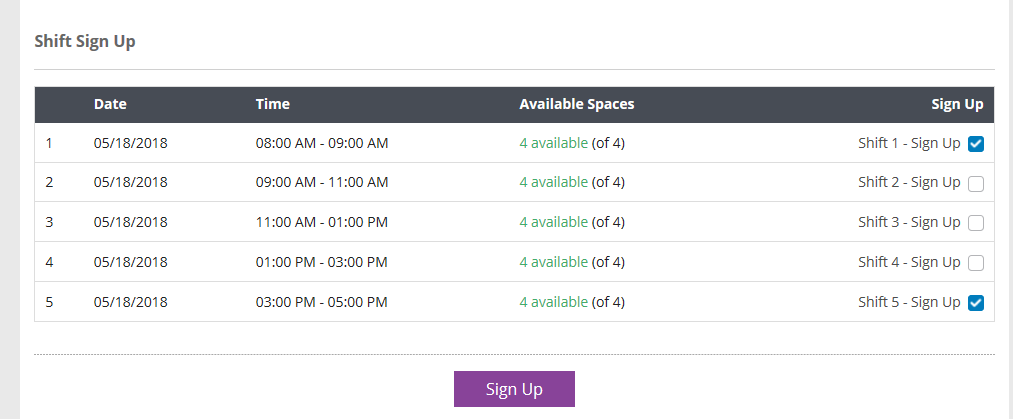
If the event allows for waitlisting, the enrollment process is similar to events without shifts. For individual signup, an employee will be able to sign up for shifts that have available spaces and join the waitlist for those that are full. For team signup, all team participants must still fit within the shift (if at least one space is available) or can sign up the entire group to be waitlisted (if no spaces are available).
NOTE: In the case where the total number of shift capacity is less than the maximum event volunteers, people are waitlisted based on the shift capacity. So if you have two shifts with a total capacity of 15, which are completely full, and an event with a maximum of 30, volunteers 16-30 will be waitlisted as they attempt to sign up for the specific shifts.
As with all events, after signing up, employees will receive an email per shift enrollment with a calendar file for the shift. The confirmation email and calendar file will reflect the selected shift’s date and time.
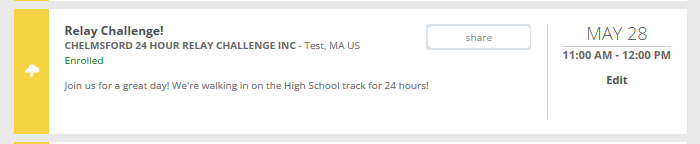
Once an employee has signed up for an event with shifts, they will see an enrollment card for every shift they have signed up for in any Enrolled Event portlets, with the time displayed for the shift they are signed up for. As with an event without shifts, employees can cancel their enrollment from this location (separately for each shift).
Looking for training?
Explore this feature at your own pace - access training video content or watch a recorded webinar by clicking the link below.


