Adding filters to an Ad Hoc Report allows customers to refine user data and create more targeted reports. The Active Flag filter helps determine whether users are currently active, while the CyberGrants License Status filter identifies the type of license associated with each user. These filters are particularly useful for managing user access and monitoring license allocation.
The following steps will guide you through the implementation process, from selecting the report topic to saving the final configuration.
Step 1: Create an Ad Hoc Report
Under the Reports tab, click the Create Ad Hoc Report hyperlink.
Step 2: Select the CyberGrants User Report topic
In the Report Topic panel, click Select Topic for CyberGrants User Report.
Step 3: Open the Filter Selection Panel
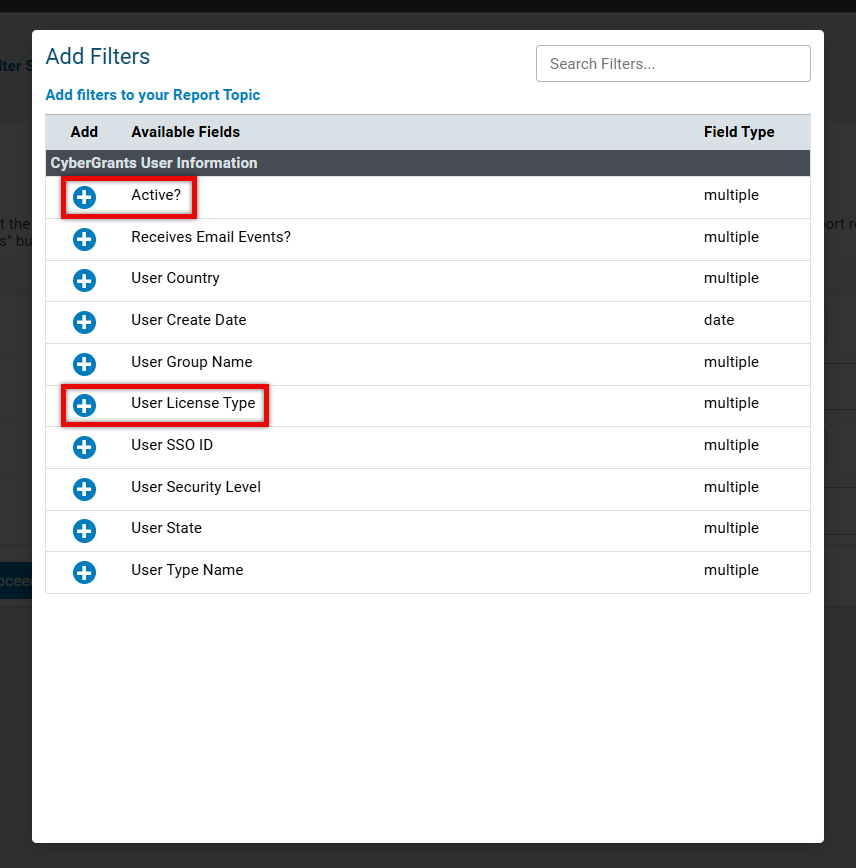
In the Filter Selection panel, click Add Filters. The Add Filters window will open.
Step 4: Add the Desired Filters
In the Add column, click the add icon for either Active? or User License Type.
Step 5: Adjust Fields and Save
Modify any additional fields as needed. When finished, click Save & Proceed. The report will be created with the selected filters.


