It is essential to maintain an organized approach when managing the gift eligibility date ranges for your program's proposal types. This process ensures that employees (or donors) can create gifts within the appropriate time frame and that the gifts are eligible for the desired date range. As programs are reevaluated and budgets are updated each year, it is crucial to complete the update of the gift eligibility date range in advance of the start of a new program year.
- By proactively configuring the gift eligibility date ranges, program administrators can provide a seamless experience for their employees or donors, allowing them to make contributions within the designated time frame year after year. This approach helps to avoid any disruptions in the processing of employee-giving requests.
To configure the gift eligibility date ranges for your programs, follow these detailed steps:
Step 1: Access Sandbox
Log in to CyberGrants and access the Sandbox environment. Authorized users can access Sandbox by clicking the "Access Sandbox" link in the upper right-hand corner of the screen when logged into the CyberGrants production environment. Alternatively, users can directly access Sandbox by navigating to https://sandbox.cybergrants.com/login-sb/CGLogin and logging in with their regular user credentials.

Once in Sandbox, users will notice a distinct visual indicator - a rainbow gradient stripe above the gray menu bar at the top of the page. This signifies that the user is currently working within Sandbox, rather than the live Production environment.

Step 2: Navigate to the Admin Tab
Go to the Admin tab while in the Sandbox environment.
Step 3: Locate Proposal Type
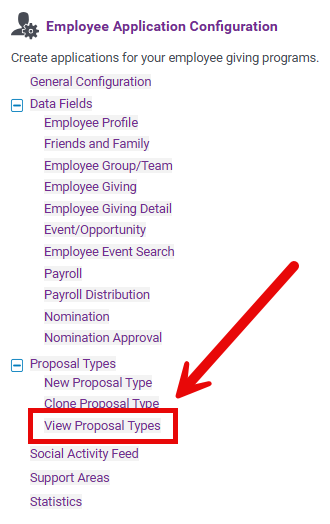
Scroll down to the Employee Application Configuration section and select "View Proposal Types".
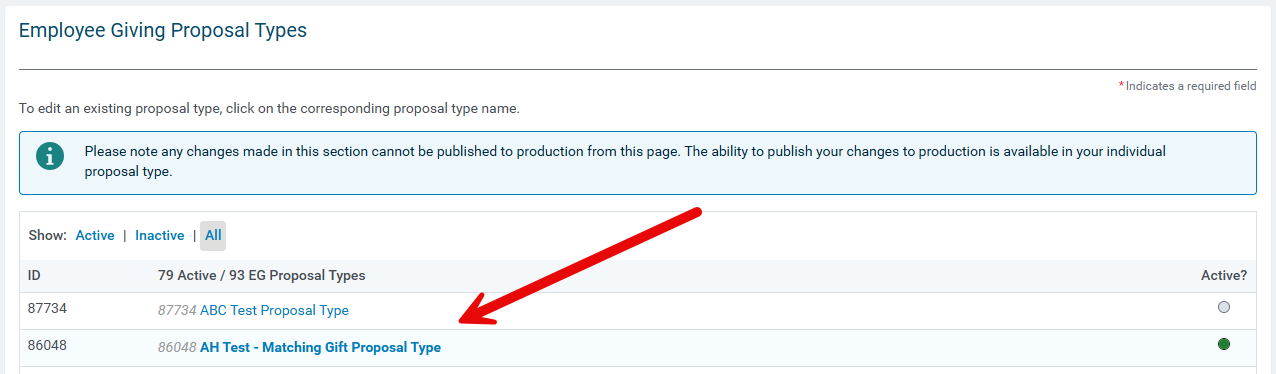
Then, select the proposal type you need to update the date range for.
Step 4: Access Gift Eligibility Date Ranges
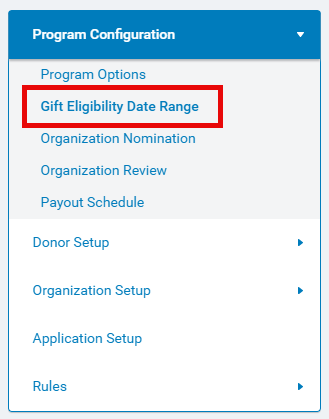
Under the Program Configuration tab, click on the "Gift Eligibility Date Range" hyperlink to view all the ranges for the creation dates and gift dates for your program.
Step 5: Update Date Range Settings
To ensure the Gift Eligibility Date Ranges are accurate for your program, please review and update the settings accordingly. This will provide donors with the appropriate amount of time to submit gifts for each program year. For example, you may consider extending the Creation Date Range to allow employees additional time to submit a match for gifts made in a prior year.
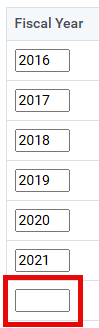
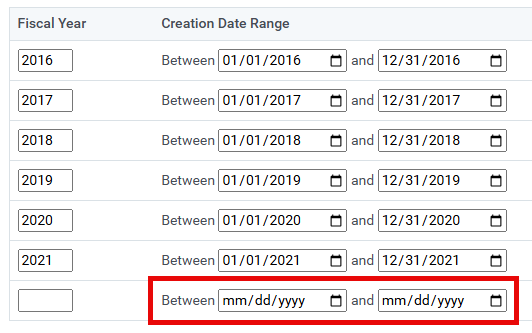
Add a Fiscal Year if you are configuring the eligibility date range for an upcoming program year.
In the Creation Date Range fields:
- Enter a start date to determine when eligible employees can create transactions.
- Enter an end date to determine when the program application closes, and employees can no longer create transactions.
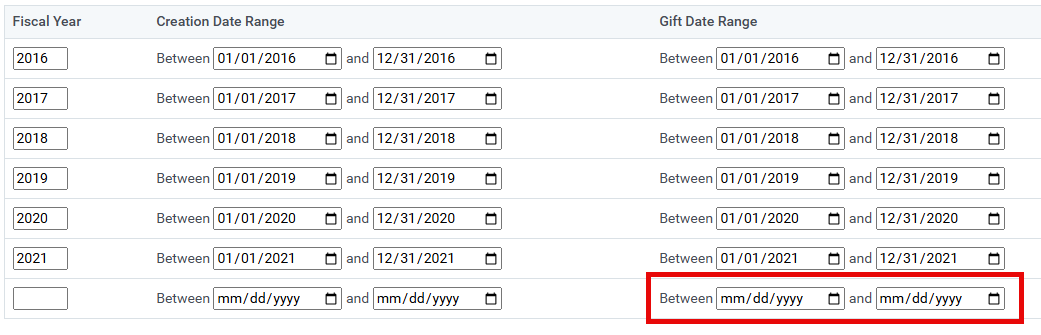
In the Gift Date Range fields:
- Enter a start and end date to determine the valid gift dates (e.g., Volunteer dates or Donation dates) for the corresponding program year's Creation Date Range.
Step 6: Save Date Range Settings
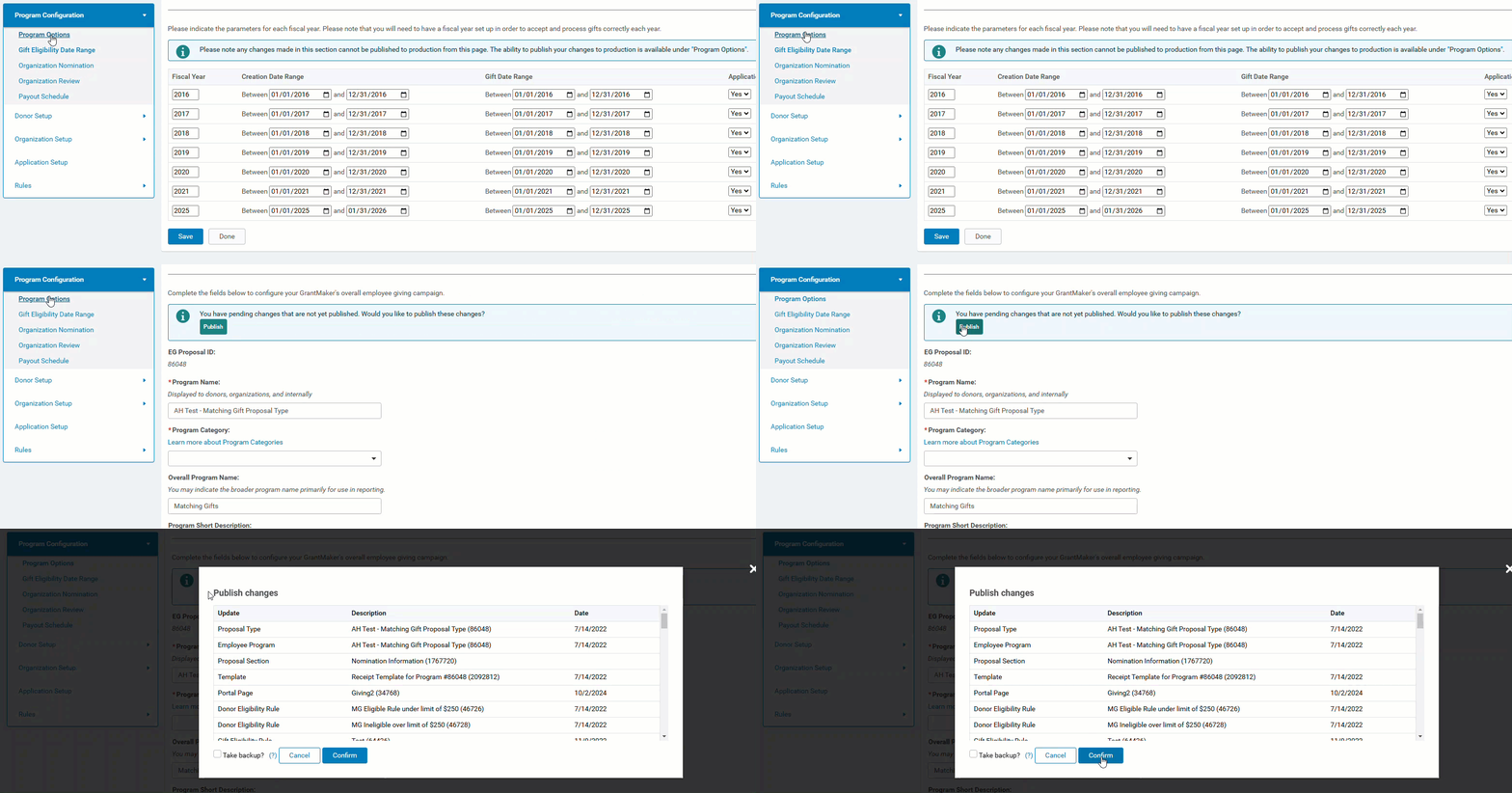
Click the "Save" button to save your settings.

You will, then, see a message at the top of the screen indicating that the change has been submitted successfully, but you still need to publish it under "Program Options".

Step 7: Click Done or Publish
If you are still making other updates in Sandbox and are not ready to publish yet, click the "Done" button after saving your changes to return to the previous page.
To publish changes made to the Eligible Date Range settings, select Program Options on the left-hand side and publish the changes.
- Click the button in the alert to confirm the publication of the changes.
What else do you need help with?
Not what you're looking for? Navigate to Understanding Employee Engagement Application and Database Management
Looking for training?
Explore this feature at your own pace - access training video content or watch a recorded webinar by clicking the link below.


