Bonterra’s CyberGrants Volunteering platform makes it easy for customers to find meaningful volunteer opportunities, register for events, and track their impact. Whether you're a first-time volunteer or a seasoned contributor, the platform supports individual and team participation while providing tools to log and view your volunteer hours.
The following steps will guide you through the process of discovering events, signing up, inviting others, and logging your volunteer time.
Step 1: Find volunteer opportunities
To begin, log in to your company’s CyberGrants portal and navigate to the Volunteer tab.
You can explore events in two ways:
Recommended Events:
This section displays opportunities based on your location and interests.
-
- Enter your ZIP Code to view nearby events.
- Customize results by selecting your volunteer preferences.
Search Events:
- Select Search Events at the top of the page to use the faceted search feature. This displays all current events available in the system.
Use the keyword search and filter options on the left side of the search page to narrow results:
- Keyword Search: Search by event name or organization.
- Location Filters: Refine by country, state, and ZIP Code.
- Additional Filters:
- Cause – Understand the mission behind the event or organization.
- Featured Event – Highlight company-endorsed events.
- Event Type – Filter by networking sessions, workshops, or seminars.
- Skills – Find opportunities to grow specific competencies.
- Interests – Align events with hobbies or professional goals.
The number next to each filter indicates how many events meet that criterion.
Step 2: Sign up for an event
Once you find an event that interests you:
- Click the Sign Up link on the event card.
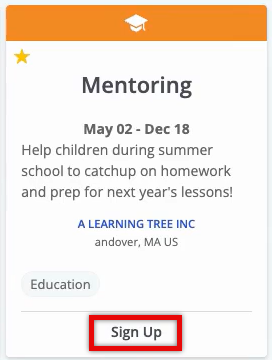
- Review the event details, including the description, date, time, location, and any special requirements.
- If the event includes shifts, review each shift’s start and end time, available spaces, and description to understand what activities or responsibilities are associated with that shift before selecting your preferred option.
- Select Sign Up at the bottom of the page.
- Confirm your registration and provide any required information.
- For multi-day events, select the date(s) you wish to attend.
Step 3: Invite others to join you
Invite friends or family:
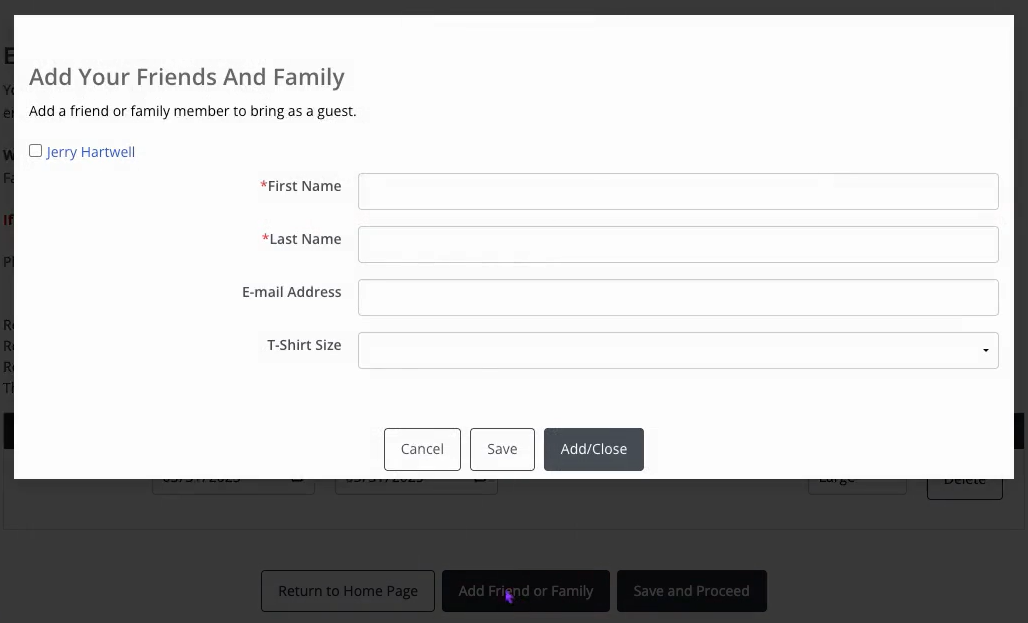
- Click the Friends and Family button.
- Select or add a friend.
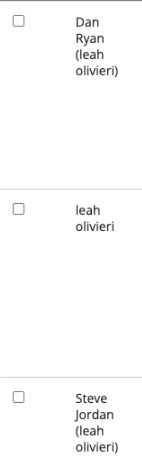
Once added, the employee's name associated with the friend or family member volunteering will be in parentheses after the enrolled participant's name
Invite a coworker:
- Search by name, email, or employee code.

- Enter their details, then choose Save and Proceed.
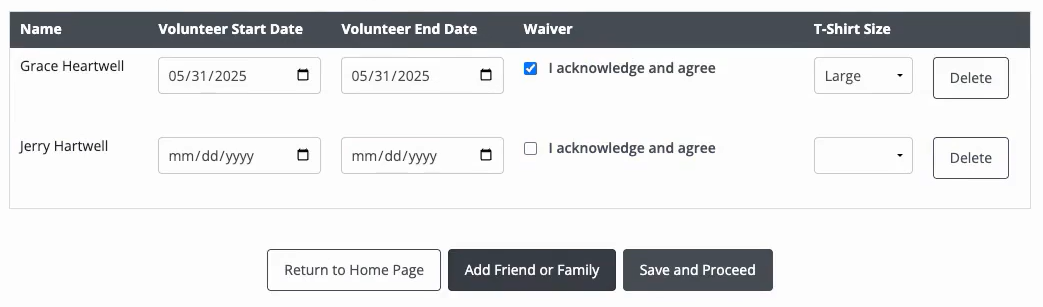
- Select Submit to confirm all sign-ups.
- After enrolling, you'll receive a confirmation email and a calendar invite.
If you enrolled in a specific shift, your confirmation email and calendar invite will reflect the selected shift’s date and time.
Step 4: Share your event
To encourage others to participate:
- Your platform settings will determine the available sharing options.
- Use the email icon to include a personal message with your invite.
Step 5: Manage your event participation
To review your upcoming events:
- Visit the Volunteer tab and navigate to My Events.
- Click on any event to view or update the details.
To cancel your enrollment:
- Select Cancel Enrollment on the event.
- Scroll down and confirm which individuals will cancel.
- Choose Select All if applicable, then click Cancel.
- Select OK to confirm the cancellation in the pop-up window.
Step 6: Log your volunteer hours
Your hours may be automatically tracked based on event participation. To view and manage your hours:
- Go to the Volunteer tab and locate the My Completed Events section.
- Select View next to a completed event to see logged hours.
- If no hours are listed, click Log Hours on the event card.

- Submit the form to record your participation manually.
This ensures your time and effort are accurately documented.
Not what you're looking for? Navigate to Understanding Event Management
Looking for training?
Explore this feature at your own pace - access training video content or watch a recorded webinar by clicking the link below.


