Bonterra CyberGrants enables payroll pledges that allow employees to support eligible organizations directly from their paycheck. Pledges can be established as a one-time deduction or as a recurring deduction from each paycheck. Some feature names, eligible organizations, and gift matching policies may vary depending on the customer’s program configuration.
The following steps describe the general process flow for end users to submit payroll pledges, either one-time or recurring.
Step 1: Navigate to the Giving page
From the home page, select Giving in the top navigation bar. On the Giving page, select Make a Donation.
Step 2: Choose a pledge type
On the donation options page, select the type of payroll pledge:
- One-time – a single deduction taken from one paycheck.
- Recurring – an amount deducted from each paycheck throughout the year.
Step 3: Search for an organization
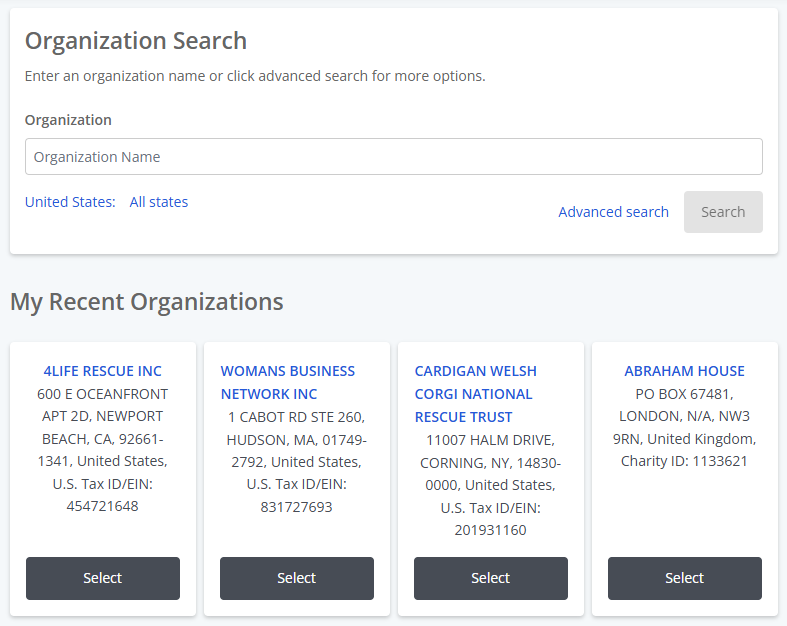
On the Organization Search page:
- Enter the name of an organization, or
- Use Advanced Search to filter by cause, state, country, or Charity ID.
A list of recently used organizations may also be available.
If the results display Nominate beside an organization, submit a nomination for approval before proceeding. If Select is available, continue with the pledge.
Step 4: Enter pledge details
Step 5: Add additional organizations (optional)
To support additional organizations:
- Select another organization,
- Enter a donation amount,
- Select Add.
For one-time pledges, amounts are deducted once. For recurring pledges, amounts are deducted from each paycheck.
Step 6: Review checkout details
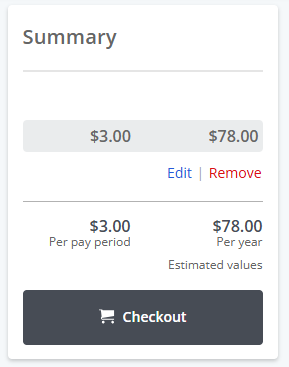
In the Checkout section, review pledge details:
- One-time pledges - confirm the total deduction amount from the paycheck.
- Recurring pledges - confirm the per-pay-period total and the calculated annual total.
Select Checkout when ready.
Step 7: Review and submit
On the pledge review page:
- Review all instructions,
- If the program allows, choose whether to share identity with the organization.
- Select Proceed to Review, then Submit.
Step 8: Confirm the pledge
After submission, return to the Giving page to view pledge details:
- One-time pledges display in the contribution history, showing the total deduction and the amounts allocated to each organization.
- Recurring pledges display as scheduled, showing the per-pay-period and annual amounts.
Not what you're looking for? Navigate to Understanding Employee Giving and Matching Application Management
Looking for training?
Explore this feature at your own pace - access training video content or watch a recorded webinar by clicking the link below.


