If you forgot your password and are unable to access the CyberGrants system, please follow the instructions below.
Check out this video that guides you through the process.
Step 1: Access the CyberGrants Log-In Page
To enter the system, access the Bonterra Cybergrants home page: https://www.bonterratech.com/product/cybergrants, click the “Login” button located in the top right corner of the home page and click the link to access CyberGrants. This will lead you to the CyberGrants log-in page: https://www.cybergrants.com/login/CGLogin.
Step 2: Click "Forgot Password"
Select the "Forgot Password" link after attempting to log in.
Step 3: Enter your User ID and Email Address
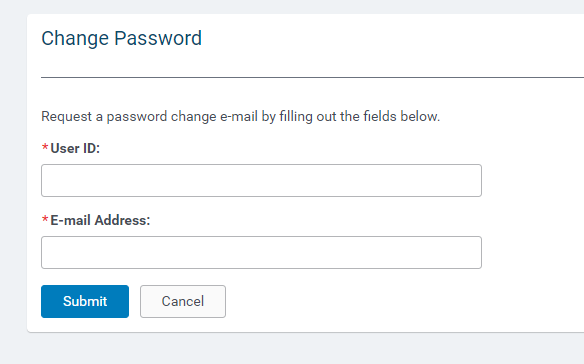
The following screen will display prompting you to enter your user ID and email address.
Step 4: View Internal Message
A message will display to notify you that an email has been sent.

Step 5: Click the link in the system-generated email
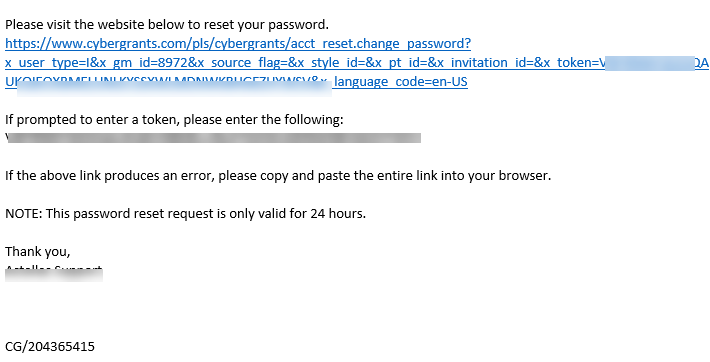
You will receive an email with instructions to reset your password. Click the link to proceed.
Step 6: Create a new password
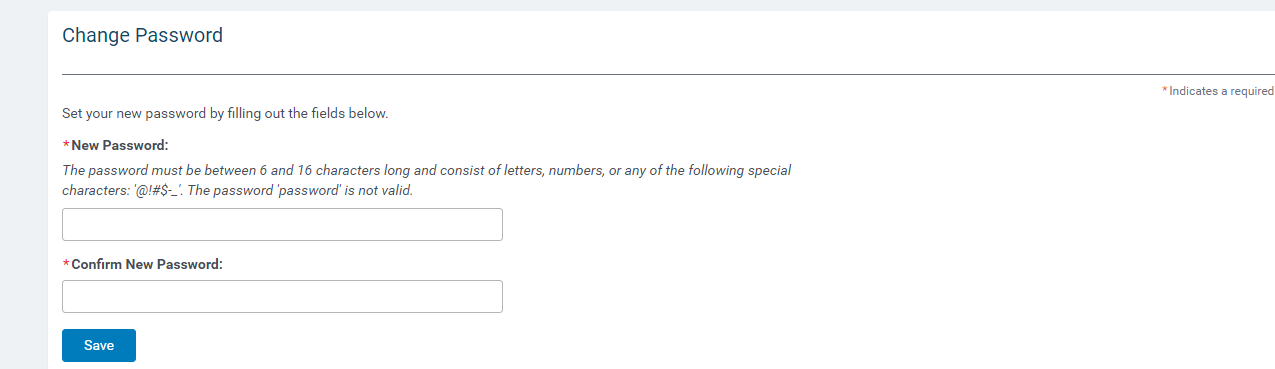
Create a new password that aligns with the CyberGrants password restrictions.
Step 7: Confirmation Email
A confirmation email is then sent stating the password has been successfully changed.

What else do you need help with?
Not what you're looking for? Navigate to Understanding System Access


