Featured Events
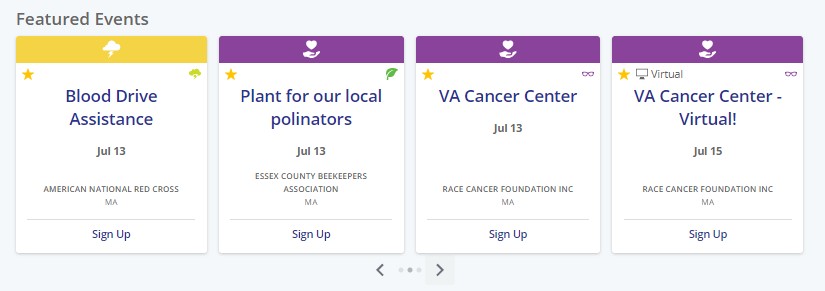
- Featured Events are special events that have been flagged as “Featured” by an admin or event managers that create events. We suggest only allowing Admins to flag what events are featured so not all users mark their events this way.
- On the Employee Engagement site, featured events are represented by a yellow star in the top left corner of an event card.
- The Featured Events Portlet displays up to 12 event cards that are flagged ‘Featured’ and meet the following criteria:
- Any events with a zip code will appear if they are within a 50-mile radius of that employee’s zip code.
- Any events without a zip code will appear if they have the same event country as the employee’s country. If the event country doesn’t exist, it will look at the organization country. If both of those are blank, it is considered a US event.
- All events are displayed by start date and then event name.
- Donors can also use the faceted event search to filter by ‘Featured’ to see all events flagged as featured. Featured events are always displayed as the first cards within the results.
View:
Recommended Events – works with Event Type/Skills/Interests fields
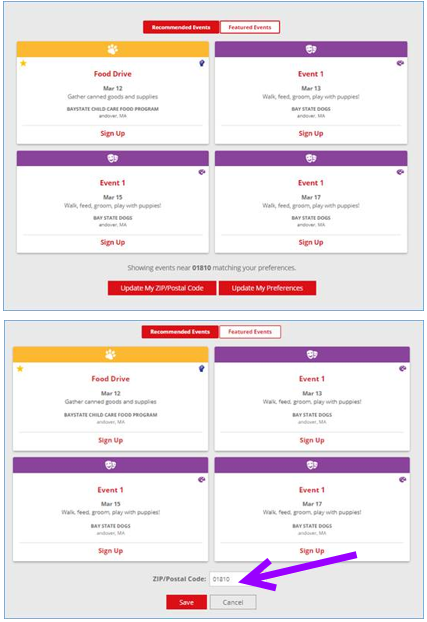
- Shows up to 4 event cards based within a 50 mile radius of the employees zip code, however, unlike the Featured Events portlet, there is an option to allow the employee to change the zip code to see what other (4) events within a 50 mile radius of the new zip code enter are.
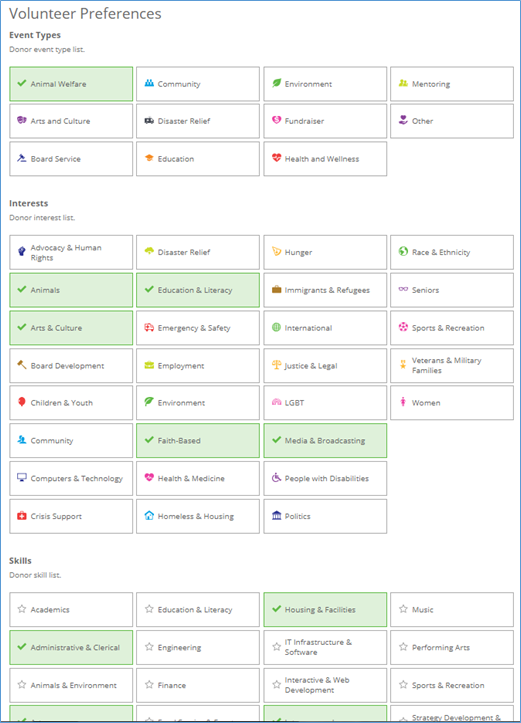
- We recommend using the standard Event Type/Skills/Interests fields then what populates will also be based on your Volunteer Preferences chosen from these 3 fields.
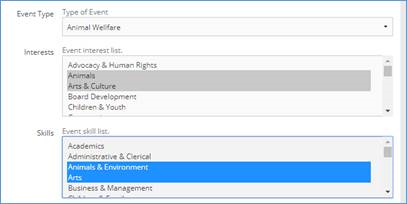
- The three fields are added to the event creation application so what is chosen there and chosen from the employees Volunteer Preferences will provide up to 4 events that meet the criteria to Recommend Events you may be interested in.
- View: Event Type/Interests/Skills from the event creation application
- Standard View: Volunteer Preferences to choose:
- Standard View: Recommended Events portlet
Standard Event Search
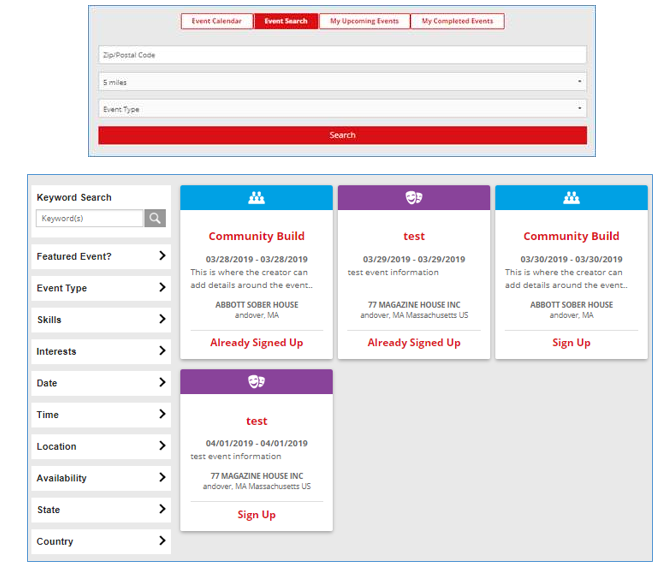
- Allows employee to search for events by entering in the zip code and distance, choosing an Employee Type Or just clicking the Search button to get to the faceted search page which provides a list of all events along with additional filter options.
- Standard View:
Event Calendar
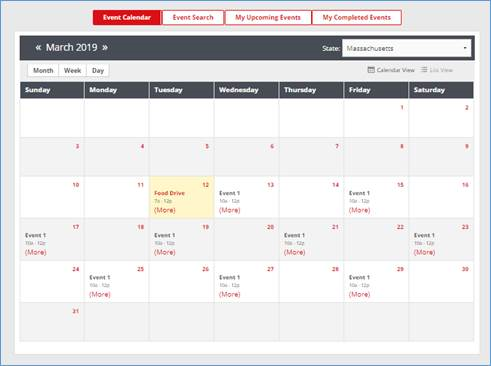
- Defaults to the State (or Country if applicable) based on employees location and presents up to three events in one day. There is a (more) link to see others within the day as well as a Week and Day view.
- Calendar View:
Volunteer Event Calendar
The calendar invite (.ics file) for volunteer events that are downloaded from the website or attached to emails will update a prior appointment. The .ics file can be downloaded after successfully signing up for an event or viewing upcoming events (an event the donor previously signed up for).
If the event includes shifts, the calendar invite will reflect the specific shift date and time selected during enrollment.

My Upcoming/Completed Event Card Portlets
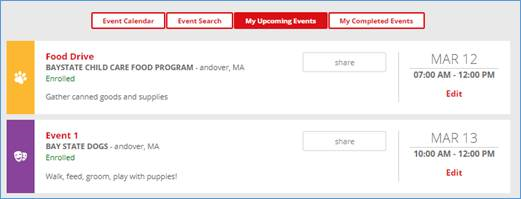
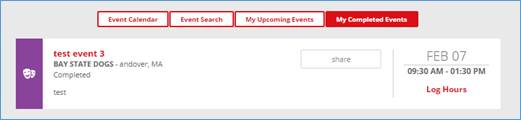
- The new version is visually appealing and does provide an easy way to ‘Edit/Cancel’ your enrollment if needed. As a best practice we break out the sign-ups into two portlets: ‘My Upcoming Events’, which would show any Enrolled or Waitlisted (if allowed) events you are signed up for vs ‘My Completed Events’, which would show any events you completed.
- View:
Team Functionality
- Employee Search – you now have. This is the feature at the top of the sign-up page that allows you to search for employees by name, email, or SID instead of seeing all 5 rows to start and having to enter in the ID only.
- You can also choose to have the name of the individual signing up pre-populate automatically. They can remove it if needed.
- View:
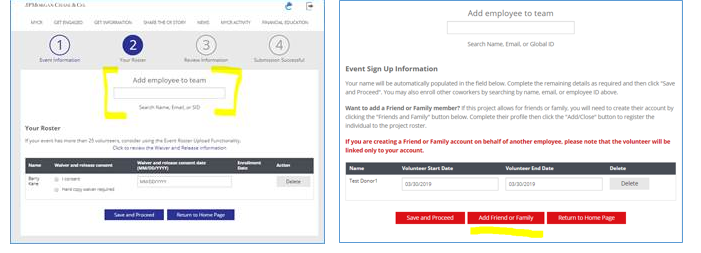
- Friends and Family – event creator states yes to allowing on a per-event level. If yes, the button shows, if not, it is hidden.
For more information please see Create an Event or Project from an Internal Admin View.


