Locate the organization with which will be hosting the event. This can be done from the Volunteer Events tab by entering the name in the keyword search, or clicking the New Organization button in the top right corner of the screen.
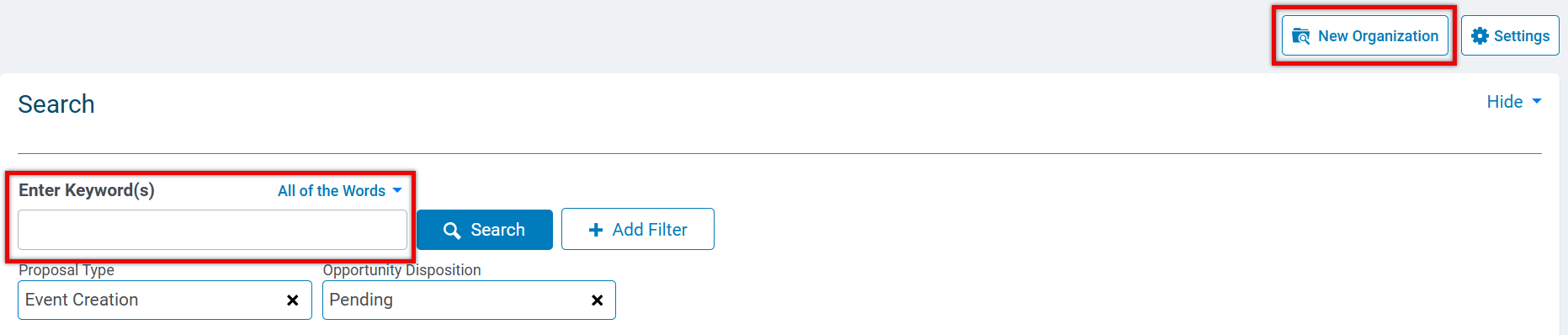
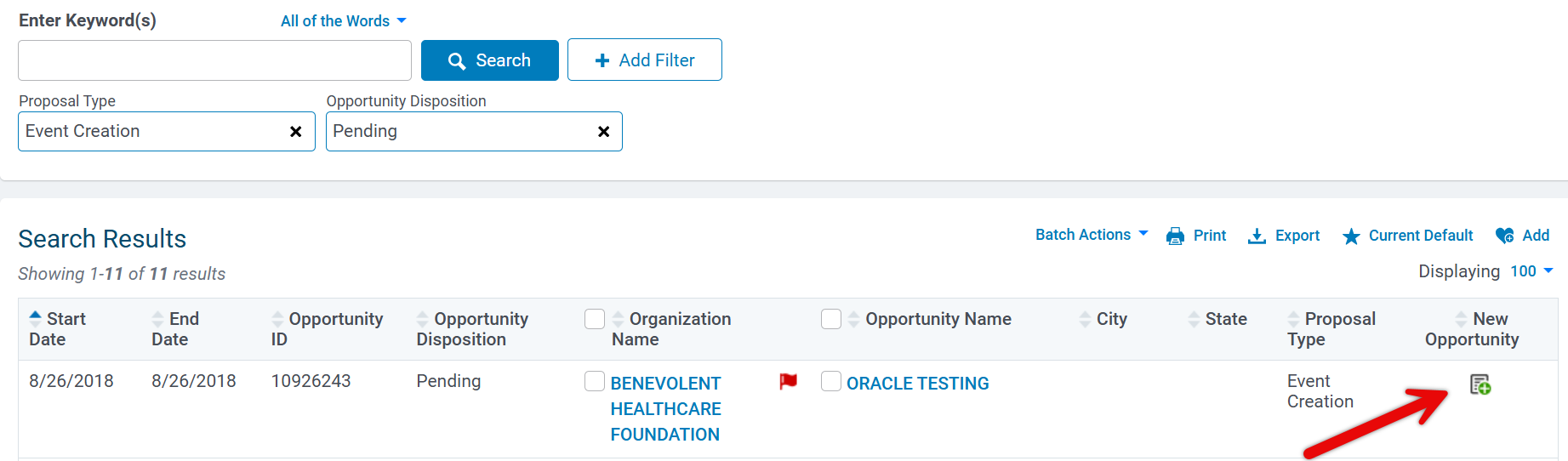
When searching under the Keywords, if there is already an event tied to the organization, it will appear. From there click the icon under the New Opportunity column to start a new application.
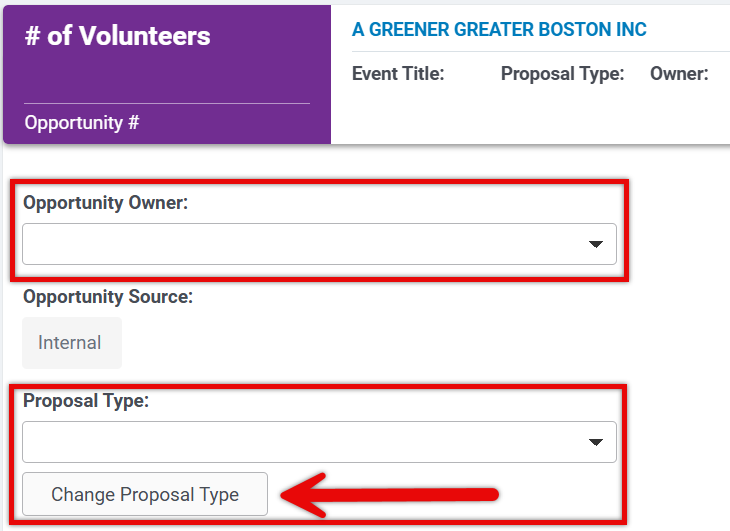
On the following application page, choose the Opportunity Owner. This is the Admin owner who needs to review and approve the event/project (could be the admin entering in this event internally).
IMPORTANT: You will also need to choose the Proposal Type and click the Change Proposal Type button to view the correct program application – then complete the event/project detail fields and Save.
**Follow Reviewing Events/Projects if you are the Opportunity Owner and need to ‘Open’ the event/project.
If the organization does not show in the Keyword search then you will need to use the New Organization search screen. Once you click the New Organization button from the Volunteer Events tab you will be directed to a Search page. Enter in the Keyword and any other values to narrow down your search.
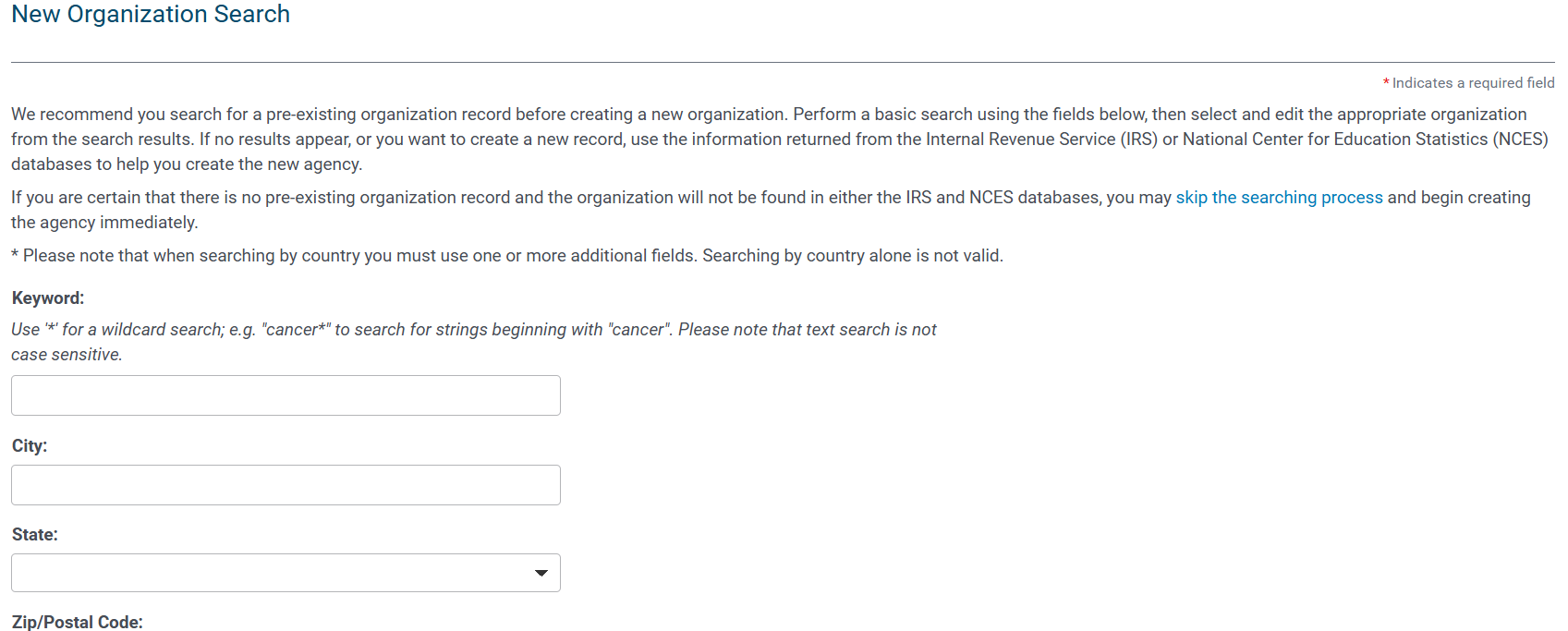
- If the organization is listed you will see it at the bottom with the ‘View Organization’ link next to it. This means that the org is already in the system. You can click that link to open the organization record.
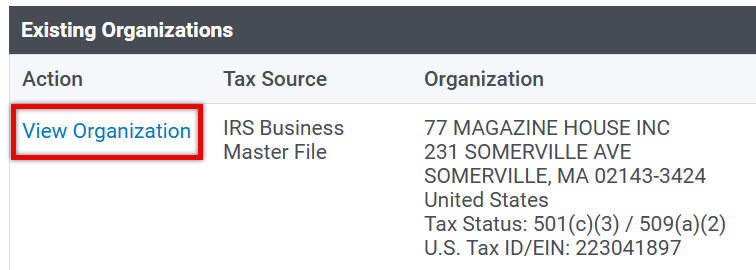
- If it has a Create New link, please be cautious in creating, as based on how the configuration was set up for your account, this may approve this organization for all of your programs – not just for event creation. You may consult your CyberGrants team for more details.
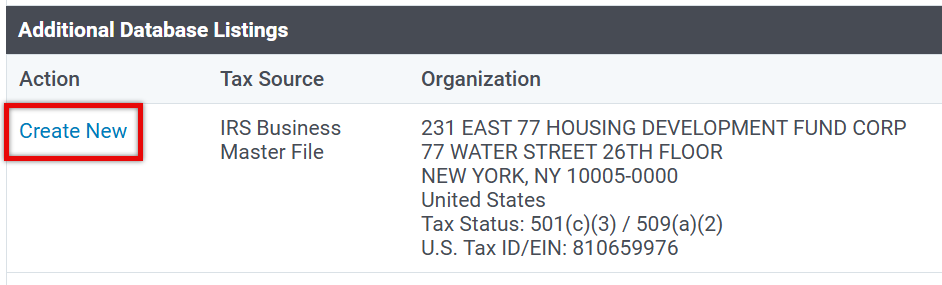
- If the organization does not show up at all, there is a way to create a new organization, however, again due to the way the account was configured, this may auto approve for all programs.

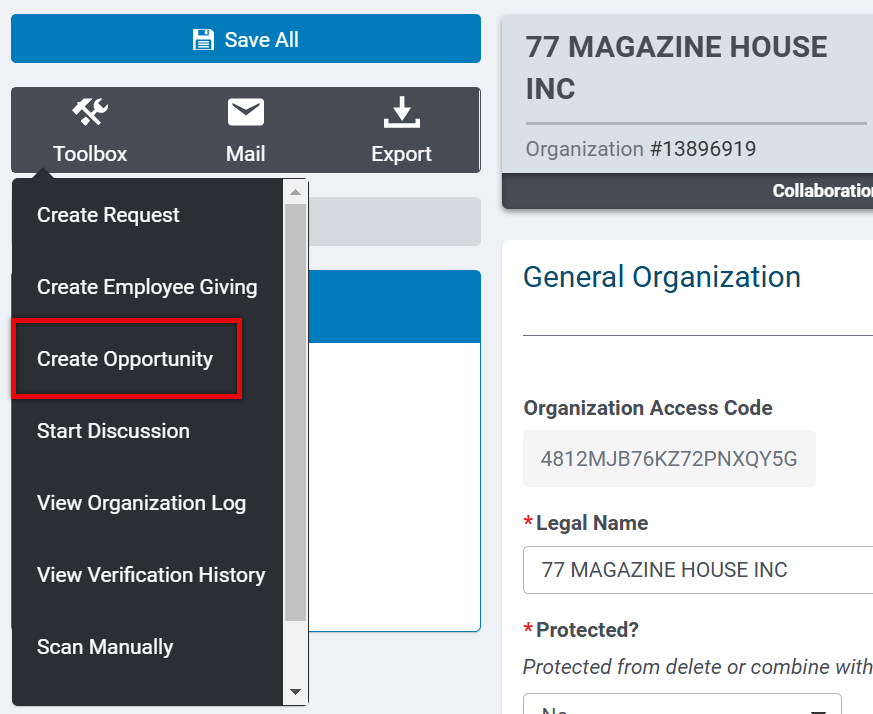
As you are now creating an event/project from the organization record, click on the Opportunity Toolbox (top, right) and then select Create Opportunity.
Assign Primary Event Editors Internally
From the Volunteer Event record in the Internal UI, under Toolbox > View Event Editors, employees can be added as event editors. After adding the event editors, within the Application section, the Donor/GrantSeeker Editor field will display all employees and organization grantseekers that can be given the ability to manage the event. One can then be selected as the primary editor for the record, allowing them to receive email notifications when people sign up for the event.
**Follow Reviewing Events/Projects if you are the Opportunity Owner and need to ‘Open’ the event/project.


