Impact Reports
The impact report section allows an Administrator to associate one or more impact report with a proposal type. However, before an Administrator can link an impact report, a user must create the impact report and its associated fields. For a description of how to create an impact report and its associated fields see “Impact Report Types”.
Existing scheduled impact reports will appear at the bottom of your proposal type along with a button to create a new schedule:

After creating an impact report, use the following steps to associate an Impact Report with a proposal type:
- Go to the “Impact Reports” section in the proposal and click the “New Impact Report Schedule” button.
- Select the appropriate impact report from the “Impact Report Type” dropdown list.
- Select the appropriate “Schedule Impact Reports Upon” from the dropdown list.
- Select who should complete the report from the “To Be Completed By” dropdown: Administrator (CyberGrants Admin user) or Organization (nonprofit organization).
- Check “Required?” if the person assigned in “To Be Completed By” must complete the impact report.
- Check “Active?” to make the impact report section active.
- Select whether the Impact Report should be available on a “Relative Date” or a “Fixed Date”
- Select what the date is in relation to (approval date, project start date, grant paid date, etc.)
- Enter either a specific number of days after approval or enter a fixed date on which the impact report becomes available.
- Enter either a specific number of days for completion after the impact report is available or enter a fixed date on which the impact report is due.
- Click the “Save” button at the bottom of the proposal type screen.
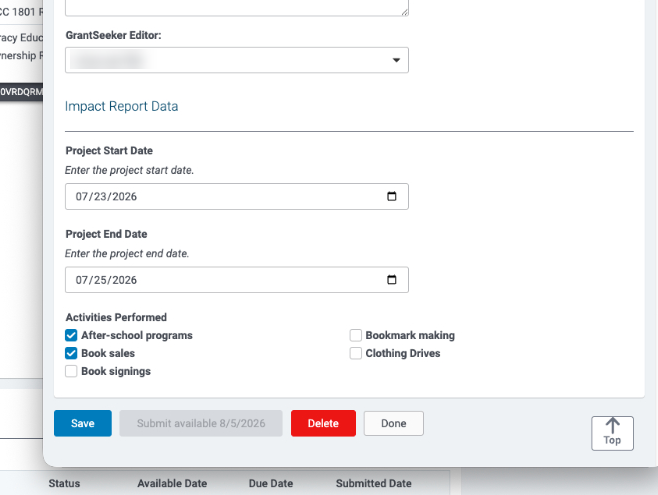
Note: When an impact report is assigned to be completed by an Internal Administrator, the availability date also controls when they can submit the report. Administrators may “Save” field values before the availability date, but the “Submit” action will not be available until that date is reached. Configure the availability date accordingly to reflect when submission should be permitted.
Impact Report Scheduling Using Custom Date Fields
A particularly long project may require Impact Reports to be scheduled using milestones that are tracked as Request-level custom date fields.
Within the Impact Report Scheduling Settings, "Schedule Impact Reports Upon" has an option for "Save of Approved Request" (in addition to Request Approval and Payment Paid).
Scheduling Impact Reports Using Custom Date Fields
Admin > Proposal Types > [Proposal Type] > Impact Reports > Edit/+New Impact Report Schedule
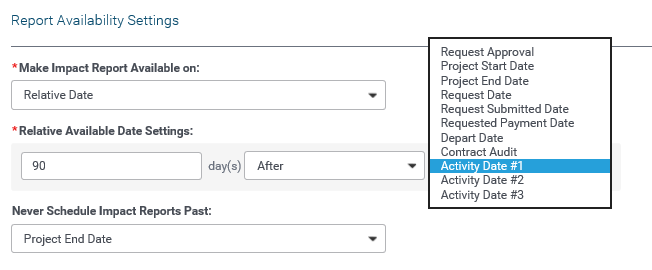
Within the Impact Report Scheduling Settings, "Schedule Impact Reports Upon" has a new option for "Save of Approved Request" (in addition to the existing Request Approval and Payment Paid).
If scheduling impact reports on Save of Approved Request, all active Request custom date fields that associated with the proposal type are available for selection under “Relative Available Date Settings”.
An option for Before or After the date is available for "Save of Approved Request" or "Request Approval", and only After for “Payment Paid”.
Notes on scheduling:
- Impact reports will be evaluated upon each internal save request against an Approved Request (by a non-viewer)
- If the configured custom request date field is not populated, then the impact report will not be created.
- If the date is modified after the impact report is created and the impact report is not completed, the impact report will be updated with the new date.
- If the date is modified after the impact report is created and the impact report is completed, a new impact report will be created with the new dates.
- Only one impact report will be triggered per date (e.g. saving the same request repeatedly will not result in multiple impact reports being created)
- Triggering dates should only be in the future (otherwise no Impact Report will be scheduled)
- Impact reports triggered by Request Approval and Save of Approved Request will be un-scheduled when Requests are Rejected, Canceled, or re-submitted for approval.


