Organization Sections
Organization Section Navigation Panel will always be on the left of the Information Panel and remain static on the left panel as you scroll through the information on the main page. When a section name is clicked, the system will navigate/scroll to the corresponding section in the Organization’s Information Panel. The Panel is organized into several sections:
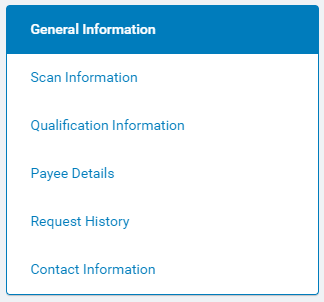
- General Information
- Scan Information
- Qualification Information
- Request History
- Contact Information
Conventions
Several conventions apply among the different organization sections. At the right of each section, title bar icons display:
- The
 icon generates a Word RTF version of that section’s information.
 - The
 icon generates a PDF version of that section’s information; use the icon on the toolbar to print the PDF format.

NOTE: Clicking on a section’s title bar icons will only print that section’s information. To print the entire Organization Record, use the “Export” feature on the Utility Navigation.
- Required information is identified with an asterisk (*) before the field name.
- Currency fields accept numbers, commas, periods, and dollar signs.
Organization Record Sections
The General Organization section captures high level information about an organization. The information displayed in this section depends on the standard and customized fields that the Administrator has configured for the Organization Record. The Administrator may choose to rename standard fields; create customized fields; and determine whether a field is active, required, or for internal use only. Required fields must be completed to save the organization information. (Administrators, please see the documentation for the Admin Tab to obtain more detail about customizing organization fields.)
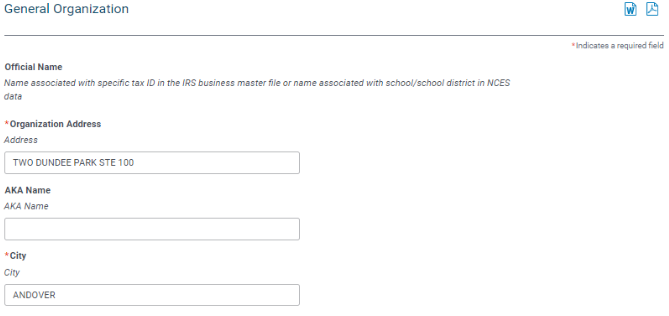
General Organization Fields to Note
In the “General Information” section, please take note of the following fields:
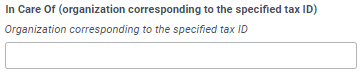
- In Care Of (organization corresponding to the specified tax ID) – documents a circumstance in which the nonprofit organization does not have a Tax ID or is applying for funding using another (parent) organization’s Tax ID. This field should contain the legal name of the 501(c) 3 organization associated with the tax ID.
- Relationship to ‘in care of’ organization – describes the relationship between the parent and child organizations. They allow end-users or nonprofits the ability to include this information as part of their grant application, generally for informative purposes.
Qualification Information
The Qualification Information section displays the information about the organization that is currently on file with either the IRS, the NCES, or the Charity Commission. It also contains information concerning the organization’s most recent Tax Status verification.
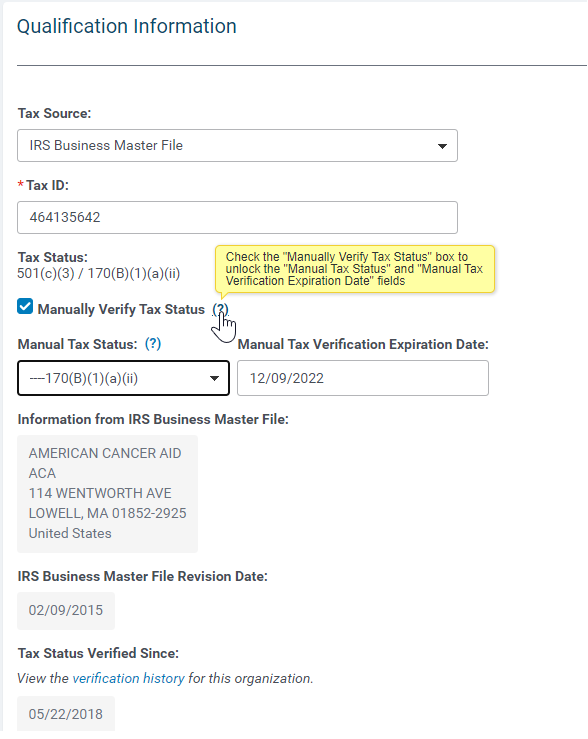
- IRS Business Master File Information - If the organization is a nonprofit organization, the Qualification Information section displays the information that the IRS currently has on file for the organization, including its Tax ID, Tax Status, Legal Name, Address, and Activity Code(s). These values are not modifiable in the CyberGrants system. If this information is incorrect, please advise the nonprofit organization to contact the IRS.
- NCES Information - If the organization is a school, the Qualification Information section displays the information that the NCES currently has on file for the school, including its NCES ID and NCES School Information. These values are not modifiable in the CyberGrants system. The NCES database includes Public Schools, School Districts, and Private Schools. Public Schools are identified by a School ID (five digits) and a District ID (seven digits); School Districts are identified by a District ID (seven digits); and Private Schools are identified by a School ID (eight digits). If this information is incorrect, please advise the school to contact the National Center for Education Statistics.
- Charity Commission File – If the organization is a charity from England and Wales, the Qualification Information section displays the information that the Charity Commission currently has on file for the organization, including its Tax ID, Tax Status, Legal Name, and Address. These values are not modifiable in the CyberGrants system. If this information is incorrect, please advise the organization to contact the Charity Commission.
- Canada Revenue Agency – If the organization is from Canada, the Qualification Information section displays the information that the Canada Revenue Agency (CRA) has on file for the organization, including its CRA number, Legal Name and Address. These values are not modifiable in the CyberGrants system. If this information is incorrect, please advise the organization to contact the Canada Revenue Agency.
- Australian Business Register – If the organization is from Australia, the Qualification Information section displays the information that the Australian Business Register (ABR) has on file for the organization, including its Australian Business Number (ABN), Legal Name, and Address. These values are not modifiable in the CyberGrants system. If this information is incorrect, please advise the organization to contact the Australian Taxation Office.
Qualification Information Fields to Note
- Tax Source allows users to designate the primary database against which the Tax ID/NCES IDs will be verified. The following databases for electronic verification are currently available:
- IRS Business Master File
- National Center for Education Statistics
- Charity Commission File
- Canada Revenue Agency
- Australian Business Register
- Revision Date: When viewing organizations that have been electronically verified, the CyberGrants user will see the date on which that tax source was last updated below the registered organization information.
- Tax Status Last Verified By stores the name of the last user who verified the organization.
- Tax Status Verified Since stores the date on which the organization was most recently verified.
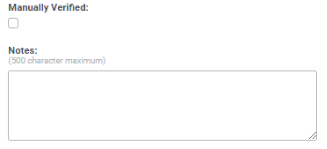
- Manual Verification: The system administrator may choose to manually verify an organization if the organization cannot be verified by searching the Business Master File, the NCES File, or the Charity Commission File. However, manual verification does not permit an organization to apply online unless the database is configured to allow manually verified organizations. To manually verify an organization’s tax-exempt status, an Administrator clicks the Manually Verified checkbox and can enter a comment in the Notes field. The checkbox is visible to Administrators only.
The IRS Business Master File and NCES file may not list a nonprofit organization for several reasons:
- The organization's 501(c)(3) status is revoked.
- A sub-chapter of a national nonprofit organization is considered exempt under the national organization and the sub-chapter is not specifically listed in the electronic file
- A nonprofit organization with a budget of less than $25,000/year is not automatically included on the Business Master File. However, it can file an application to seek tax-exempt status or phone the IRS to request that the IRS add it to the file.
- U. S. Catholic Conference and other subsidiaries are not included.
- Occasionally, a valid 501(c)(3) organization is inadvertently omitted from the Business Master File. A nonprofit may contact the IRS Cincinnati Call Center at 877-829-5500 to be added to the electronic file. (CyberGrants updates its copy of the Master Business File monthly.)
- The organization’s 501(c)(3) status has been recently granted and may not show on the master file for several months.
Manual Verification for US Governmental Entities
As US governmental entities, municipalities, first responders, public libraries, parks departments, and similar organizations are exempt from federal income tax and may be eligible to receive tax-deductible contributions under Section 170(c)(1) of the IRC. However, unless they have taken additional steps to establish themselves as public charities, in most cases their federal tax ID numbers do not appear in the electronic version of the IRS Business Master File (BMF).
If one or more of your programs support governmental entities, you may now manually verify their federal Tax ID number on Nomination and Organization records. Once you have established that their Tax ID does not verify electronically, follow these steps:
- Instead of asking governmental entities for an IRS Determination Letter, ask them to produce an IRS-approved Governmental Information Letter that includes their federal - not state - Tax ID number. Enter the Tax ID in the “Qualification Information” section of the Organization or Nomination record.
- Select “IRS Business Master File” for Tax Source.
- Since the Tax ID will not verify electronically, check the “Manually Verify Tax Status” checkbox.
- Select “US Governmental Entity” within the non-501(c)(3) section of the “Manual Tax Status” dropdown list.
- Enter a Manual Tax Verification Expiration Date to reevaluate their status in the future.
- Click Save All
Note to CyberGrants Disbursement Solutions (CGDS) customers - since US Governmental Entities are not 501(c)(3) organizations, they cannot receive support - and therefore tax receipts - through the CAF Donor Advised Fund (DAF). However, as US nonprofit entities, they may still receive disbursements - but not tax receipts - through the CyberGrants Managed Aggregated Account (MAA).
Associated Organization Information
Associated Organizations enable a user to create parent-child organization relationships. Generally used for reporting purposes, they show all the grants under an umbrella (parent) organization.
For example, a user can establish the relationship between the individual campuses of a large state university and the university itself and then generate a report based on the university.
If an existing parent organization exists, that organization would be listed in the drop-down menu:
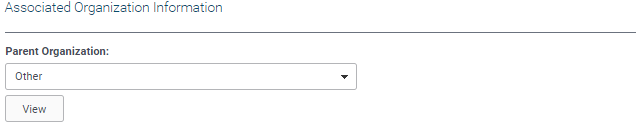
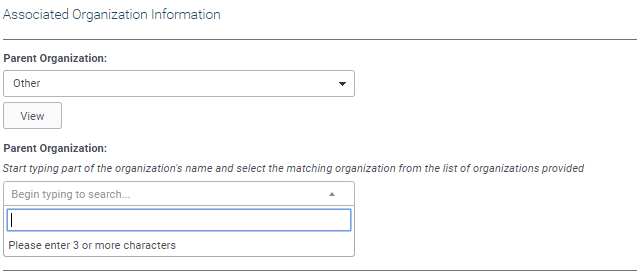
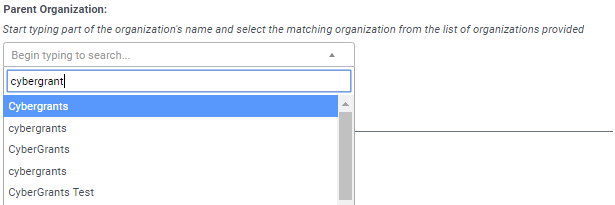
If a parent organization is not already listed, the user should choose “Other” from the drop-down list (the last value). A field would open up and the user can start typing the name of the parent organization in the “Parent Organization” type-ahead field. The system will return potential parent companies based on what is typed.
When the user goes into the parent record’s “Associated Organization Information” section, they will see a line for each child organization that has been associated to it. This section displays the Organization ID, Legal Name, Address, City, State and Country. Click on the Organization ID to open the Organization Record in a new window.
Review Information
The “Review Information” subsection includes several fields related to organization approval. Please note the following fields:
- Next Review Date – stores the date on which the next review of the organization’s eligibility should take place by an Administrator. After this date, warnings/errors display in the Organization Record. This is an optional field.
- Prior Approval Processes for Current Grant – lists the history of the organization approval. It also includes the individuals who approved or rejected the organization and their comments.
Approving an Organization
When a user clicks the “Submit for Approval” button the screen refreshes and the organization approval step(s) are listed at the bottom of the Qualification Information section. If a user has authorization, the Approve and Reject buttons are displayed to allow a user to approve or reject the organization. Once complete, the “Submit for Approval” button reappears to allow a user to re-submit the organization for approval.

NOTE: You should be aware of the full implications of approving organizations before doing so. Speak to your administrator/account coordinator for more information. This function is primarily used for employee engagement programs as opposed to grant applications.
Payee Details
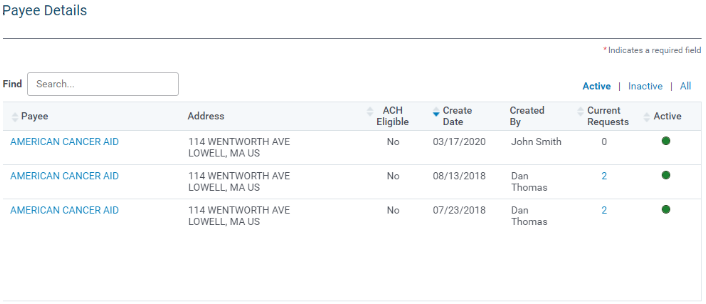
Within the Organization record, if payment records have been created, the link, "Payee Detail" will display. Administrators can now access payee information before a request or payment has been created.
The new Payee Details section gives users convenient access to payees on the internal organization record. All payees are consolidated in this location where the display is active items by default. To find a payee, search by keyword, sort by columns, or toggle between active and inactive records. Once you have located the correct payee just click on its name to load its full details in a new window.
Request History Information
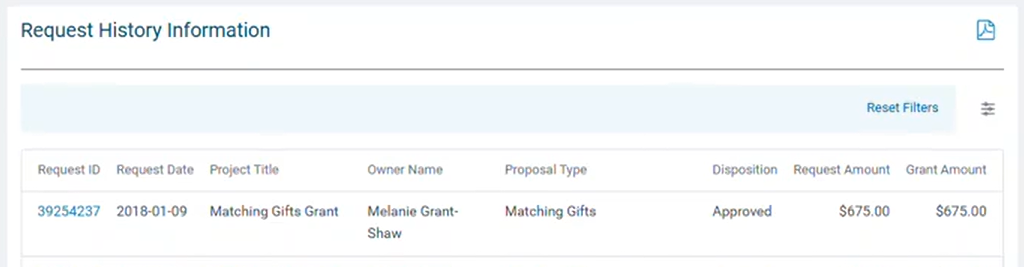
The “Request History Information” section contains summary information for all requests associated with the organization.
- Admins can use the Proposal Type filter in Request History to refine results and more easily locate specific requests.
- The Request ID is a link that, when clicked, displays the detailed Request Record in a pop-up screen.
Contact Information
The Contact Information section contains information for all contacts associated with the organization. An organization may have an unlimited number of contacts associated with it.
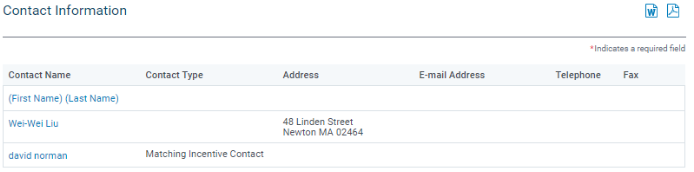
NOTE: The Contact Name is a link, when clicked, displays the detailed Contact Record in a pop-up screen. This screen includes a contact list containing all of the contacts associated with the organization as well as the information for the contact on whose name you clicked.
To add a new contact:
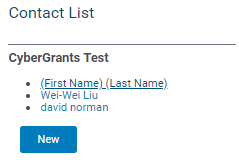
- Select “(New)” from the list of contacts
- Click on the “Load” button. The “Address” and “Telephone” fields for a new contact default to that of the organization.
- If no contacts currently exist, you can create a new contact record from the Mail icon of the Organization Toolbox.


