Quick links:
- Overview
- Column Limits and Per-Field-Type restrictions
- Worksheet Fields in Ad Hoc Reports
Worksheet field type - overview
A Worksheet is a custom field type that you can embed in any request or impact report proposal type. This feature helps you capture and store ‘multi-dimensional’ data in a tabular format. They are seamlessly embedded as ‘data tables’ in any of your grant requests or impact reports. A Worksheet can have unlimited rows where the grantseeker can add as many rows of data as they would like, or you can configure fixed rows and only allow specific rows of data to be entered.
In addition to all the standard capabilities of custom fields:
- Optional / required
- Conditionally displayed/required
- Language & currency localization
- Real-time browser-side validation
- Proposal type security
- Cloneable
- Exportable to PDF
The worksheet field also supports these features:
- Support for columns with specific data types - Text (short), Number, Currency (base & local), Date, Single-select, Yes/No (see"Column Limits" section below)
- Ability to make both columns and rows optional or required
- Unlimited rows OR fixed row headers to request categories of information
- Common calculations (addition & multiplication), column totals, & client-specific functions
- Export to CSV/Excel internally
Please review the article on creating and editing fields for all the basic instructions on field creation.
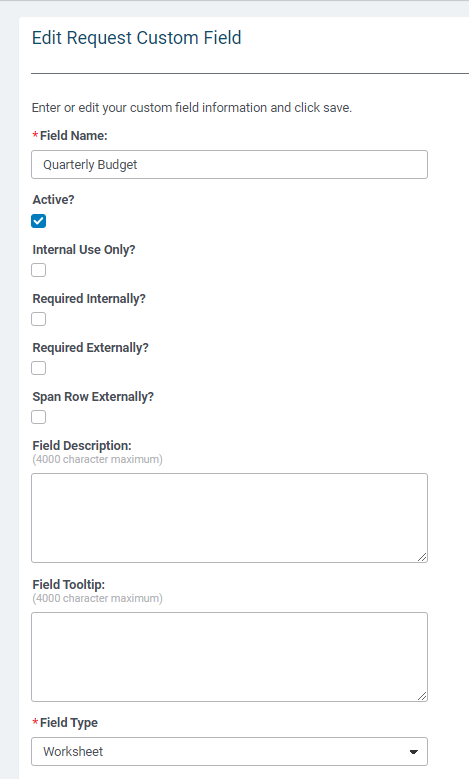
To create a Worksheet field, enter the Field Name, select "Worksheet" in the field type, and click "Save."
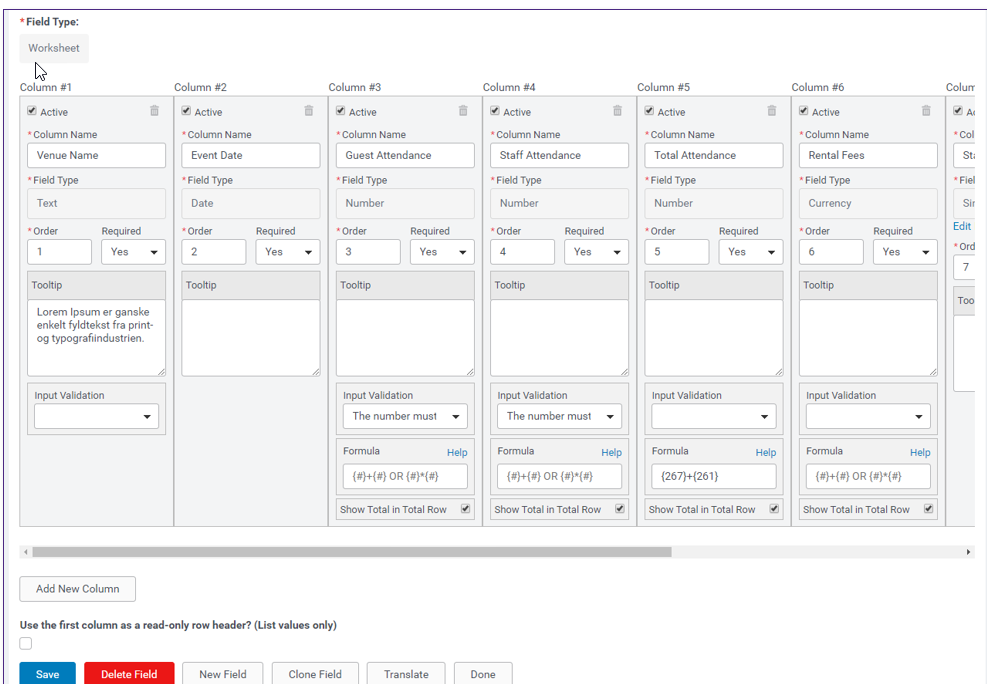
After hitting save, a single column will be displayed with the option to activate it, name the column, select the field type, the order of the column, if the Column is required, and a tooltip to provide additional instructional text.
As you continue to add columns, additional functionality will be presented.
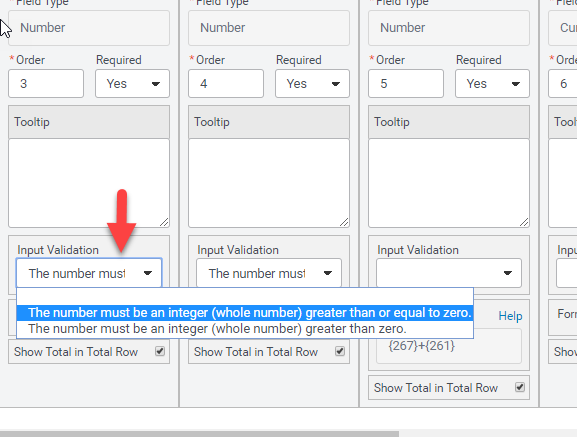
The Number, Currency, and Text Field Types can be validated based upon input validation selected.
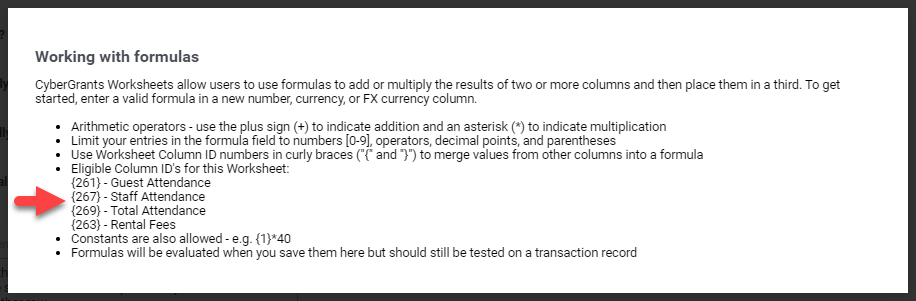
Formulas are available in Number and Currency Field Types. Click on "Help" to the right of "Formula," and a modal window will open with instructions on how to configure a formula based on the column IDs in your specific Worksheet.
The view of the organization for an unlimited row worksheet will appear in the proposal, like the screenshot below: 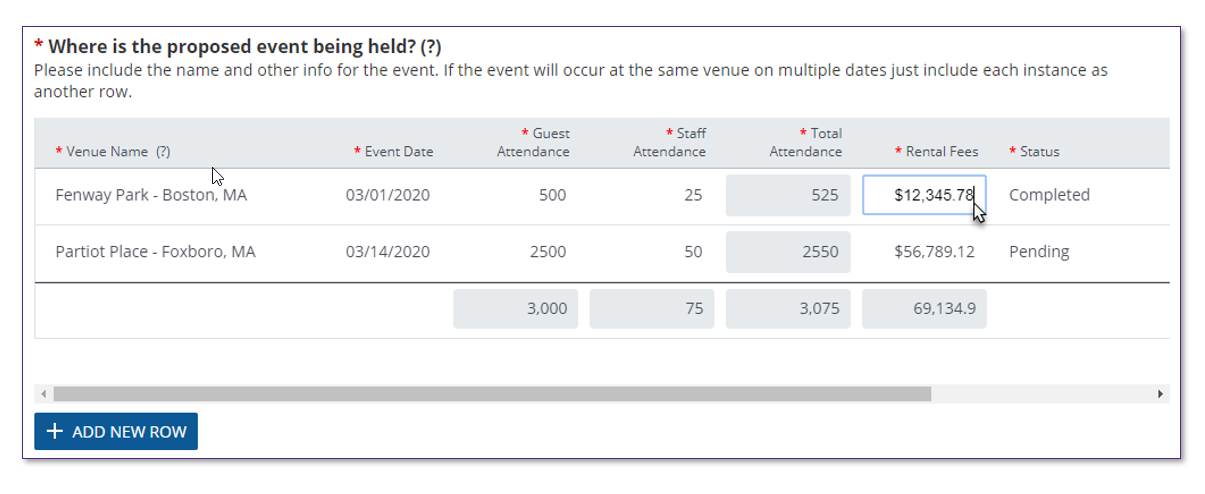
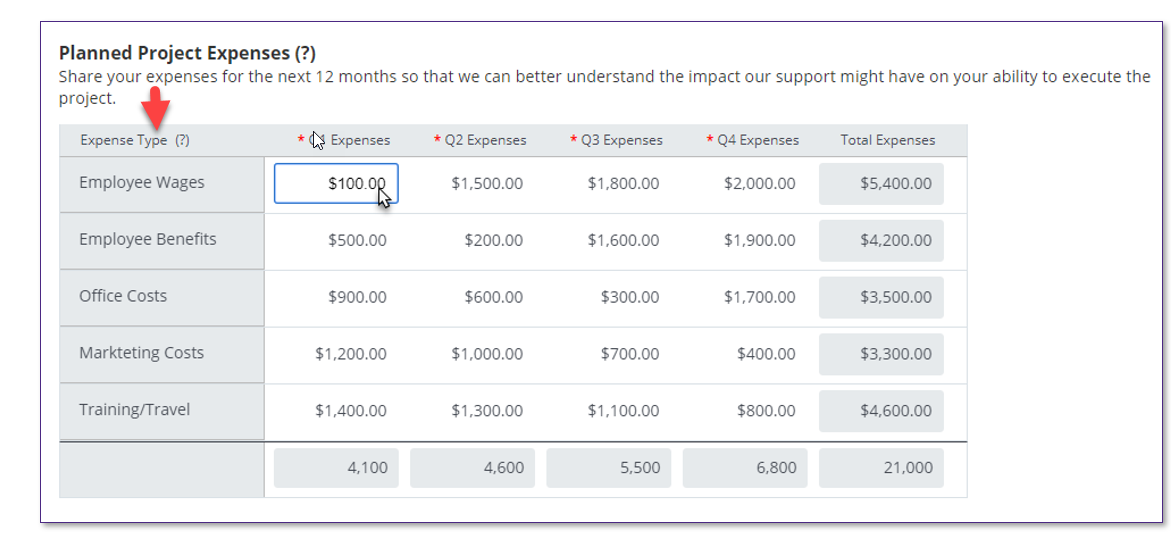
To configure fixed rows in the Worksheet check: "Use the first column as a read-only row header? (List values only)" under the "Add New Column" button. The Field Type must be a Single-Select List. To edit or add list values, click on "Edit List Values."
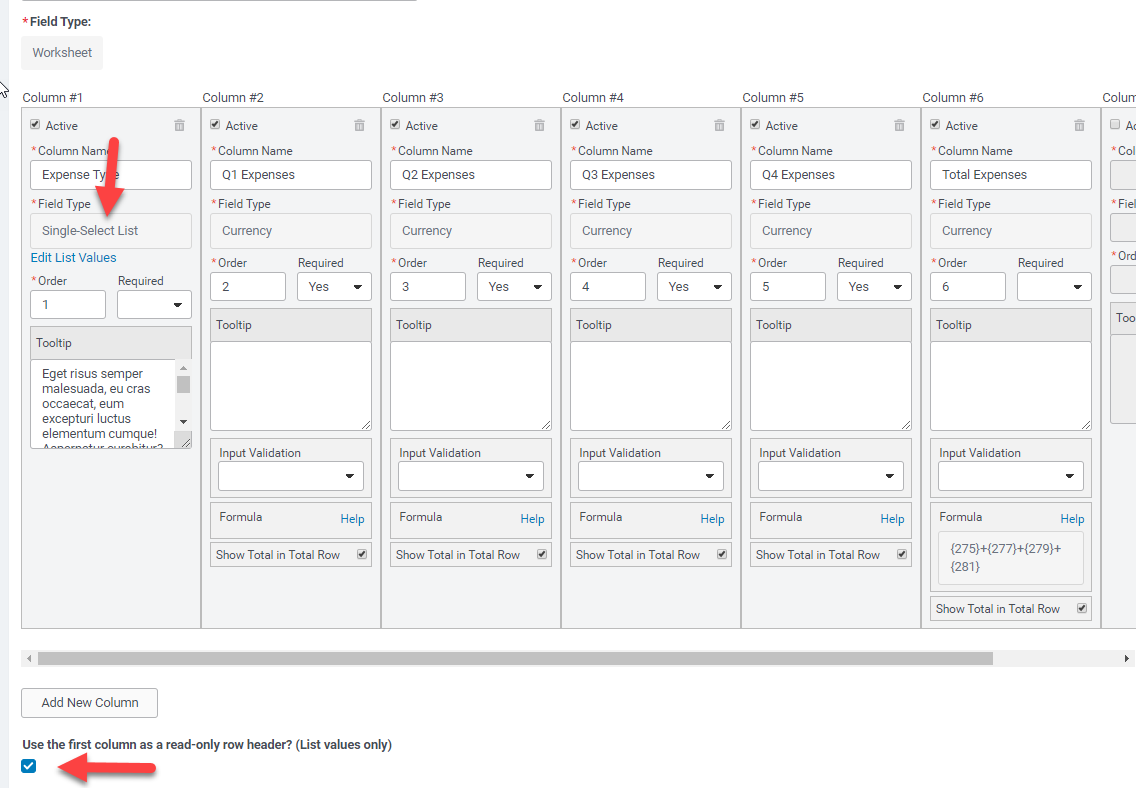
The grantseeker can only enter values for the predefined rows.
Column Limits and Per-Field-Type restrictions
While the overall worksheet column limit is documented as up to 70, this total is distributed across field types. Per-field-type limits apply independently.
Key Points to Clarify:
- The 70-column limit is distributed across field types, not a flat limit
- Per-field-type limits exist that restrict how many columns of each type can be added
- Attempting to exceed the per-type limit results in validation errors, even if the overall total is below 70
- This behavior can surface differently depending on context (Request worksheet fields vs. Impact Report worksheet fields), leading to apparent limits like 12 or 13 columns
- Existing configurations exceeding current per-type limits may continue to function
- New or modified worksheets are restricted by the current per-type column limits
- This is expected behavior under current rules
Worksheet Fields in Ad Hoc Reports
Clients who have chosen to take their strategic grantmaking programs “multi-dimensional” with our Worksheets custom field type can now include these tabular data points in CyberGrants Ad Hoc Reports. Any field that you include in a worksheet – including calculations - can now be found in the “Request” or “Impact” sections of report fields and filters. Include them with your other organization, request, and impact report fields – e.g., Legal Name, Project Title, etc. – to create an Excel extract that you can take offline for further review.
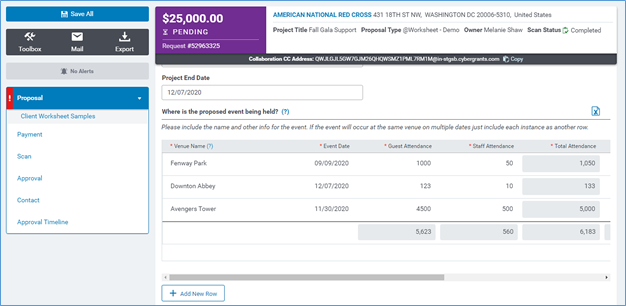
Internal view of the Worksheet custom field
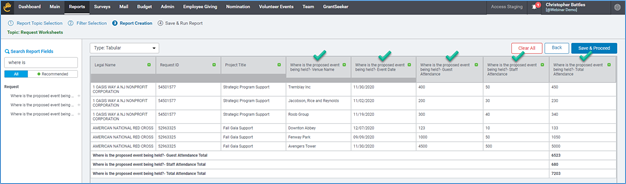
Worksheet Custom Field in Ad Hoc Report Creation screen
 Configuration Notes:
Report fields are automatically created for each column in your worksheet custom field and appear in “Worksheet Field Name” + “-“ + “Column Name” format. Report fields for worksheet columns automatically go from Sandbox to Production when you publish their corresponding custom field.
Availability restrictions
The following are areas/situations where the feature is currently unavailable. Unless otherwise stated, there are no immediate plans to address these restrictions.
- Worksheets are only available in request and impact reports
- Worksheets is not currently mobile-ready/responsive
- Worksheets has not undergone a thorough accessibility review
- Worksheets are not included in request snapshots
- Worksheets are not included in RTF exports
- Worksheets are not available in Bulk Data Extracts (BDE’s)
Additional resources


