To support the increase in events taking place virtually and across various time zones, the ability to add a time zone to your volunteer events is available through the product. Before this enhancement, events were assumed to be in the context of the location of the event or in the context of the person that was creating it. While this assumption works for physical events where users are in the same time zone as the activity, this does not work for virtual events. In an increasingly connected and virtual world, this feature localizes time-based events to each participant.
Events that will be hosted at a fixed time can be created as a single event in the system; even if the attendees span multiple time zones. If an organization, or your company, is hosting an event that people across time zones can attend, you only have to create one event, regardless of the local time of the event for the user. For example, the Red Cross is hosting a virtual webinar and the event is created for 9 am America/New York time. Participants in France (Europe/Paris) can see this on the site and in their calendar at 3 pm.
Events that begin at the same local time across multiple time zones should continue to be created as separate events. For example, if the Red Cross is hosting an event taking place at 9 am in each area (America, France, and other countries), separate events targeting each of those countries can still be created, each at the respective time zone.
What the time zone feature does:
- Event creators can assign a time zone to events (which contain times)
- Donors can set a preferred time zone
- Donors can view events in their preferred time zone
- Administrators can create reports containing the stated time zone for the event
What the time zone feature doesn’t do:
- Change how events are opened/closed or notifications are triggered (continues to be based on date value, in Eastern Time)
- Change how the signup deadline adjusts event status (continues to be based on date value, in Eastern Time)
Launch Information
For clients with major event related customizations, the system will let you know if your account has been held from receiving this update until the customizations can be updated.
For clients that have existing open events, we recommend reaching out to your event managers to inform them of the upcoming change to have time zones associated with the events.
(Need to identify all of your Event Managers? Export an Ad Hoc Report filtered by the Donor Role used in your account for Event Managers).
Suggested content:
- What's changed: We display volunteer participants events listed within their preferred time zone. All new or edited events will require a time zone value.
- What it means for you: Your event participants will see the correct event time, no matter whether they're located on the east coast of the United States or in Australia - including reflecting the correct time within their calendar invites (.ics files).
- How it works: You'll need to include a time zone value in all new or edited events.
- We automatically default to the time zone set in your browser the first time you log in. Time zone not quite right? No problem! You can adjust it within the Employee Engagement Site under Profile > My Settings.
- If you are making changes to an event, you'll need to include a time zone prior to saving.
- Want to ensure all attendees know the proper time for an event to which you've just added a time zone? Email participants to let them know of the time of the event, then invite them to log in and download a new calendar invite from the Upcoming Events portlet.
- Need help identifying your Event Managers? Export an Ad Hoc Report filtered by the Donor Role used in your account for Event Managers.
- Note: For clients who have customizations in this area, your Client Managers will reach out with more detail around timing for this feature.
Event Creation
During event creation, an event creator must add a time zone for one-time and recurring events. Time zone selections do not appear for Ongoing Events (which are events that take place over the course of a longer period without times). Individual occurrences of recurring events will inherit the time zone of the primary recurring event.
Within the Administrative Application and Organization Portals, the system will suggest the time zone set in the user's browser. If a preferred time zone is saved for Donor Event Creators, this will default to the saved time zone value for the donor.
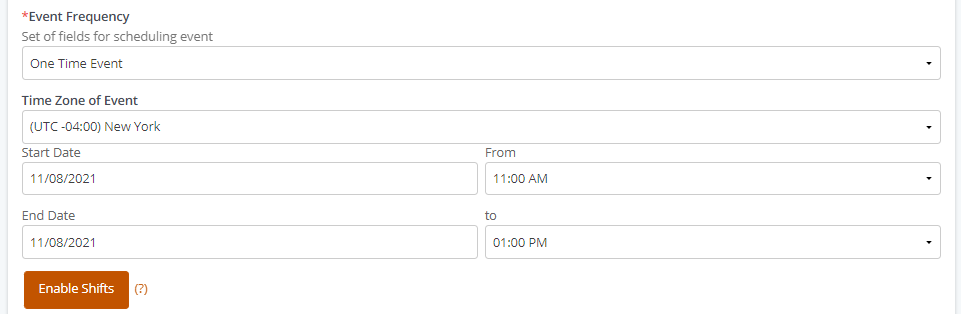
Events that are cloned will also have their time zone cloned.
Events that are edited will retain the time zone that is currently saved, or save the new time zone, if one didn't exist previously. For recurring events, editing the time zone of any single recurring event occurrence will always automatically propagate the new time zone to any events whose date has not yet occurred.
The calendar invite (ics file) available to event creators at the end of the event creation workflow contains the event times with time zone.
IMPORTANT: As with other updates to events, changing the time zone of an event does not automatically notify and update participants. We strongly recommend you reach out to participants to notify them of any changes to their events.
Notes:
- Programs that use the legacy standalone “start date” and “end date” fields within a program will not have time zones added to their events. They effectively operate the same way as ongoing events without a time zone
- Custom fields with a data type of “date” do not use the time zone concept.
- Volunteer Match, powered by Idealist, opportunities are provided by the Volunteer Match system without time zones. Any display and searching will display the date and times without an associated time zone. If a user chooses to create an event for others to attend after expressing interest, the system will require them to select a time zone. Learn more by visiting: Integration with Volunteer Match powered by Idealist
- Imported events without time zones will display in event search without a time zone. If desired, time zones may be added via integration or manual updates.
Donor Experience
When a donor logs into the Employee Site for the first time, the system will automatically save the time zone for the donor based on their browser’s settings (no donor interaction required). This time zone can be updated
from Profile > My Settings below the Preferred Language setting. Similar to preferred language, an Administrator can set or update the time zone. Note, when an Administrator impersonates a donor (using login button) or another donor impersonates using Proxy Access, the time zone value is not saved for that Donor.
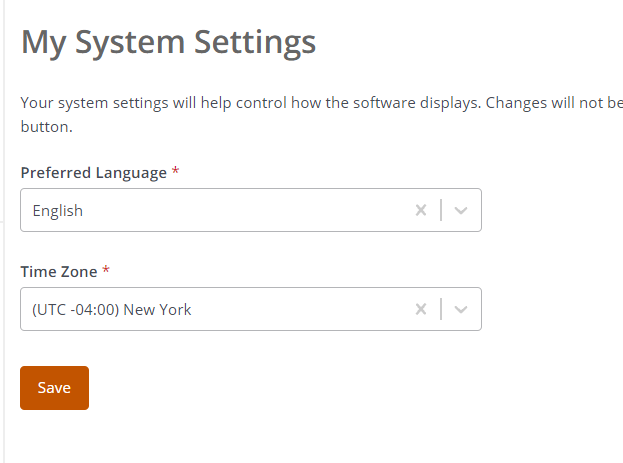
Donor view of My System Settings
Finding events and signing up
Areas that promote events on the site display the event's information in the time zone of the donor (if the event includes a time zone).
These areas include the standard Calendar Portlet, Featured Events Portlet, Recommended Events Portlet. Donors searching for a specific time will see results in their preferred time zone if the event has a time zone.
Notes on events that cross a dateline (uncommon scenario):
- When a user signs up for a one-time event (without shifts) that is eastward across the international date line from the donor’s time zone, if prompted to input a date, the user should enter the previous date. When a user signs up for a one-time event (without shifts) westward across the international date line from the donor’s time zone, if prompted to input a date, the user should enter the next date. An event manager or administrator will still be able to adjust the dates of signup records.
- To avoid donor confusion in the scenarios described above, future events could be created as an ongoing event (without times and time zone) or a one-time event with shifts.
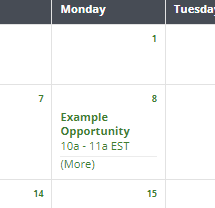
Calendar Display when the event has a time zone

Event page display when the event has a time zone
Once a user has signed up, the Upcoming Events Portlet (with Cards) displays the date and time of the signup record in the donor's time zone with an indicator of the time zone.
 Upcoming events portlet when the event has a time zone
The calendar invite (ics file) downloaded from this portlet, and the file sent with the donor registration email event, contain the same information about the signup record. This invite uses the start and end date of signup if provided, otherwise, it uses the event start and end date. It uses the start and end time from shifts if available, otherwise, it uses the event start and end time
Emails
Emails events to donors will display in their time zone, and include the abbreviation of the time zone if the time zone exists for the event. If the donor has not set their preferred time zone, emails will show events within the date and time of the event's time zone. Emails to Administrators and Organizations always display the date and time of the event in the event time zone.
Configuration note: The affected email merge fields are: {VC Event Start Date}, {VC Event End Date}, {VC Event Start Time}, and {VC Event End Time}
Reminder Emails are currently only displayed using the event time from the event time zone.
Special Note for Community Engagement, Event Searching before logging in:
Before users have logged in, events will display the time zone of the event as recorded on the event, regardless of the time zone of the user that is viewing. Event search will also search by date and time as entered by the event creator.
Administration and Reporting
Administrators can run Ad Hoc reports identifying the Donor Time Zone in any report that references donor information, and the Opportunity Time Zone for any report that references event/opportunity information.
Administrators can also see the time zone for an event in the Audit Log upon event creation and update (Toolbox > View Audit Trail). It will appear within fields for Start Date Time and End Date Time, with the time zone value at the end.
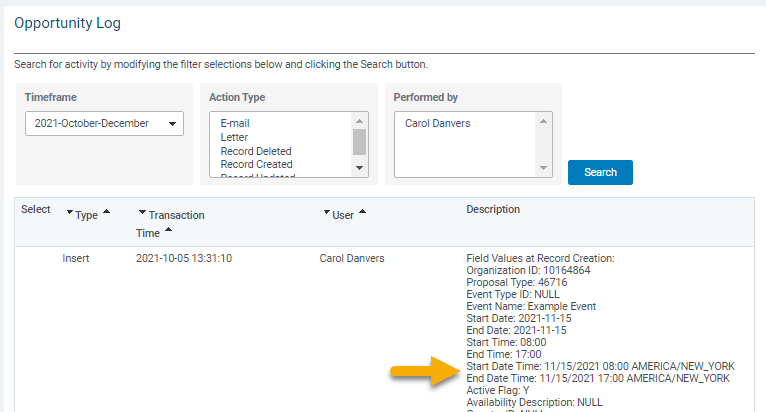
Opportunity Log for Event Record


