Insights Analysts have the ability to leverage advanced filter expressions within an Insights Explore to further refine and segment their data. These expressions go beyond the standard filter options, providing users with greater flexibility and control over their data analysis.
To access the Insights advanced filter expressions, proceed as follows.
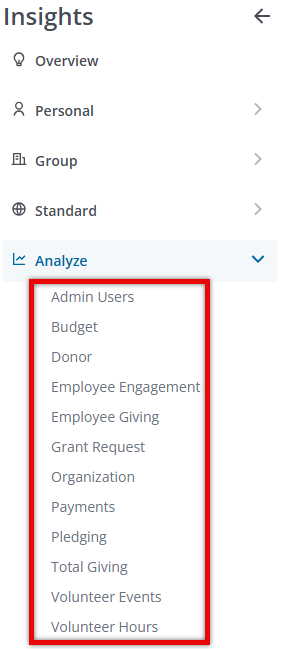
Step 1: Access Insights and Choose an Explore
Log into CyberGrants and navigate to the Insights platform.

Then, select the desired Explore to begin your analysis.
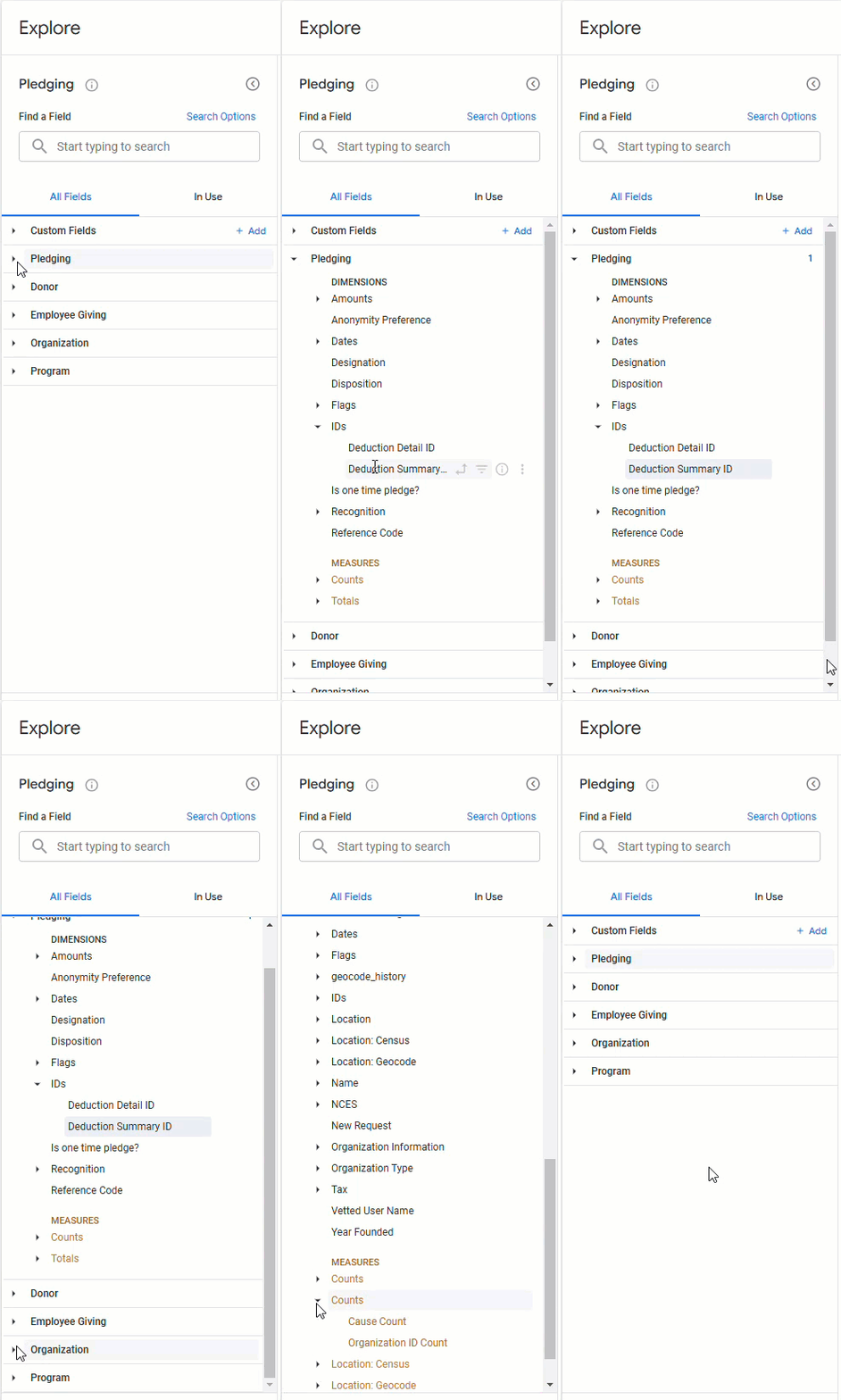
Step 2: Add Fields to the Data Table
Locate the fields (dimensions or measures) you wish to filter and add them to the data table.
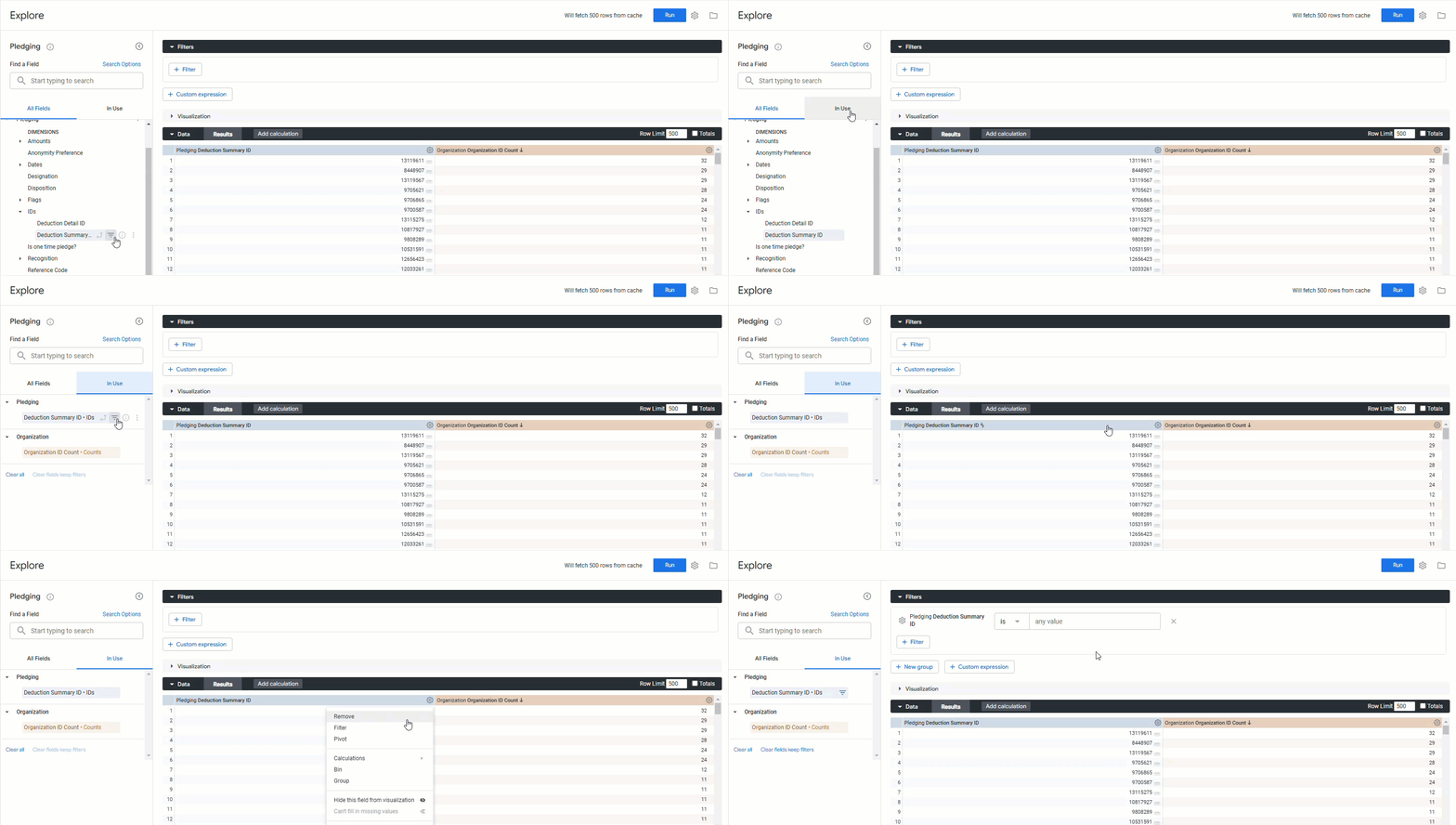
Step 3: Filter by Field
Select the icon to add a filter from the selected field in the Field picker or click the gear icon in the data table to add the filter from the column in your data set.
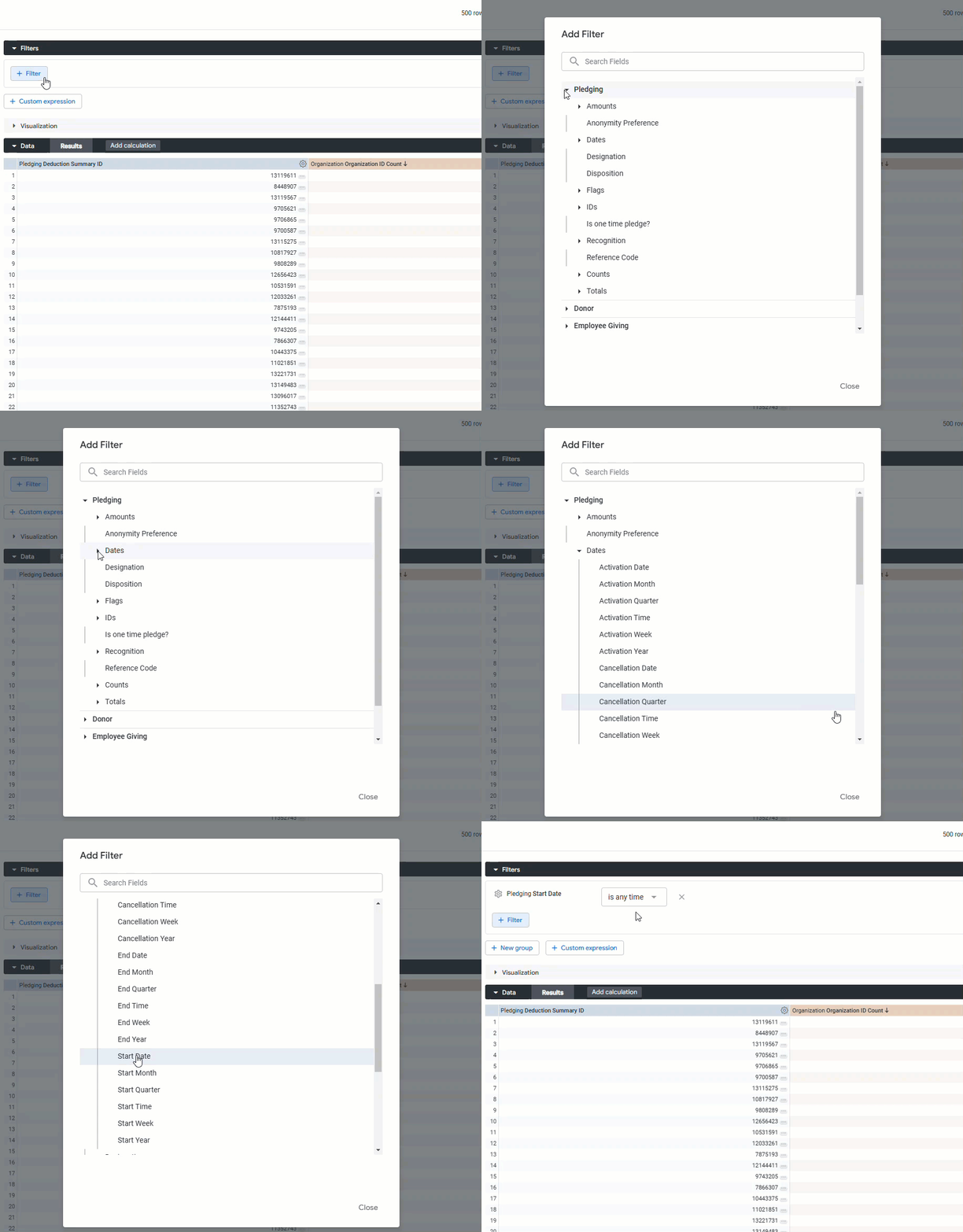
You can, also, click "+Filter" to search and select a field to filter in your data set.
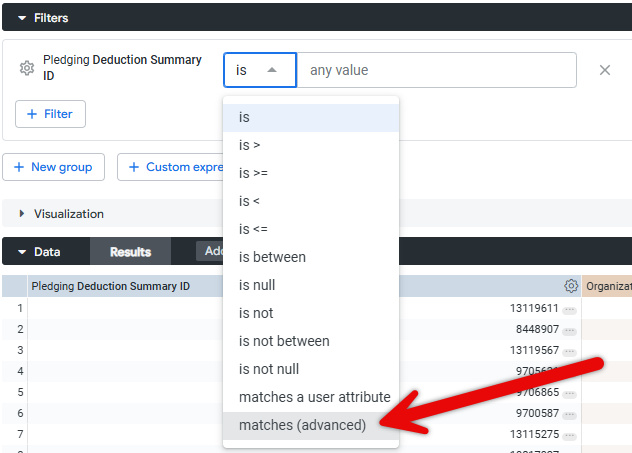
Step 4: Select the "matches (advanced)" Filter Expression
Once the filter has been added, expand the list of available filter expressions for that attribute. Towards the bottom of the list, you will find the "matches (advanced)" option.
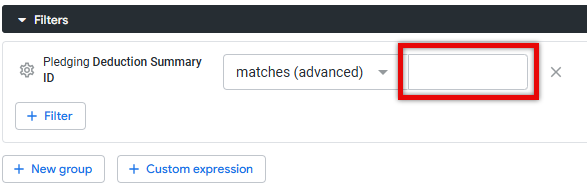
- Click on the "matches (advanced)" filter expression to select it. This will present you with a freeform text field where you can input your advanced filter expression.
Step 5: Construct the Advanced Filter Expression
In the freeform text field, you can now build your advanced filter expression using a variety of syntax and functions. These expressions can be used to filter on date, time, numeric, and location-based criteria.
- Carefully construct your advanced filter expression, ensuring it aligns with your analysis requirements.
Step 6: Apply the Advanced Filter
After inputting your advanced filter expression, click "Run" to apply the filter to your Insights Explore.
The data table will now display the results filtered according to your advanced expression. Validate the filtered results to ensure the expression is functioning as expected.
What else do you need help with?
Not what you're looking for? Navigate to Understanding Advanced Filter Expressions for Insights


