Click to Open the Table of Contents!
Table of Contents
Overview
If you are a program administrator with employee programs that would like to support multiple languages, you are now able to add translations to your Employee Engagement programs. Offering your Employee Engagement site in multiple languages gives a more inclusive experience to your global employee base. Even U.S. sites can take advantage of this. An example we see is for our U.S.-based clients looking to add a Spanish language option alongside the existing English program.
To configure a program across multiple languages, only a single proposal type needs to be configured for that program. Translations can then be added for each supported language. In addition to the proposal type configuration, translations will also be needed for all configurable elements of the site (i.e. email events, portal pages, general configuration, etc). Other text in the site (non-configurable content such as button labels, error messages, etc) will automatically display in the viewer’s language if the language is enabled.
If you are interested in learning more about the process of adding new languages to your programs, please connect with your Client Executive or Account Management (POD).
Looking to understand multi_language programs for grants and grantseekers? See Multi-Language Programs - Grants.
Back to Top
Proposal Type Configuration
Multi-language support must be configured on the proposal type level. This means that you must enter translations for all proposal types that you want to be able to view in multiple languages. The best practice is to configure any program with a base language of English, then add on translations. Changing the default in the future will wipe out the translations for the associated secondary languages, so should not be done without careful consideration.
Note: The base language for most accounts is English. Any help documentation will refer to English as the base language for the entire account.
Things to consider before deactivating languages:
- Before deactivating languages at the grantmaker level, decide how you will handle donors that have this language set as their preferred language. An Ad Hoc report, Donor Information, can be run to see all donors that have the language that will be no longer supported on the site. If a site will support 2+ languages, and the donor's preferred language is no longer available, on the next login they will be prompted to select another language. If the site is going down to only one language, it is recommended to have a small cleanup effort to set the language of the donors to the base language before deactivating the language option.
- Languages can be deactivated in Sandbox and published to production, but they will remain visible in Sandbox. This includes the list of languages in the donor site along with the editability of the languages in the donor's profile.
To access the translation configuration screen, a program administrator can navigate to each area in the Admin page that has text fields and click on the “Translate” button found at the bottom of each configuration page. Translations are available for every section, displaying what is currently configured for the default language for the proposal type. A language is set to active from the Program Options section.
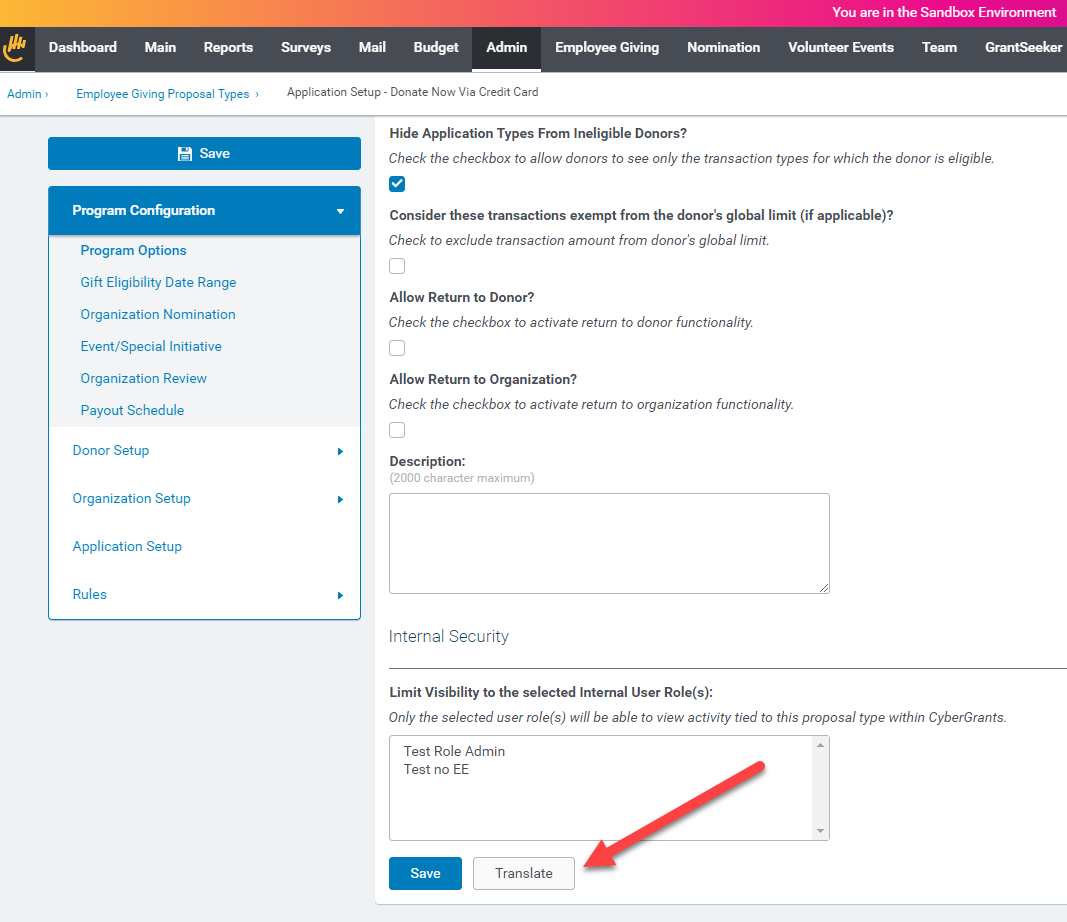
Each of the configuration areas have has its own page of translation fields:
- Program Configuration > Program Options
- Program Configuration > Organization Nomination
- Donor Setup > Display Settings
- Donor Setup > Organization Search
- Organization Setup > Display Settings
- Organization Setup > Terms of Use
- Organization Setup > Registration Settings
- Organization Setup > Confirmation Settings
- Application Setup > Section Titles
- Application Setup > Advanced Settings
- Rules > Donor Rules
- Rules > Gift Rules
Configuration Note: Changing a Donor or Gift Rule from being an ineligible rule to an eligible rule will delete all ineligible text, including the translation text.
The following donor areas are not available for multi-language translation.
- Nomination Mapping Rules
- Eg Proposal Type > Program Options > Tax Receipt (legacy non CGDS feature)
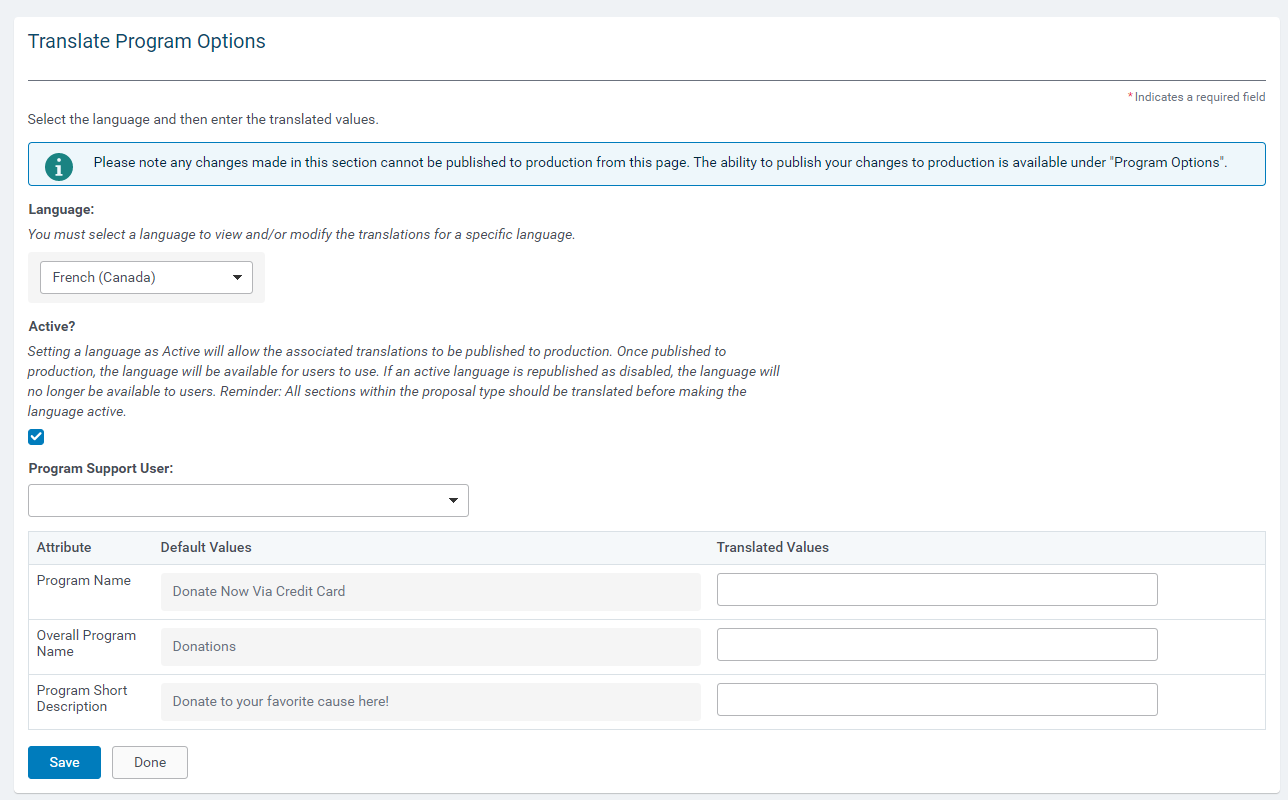
On the Translation page, a user must first select the language you wish to add or manage translations for (note that languages must first be enabled in the Language Settings for the Grantmaker account). The Translation page shows the default language text (taken from the language set in the primary configuration) alongside the text fields for the translated values. Once the translations have been entered and/or updated, the user should select ‘Save’ at the bottom of the page to complete the changes.
Back to Top
Confirmation Instructions (Application Receipt)
Confirmation Instructions for non-profits can be added to the end of workflows, typically in the Request a Match for a Previous Donation workflow (configured in the Proposal Type > Donor Settings > Application Receipt area). As these are printed out for non-profits to take action on, there are options for configuration.
Option 1: Configure the email templates & subjects in the languages that should be available to the donors. When the donor views the email screen, the templates & subjects will be in their viewing language, and that is how it will be sent to the recipients (typically NPOs).
Option 2: Configure the email templates & subjects only in a single language. For example, if English is the business language, then only that language could be configured and it will be presented regardless of what language the donor is navigating the site.
Option 3: Configure emails to contain repeating content, with the messages stacked on top of each other in the various languages. Note, that merge fields will always display the value of the donor’s viewing language.
Back to Top
Community User
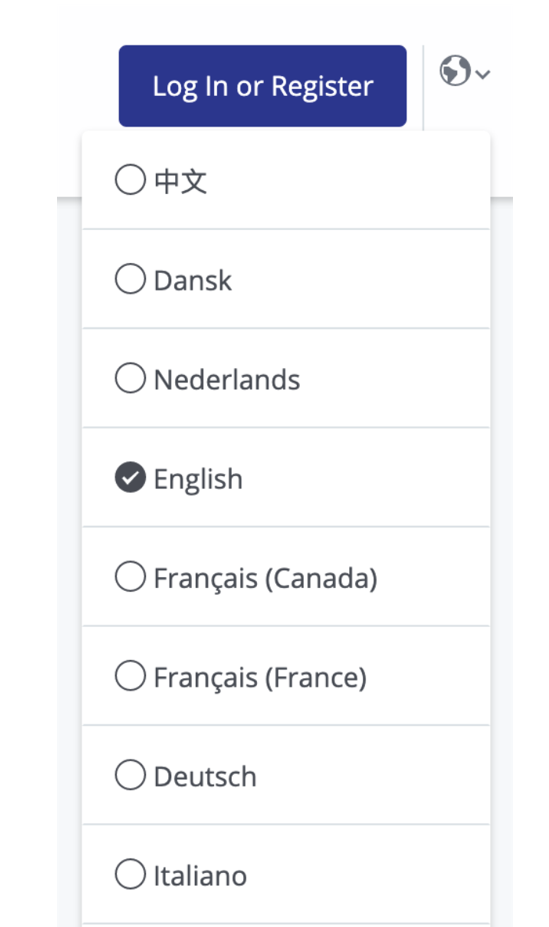
If a donor is browsing CyberGrants events or organizations before they’re logged in and the proposal type they are browsing supports multiple languages, they can select their preferred language from the list of supported languages.
Back to Top
Understanding the User Experience
Looking to understand the experience of users? See the Multilanguage Program Experience article for more information.
Back to Top
Portlets
A single portlet can be configured to display in multiple languages. A portlet will only display to a user if translations have been configured for a language.
Most portlets are simple with Title, Intro Text, and Footer Text available for translation. The content within the portlets will reflect the viewing language, if it has been configured to be available (eg, proposal type names). Portlet translations are active the moment they are created and cannot be deactivated, but will only display if the language is active for a donor to select.
Portlets with special considerations include:
- Journaling Rewards portlet allows for special link text per language
- Teasers & Hero Banners allow for special link text per language. If you need different links/URLs per language, you will still need separate teasers or buttons to direct people to different area. For Teasers, if a button translation is configured, it will cause a button to display, even if no base language is configured. Test all configurations before launch.
- Contribute Again retains its existing behavior of fully cloning all record components when a donor selects to Renew or Donate Again, including the language of the old record into the new record, even if the user is viewing the application in a different language.
Configuration Note: Portlets are published by publishing the associated portal pages. At that time, all associated translations will be published.
In general, it is recommended to use images without text if there are multiple languages for the account. If a program is going to have different images per language because of text (Hero Banners & Teasers), then separate portlets per language will be needed with a different image per portlet.
The following portlets are not optimized for multi-language programs and will require separate portlets and configurations per language if used.
Back to Top
NPO Portlets
- EG Request Pending Revision (2016) (not available in other languages)
- EG Request Gift Confirmation (2017) (recommend stop usage and migrate to the Multi-Program Gift Confirmation (4015))
- Start a New Opportunity (2006)
Back to Top
Donor Portlets
- Donor Portlet: Quick Search (Responsive/Horizontal) (1029)
Back to Top
Email Events & Reminders
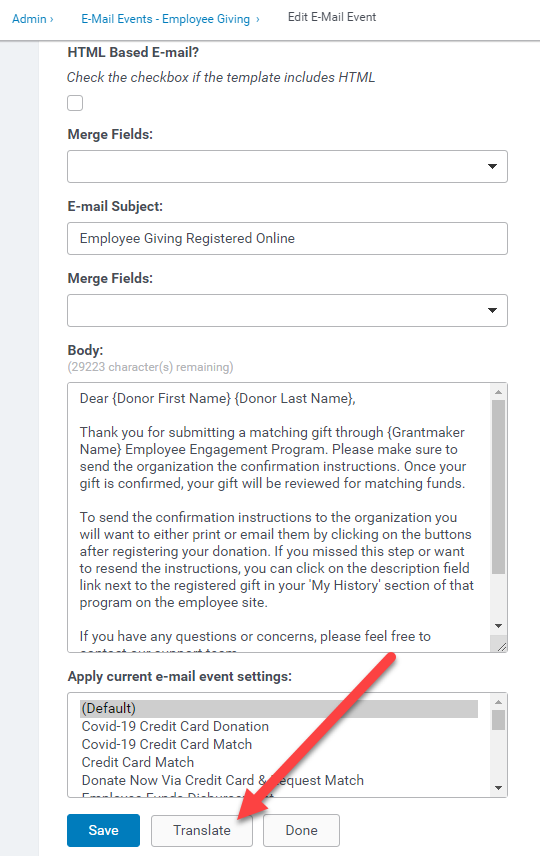
A single Email Event or Reminder sent to a Donor can have multiple translated email templates, at the default or per proposal type level. Emails sent to Admins and NPOs/organizations for EE programs are not configurable per language. In addition, emails sent to donors regarding Redirection of donations are a single template, not configurable per language.
Configuration Note: Email Events will display the translated version of standard and custom merge fields. Email Reminders do not display the translated version of merge fields at this time.
As with Grants, Portlets, Email Events, and Email Reminders do not have an active/deactivate switch for languages. If there is an issue and incorrect languages are added, such as from cloning, CyberGrants support must be contacted to remove the incorrect translation records.
Back to Top
Options for NPO email configuration
There are two options for sending emails to non-profit organizations when the EE programs have multiple languages.
-
Option 1: Send emails to NPO’s in a single language. For example, if English is the business language, then all email events and reminders could be set up with just the English text.
-
Option 2: Send emails that contain repeating content, with the messages stacked on top of each other in the desired languages. Note, that merge fields included in these emails will always send their base value for the account.
Back to Top
Email Screen Configuration
Email Screens allow for configuring emails to be sent to users outside of CyberGrants, typically for purposes of NPO confirmation of donations. The instructions and text displayed to the donor can be configured in the languages to be made available to donors. The same URL can then be used in all workflow configurations to direct donors to send an email.
Options for Email Screen Template/Subject Configuration
-
Option 1: Configure the email templates & subjects in the languages that should be available to the donors. When the donor views the email screen, the templates & subjects will be in their viewing language, and that is how it will be sent to the recipients (typically NPOs).
-
Option 2: Configure the email templates & subjects only in a single language. For example, if English is the business language, then only that template could be configured and it will be presented regardless of what language the donor is navigating the site.
-
Option 3: Configure emails to contain repeating content, with the messages stacked on top of each other in the various languages. Note, that merge fields will always display the value of the donor’s viewing language.
Back to Top
Program Support User
Some emails are sent to the program support user for the proposal type. Some clients have separate support teams for handling support requests in other languages. For these cases, the Program Support User (configured under Program Options), can be configured to a different user per language (although they must be an existing user in CyberGrants, like the base program support user). If none is configured for a user, it will send to the main Program Support User.
Back to Top
Portal Pages
Portal pages will display regardless of what language is selected. They will fall back to the base language if the preferred language is not available.
Best Practice: If there is an entire page that is only relevant to one group of users, and the content is not intended to be translated, it is recommended that the page is created with Introduction Text that states “Matching Gifts is only available in English, please change your language to see this content” in all the other languages.
When using links to the application, CyberGrants will always respect the user's preferred language, even if a language code is added to a URL, therefore it is recommended to remove language codes from any hard-coded links.
Back to Top
Pre-Launch Checklist
The following checklist can be used as a guide to ensure sure all the necessary translations are configured:
- Data Fields
- Proposal Types (including Advanced Settings)
- Support Areas
- Email Events & Reminders (for donors)
- Email Screens (used within donor workflows)
- Donor Profile Advanced Settings
- Portal Pages
- Portlets
- After reviewing and testing, set the languages as active in the Proposal Type translation settings for each proposal type.
- Publish the changes!


