Overview
This article walks through the detailed experience of an Employee Engagement site and programs from the perspective of Employees/Donors in the Employee Engagement Site, the NPO/Grantseeker Experience in the NPO Portal, and the Internal Administrator Experience in the Admin site.
Looking for how to configure programs? See the Multi-Language Support for Employee Engagement Programs article.
Employee/Donor Experience
Selecting Preferred Language
All donors have a My System Settings area of the profile that contains CyberGrants system settings (not configurable). Currently, it contains the Preferred Language.
The languages available for donors to select are taken from all the active EG proposal types, any language set as the default or as an active translation language. If a language is not active at the Program Options level, or there are no active proposal types for that language, then it will not be available as an option in the manual login or as a language for Preferred Language.
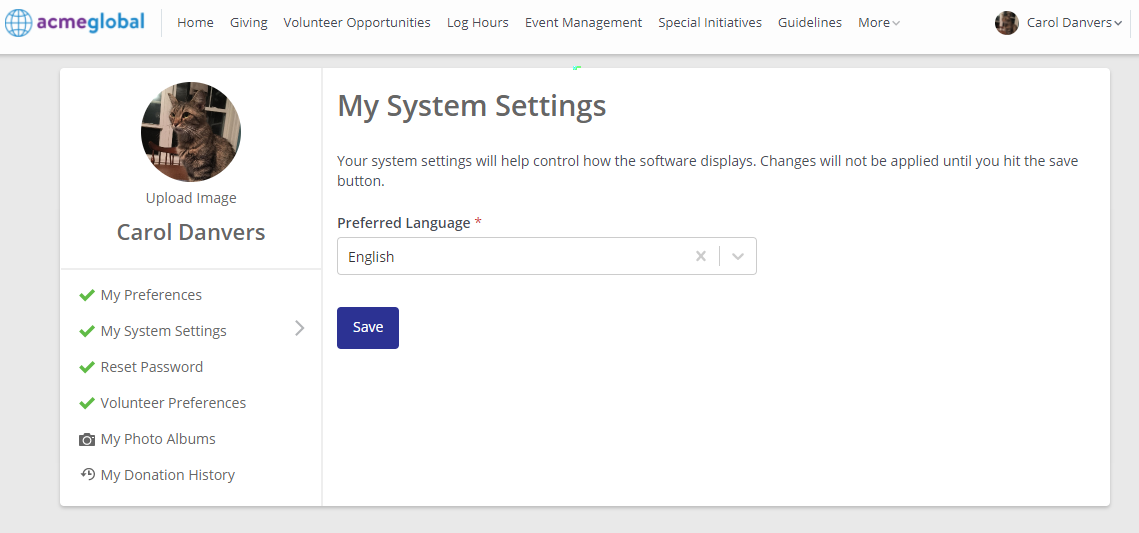
The first time a user logs in, if a site offers multiple languages, the user will be prompted to confirm their Preferred Language for browsing the site. If the user isn’t logging in manually (such as through SSO), the prompt will first attempt to use the language of the browser to display the page and prompt. If that isn't available, then it will then attempt to use the base language. For example, if the user's browser is configured to French Canadian, and the site allows for French Canadian, the terms and prompt would be French Canadian first. Conversely, if the user's browser was configured to use Russian, but only English and French were available, then the prompt will be presented in the base language of English.
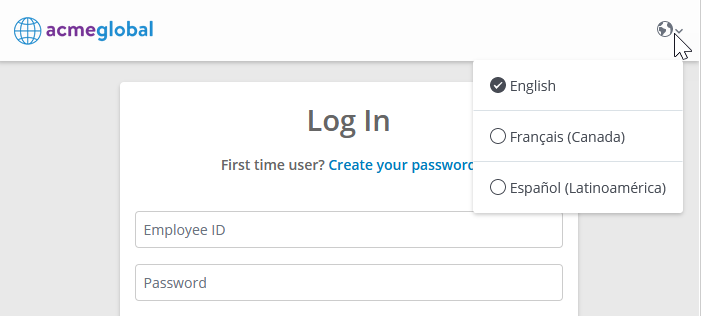
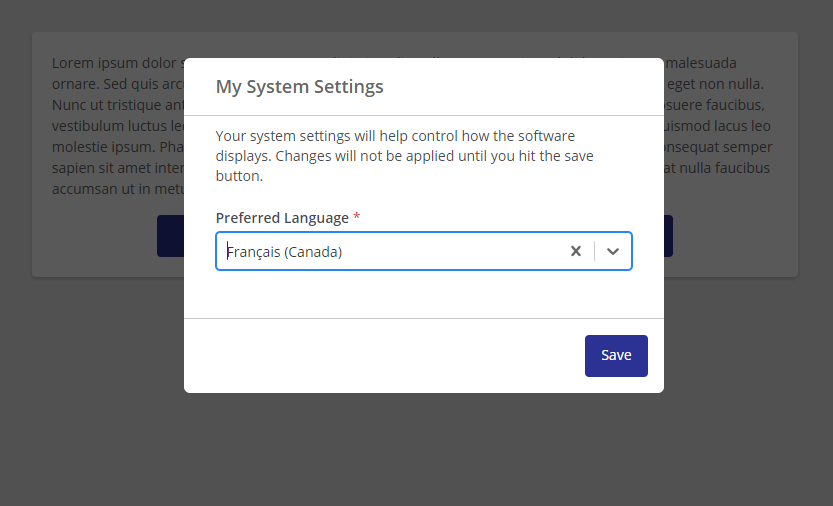
In case that a language is no longer offered in the future, users will be prompted again to select a new preferred language. After selecting a preferred language, all subsequent logins will use the Preferred Language for site interactions. The preferred language can be changed subsequently from My System Settings in the future.
Note, it is not recommended that the HR system sets the language, so that users can set it on their own and not have the HR feed override their settings. If you would like to pre-populate this information, each HR feed integration would need to be modified to populate this field (like any other donor profile field). It is recommended that the donor sets this one time, in order to understand where to adjust it in the future in the profile.
How Information is Displayed
In areas where information is displayed (such as portlets or My Donation History), all transactional information within a portlet follows the same fallback structure: First, the viewing user's current viewing/preferred language, and if that is not configured, then the default language for the program. For example, if an older program (proposal type) was only available and configured in a base language of English, but a donor is navigating the site in French now, the portlet will display its controls (eg. table labels) in French but the admin configured content within about that program will be in English (eg. proposal names, status text). An administrator can go back and configure older programs for other languages if desired.
In areas about specific records (emails triggered to the donor, current or legacy applications), the areas within a workflow will follow the same fallback structure: First, the viewing user's current viewing/preferred language, and if that is not available for the proposal type, the language of the record when created by the donor, and if that is not available, the default language for the program. For example, if a donor had a donation in an older program (proposal type) in English, but the donor is now navigating the site in Spanish, when viewing the donation, the entire transactional portion of the screen will appear in English (the base language of the program).
Community User
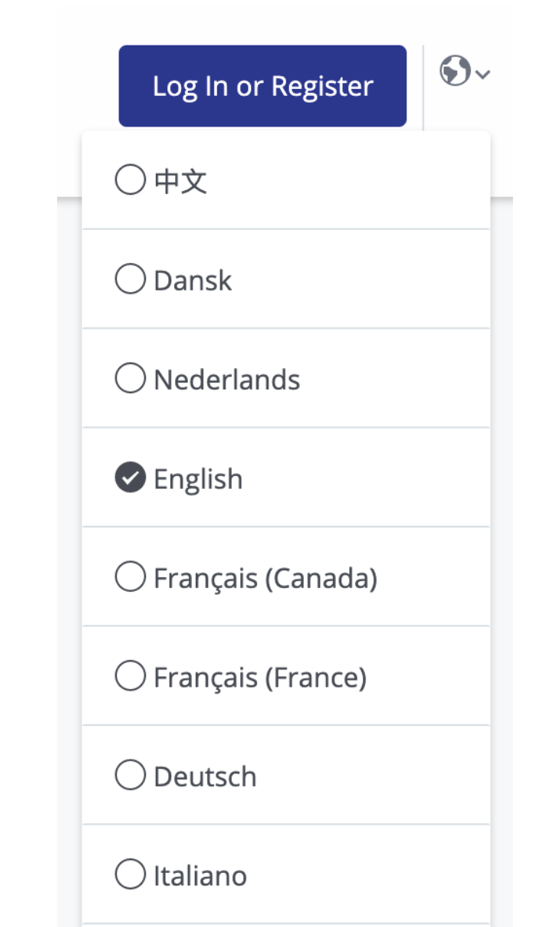
Community: if a donor is browsing CyberGrants events or organizations before they’re logged in and the proposal type they are browsing supports multiple languages, they can select their preferred language from the list of supported languages.
NPO/Grantseeker Experience
Nonprofit users navigating to the NPO portal are able to toggle their language once logged in and viewing a portal page. The languages available for NPOs to select are taken from all the active proposal types - any language set as the default or as an active translation language. If a language is not active at the Program Options level, or there are no active proposal types for that language, then it will not be available as an option.
Once in a workflow (gift confirmation, event creation, etc) they must remain in the selected language.
The exception is the nomination workflow, which doesn't require logging in and allows changing of the language when the nonprofit arrives on the form. The languages displayed in that workflow will only be the ones available to the proposal type in the URL.
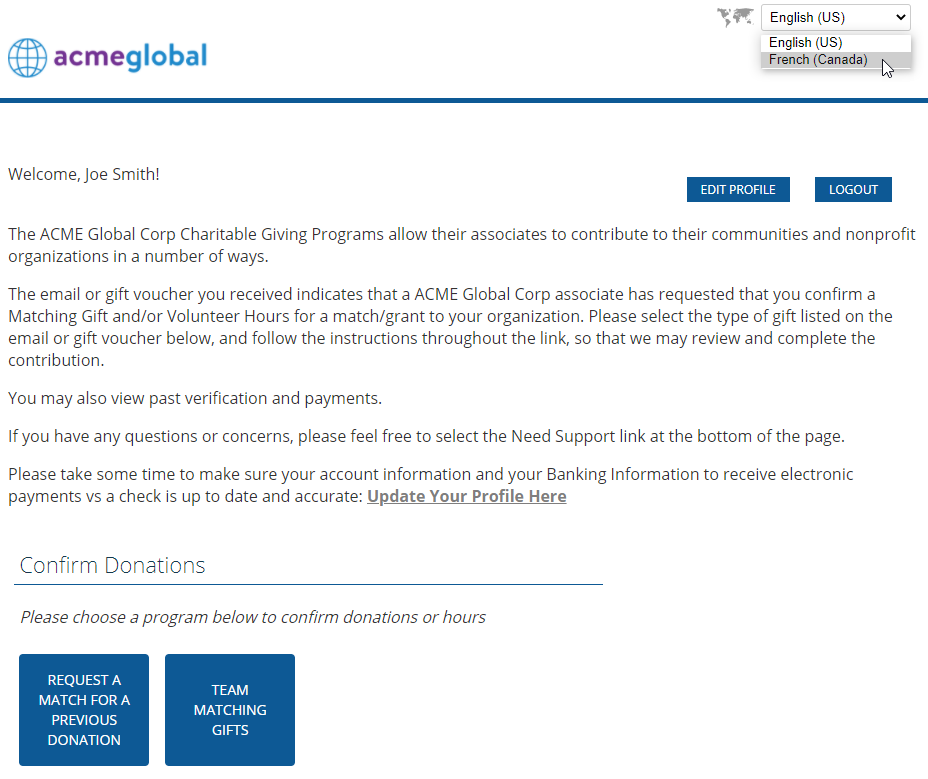
In all areas, the information presented to the nonprofit will follow the same fallback structure: first, the viewing user's current viewing language, and if that is not configured, then the default language for the program.
All email events and reminders associated with EE proposal types and sent to non-profits are sent by a single email template per program, typically the base language for your programs. See E-Mail Configuration Overview for configuration considerations.
Internal Admin Experience
Working with Records
All records created by Admins are created in English, but when viewed by the donor will be presented in their preferred language (if that language is active for the program). An Ad Hoc report can be generated to see a record language.
Note: Approval comments are a single field, but could be displayed to donors in multiple languages. Admins for multi-language programs should either write their comments in their common business language or duplicate the text in the languages.
Donor Profile
Admins can see and change the donor’s preferred language on the donor record (if multiple languages are available). This is an always editable field if there are multiple active languages for a site.
An Ad Hoc report can also be created to see the Preferred Language for every donor.


