Through the System Log, program administrators can search for and review activity within the system, such as actions taken by users, changes made to records, and communications sent. Administrators can filter the log by timeframe, action type, user, and specific table to find the information they need.
Check out this video that demonstrates how to view the system log.
To view the System log and search for activity from the program audit trail, proceed through the following steps.
Step 1: Access the System Log from the Admin tab
An Administrator can access the system audit trail by clicking the “System Log” link on the Admin tab under "General Settings."
Step 2: Use filters to search activity
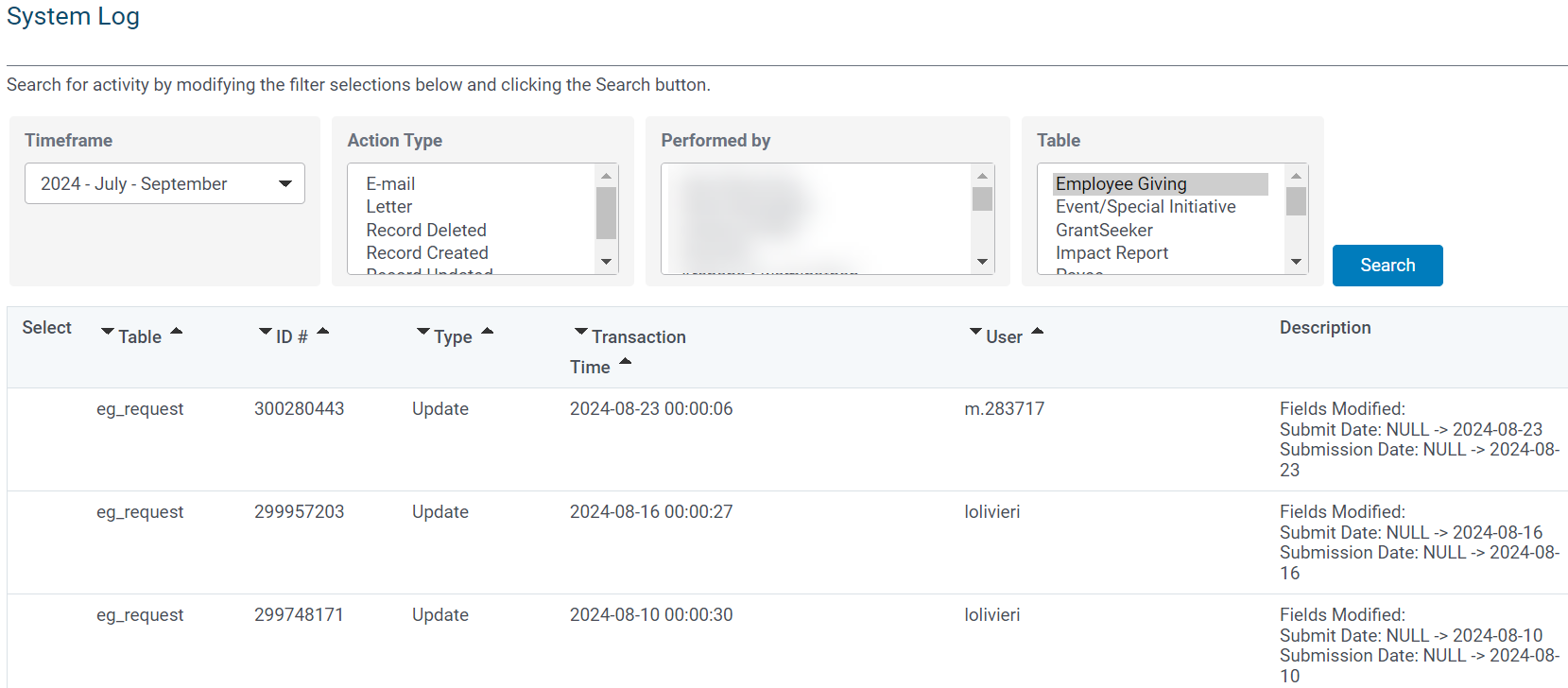
Admin users can search for activity by adjusting the filter selections, which allow the user to refine their search by timeframe, action type, the person who performed the action, and the specific table (e.g., grantseeker, budget, payment request). An administrator can search by entering values for one or more filters (“TimeFrame”, “Action Type”, “Performed By”, and “Table”). The “TimeFrame” criterion is required and limited to one time period.
Step 3: Review the search results
The displayed information includes the table, record ID, type of action (Insert, Update, Delete, Letter, or E-mail), transaction time, the user who initiated the action, and a description of the action taken. The “Description” column contains the type of action and information relevant to that action. If the “Action Type” is an E-mail or Letter, the “Description” column contains a link to display the contents.
What else do you need help with?
Not what you're looking for? Navigate to Understanding the System Lo


