Dollars for Doers portlets provide the ability to configure a Learn More hyperlink (see Figure 1) that can be used to redirect a user to program guidelines. Content hosted by CyberGrants, such as an FAQ support area or file, or an external webpage, such as company guidelines, can be linked. When clicked, the Learn More hyperlink will redirect the user to the content in a new browser tab.
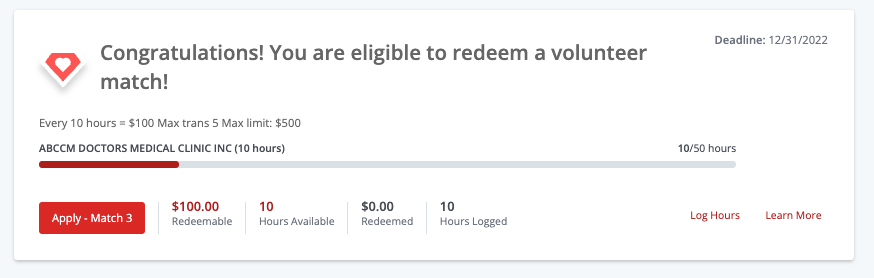

Figure 1 Redeemable Volunteer Match Message with Learn More
Before configuring the Learn More hyperlink, you must have program guidelines that can be used as the redirect link.
The following options are available sources for program guidelines:
-
- A CyberGrants portal page
- An external website
- A link to a page on the client's website
- A file hosted by CyberGrants, such as a PDF. For more information, view Update a Document Link on a Portlet in the help center.
To configure a Learn More hyperlink:
- Under the Admin tab, view the Employee Application Configuration section.
- In the Portal Pages section, click the View/Edit Portlets hyperlink.
- Click the Journaling Rewards portlet hyperlink.
-
Note: The portlet may be named Dollars for Doers or have a name specific to your company.
- In the Links section, configure the button label using the Learn More field. This step is not required.] "Learn More" will display by default if no text is specified.
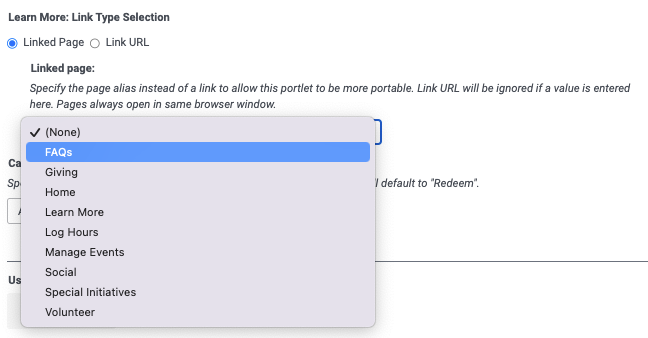
- Using the Learn More: Link Type Selection field, select Linked Page or Link URL.
- If you select Linked Page, select the link page's name from the Linked Page dropdown menu.
- If you select Link URL, enter the URL for your program guidelines.
- Click Save.
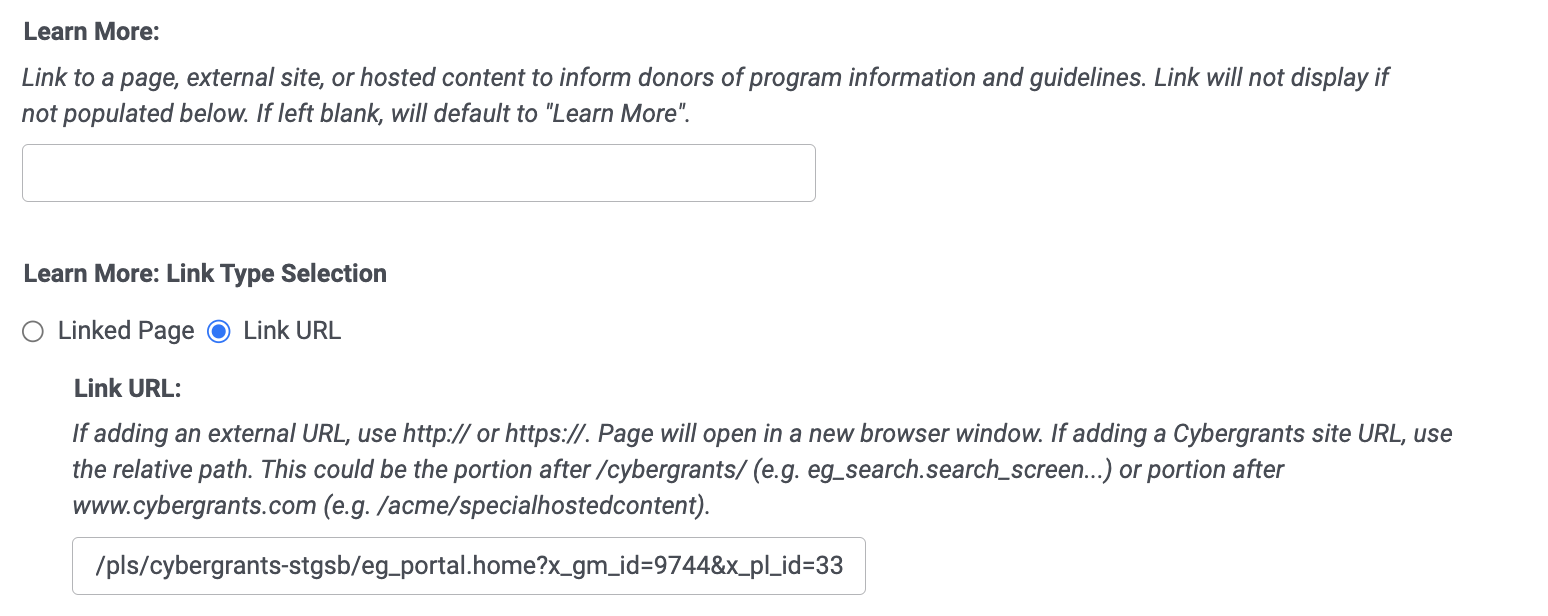

- Configuration with a CyberGrants page

|
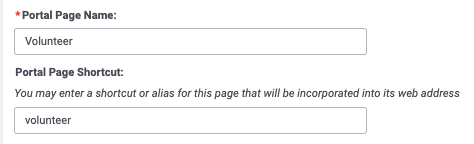
How is the list of linked pages generated? Pages configured with a Portal Page Shortcut will be available as a linked page.
|


