Administrators are able to manage a set of standard frequently asked questions (FAQs) and create Grantmaker-specific FAQs for their grants program. This feature provides a centralized location to configure and activate support areas that will be displayed on the external portal, ensuring that users have access to the necessary information during the application process.
Learn more about configuring support areas by following the instructions below.
Step 1: Access the Sandbox Environment
Navigate to the Admin tab in the Sandbox environment. Locate the "Support Area" link under either Application Configuration for grants program Non-Profit Support Areas or under Employee Application Configuration.
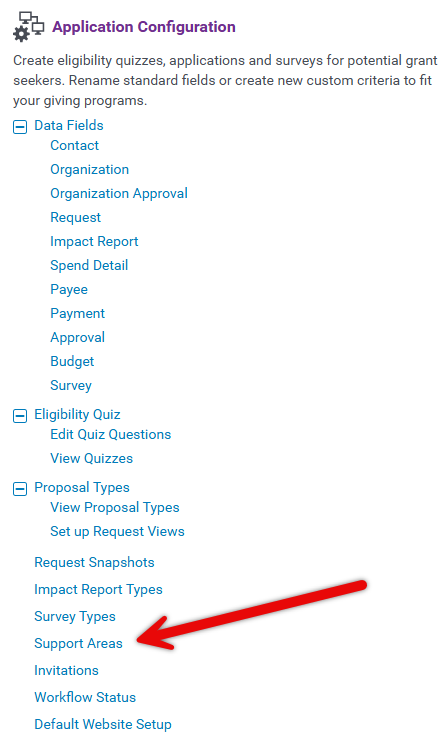
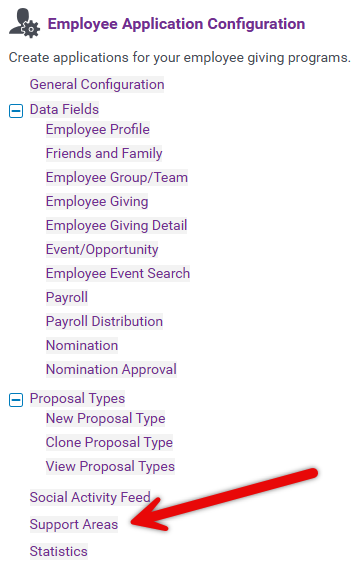
Step 2: Configure Support Areas
Active support areas are denoted by a green dot and will be displayed as FAQs on the external portal.
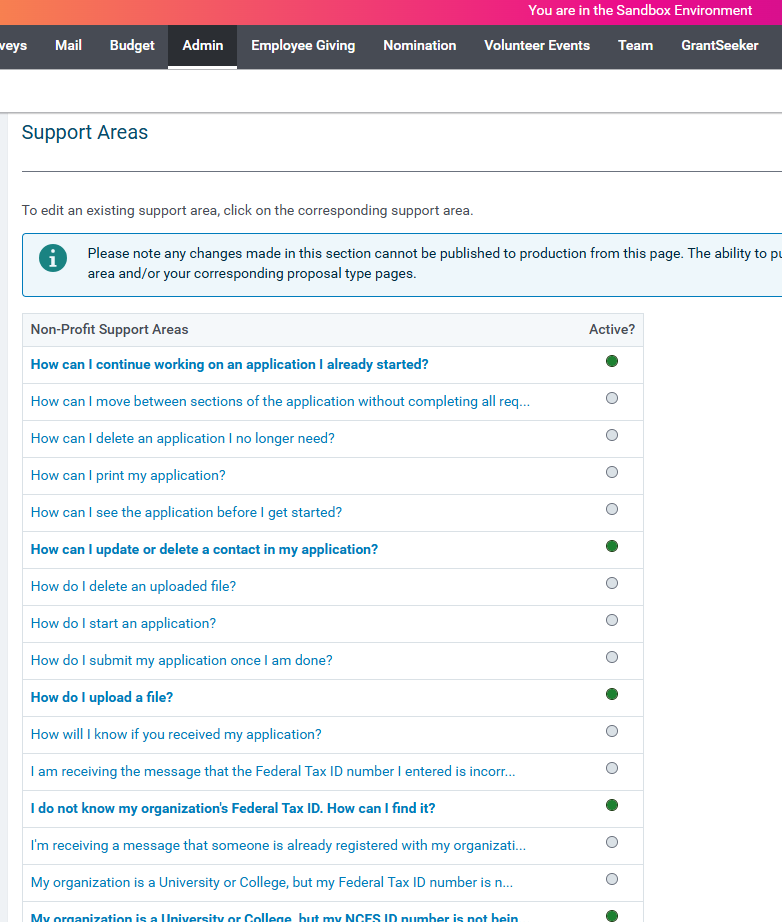
- All active FAQs (standard and Grantmaker-specific) will be visible when a nonprofit user clicks the "Need Support" link in the online application.
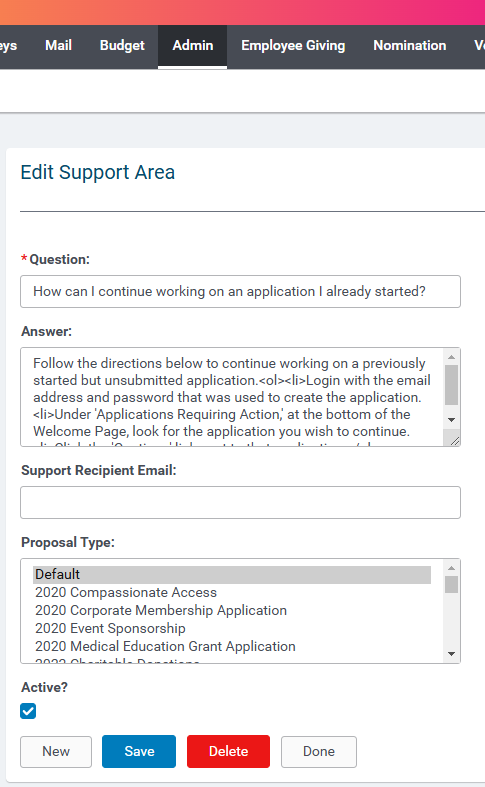
To activate or modify a question/answer, click the corresponding link for the support area and make the necessary changes.
Step 3: Activate or Modify FAQs
- Click the "Active" checkbox to activate a question/answer.
- Modify the wording of the question/answer if appropriate.
- Determine if a question is associated with a specific proposal type or retain the "Default" option to display the question for all proposal types.
- Enter an email address in the "Support Recipient E-mail" textbox to direct the question to a specific person.
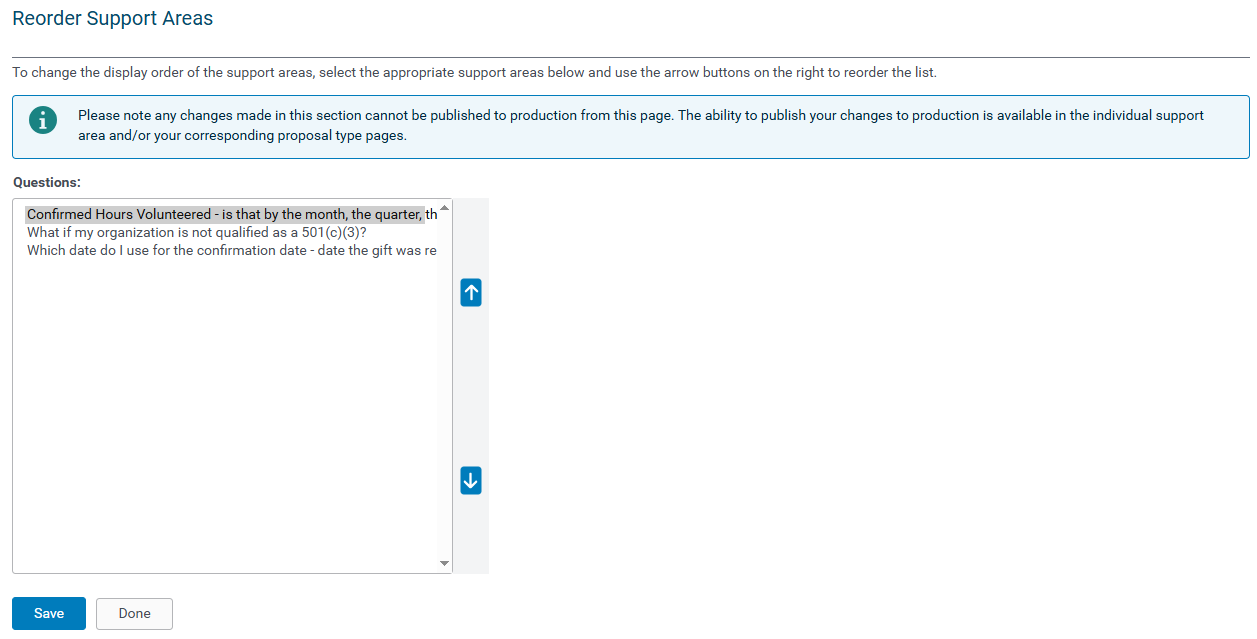
Step 4: Reorder Support Areas
The option to reorder the list of support areas is available. Click the question and use the up and down arrows to rearrange its placement.
What else do you need help with?
Not what you're looking for? Navigate to Understanding Content Configuration.
Looking for training?
Explore this feature at your own pace - access training video content or watch a recorded webinar by clicking the link below.


