CyberGrants allows customers to prevent new Grantseeker users from registering with email addresses that contain corporate domains. This configuration helps ensure individuals applying through Apply Online (funder-specific nonprofit organization sites) do not register using a work email address when acting on behalf of a nonprofit. The setting is global and applies across all Apply Online proposal types.
The corporate domain restrictions also apply when a grantseeker attempts to change their email address through their profile, preventing them from changing to an email address that matches a restricted corporate domain.
The following steps will guide you through the implementation process, from initial configuration through ongoing management.
Step 1: Access the Grantseeker registration rules
- Log in to the CyberGrants Sandbox environment as an Admin.
- Navigate to the Admin tab.
- Go to User Management.
- Expand Configure Registration Rules.
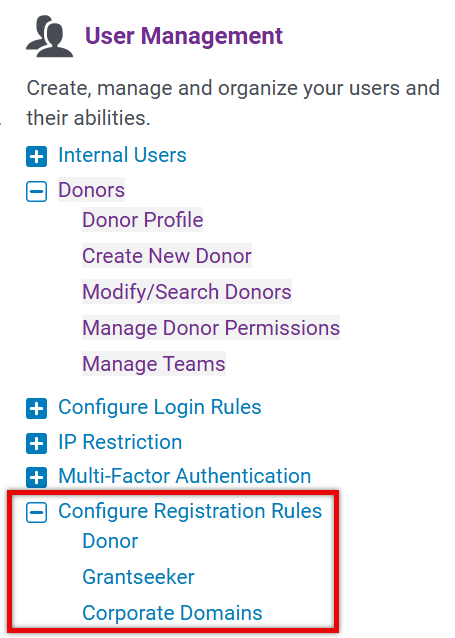
- Select Grantseeker.
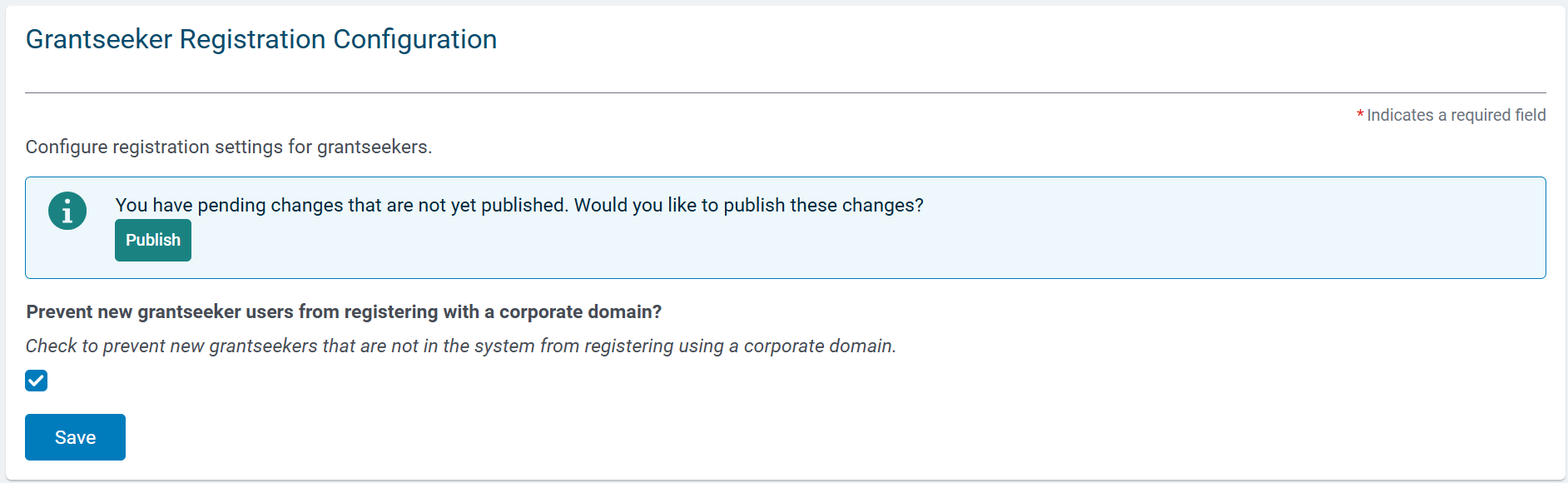
This page contains the setting that controls whether new Grantseeker users can register using an email address associated with a corporate domain.
Step 2: Enable the corporate domain restriction for Grantseekers
-
On the Grantseeker Registration Configuration page, select the checkbox labeled:
Prevent new grantseeker users from registering with a corporate domain.
Note: This checkbox is off by default for all customers.
When this setting is enabled, CyberGrants evaluates a user’s email domain during the registration workflow.
If a new user attempts to register on Apply Online using an email address that matches a domain in your configured corporate domain list, they will receive the following error message:
“Registration using the email domain <domain> is restricted.”
The user will be unable to proceed with registration.
Step 3: Manage the list of corporate domains
The list of restricted domains is maintained separately from the Grantseeker checkbox and applies based on which registration rules are enabled.
- Return to the Admin tab.
- Go to User Management.
- Expand the Configure Registration Rules.
- Select Corporate Domains.
On the Corporate Email Domains Configuration page:
Enter each corporate domain to restrict. Use commas to separate domains. The system accepts:
- Specific domains without subdomains (e.g., example.com)
- Specific subdomains (e.g., one.domain.org)
- Wildcard for all subdomains using an asterisk (*) to include all subdomains (e.g., *.example.com)
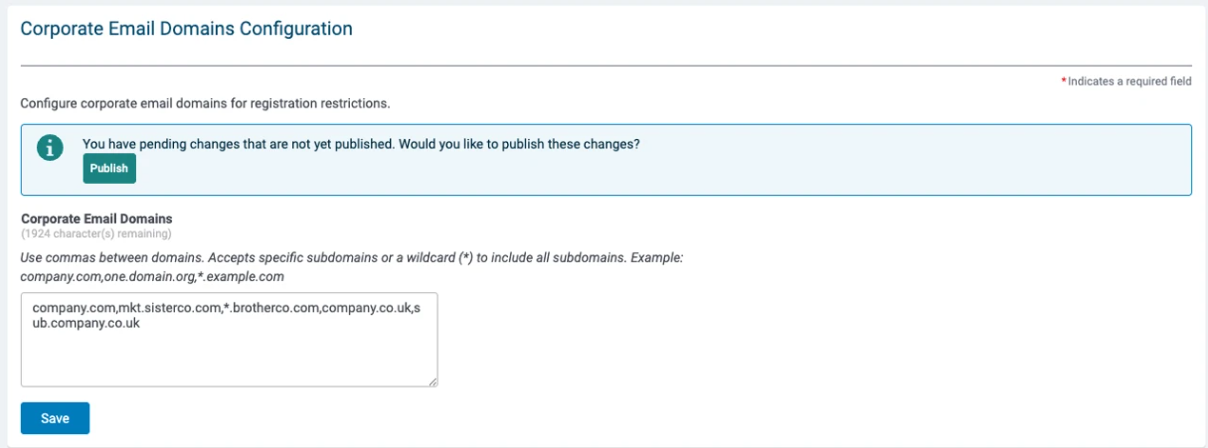
Click Save.
The domains listed here are evaluated when the Grantseeker corporate domain restriction checkbox is enabled.
Note: The Corporate Domains list is shared with the settings used to block donor registrations for Employee Engagement portals. Any domains added here will apply to both Donor and Grantseeker registration rules when their respective corporate domain restrictions are enabled.
Step 4: Understand how this differs from proposal-type settings
This global configuration differs from the “Allow Non-Profit Registrants that Match Donors?” dropdown available on individual proposal types.
- The proposal-type setting applies only to that specific proposal type.
- It checks whether the exact email address already exists as a donor user.
- Its purpose is to determine eligibility for that specific program.
The corporate domain restriction:
- Applies globally across all Apply Online proposal types.
- Checks whether the email domain matches any entry in the configured corporate domain list.
- Does not look for an existing user.
- Is designed to prevent users from registering with a corporate work email, helping maintain a clear separation when acting on behalf of a nonprofit.
- Also applies to the Change Email workflow within a grantseeker's profile.
Step 5: Understand the impact on existing users
The corporate domain restriction applies only during registration.
- Previously registered users with email addresses that match a restricted corporate domain are not prevented from logging in.
- The check occurs only during the new user registration workflow.
Ongoing management considerations
- The setting is global and applies to all Apply Online proposal types.
- Customers control whether to enable or disable the Grantseeker restriction.
- The corporate domain list can be updated at any time.
- Changes take effect during future registration attempts and when grantseekers attempt to change their email address.
- The system supports domain-specific subdomains and wildcard subdomain blocking for more granular control.
This configuration provides a single, centralized method for screening registration email domains for both donors and grantseekers, depending on which registration rules are enabled, and prevents profile email changes to restricted domains as well.
Additional Resources
What else do you need help with?
Not what you're looking for? Navigate to Understanding User Login Account Configuration


