Program administrators with access to the Manage Hosted Content can update a portlet page with an uploaded document link using the following instructions. The process involves verifying the document has been uploaded, accessing the sandbox environment, identifying the portal page and portlet to update, and then updating the portlet's link to the uploaded document.
Proceed as follows to update the portlet page with a new, uploaded document link.
Step 1: Locate the Document URL
First, ensure that the document has been uploaded before proceeding. If the document has not been uploaded, yet, visit the How do I upload a document? article and follow the required steps to upload the document to your program's "Managed Hosted Content".
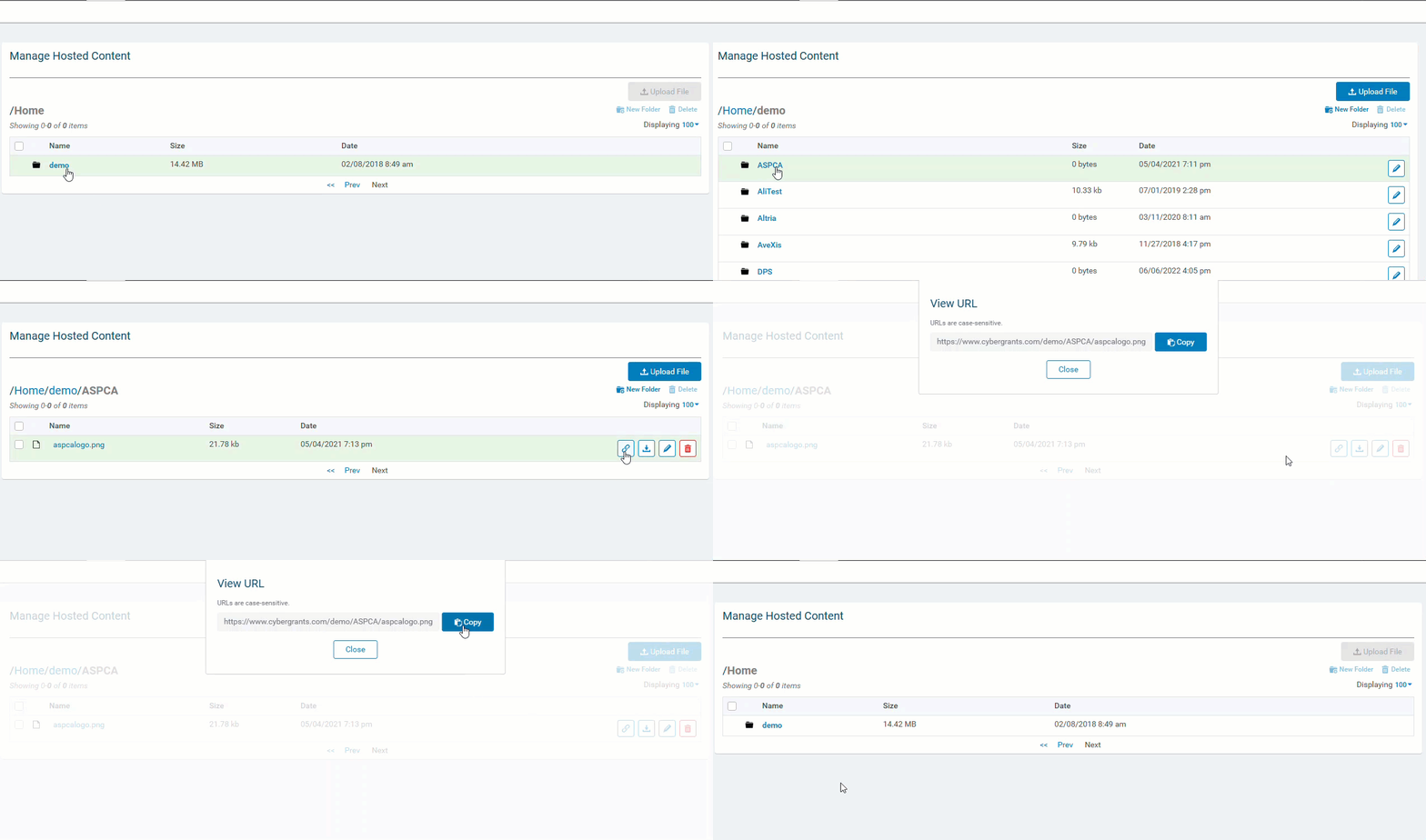
- Determine the URL of the Uploaded Document: To acquire the URL (web address) for the document, locate the file within the appropriate folder in your program's managed hosted content and copy the URL to your clipboard. This URL will be used to update the href attribute of the <a> tag.
Step 2: Access Sandbox
Log in to CyberGrants and access the Sandbox environment. Authorized users can access Sandbox by clicking the "Access Sandbox" link in the upper right-hand corner of the screen when logged into the CyberGrants production environment. Alternatively, users can directly access Sandbox by navigating to https://sandbox.cybergrants.com/login-sb/CGLogin and logging in with their regular user credentials.

Once in Sandbox, users will notice a distinct visual indicator - a rainbow gradient stripe above the gray menu bar at the top of the page. This signifies that the user is currently working within Sandbox, rather than the live Production environment.

Step 3: Navigate to the Admin Tab
Go to the Admin tab while in the Sandbox environment.
Step 4: Identify the Portal Page to Update
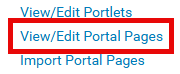
Scroll down to the "Portal Pages" section and select the "View/Edit Portal Pages" link to view the Portal Pages for the group you want to edit.
Step 5: Select the Portal Page to Update
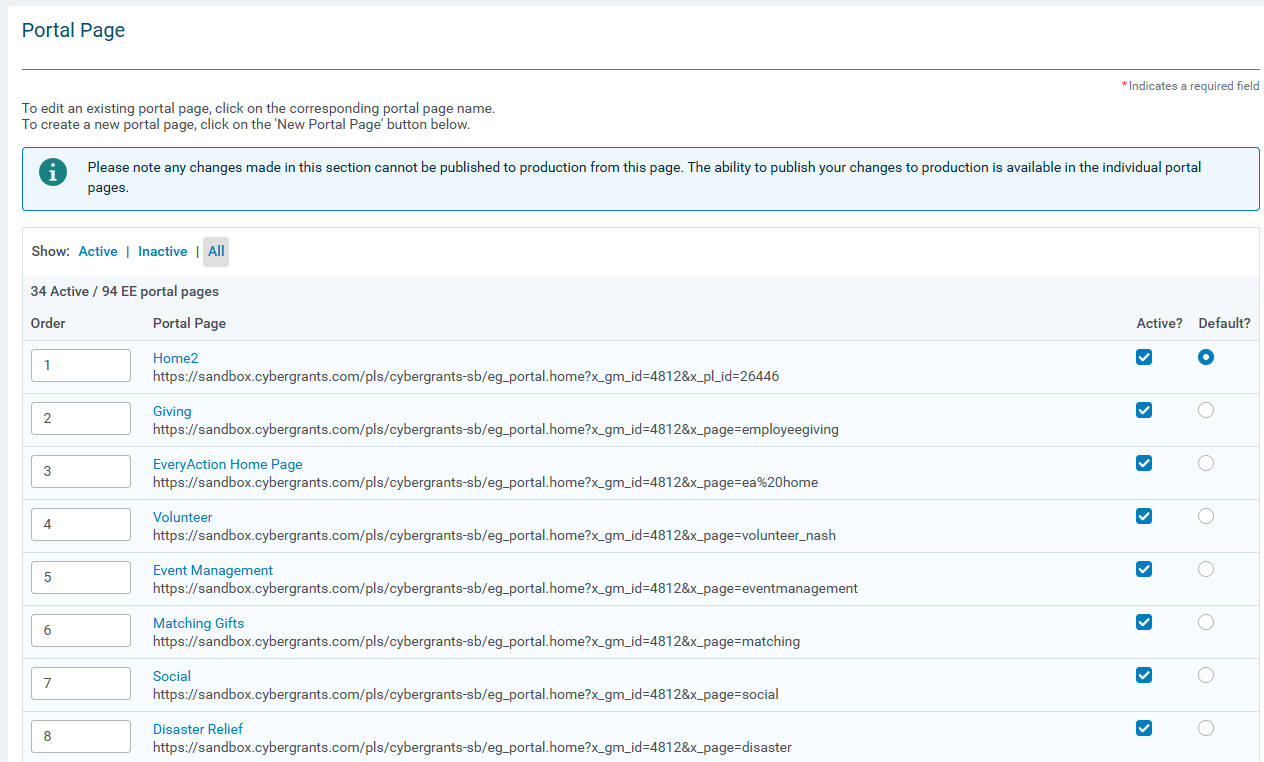
From the list of portal pages, select the hyperlink to choose the one where the link needs to be updated.
Step 6: Locate the Portlet to Configure
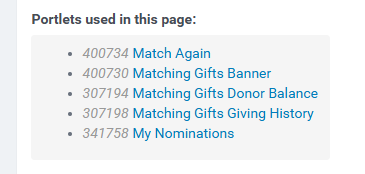
Within the portal page configuration, scroll down to the "Portlets used in this page" section. Click the name of the portlet where the link needs to be added or updated. The title of the portlet is usually the same as what is visible to the end-user.
Step 7: Update the Portlet's Link
Once in the portlet configuration screen, find the appropriate text field and identify the location for the link that needs to be updated. Links are noted as "<a href=''>……</a>".
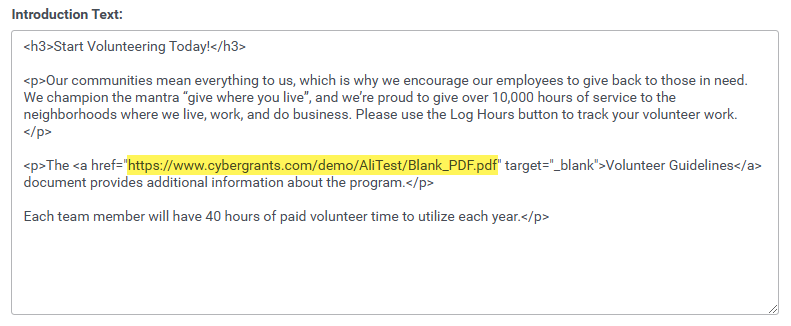
- Update the <a> Tag's href Attribute: The highlighted section in the image below is the actual location of the uploaded document. Find the HTML code where the <a> tag is located and update the href attribute to point to the URL of the uploaded document.
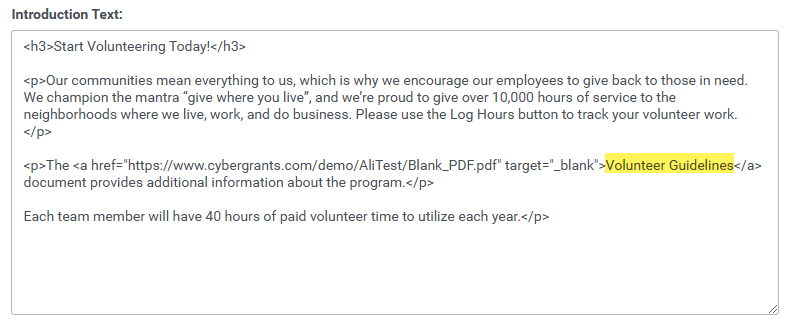
- Update Link Text: The highlighted section in the below image is the text that appears as the link to external users – feel free to update this text as well. Always be sure to leave the quotation marks, <, >, and other HTML symbols alone. Only change the text within the single quotes and the >< brackets as highlighted.
Step 8: Save and Publish the Changes
Click "Save" to submit your changes.
- If you wish to make any other text changes, feel free to do so, but be sure you are leaving the HTML alone or updating it accordingly. For guidance on using HTML, visit How do I use Basic HTML? If you need further assistance or if HTML does not appear to be working as expected, please submit a case to support for assistance.
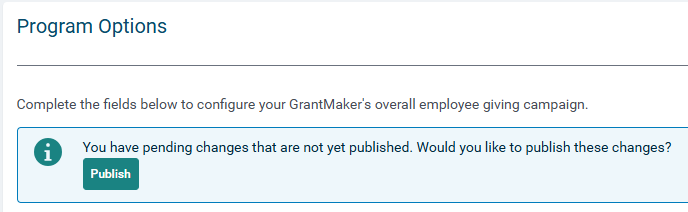
When prepared, if no other changes need to be made, proceed with publishing. Please note any changes made cannot be published to production from the portlet page. The ability to publish your changes to production is available in each proposal type's configuration workspace.
What else do you need help with?
Not what you're looking for? Navigate to Understanding How to Update a Document Link on a Portlet


