The "Manage Hosted Content" feature allows administrators with the necessary permissions to perform the following actions:
- View all files and folders for their account.
- Create new sub-folders, rename them.
- Upload new files, rename, & delete them–Each file is assigned a unique URL and shared for use in program configuration.
NOTE: Managed Hosted Content is available only in the production environment. To activate, add the “Ability to manage hosted content” permission to a user role.
Follow the instructions below to access and learn more about the tools available within this feature.
Step 1: Access Hosted Content
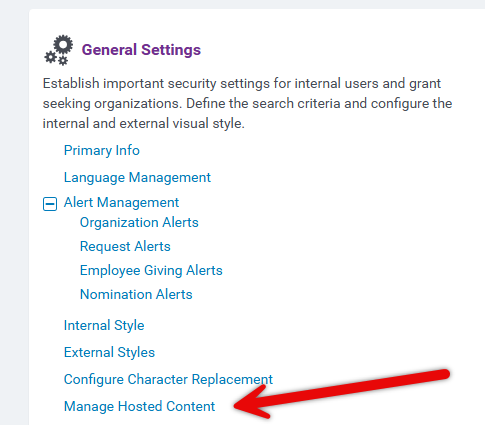
In the production environment, navigate to the Admin tab and access the "Manage Hosted Content" link under "General Settings."
Step 2: Locate a Folder
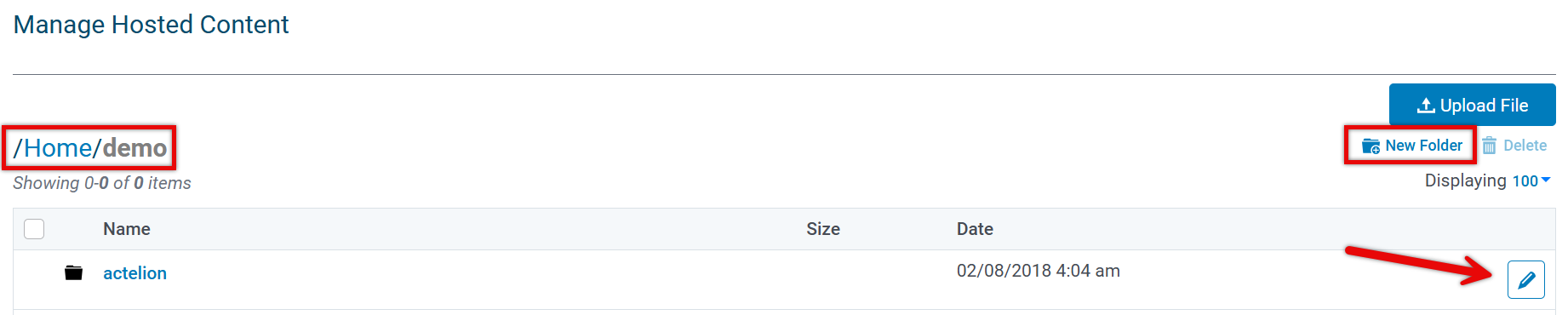
Access the appropriate folder/sub-folder (if applicable) from the list that appears. The pencil icon allows administrators to rename the hosted content folders (case sensitive).
Select the link in the top right corner of the page to add a new folder if needed.
Step 3: Manage Files
Administrators can view, copy the URL, download, rename, or delete existing files from the list, as well as upload new files.
- Files can be renamed or overwritten with newer versions. NOTE: Folder and file names are case sensitive.
- Files can be deleted, but not folders. NOTE: There are no backups for deleted files.
- There is some back-end auditing for create, edit, and delete actions.

Step 4: Upload a File
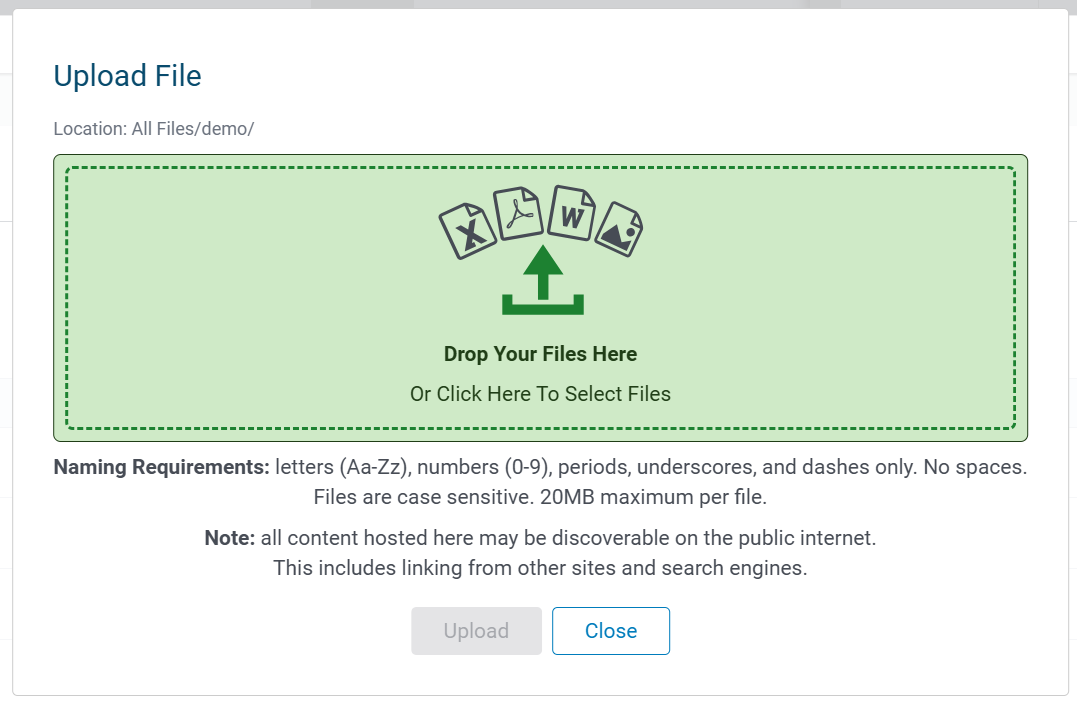
Upload a file by selecting the "Upload File" link in the top right corner. Ensure that you are in the correct file location before proceeding. NOTE: Uploaded files are virus scanned.
- Naming Requirements - letters (Aa-Zz), numbers (0-9), periods, underscores, and dashes only. No spaces.
- There is a 20MB max file size.
- All files are publicly available.
Once available in your account's hosted content, the file can be added to a portlet. Click here to learn about placing an uploaded document on a portlet.
What else do you need help with?
Not what you're looking for? Navigate to Understanding Content Configuration.


