To streamline gift approval and processing, administrators can use the Bulk Disposition functionality to update multiple records at a time.
Check out this video to learn more about using bulk dispositioning to approve and process gifts efficiently.
The following steps will guide you through the process of filtering eligible gifts and setting the appropriate disposition status.
Step 1: Access Bulk Disposition
- In the Production environment, navigate to the Admin tab.
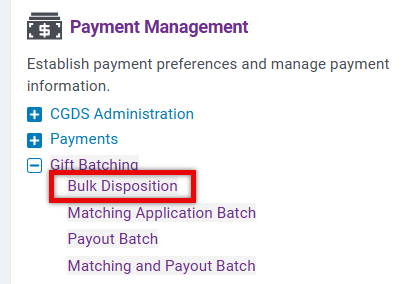
- Under Payment Management, select Bulk Disposition from the Gift Batching section.
Step 2: Filter Results
The following filters are available to define which records to include in your search:
- Donor Company
- Donor Employee Type
- Donor Role
- Gift Confirmation Date / Status
- Gift Creation Date
- Gift Date / Start Date
- Gift Discrepancy Status
- Gift Disposition
- Gift Fiscal Year
- Gift Owner
- Gift Program Type
- Gift Type
- Organization Country
- Total Organization Gift Amount
- Total Organization Match Amount
- Organization Disposition
- Organization Tax Status
- Organization Type
- ACH Eligible Payee
The most commonly used filters for gift processing are the following:
- Gift Disposition - Approved
- Gift Program Type - Applicable Proposal Types
- Organization Disposition - Approved
- Organization Tax Status - Eligible for Program Type
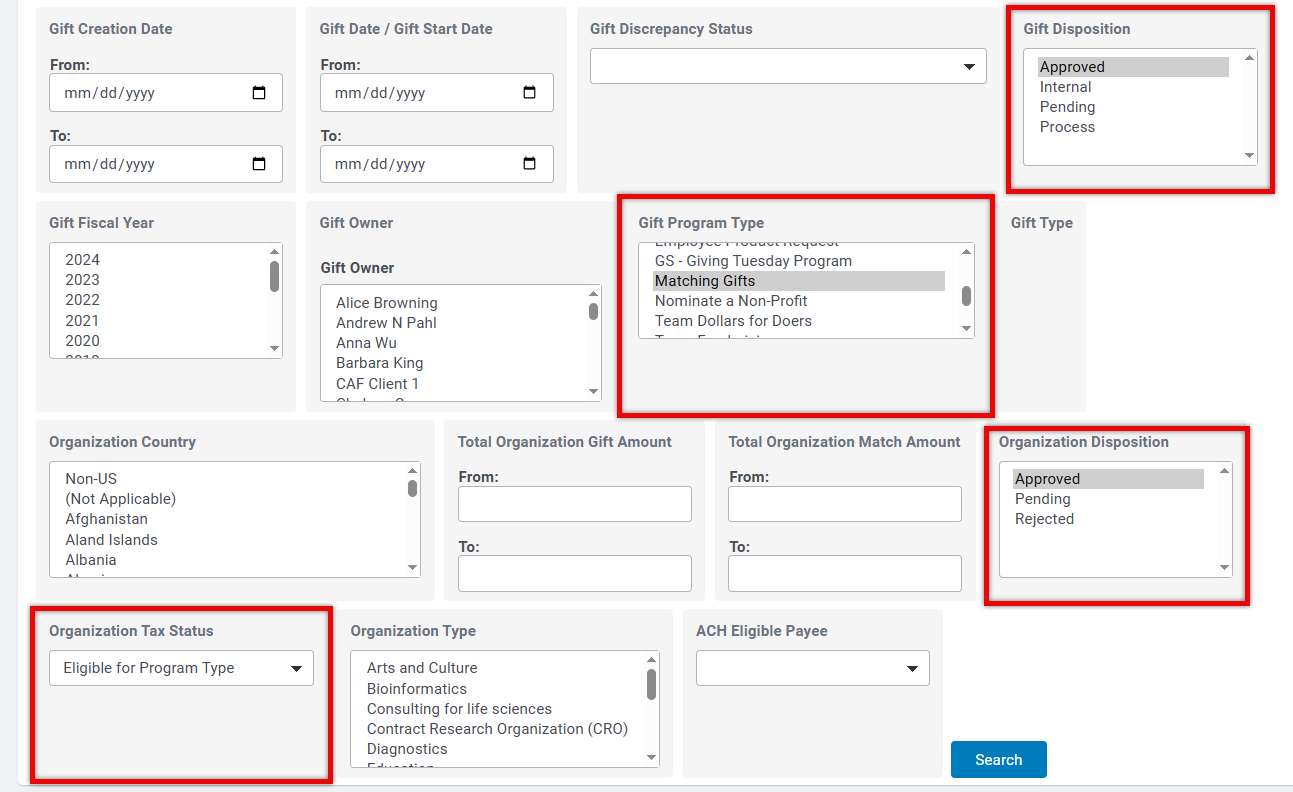
Only records that match the selected filters will appear in your results. To be approved and processed, gifts must include a gift or match amount greater than zero, and organizations must pass configured hygiene checks (valid tax status, complete required fields, and acceptable organization status). The summary table excludes totals for ineligible records.
Step 3: Set the Disposition Status
- Select Process under the option labeled: “Change Gifts matching below criteria to this disposition:”

Step 4: Run the Search
- Click Search.
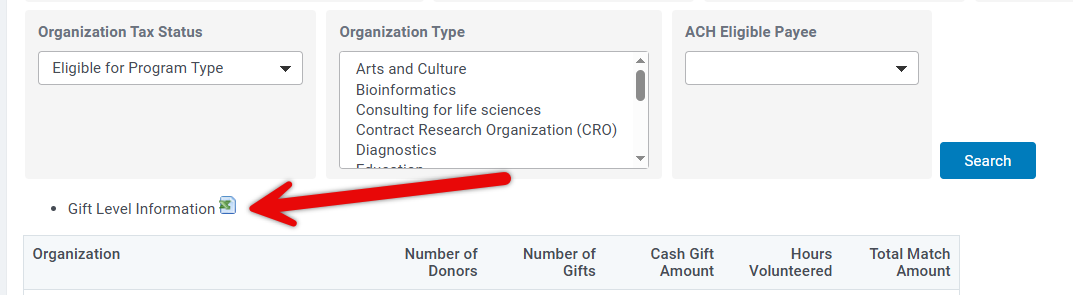
- Results appear at the organizational level.
- Export results to Excel using the available CSV options.
- If your results include more than 100 eligible organizations, a message will appear. Use the provided CSV link to download the full dataset of organizations or gifts.
Step 5: Review and apply the Disposition
- Review the records and, when prepared, click Update Gifts to Process (or Approve Gifts, depending on your earlier selection).
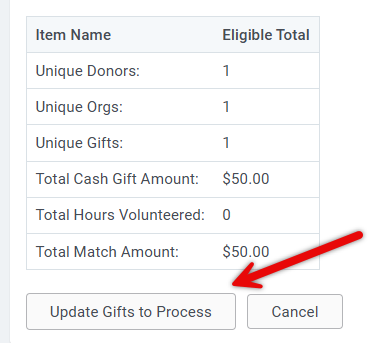
- The selected gifts for processing are then updated and ready to be included in gift batching.
What else do you need help with?


